
Calculate Distance Between Multiple Addresses in Excel
The Excel Distance Matrix Calculator builds a full grid of distances and travel times for every pair of addresses in one run, with a colour heat map so the shortest and longest routes stand out. Built for warehouse and territory planning.
If you need to calculate distance between multiple addresses in Excel, doing it one pair at a time is not a strategy. It is a Monday afternoon gone. The Excel Distance Matrix Calculator solves that by building a complete grid of distances and travel times for every address pair in one calculation. If you only need one pair at a time, a simpler distance calculator might be a better fit. But for three or more addresses, the matrix pays for itself immediately.
Imagine you manage deliveries or sales territories and need to know which customer is closest to a warehouse, or which warehouse is closest to a customer. Manually checking routes one by one is slow and error prone. The easiest solution is to calculate every combination at once and see all pairs in a single grid.
How the Excel Distance Matrix Calculator Works
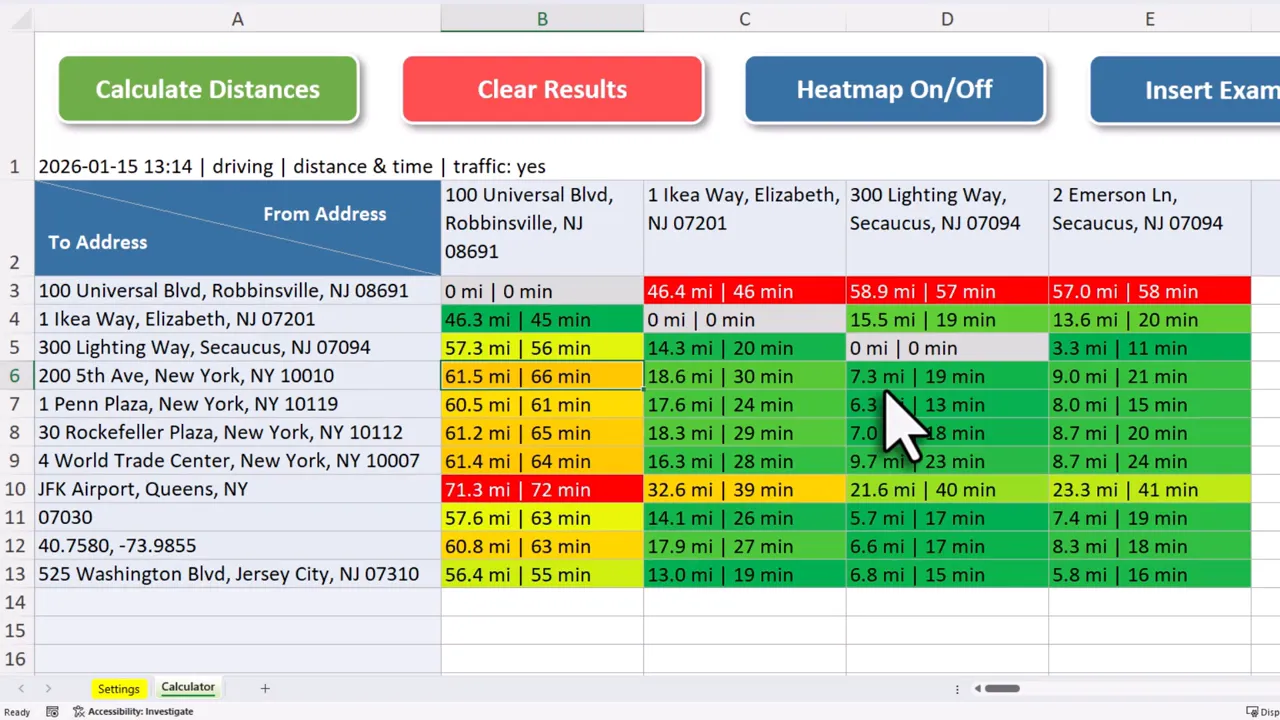
Enter your addresses into a simple spreadsheet, press one button, and the workbook returns a complete distance and travel time matrix for every pair. Each row represents an origin and each column represents a destination. Where they intersect, you see the distance and estimated travel time between that specific pair. This layout makes it trivial to compare any location to any other location at a glance.
Say you have 8 warehouses and 15 customer locations. That is 120 individual Google Maps lookups to check every pairing manually, or one button click with the distance matrix. The matrix does all 120 in a single run and lays them out in a grid you can scan, filter, or export.
Quick Visual Cues: Heat Map and Toggles
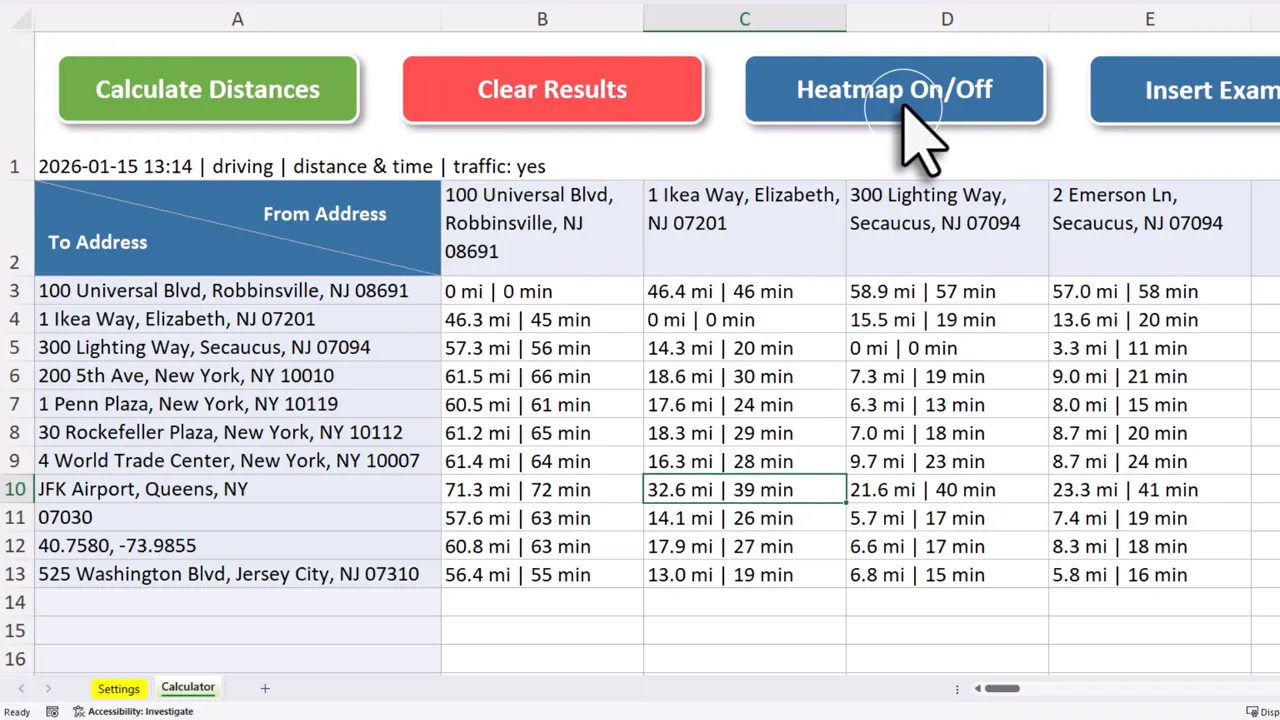
The matrix comes with a built-in color heat map so the shortest routes appear in green and the longest in red. A quick scan of the matrix immediately shows which warehouse is closest to the most customers, or which territory has the worst average distances. Turn the heat map on or off with a single toggle when you want raw numbers without color. (The heat map has a way of making obvious what the numbers quietly suggest.)
If you see an error after clicking Calculate, the most common cause is a missing or incorrect Google Maps API key. Double-check it in the Settings tab before running again.
Flexible Address Input
You do not need perfectly formatted addresses. The tool accepts inputs from all over the world, even mixed formats:
- Full or partial street addresses
- Landmarks and building names
- Postal codes
- GPS coordinates
This makes it easy to work with existing lists from CRMs, order systems, or spreadsheets without painful cleanup. If your address data is inconsistent, consider running it through the Excel Address Formatter first to standardize everything before calculating distances.
Settings You Actually Need
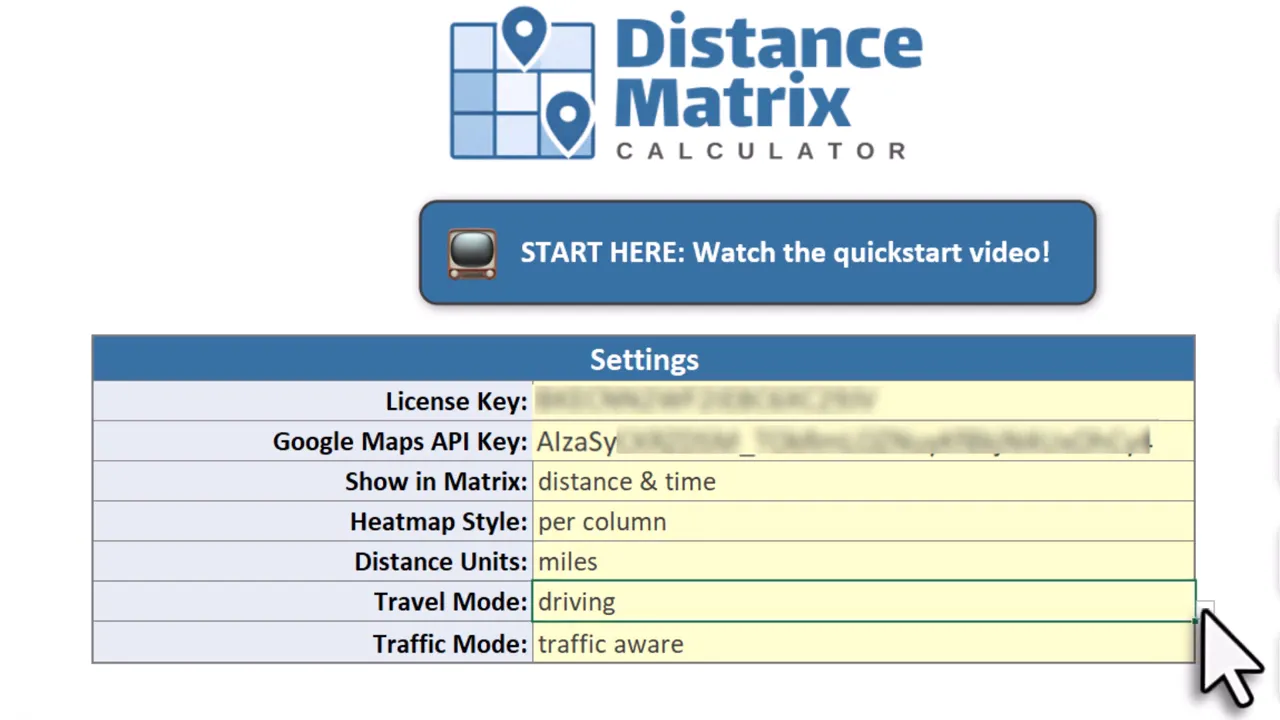
The matrix is configurable. You can choose to show:
- Distance only, time only, or both
- Units in miles or kilometers
- Travel mode: driving, walking, biking, or public transportation
- Traffic mode: static estimates or Traffic Aware current conditions
Google Maps API: Where the Accuracy Comes From (and What It Costs)
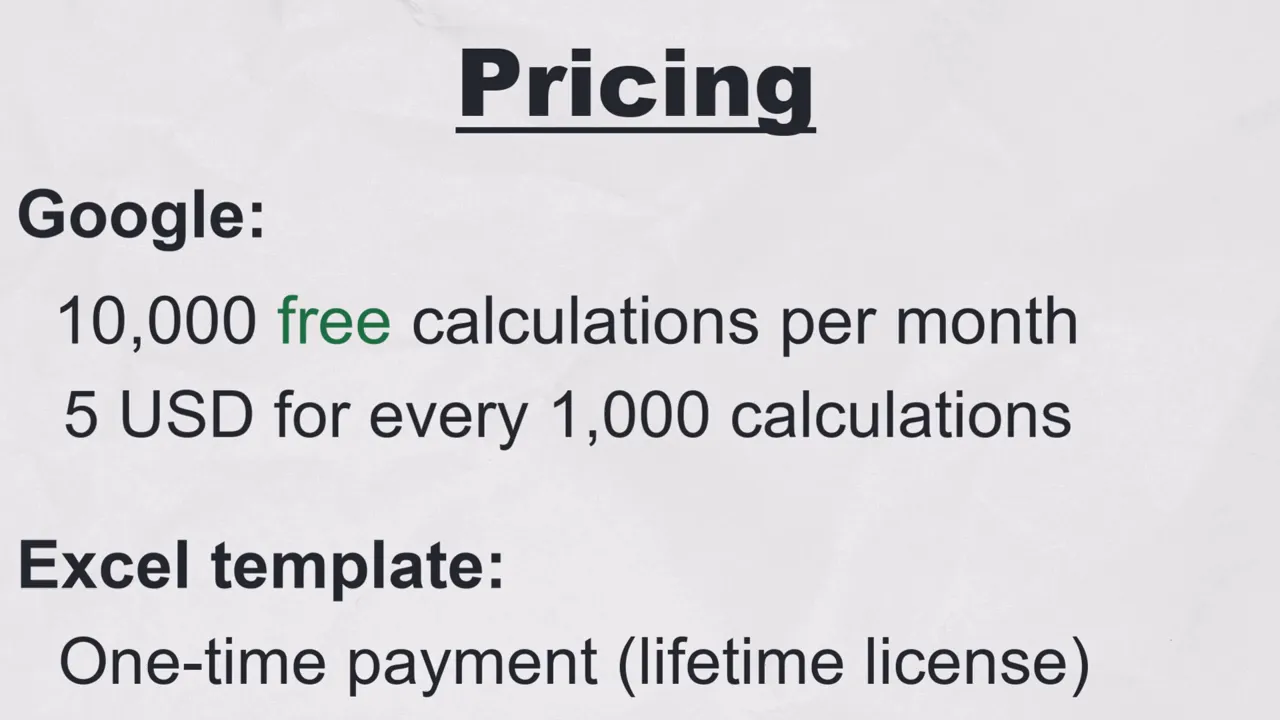
Distances and travel times come from Google Maps, so results are accurate and consistent with real-world routing. To use the calculator you need a Google Maps API key. Getting the API key takes only a few minutes and Google provides 10,000 free distance calculations per month. Beyond that, additional calculations cost about $5 per 1,000 requests.
Compatibility: Windows, macOS, Excel 2007 to 365
Setup is straightforward: paste or import addresses, configure travel mode and units, then run the calculation. The Excel Distance Matrix Calculator is a one-time purchase with no subscription, and it works across Excel 365 and older versions back to Excel 2007. This includes macOS, not just Windows. The web version of Excel is not supported because the template uses VBA macros.
After purchase you receive a welcome email with the download link, your license key, and a link to the getting started video, where I walk you through setup step by step. You can also jump straight to the getting started guide to follow along at your own pace.
Use Cases That Benefit Most
- Logistics and route planning: find which depot minimizes total delivery distance
- Sales territory optimization: assign customers to the nearest sales rep
- Service area analysis: understand which locations are within a given distance threshold
- Quickly finding the closest warehouse or office to a customer
If you are ready to stop wasting time on manual distance lookups, the distance matrix gives you the full picture in one run. Once you know which locations are closest, the Excel Route Planner can find the optimal visit order so you are not just driving between the nearest pairs but covering them all in the most efficient sequence.
Frequently Asked Questions
How many addresses can the Excel Distance Matrix Calculator handle?
The tool supports lists of addresses limited by Google Maps API response time and your monthly quota rather than by a hard row cap. Practically, matrices of up to 25 by 25 locations (625 pairs) work well in a single run. For larger sets, you can split the list into batches and combine the results.
Does the Excel Distance Matrix Calculator work on Mac?
Yes. The template works on both Windows and macOS in the desktop version of Excel. It does not work in browser-based or mobile Excel because it relies on VBA macros for the Google Maps integration.
Can I use GPS coordinates instead of street addresses?
Yes. The tool accepts GPS coordinates in decimal-degree format alongside street addresses, postal codes, and landmarks. You can mix input types in the same list and the calculator handles each pair independently.
This workflow replaces repetitive Google Maps lookups with a fast, repeatable spreadsheet process. If you need to calculate distance between multiple addresses frequently, a distance matrix in Excel saves time and reduces mistakes. Try it on a real dataset and you will quickly see where route or territory adjustments can deliver the biggest gains. The heat map makes the differences painfully obvious.
A single Excel matrix gives you full visibility of pairwise distances and travel times, configurable to your needs, and powered by reliable Google Maps data. It is like having a routing assistant inside your workbook.
Every address pair in one grid, with travel times and a heat map, straight from your own sheet.