
Convert GPS Coordinates to Addresses in Excel | Reverse Geocoding Template
Reverse Geocoding in Excel: Convert GPS Coordinates to Addresses
If you have a spreadsheet full of GPS coordinates and need readable addresses, reverse geocoding in Excel is the answer. Whether the data comes from a fleet tracker, a field survey, or a CSV export, manually looking up each coordinate is slow and error prone. With the right Excel template, you can convert GPS coordinates to addresses in bulk, get structured output including street, city, postal code, and country, and stay inside the spreadsheet the whole time.
How the Excel Reverse Geocoding Template Works
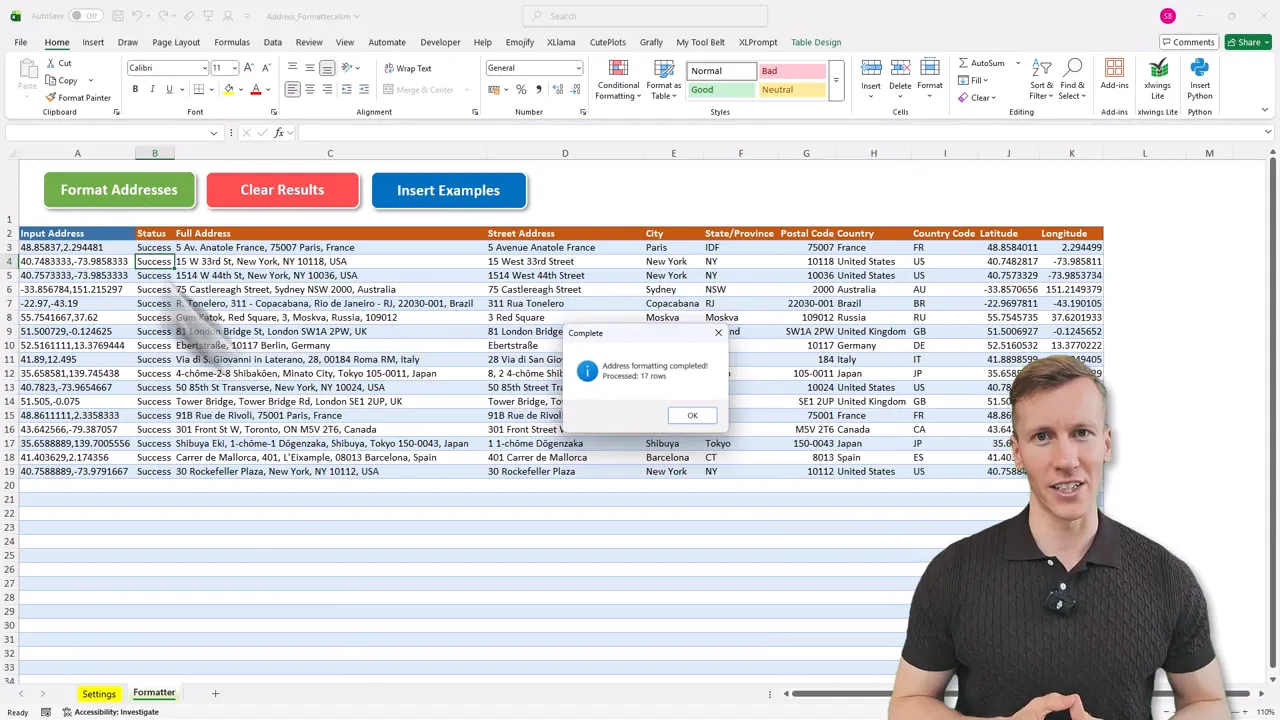
At its core, the method sends coordinates to the Google Maps API and returns formatted address data. The Excel Address Formatter template wraps that process in a friendly interface: paste coordinates into an input column, click a button, and the sheet fills out the full address plus the individual address components.
The template also works in the other direction. Paste a text address and the tool returns the corresponding latitude and longitude. That makes it a genuinely bidirectional geocoding tool: coordinates to addresses, addresses to coordinates, or a mixed list of both in one run. The same template also works as a general address cleaner and formatter for text-based address lists, so one tool handles everything.
What the Template Accepts
- Coordinate formats: Decimal degrees, DMS (degrees, minutes, seconds), and DDM (decimal degrees minutes) are all supported.
- Input styles: Single-column “lat,lon” entries or two separate columns for latitude and longitude.
- Outputs: Full address and separate fields for street, city, state or province, postal code, and country.
The CombineCoords Formula: Joining Separate Lat/Lon Columns
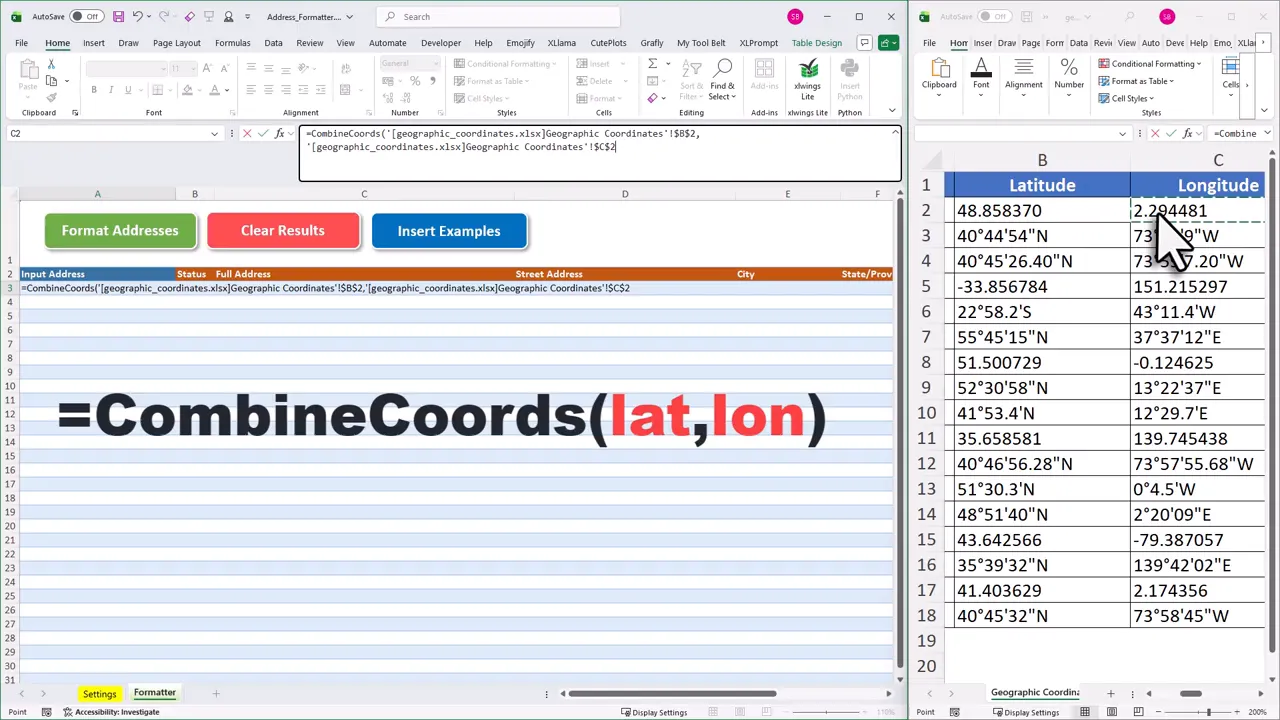
If your data comes in two columns, one for latitude and one for longitude, the template includes a built-in formula called =CombineCoords(lat, lon) that joins them into the single “lat,lon” string the input column expects.
Using it is straightforward. In the input column, type =CombineCoords( and then click the cell containing the latitude value, add a comma, click the longitude cell, and close the bracket. Before dragging the formula down the column to cover all rows, remove the dollar signs from the cell references to make them relative, otherwise every row will point to the same pair of cells. The formula works across workbooks too, so you can reference latitude and longitude columns in a separate sheet or file.
(If your data is already in a single column as “lat,lon” pairs, you can skip the formula entirely and paste directly into the input column.)
For the full step-by-step walkthrough of the CombineCoords formula and coordinate format handling, see the reverse geocoding guide in the docs.
Supported Input Formats
| Format | Example | Notes |
|---|---|---|
| Decimal degrees (DD) | 40.7128, -74.0060 | Most common format from GPS devices and APIs |
| Degrees, minutes, seconds (DMS) | 40°42’46″N, 74°0’21″W | Common in surveying and mapping software |
| Degrees decimal minutes (DDM) | 40°42.767’N, 74°0.36’W | Used in some marine and aviation contexts |
What the Output Looks Like
The template returns a structured row for each input coordinate. For example, input “48.8566, 2.3522” comes back as full address “Place du Parvis Notre-Dame, 75004 Paris, France”, with separate fields for street name, city (Paris), postal code (75004), country (France), and the original coordinates confirmed. Each row gets a status field too, so you can quickly filter for any lookups that returned no result.
Step-by-Step Setup and Use
You will need a Google Maps API key to query addresses. The API returns high-quality results and the template uses VBA macros, so you must use the desktop version of Excel on Windows or macOS.
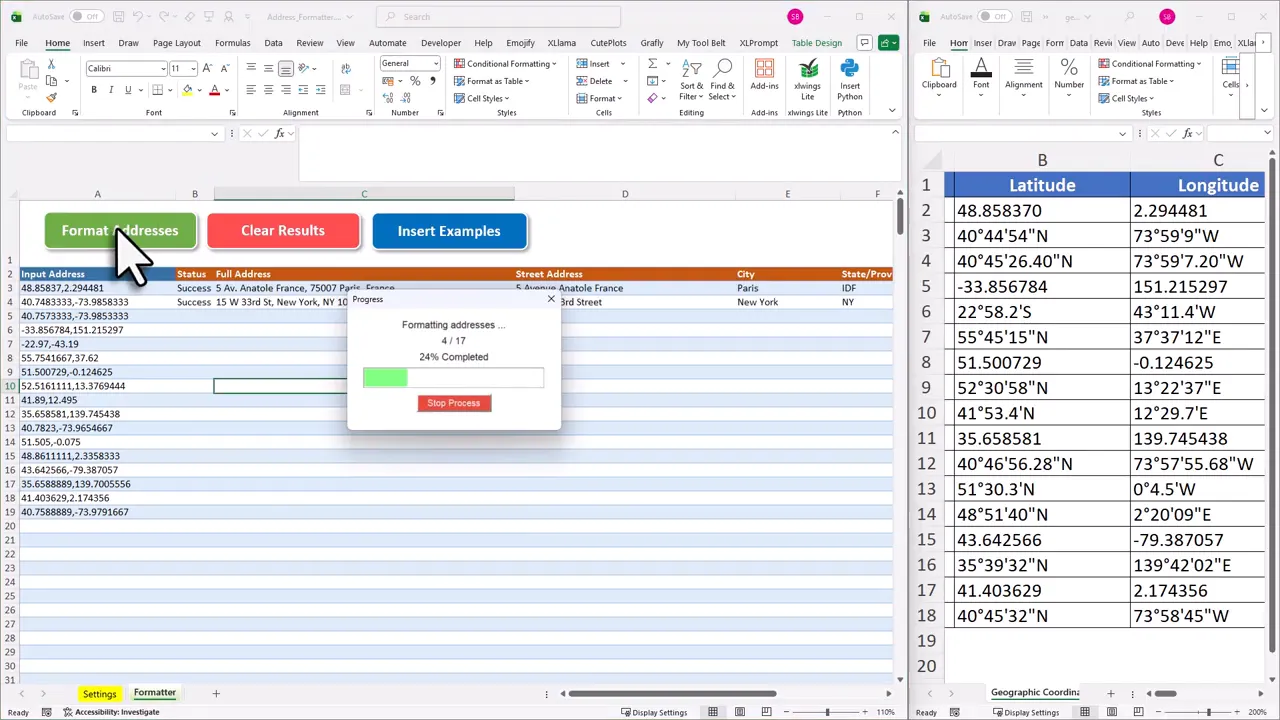
- Paste coordinates into the input column. Use
=CombineCoords(lat, lon)if your data is in two separate columns. - Click the “Format Addresses” button. The template will iterate over each row, call Google Maps, and populate address fields.
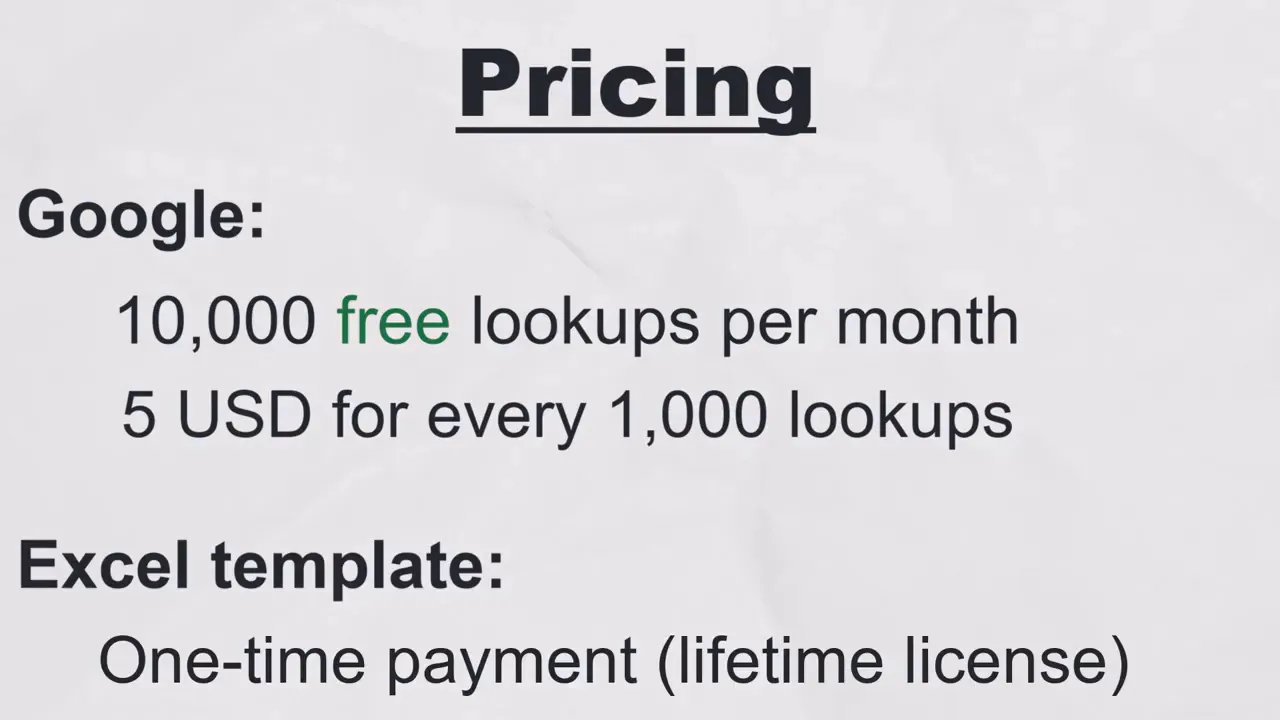
- Get your Google Maps API key and paste it into the template. Setup is free and quick. Google provides 10,000 free address lookups per month. If you exceed that, the current charge is about 5 US dollars per additional 1,000 requests. No subscription needed: the template itself is a one-time purchase with a lifetime license.
- After purchase you will receive a welcome email with the download link, your license key, and a link to the getting started video, where I walk you through every setup step. You can also go straight to the getting started guide and follow along at your own pace. The Excel file uses VBA macros, so the desktop version of Excel is required. It works on both Windows and macOS, but not in online or mobile Excel.
Why This Approach Works
Using Google Maps for reverse geocoding in Excel leverages one of the most accurate geocoding services available. Google Maps handles partial inputs, ambiguous place names, and non-standard formats far better than free alternatives like Nominatim or OpenStreetMap, which can struggle with anything other than a clean, complete address. The template handles input normalization, batching, and parsing of results into structured fields, making the output directly useful for reporting, mapping, or joining with other datasets.
Frequently Asked Questions
What coordinate formats does the Excel reverse geocoding template accept?
The template accepts decimal degrees (for example “40.7128, -74.0060”), degrees minutes seconds (DMS), and degrees decimal minutes (DDM). You can also use two separate columns for latitude and longitude and combine them with the built-in =CombineCoords(lat, lon) formula before running the lookup.
Does the reverse geocoding template work on a Mac?
Yes. The template works on both Windows and macOS as long as you are using the desktop version of Excel. It does not work in browser-based or mobile Excel because those versions do not support VBA macros.
How many GPS coordinates can I convert per month for free?
Google provides 10,000 free lookups per month with a standard API key. Beyond that, additional lookups cost about $5 per 1,000 requests. For most use cases, the free tier is more than enough, and the cost is predictable if you need to go higher.
Final Takeaway
If you need to turn GPS coordinates into usable addresses without leaving Excel, this method offers a fast, reliable path. With a Google Maps API key and the desktop Excel template, you can automate thousands of lookups and keep your data clean and structured. Once your addresses are in order, use the Excel Distance Calculator to measure driving distance between any two, or load the full list into the Excel Route Planner to find the most efficient visit order.
If a coordinate returns no result, first check for swapped latitude and longitude values. That is a very common copy-paste error. The template processes rows left to right, so latitude must come first. Swapping them puts your points in the ocean or somewhere equally implausible, which Google Maps will politely decline to geocode.
Reverse geocoding in Excel becomes a repeatable, low-effort part of your data toolkit once it is set up. The template is a one-time purchase with a lifetime license, so once you have it configured, it is ready for every project ahead.
—Sven
👉 Get the Excel Address Formatter here: Excel Address Formatter
