
How to Calculate Distance Between Two Locations in Excel
Excel Distance Calculator: How to Calculate Distance Between Two Locations in Excel
The Excel Distance Calculator lets you calculate the driving distance and travel time between two locations without leaving your spreadsheet. Type a start address and a destination, click one button, and the template queries Google Maps and returns the exact distance and estimated travel time. No browser switching, no manual lookups, no copy-pasting numbers back into Excel. If you just need a quick one-off lookup, the free online Distance Calculator handles up to 25 routes without any setup. But if you need to calculate distance between two locations in Excel repeatedly or across a large list of address pairs, the Excel version is the tool for it.
Why Use an Excel Distance Calculator?
Before we get into how it works, let us be clear about the problem this solves. Manually checking routes in a browser is slow and error prone when you have dozens or hundreds of address pairs. The Excel Distance Calculator automates that process inside the spreadsheet you already use for planning, budgeting, or reporting. Think of it as giving Excel a GPS brain.
Why Not Just Use Google Maps Directly?
Google Maps is a great tool for one or two lookups. For anything beyond that, the manual process gets tedious fast. To check a single pair in Google Maps, you open a browser, type the start address, type the destination, read the distance, switch back to Excel, type the number into the right cell, and repeat. For 20 address pairs that is 20 browser trips. For 50 pairs it becomes a real time sink.
Checking 30 delivery pairs in Google Maps manually takes roughly 5 to 8 minutes. With the Excel Distance Calculator, you paste the pairs, click calculate, and you are done in under a minute. The tool handles a list of start and destination pairs in one run, not just a single pair at a time, so the time savings scale with your list size. For smaller batches you can also use the free online calculator which works right in your browser with no API key required.
How It Works, in Plain English
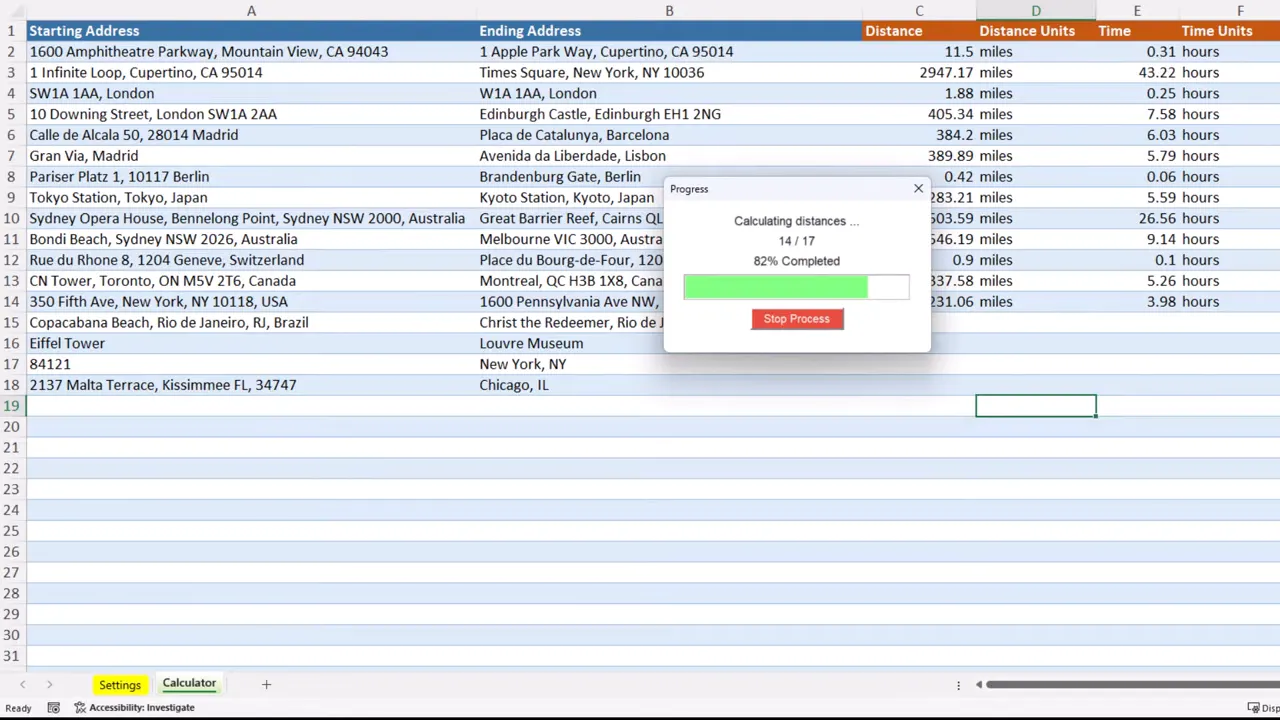
At its core the tool asks for a start location and a destination. You can type a full address, a building name, a landmark, a postal code, or even just a city. Click the calculate button and the template queries Google Maps to return the most accurate distance and travel time. It handles international addresses too, so you are not limited to one country.
Supported Travel Modes and Units
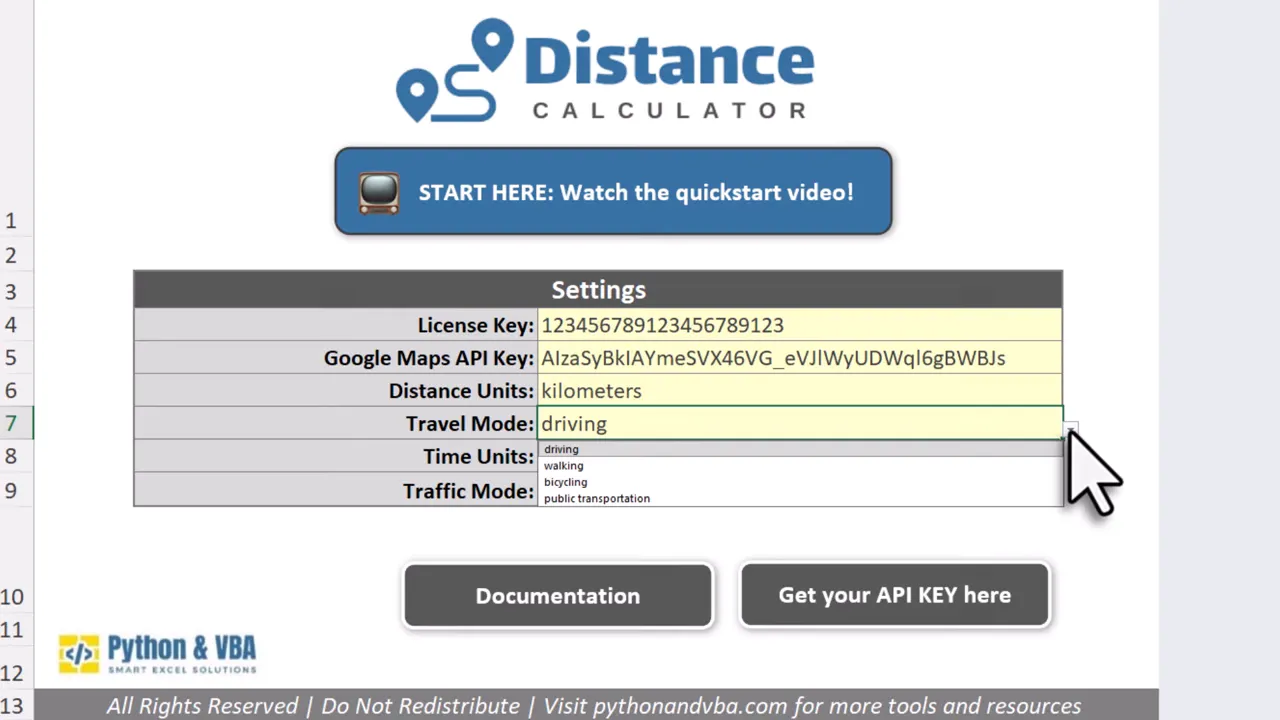
The Excel Distance Calculator is flexible. You can switch distance units between miles and kilometres, and choose the travel mode: driving, walking, biking, or public transit. You can also choose whether travel time is shown in hours or minutes, depending on how you prefer to read results.
Live Traffic and Real-Time Data
For driving routes you can optionally factor in current traffic. Because the template relies on live Google Maps data, the times and routes reflect the latest conditions. That makes the Excel Distance Calculator ideal for planning during rush hour or when precise ETA matters.
What You Need: Google Maps API Key and Desktop Excel
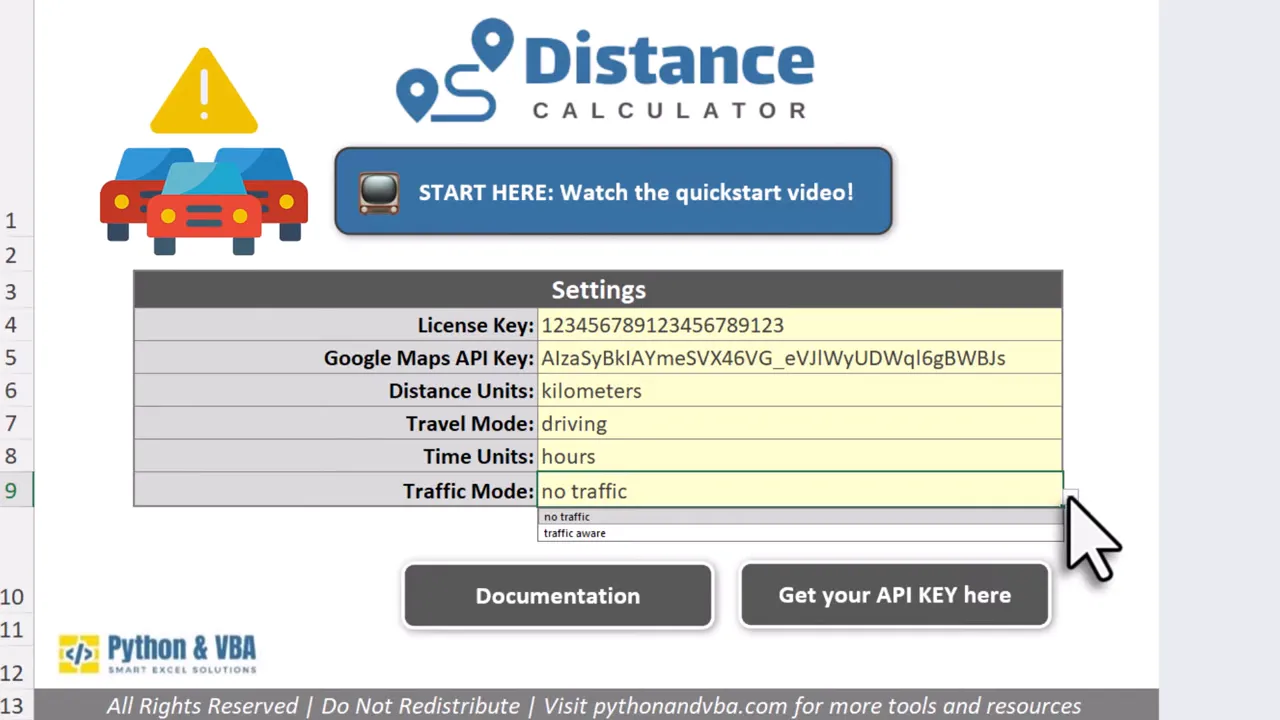
To make the Google Maps lookups work you will need a Google Maps API key. Setting up the key takes only a couple of minutes and is free to start. Google provides 10,000 distance searches per month at no charge. If you exceed that, billing is simple: roughly 5 dollars for each additional 1,000 requests. Most users will find the free tier ample for regular use.
If your address data is inconsistent or sourced from a CRM, consider running it through the Excel Address Formatter first. Cleaner input means more accurate distance results.
Compatibility
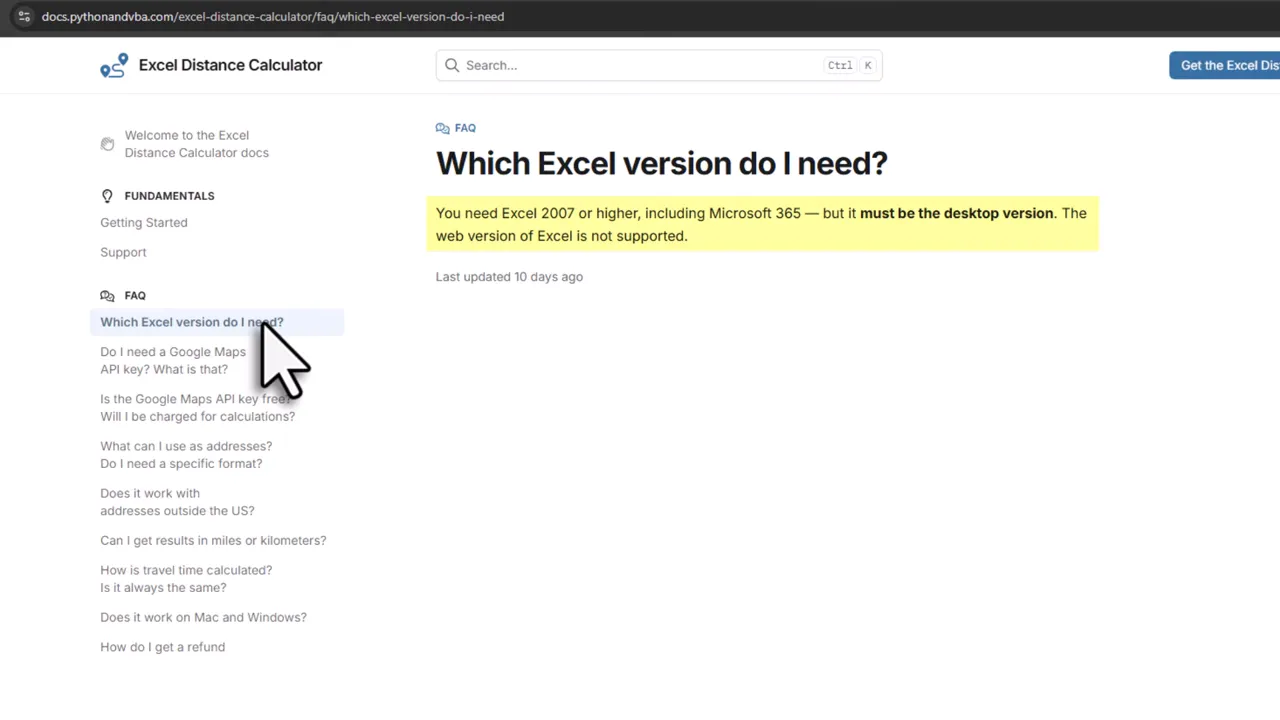
The template runs in the desktop version of Excel. That includes Excel 365 and older versions back to Excel 2007. It works on macOS as well as Windows. That includes macOS: most distance tools are Windows-only, so this is worth noting. The web version of Excel and mobile Excel are not supported because the template uses VBA macros.
Purchase Once, Use Forever. No Subscription
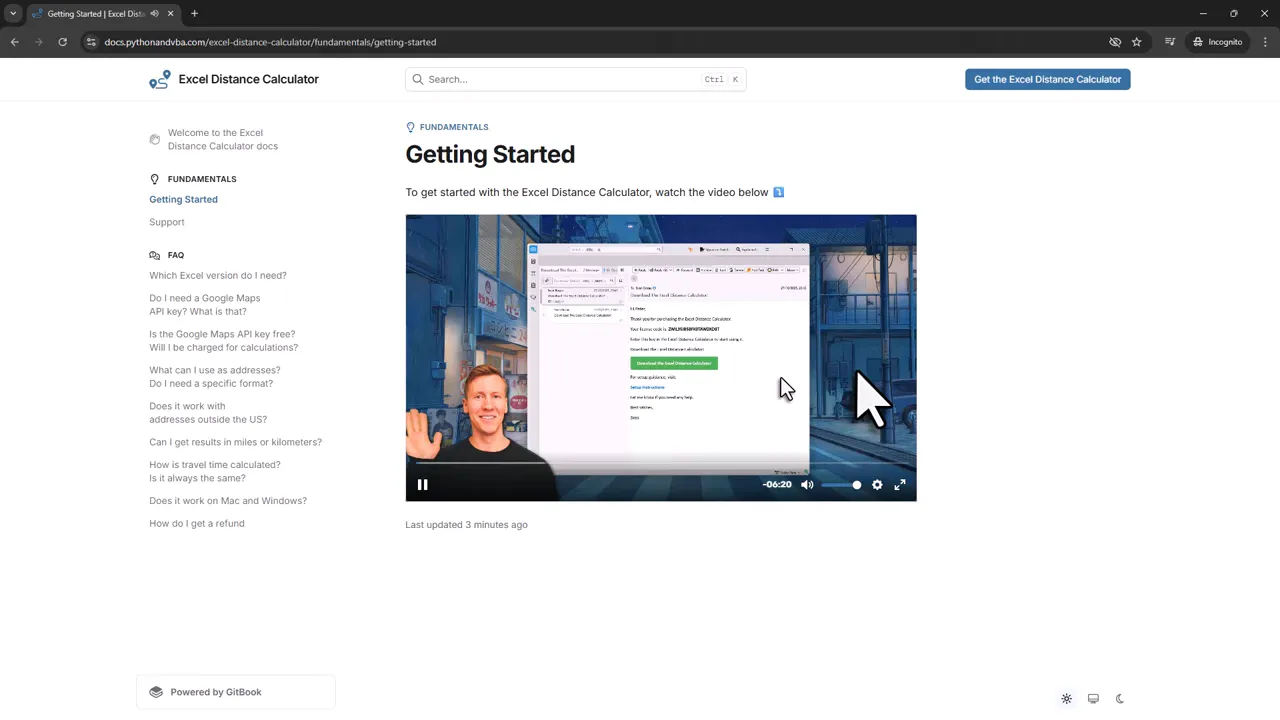
The Excel Distance Calculator is a one-time purchase. Buy it once and you can use it forever. No subscription, no recurring fees. After purchase you will receive a welcome email with the download link, your license key, and a link to the getting started video, where I walk you through setup step by step. This includes where to paste your Google Maps API key and how to start bulk calculations. You can also jump straight to the getting started guide to follow along at your own pace.
Once distances are calculated, many users move on to route optimization. The Excel Route Planner takes a list of stops and finds the shortest visit order using the same Google Maps data.
Quick Setup Steps
- Open the template in desktop Excel.
- Paste your Google Maps API key into the settings area.
- Enter start and destination values or import a list of address pairs.
- Choose units, travel mode, and whether to factor in live traffic.
- Press the calculate button and let the template fetch results from Google.
Who Uses the Excel Distance Calculator (and How)
- Logistics and delivery planning: automate route distances and ETAs for many stops.
- Sales route planning: estimate travel times for customer visits across a territory.
- Cost modeling: combine distances with fuel cost per mile or kilometre to estimate expenses.
- Field service scheduling: calculate technician travel time between job sites to reduce idle time.
If your list grows to the point where you need every location compared against every other, the Excel Distance Matrix Calculator builds that full grid in one calculation. And once you have found the closest locations, the Excel Route Planner can find the optimal visit order.
Common Issues and Fixes
A few things that trip people up during setup:
- API key not working: Make sure the Google Maps Distance Matrix API is enabled in your Google Cloud Console project. Having a key is not enough; the specific API needs to be turned on.
- No results for an address: Try adding a country name or postal code. Ambiguous inputs like a street name without a city often fail to resolve. More context helps Google Maps find the right location.
- Quota exceeded error: Check your usage dashboard in Google Cloud Console. If you have hit the free tier limit, you will need to enable billing to continue. The rate beyond the free tier is about $5 per 1,000 requests.
Frequently Asked Questions
Can Excel calculate driving distance between two addresses?
Yes. The Excel Distance Calculator uses the Google Maps API to return driving distance and travel time for any two addresses you enter. You can also switch to walking, cycling, or public transit if driving is not what you need.
Is the Excel Distance Calculator free?
The template itself is a one-time purchase with no subscription. Google provides 10,000 free calculations per month with a standard API key. Most users stay within that limit. If you go beyond it, the cost is about $5 per 1,000 additional calculations.
Does this work on a Mac?
Yes. The template works on both Windows and macOS in the desktop version of Excel. It does not work in web-based or mobile Excel.
Can I try calculating distances before buying?
Yes. The free online Distance Calculator lets you calculate up to 25 routes at once, 3 times per day, with no setup or API key needed. It uses the same Google Maps data as the Excel version. If you need unlimited calculations or want everything inside your spreadsheet, the Excel Distance Calculator is the next step.
Now that you understand how it works, give the Excel Distance Calculator a try. It turns a repetitive task into a one-click operation and keeps everything where you probably do your work already: in Excel. A small setup up front can save you hours of copying and pasting between apps. Consider it Excel with a built-in compass (and slightly less attitude than a real compass).
Happy routing, and may your spreadsheets be both accurate and slightly less boring.
—Sven
👉 Get the Excel Distance Calculator here: Excel Distance Calculator
