
How to Sync Excel to Google Sheets (no coding required)
Introduction: Exporting Excel data to Google Sheets
Imagine you are juggling a local Excel file and a cloud Google Sheet for a project. Every time you update Excel you find yourself copying and pasting like it is 2005. What if you could export Excel to Google Sheets with one click and keep everything in sync without writing a single line of code? That is exactly what we will build together, step by step.
What this solution does and why it helps
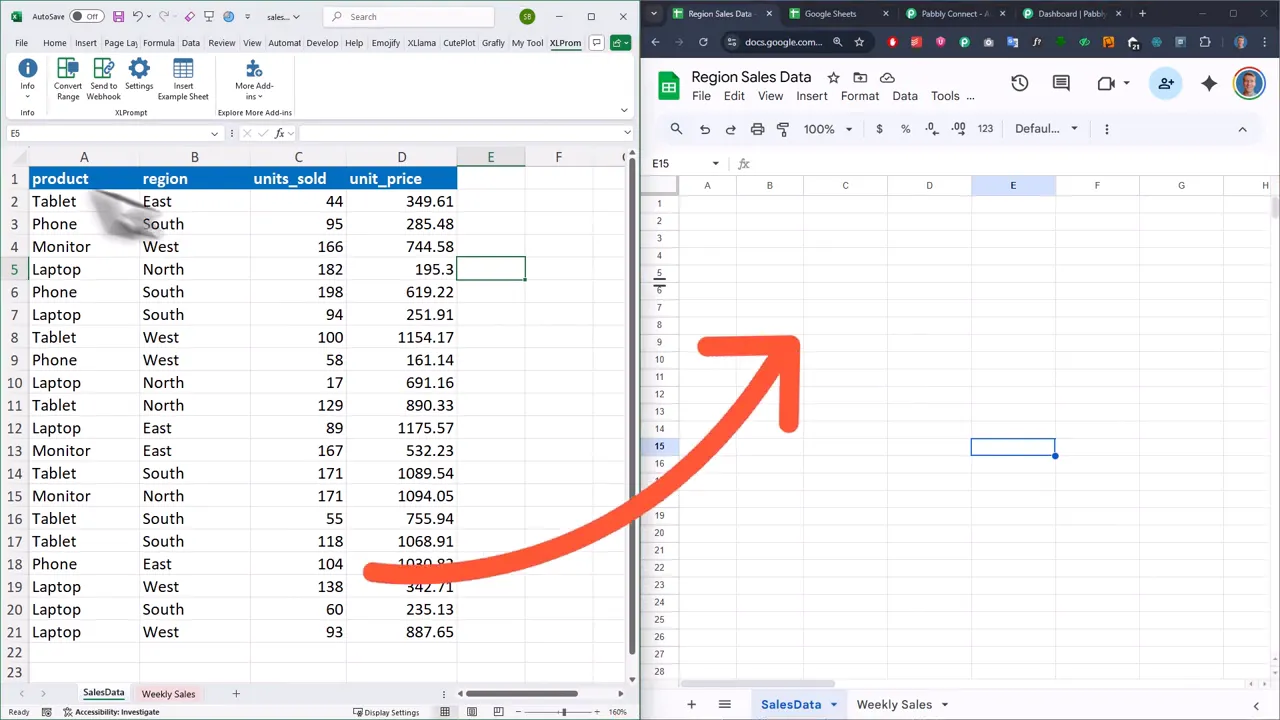
This method sends cell values from a local Excel workbook to a Google Sheets workbook using a simple workflow. You stay in Excel, select a range, click a button, and the data appears in Google Sheets. It is ideal if you want Google Sheets to act as a cloud database for an app, dashboard, or any web workflow. Remember, this approach only transfers cell values – not formulas, shapes, or formatting – but it will not overwrite existing Google Sheets formatting either.
Overview – the pieces you need
- My Excel add-in called XLPrompt to send the selected range to a webhook
- A no-code automation platform to accept the webhook and send data to Google Sheets – I use Pabbly Connect, but tools like Zapier, make.com or n8n will work
- A Google Sheets workbook where the data will land
Step 1 – Prepare the Google Sheet
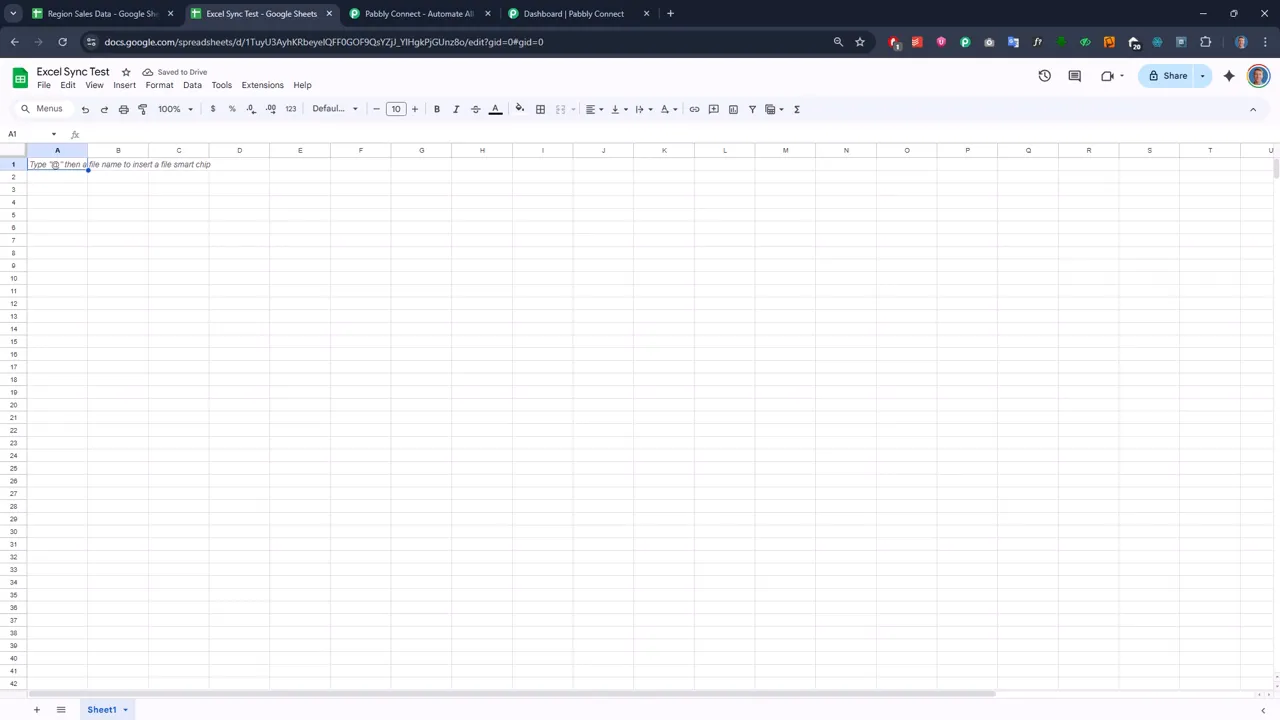
Create a new Google Sheet. I named mine Excel Sync Test and added two sheets with names that match the Excel workbook sheets – Sales Data and Weekly Sales. Matching names makes the mapping easier, and you can also create sheets dynamically if you want to get fancier later.
Step 2 – Build the automation workflow
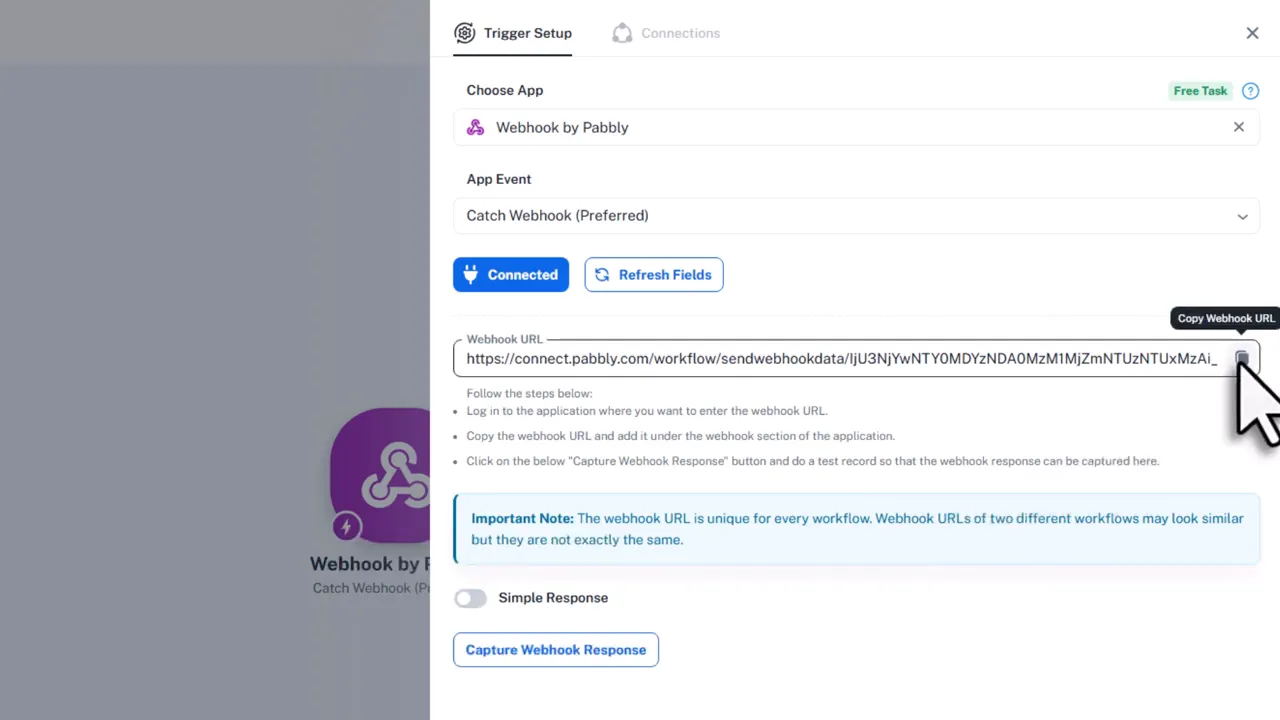
Now that we understand the problem, let’s explore the automation. In your no-code tool create a new workflow. The trigger will be a webhook that listens for incoming POSTs from Excel. Copy the webhook URL to your clipboard – the automation platform is now waiting for data.
Step 3 – Configure XLPrompt in Excel
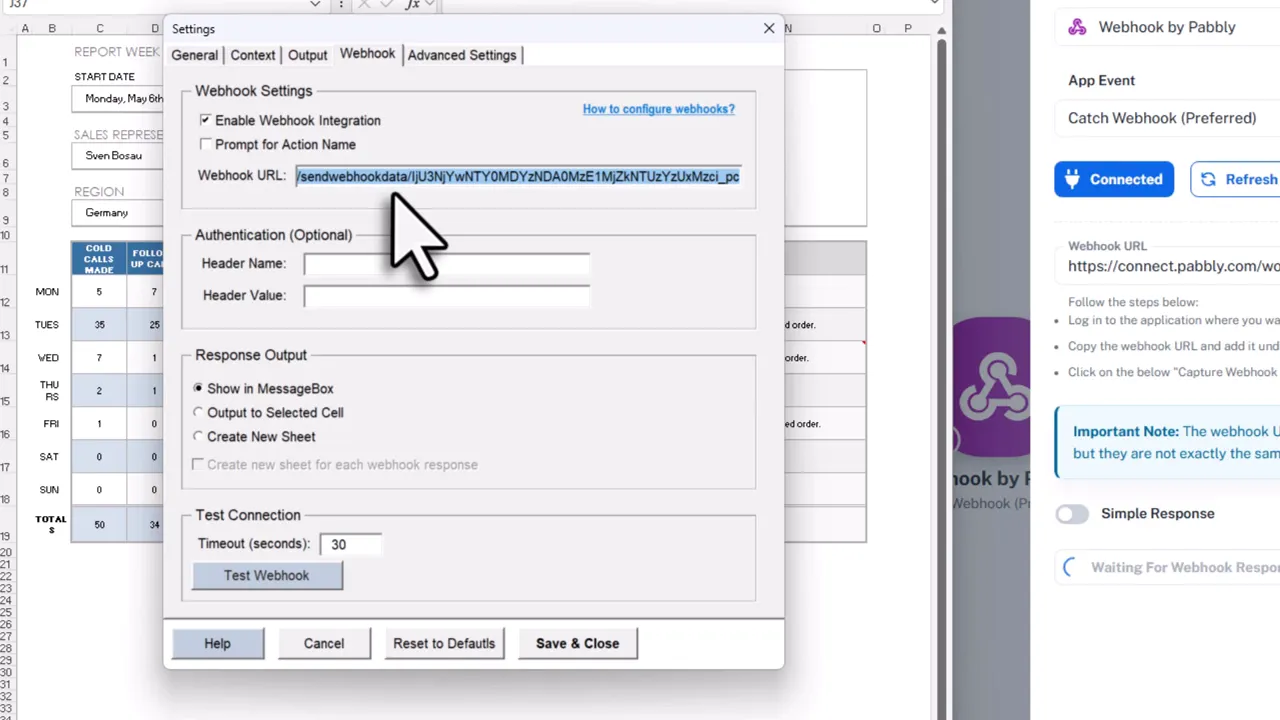
In Excel you will see the XLPrompt ribbon once installed. Open Settings, go to the Webhook tab, enable the Webhook integration and paste the webhook URL you copied. In General settings choose the array output format – that is exactly what the automation platform expects. Also enable metadata like the worksheet name and range address so the workflow can map data dynamically.
Step 4 – Receive and clean the data
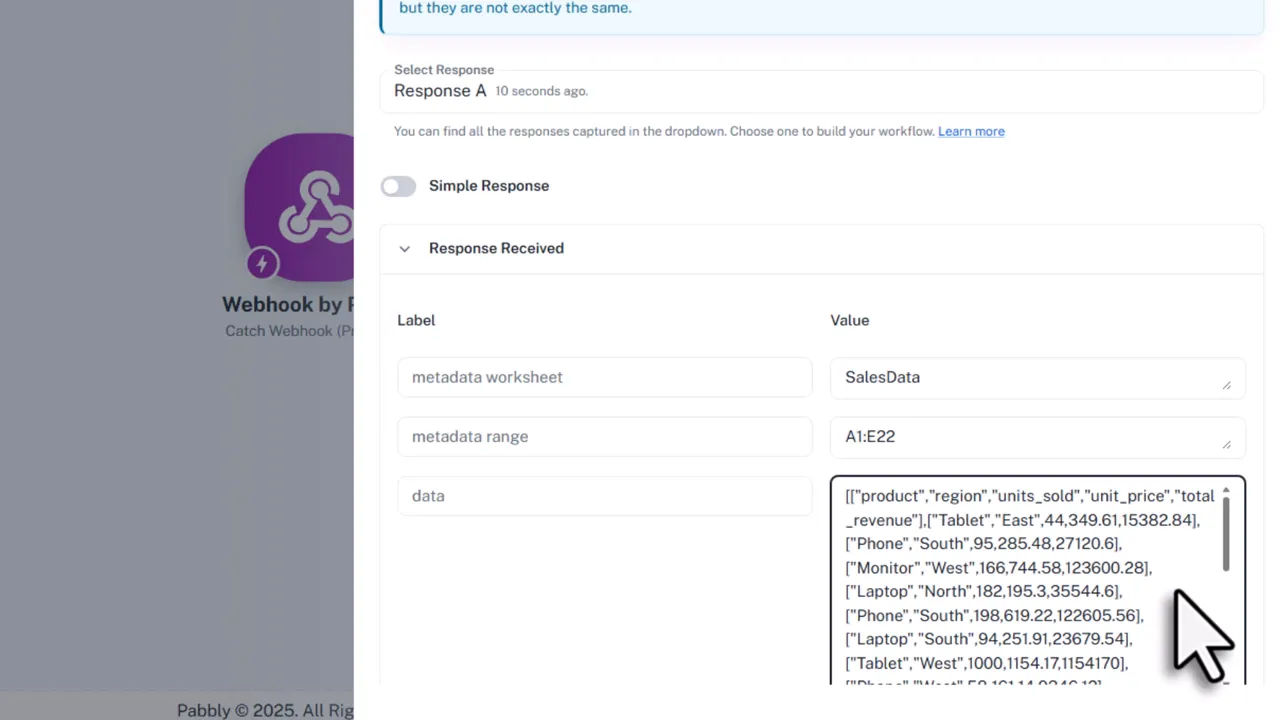
Send a test from Excel by selecting the range and clicking Send to Webhook. The automation should show the payload with metadata and the raw Excel data. One small caveat – the Excel output starts and ends with double square brackets which Google Sheets does not accept as-is. Instead of running code, use the platform’s Text Formatter to Replace Text twice – first replace double opening brackets with a single, then replace double closing brackets with a single. This workaround keeps the process compatible with free plans.
Step 5 – Push to Google Sheets
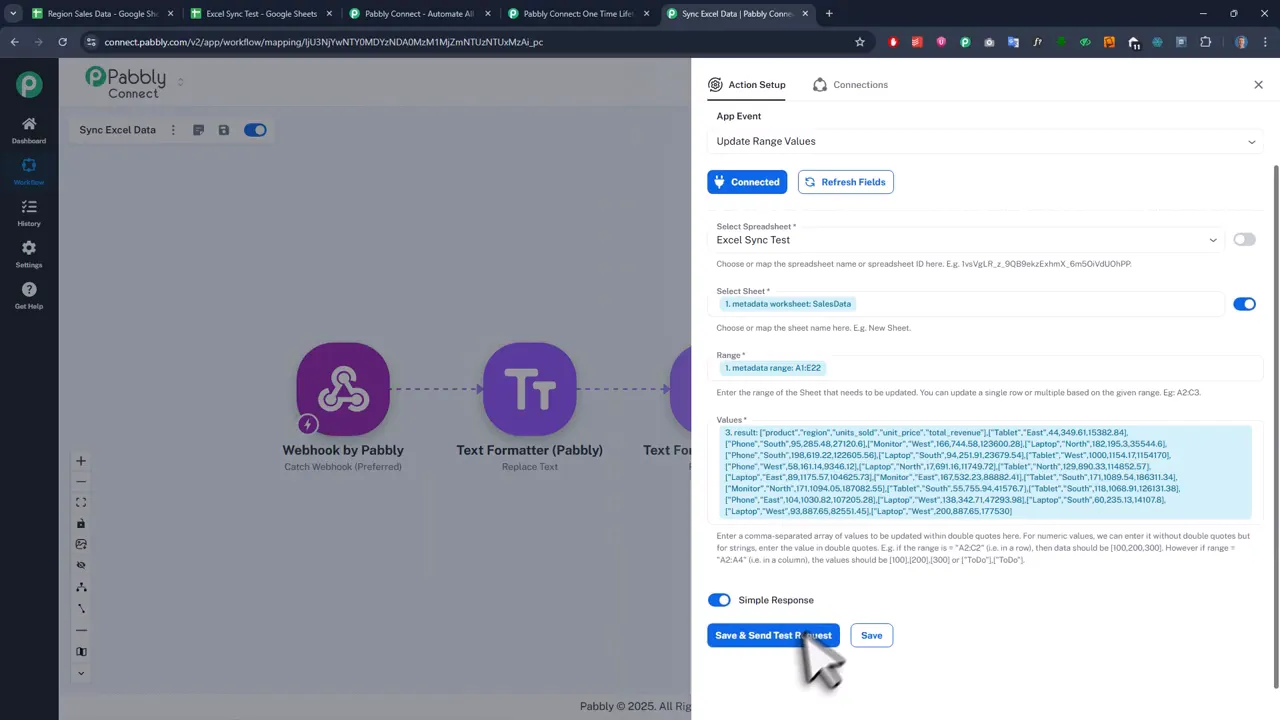
Add a Google Sheets action – Update Range Values. Connect your Google account, select the spreadsheet, and map the sheet name and the range using the metadata you sent from Excel. For the values field use the cleaned output from the last Text Formatter step. Save and run a test – if there are no errors your Excel data will appear in Google Sheets.
Optional – return a success message to Excel
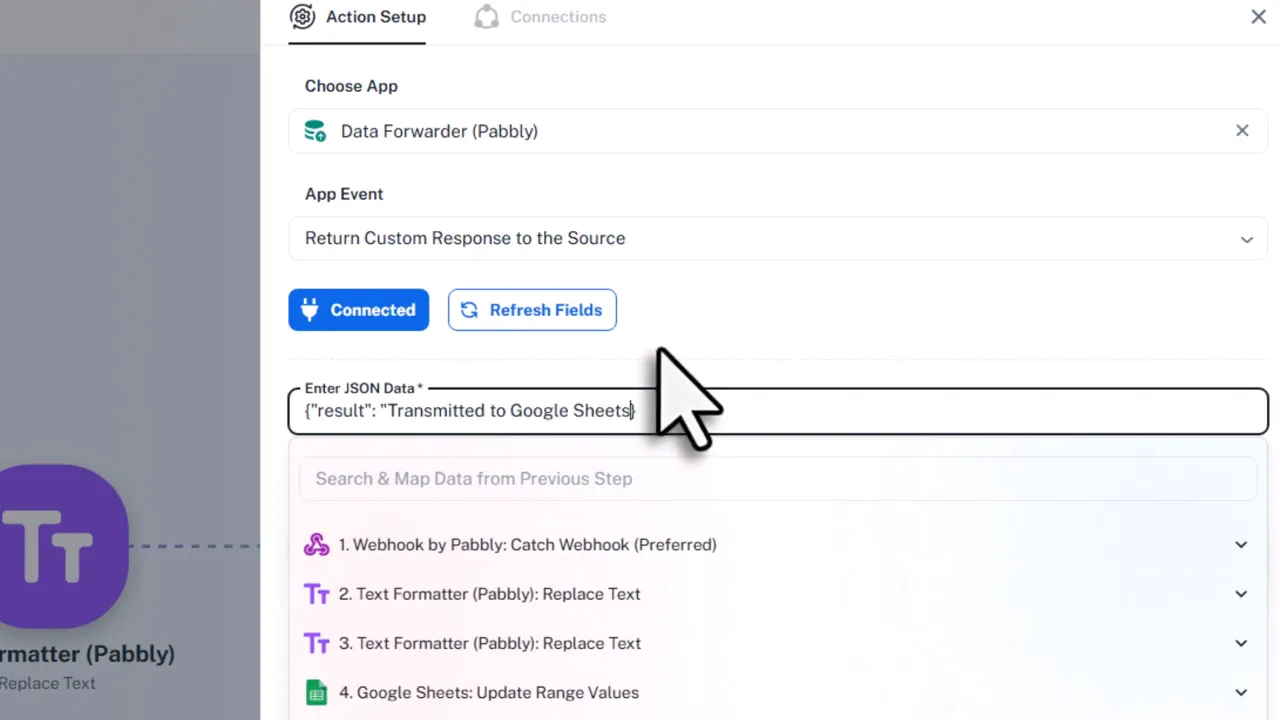
If you want Excel to receive a confirmation, add a final step that returns a custom JSON response to the source. For example set Result – Transmitted to Google Sheets. When you send from Excel you will then get the success message back in the add-in.
Important limitations and tips
- Only cell values are transferred. Formulas, formatting, shapes and conditional formatting will not move over.
- Existing formatting in Google Sheets is preserved. Column widths and colors stay intact.
- You can map sheet names and ranges dynamically using metadata. You can also create new sheets on the fly if your automation platform supports it.
- You are free to use any automation tool. Public Connect works well and offers lifetime plans, but Zapier, make.com and n8n will work too.
Wrap up
Export Excel to Google Sheets in one click by combining an Excel add-in, XLPrompt, with a simple webhook workflow (Pabbly Connect). It turns local spreadsheets into cloud-ready data sources with minimal setup and no coding. Think of it as putting a little conveyor belt between Excel and Google Sheets – your data glides across without manual lifting. Try it out, and once you are comfortable you can extend the same pattern to send emails, post Slack messages, or trigger more complex flows.
Happy syncing, and may your copy and paste days be behind you. —Sven
