
Turn an Excel Table Into an Interactive HTML Report With TablePop
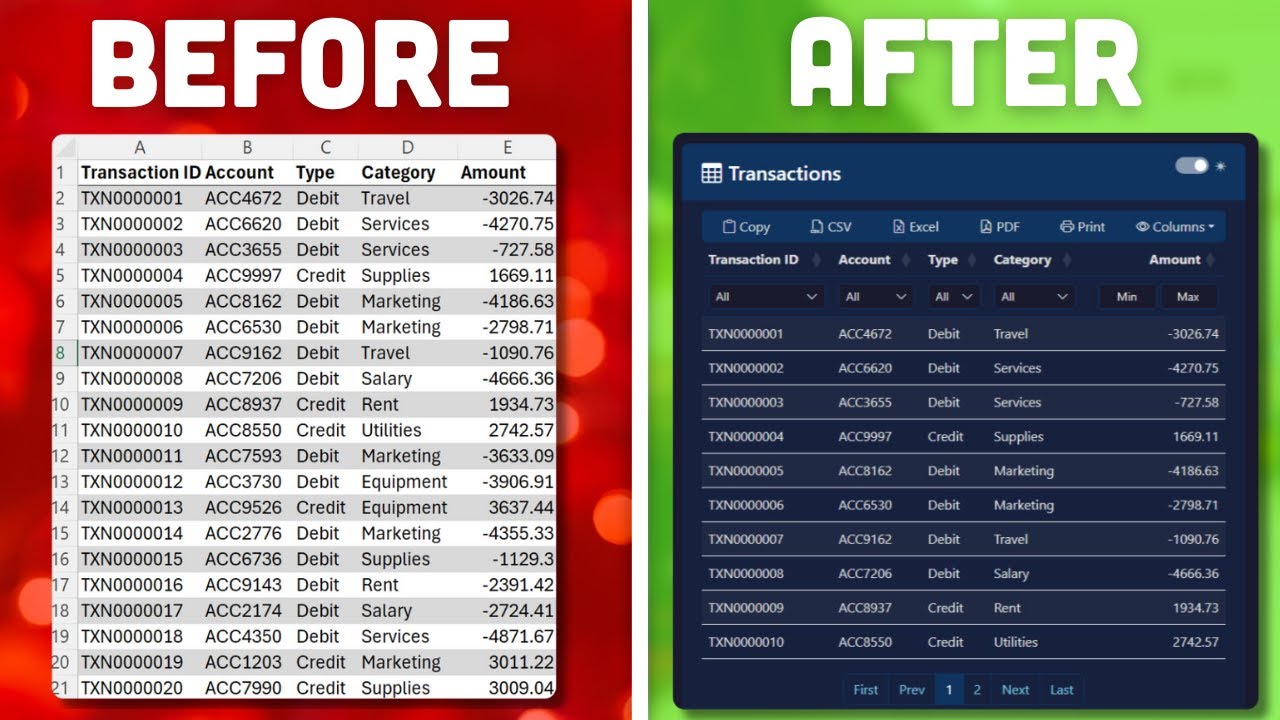
TablePop Classic exports an Excel table as one interactive HTML file with search, filters, column toggles and CSV, Excel and PDF export. The file opens in any browser and is easy to email. The current TablePop Cloud publishes the same kind of table as a live web page with a link instead of a file.
Two versions
TablePop exists in two versions. This post and the video show TablePop Classic, a downloadable .xlam add-in for desktop Excel that exports a table to an HTML file you share or upload yourself. TablePop Cloud is the current version and publishes the table as a live page instead.
TablePop Cloud comes from Microsoft Marketplace and runs in Excel on Windows, Mac and the web. It gives you a link and an embed code, and the page updates from Excel in one click. Classic keeps working for people who have it; the TablePop Classic page explains the differences.
When an HTML file helps
An HTML export suits a snapshot of data for people who should read it, not edit it: clients, colleagues or managers. They get search and filters in the browser instead of scrolling a spreadsheet, and there is no workbook version to keep in sync.
- Faster navigation: built-in filters and search mean readers find what they need without scrolling.
- Small files: a 9-column, 1,000-row example gives an HTML file of about 140 KB, easy to attach to an email.
- Offline and private: the file runs locally in the browser, so no data is uploaded anywhere.
If the table changes often and readers should always see the latest version, a published page works better than a file. That is what TablePop Cloud does, and with Classic you can get close by putting the exported file online as a live website.
Export a table
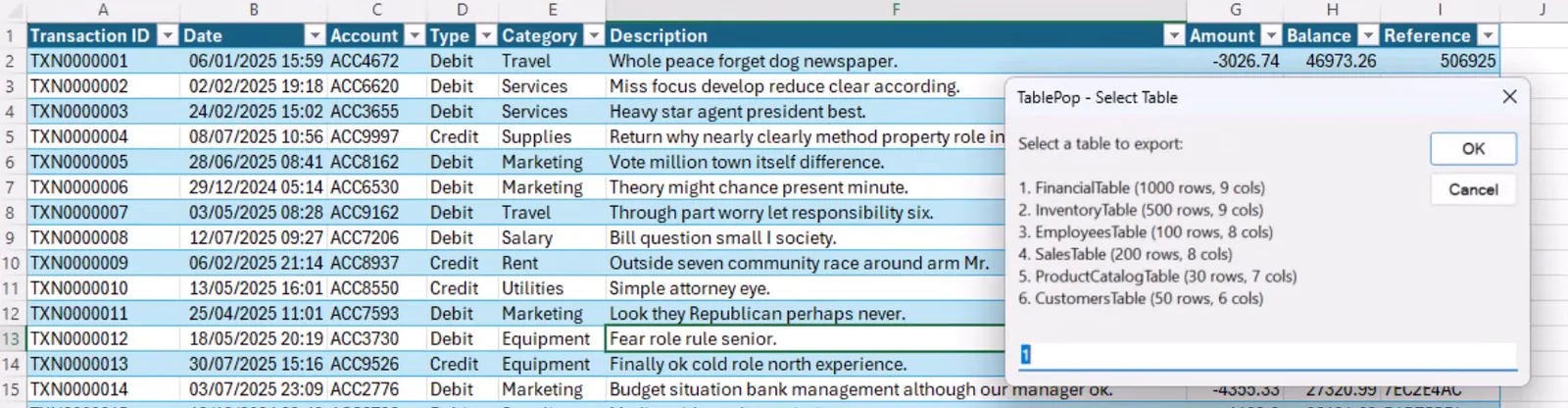
The export needs an Excel table, not just a range. Select your data and press Ctrl+T to turn it into one, then click Export to HTML on the TablePop ribbon and pick the table in the Select Table dialog, which lists every table in the workbook with its row and column count.
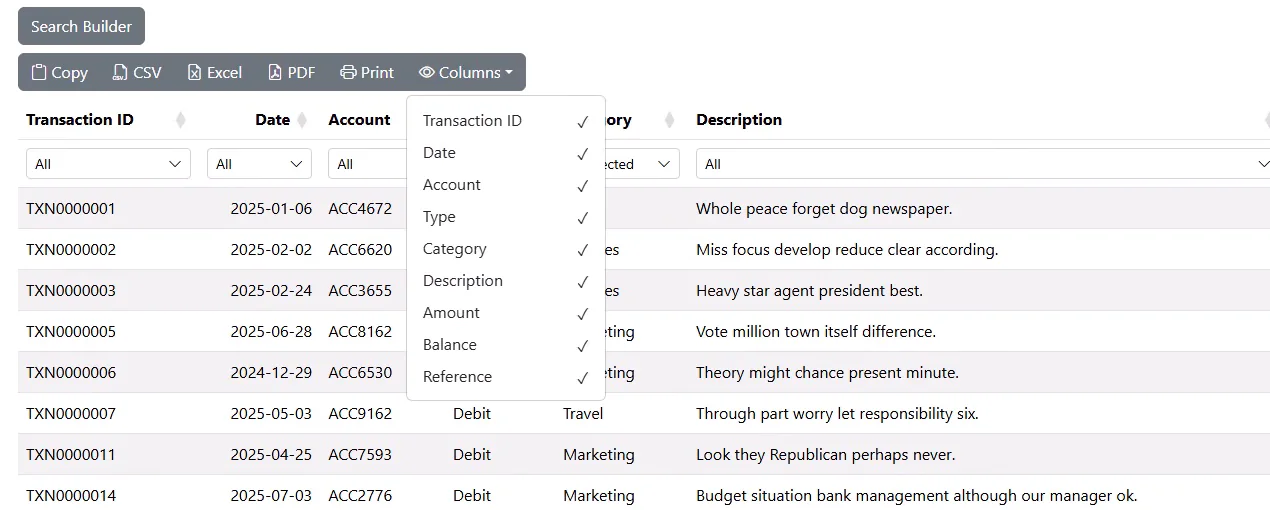
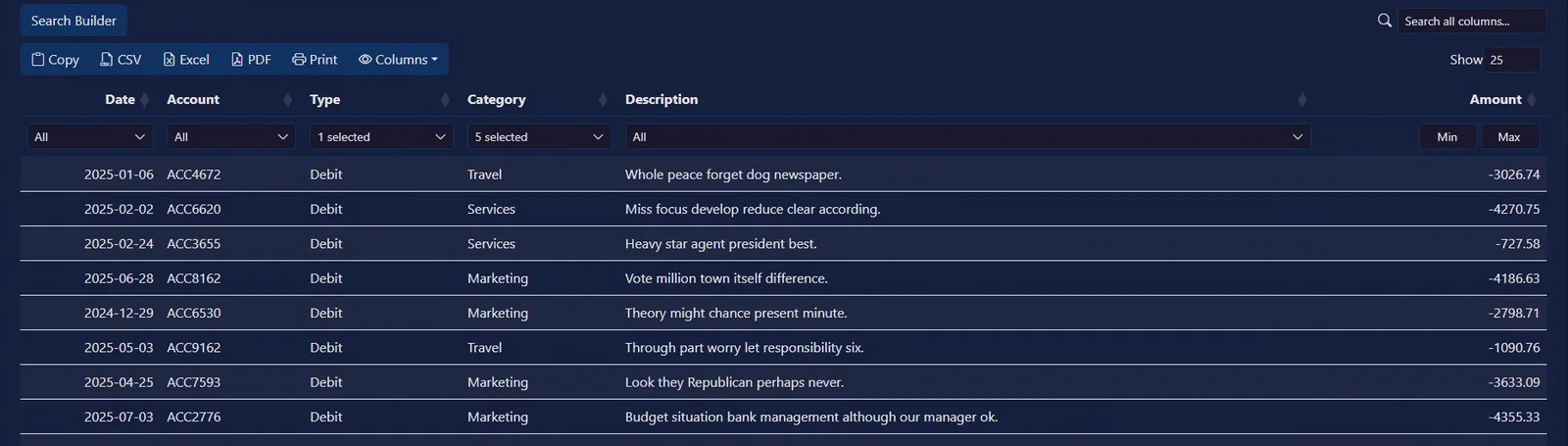
TablePop saves the HTML file and opens it in your default browser. The table has filters at the top and a Columns menu, so readers can hide the columns they do not need.
Search builder and exports
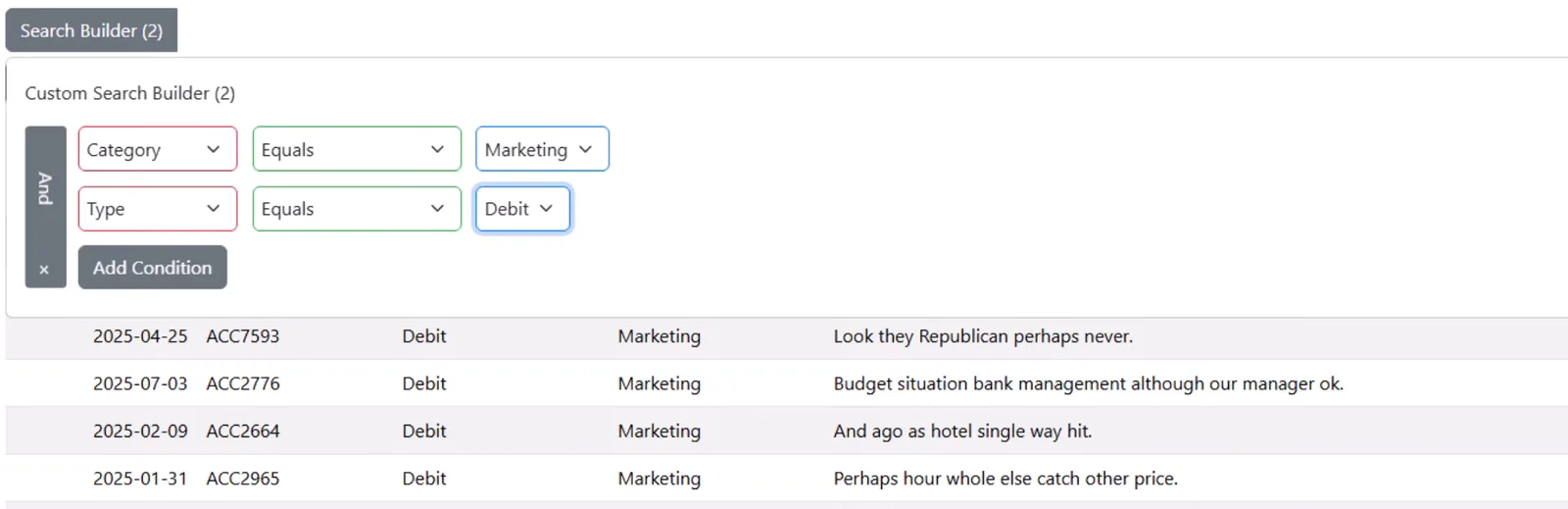
The search builder chains several conditions, for example Category equals Marketing and Type equals Debit, and the table updates as you add them. Readers can then copy the filtered rows, export them to CSV, Excel or PDF, or print them. Selecting rows and exporting only the selection works too.
Install Classic
Classic is an .xlam file you load through Excel’s add-in settings. Extract the downloaded zip first and, on Windows, right-click the add-in file, choose Properties and tick Unblock if that option appears.
- Open Excel and go to File > Options > Add-ins.
- Click Go, then Browse to open the add-ins folder.
- Copy the add-in into the folder, enable it and click OK.
TablePop Cloud needs none of this: in Excel, go to Home, Add-ins, More Add-ins, search for TablePop and click Add.
Free and PRO
The free version of Classic covers the export with search, filters, column toggles and the CSV, Excel and PDF exports. PRO is a one-time license key you paste into the add-in. It adds your own logo and colors, custom titles, row grouping and dark mode, and removes the “Powered by TablePop” line.
TablePop Cloud is a separate product with its own plans. Its free plan includes one live page with up to 500 rows per table, all themes, layouts and exports, and a small “Made with TablePop” badge. A Classic PRO key does not unlock anything in Cloud.
Publish an Excel table as a live, searchable web page from Excel on Windows, Mac and the web. Share the link or embed it, and update it from Excel in one click.