
Send Daily Push Notifications to Your Phone With Python
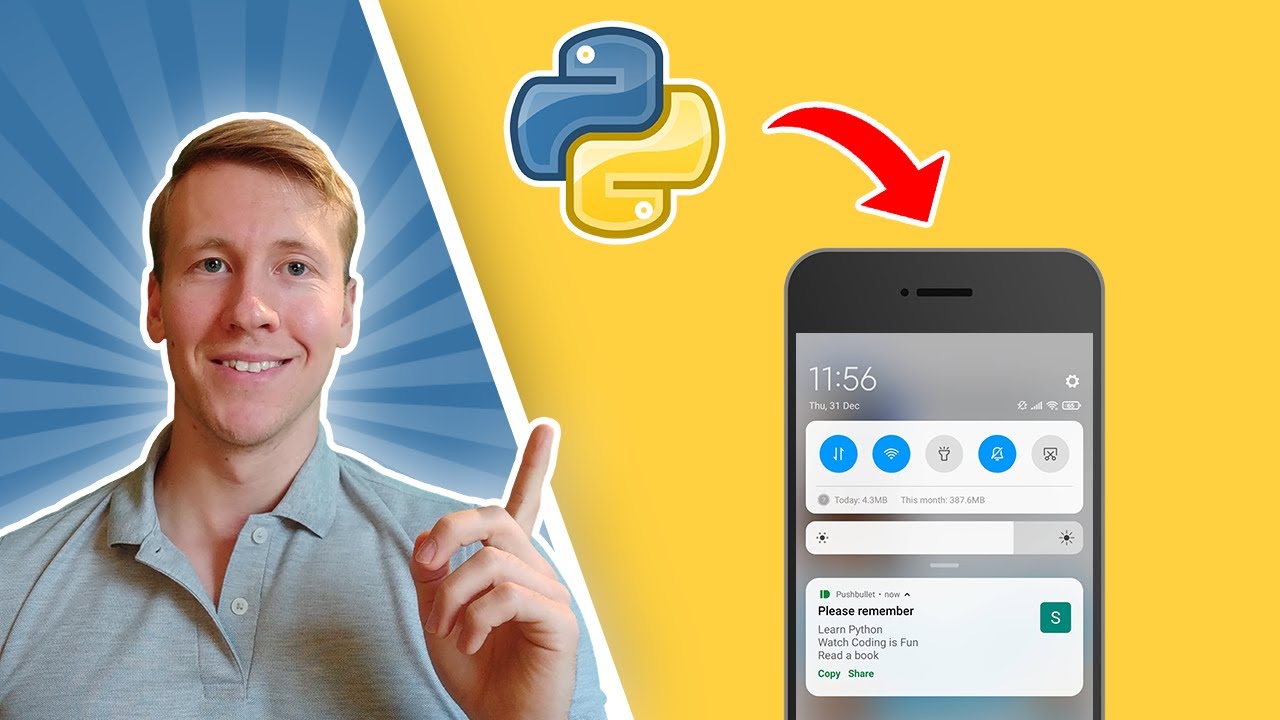
Pushbullet sends a notification to your phone from a Python script with one API call and a free access token. Run that script once a day with Windows Task Scheduler or a hosted scheduler such as PythonAnywhere, and you have a daily reminder bot, here for New Year’s resolutions.
Set up Pushbullet
Pushbullet delivers the notification, so it needs an account and its app on the phone that should receive it. Sign up at pushbullet.com, for example with a Google account, install the app on your phone and sign in there with the same account.
Then create an access token in your Pushbullet account settings. The script uses it to send pushes on your behalf. Keep the token private: anyone who has it can send pushes to your devices.
Send a notification with Python
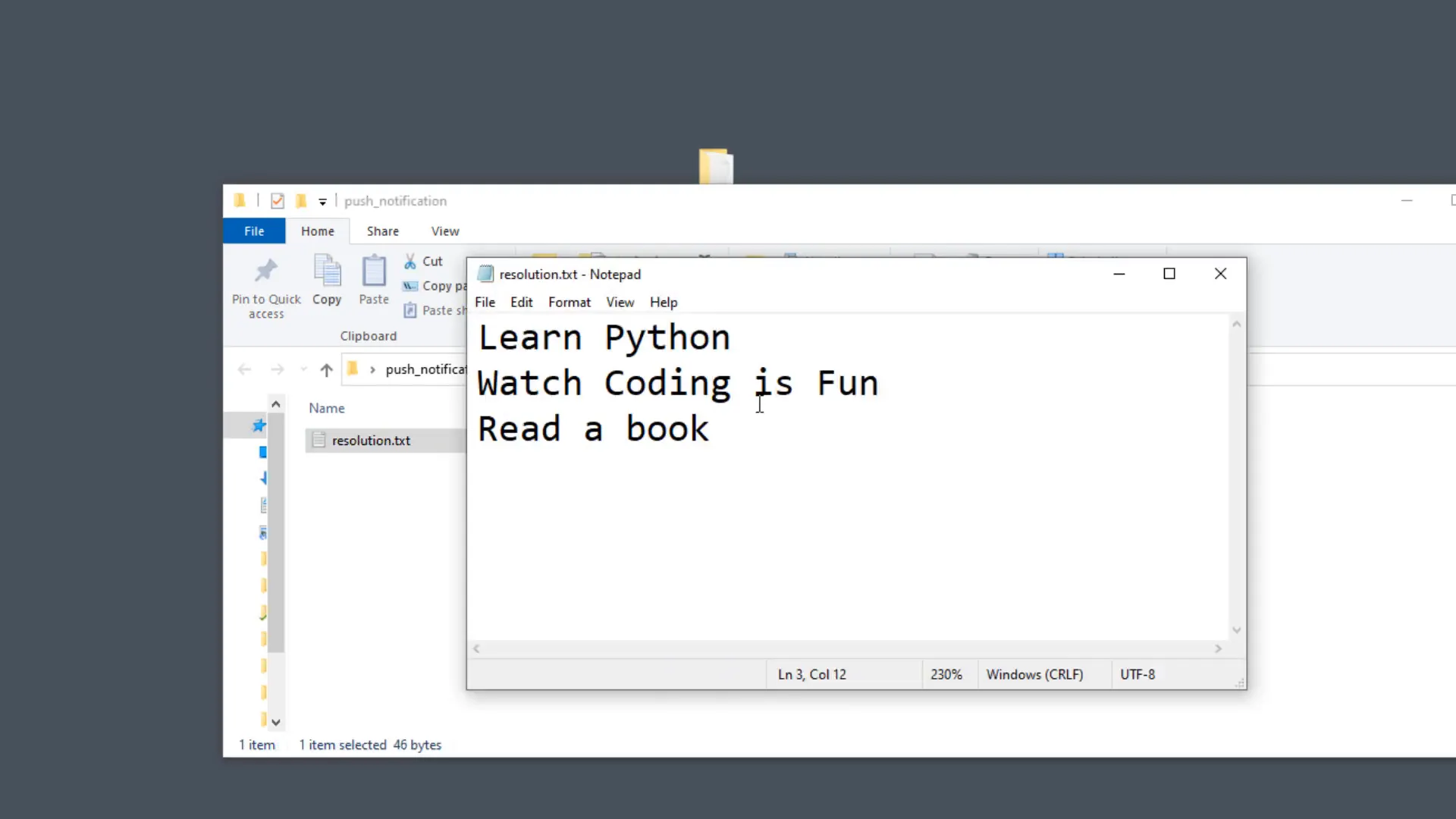
The script reads a message from a text file and sends it as a note. Here the file is resolution.txt and holds my New Year’s resolutions, one per line.
Install the pushbullet.py package:
pip install pushbullet.pyPut the script next to resolution.txt and replace YOUR_API_KEY with your access token:
from pushbullet import Pushbullet

API_KEY = "YOUR_API_KEY"
file = "resolution.txt"

with open(file, mode='r') as f:
    text = f.read()

pb = Pushbullet(API_KEY)
push = pb.push_note('Please remember', text)
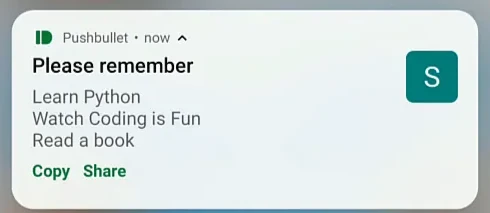
push_note() takes the title first and the body second. Run the script from your terminal, and the notification arrives on your phone within seconds:
To get one resolution per day instead of the whole list, split the text into lines and pick one at random before you send it:
import random

lines = [line for line in text.splitlines() if line.strip()]
push = pb.push_note('Please remember', random.choice(lines))
Run it every day
A daily reminder needs something that starts the script at the same time every day, on a machine that is switched on at that time. The simplest free option is Windows Task Scheduler on your own PC; a hosted service keeps running when your PC is off.
In Task Scheduler, choose Create Basic Task, pick Daily and a time, and select Start a program. Enter the full path of python.exe as the program, the script’s file name as the argument, and the script’s folder under Start in. That last field matters, because the script opens resolution.txt by its plain file name.
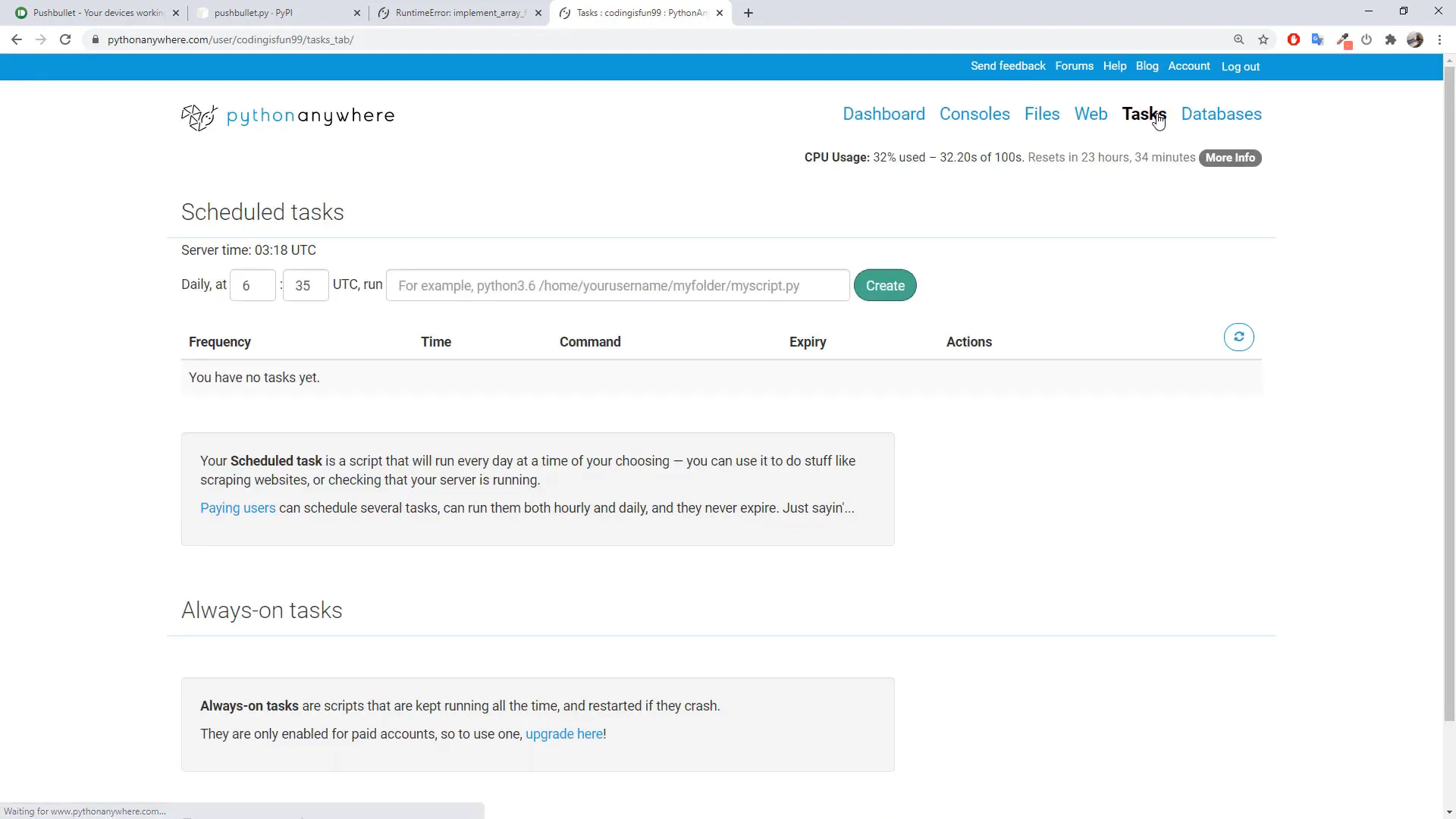
In the video I use PythonAnywhere, a Python hosting service: you upload the script and the text file, then add a daily task under Tasks with the command that runs the script. Its free Beginner account no longer includes scheduled tasks, so this now needs a paid plan. A scheduled GitHub Actions workflow is another free option, with the token stored as a repository secret.
I walk through uploading and scheduling a script in detail in how to run Python scripts online. If you live in Excel rather than in a terminal, I also show how to send push notifications from Excel with VBA. And for a bigger bot that messages you every morning, see my LINE bot project.
Troubleshooting
Most problems are a wrong token, a wrong working folder, or a phone that does not show Pushbullet notifications.
- An error about an invalid key or access token. The token is wrong, has a space at the end, or was deleted in the Pushbullet settings. Create a new one and paste it again.
- FileNotFoundError for resolution.txt. The script was started from another folder. Set Start in for the scheduled task, or build the path from the script’s own folder with pathlib.
- The script runs but nothing arrives. Check that the phone app is signed in with the same account and that the phone allows Pushbullet notifications.