
How to Create an Excel Data Entry Form With Python (No VBA)
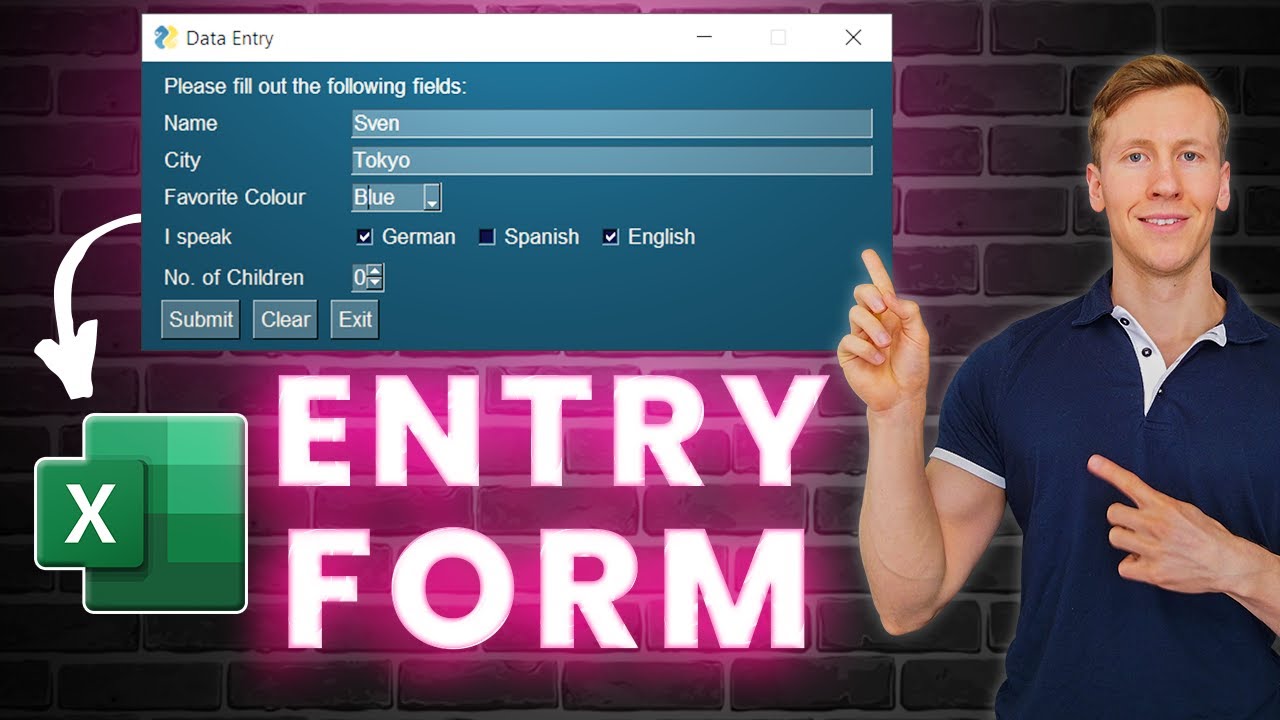
An Excel data entry form with no VBA: PySimpleGUI draws the window, an event loop catches the Submit click, and pandas appends the values as a new row to the workbook. Adding another field means one more line in the layout, and PyInstaller turns the script into an exe.
Update (November 2026): PySimpleGUI is free and open source again since version 6 (LGPL), so pip install PySimpleGUI works as shown, and pip install PySimpleGUI==4.60.5.1 pins the release used in the video.
Install the libraries
PySimpleGUI builds the window, pandas writes the rows, and openpyxl is the engine pandas uses for .xlsx files. Install all three from a command prompt or terminal:
pip install PySimpleGUIpip install pandas
pip install openpyxlBuild the form window
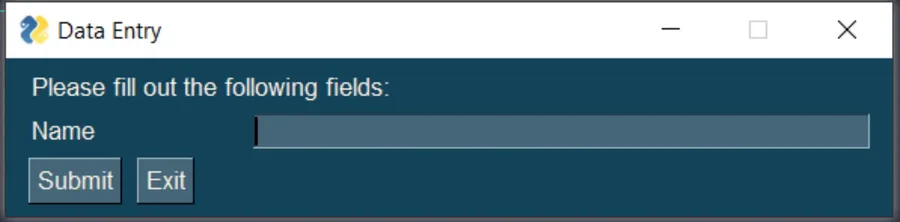
A PySimpleGUI layout is a list of lists, where each inner list is one row of the window. The first version has a header text, a Name field and two buttons. The DarkTeal9 theme adds some color.
import PySimpleGUI as sg

# Add some color to the window
sg.theme('DarkTeal9')

layout = [
    [sg.Text('Please fill out the following fields:')],
    [sg.Text('Name', size=(15,1)), sg.InputText(key='Name')],
    [sg.Submit(), sg.Exit()]
]
Pass the layout to a Window with a title, then read events in a loop. window.read() waits for a click and returns the event name and a dictionary of all field values. Exit or the close button ends the loop; for now, Submit just prints the values.
import PySimpleGUI as sg

# Add some color to the window
sg.theme('DarkTeal9')

layout = [
    [sg.Text('Please fill out the following fields:')],
    [sg.Text('Name', size=(15,1)), sg.InputText(key='Name')],
    [sg.Submit(), sg.Exit()]
]

window = sg.Window('Simple data entry form', layout)

while True:
    event, values = window.read()
    if event == sg.WIN_CLOSED or event == 'Exit':
        break
    if event == 'Submit':
        print(event, values)
window.close()
Run the file from a command prompt in the script’s folder. Type a name, click Submit, and the event and values appear in the console.
Add more fields
Each new field is one more row in the layout. This version adds a combo box for a favorite color, three checkboxes for languages, and a spin element for the number of children from 0 to 15.
The key of each element becomes the key in the values dictionary, and later the column header in Excel. Submit now prints all of them.
import PySimpleGUI as sg

# Add some color to the window
sg.theme('DarkTeal9')

layout = [
    [sg.Text('Please fill out the following fields:')],
    [sg.Text('Name', size=(15,1)), sg.InputText(key='Name')],
    [sg.Text('Favorite Colour', size=(15,1)), sg.Combo(['Green', 'Blue', 'Red'], key='Favorite Colour')],
    [sg.Text('I speak', size=(15,1)),
                            sg.Checkbox('German', key='German'),
                            sg.Checkbox('Spanish', key='Spanish'),
                            sg.Checkbox('English', key='English')],
    [sg.Text('No. of Children', size=(15,1)), sg.Spin([i for i in range(0,16)],
                                                       initial_value=0, key='Children')],
    [sg.Submit(), sg.Exit()]
]

window = sg.Window('Simple data entry form', layout)

while True:
    event, values = window.read()
    if event == sg.WIN_CLOSED or event == 'Exit':
        break
    if event == 'Submit':
        print(event, values)
window.close()
Save entries to Excel
To save instead of print, turn the values dictionary into a one-row DataFrame, add it to the existing data with pd.concat and write the workbook back. The headers of Data_Entry.xlsx match the keys in the layout.
The script loads the workbook when it exists and starts with an empty DataFrame when it does not, so the first Submit creates the file. This version also adds a City field. For more ways to write DataFrames into workbooks, see how to export pandas DataFrames to a new or existing Excel workbook.
from pathlib import Path
import PySimpleGUI as sg
import pandas as pd

# Add some color to the window
sg.theme('DarkTeal9')

current_dir = Path(__file__).parent if '__file__' in locals() else Path.cwd()
EXCEL_FILE = current_dir / 'Data_Entry.xlsx'

# Load the data if the file exists, if not, create a new DataFrame
if EXCEL_FILE.exists():
    df = pd.read_excel(EXCEL_FILE)
else:
    df = pd.DataFrame()

layout = [
    [sg.Text('Please fill out the following fields:')],
    [sg.Text('Name', size=(15,1)), sg.InputText(key='Name')],
    [sg.Text('City', size=(15,1)), sg.InputText(key='City')],
    [sg.Text('Favorite Colour', size=(15,1)), sg.Combo(['Green', 'Blue', 'Red'], key='Favorite Colour')],
    [sg.Text('I speak', size=(15,1)),
                            sg.Checkbox('German', key='German'),
                            sg.Checkbox('Spanish', key='Spanish'),
                            sg.Checkbox('English', key='English')],
    [sg.Text('No. of Children', size=(15,1)), sg.Spin([i for i in range(0,16)],
                                                       initial_value=0, key='Children')],
    [sg.Submit(), sg.Exit()]
]

window = sg.Window('Simple data entry form', layout)

while True:
    event, values = window.read()
    if event == sg.WIN_CLOSED or event == 'Exit':
        break
    if event == 'Submit':
        new_record = pd.DataFrame(values, index=[0])
        df = pd.concat([df, new_record], ignore_index=True)
        df.to_excel(EXCEL_FILE, index=False)  # This will create the file if it doesn't exist
        sg.popup('Data saved!')
window.close()
Close the workbook in Excel while you enter data. If it is open, saving fails with a permission error.
Add a Clear button
A Clear button empties every field so the next entry starts fresh. The clear_input() function loops over the keys in values and sets each element to an empty string. The script calls it on Clear and after every successful save.
from pathlib import Path
import PySimpleGUI as sg
import pandas as pd

# Add some color to the window
sg.theme('DarkTeal9')

current_dir = Path(__file__).parent if '__file__' in locals() else Path.cwd()
EXCEL_FILE = current_dir / 'Data_Entry.xlsx'

# Load the data if the file exists, if not, create a new DataFrame
if EXCEL_FILE.exists():
    df = pd.read_excel(EXCEL_FILE)
else:
    df = pd.DataFrame()

layout = [
    [sg.Text('Please fill out the following fields:')],
    [sg.Text('Name', size=(15,1)), sg.InputText(key='Name')],
    [sg.Text('City', size=(15,1)), sg.InputText(key='City')],
    [sg.Text('Favorite Colour', size=(15,1)), sg.Combo(['Green', 'Blue', 'Red'], key='Favorite Colour')],
    [sg.Text('I speak', size=(15,1)),
                            sg.Checkbox('German', key='German'),
                            sg.Checkbox('Spanish', key='Spanish'),
                            sg.Checkbox('English', key='English')],
    [sg.Text('No. of Children', size=(15,1)), sg.Spin([i for i in range(0,16)],
                                                       initial_value=0, key='Children')],
    [sg.Submit(), sg.Button('Clear'), sg.Exit()]
]

window = sg.Window('Simple data entry form', layout)

def clear_input():
    for key in values:
        window[key]('')
    return None


while True:
    event, values = window.read()
    if event == sg.WIN_CLOSED or event == 'Exit':
        break
    if event == 'Clear':
        clear_input()
    if event == 'Submit':
        new_record = pd.DataFrame(values, index=[0])
        df = pd.concat([df, new_record], ignore_index=True)
        df.to_excel(EXCEL_FILE, index=False)  # This will create the file if it doesn't exist
        sg.popup('Data saved!')
        clear_input()
window.close()
Turn the form into an exe
PyInstaller packages the script into a standalone exe, so colleagues without Python can use the form. Install it, then run it in the folder of the script. –onefile builds a single file, and –noconsole hides the black console window.
pip install pyinstallerpyinstaller --onefile --noconsole data_entry.pyThe exe lands in the dist folder.
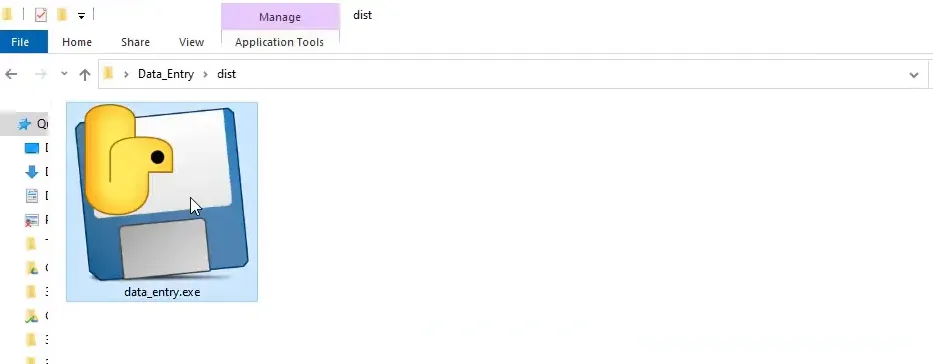
One catch: inside a one-file exe, __file__ points to PyInstaller’s temporary folder, so the script would look for Data_Entry.xlsx there. Build the folder from sys.executable when the script runs as an exe, and the workbook is saved next to the exe:
import sys

if getattr(sys, "frozen", False):
    current_dir = Path(sys.executable).parent
else:
    current_dir = Path(__file__).parent
For a drag-and-drop version of the same idea, see my Excel data entry form builder tutorial. For a bigger GUI with a menu bar and saved user settings, continue with my advanced PySimpleGUI tutorial. If you do not want to write the code yourself, the Excel Data Entry Form Builder generates a full form app for you.