
Free VCF to Excel Converter
Turn a vCard export from your phone, Gmail, iCloud or Outlook into a clean Excel or CSV file. Names, phone numbers, emails and addresses land in proper columns instead of one messy text blob.
Drag and drop your VCF file here
or
.vcf and .vcard files (vCard 2.1, 3.0 and 4.0), several files at once are fine
100% private: your contacts are converted in your browser and never uploaded.
Reading your contacts locally…
Preview
Tip: the Excel download keeps plus signs and leading zeros in phone numbers. Pick CSV when you plan to import the contacts into Google Contacts, Outlook or a CRM.
Contacts in Excel? Text Them All at Once.
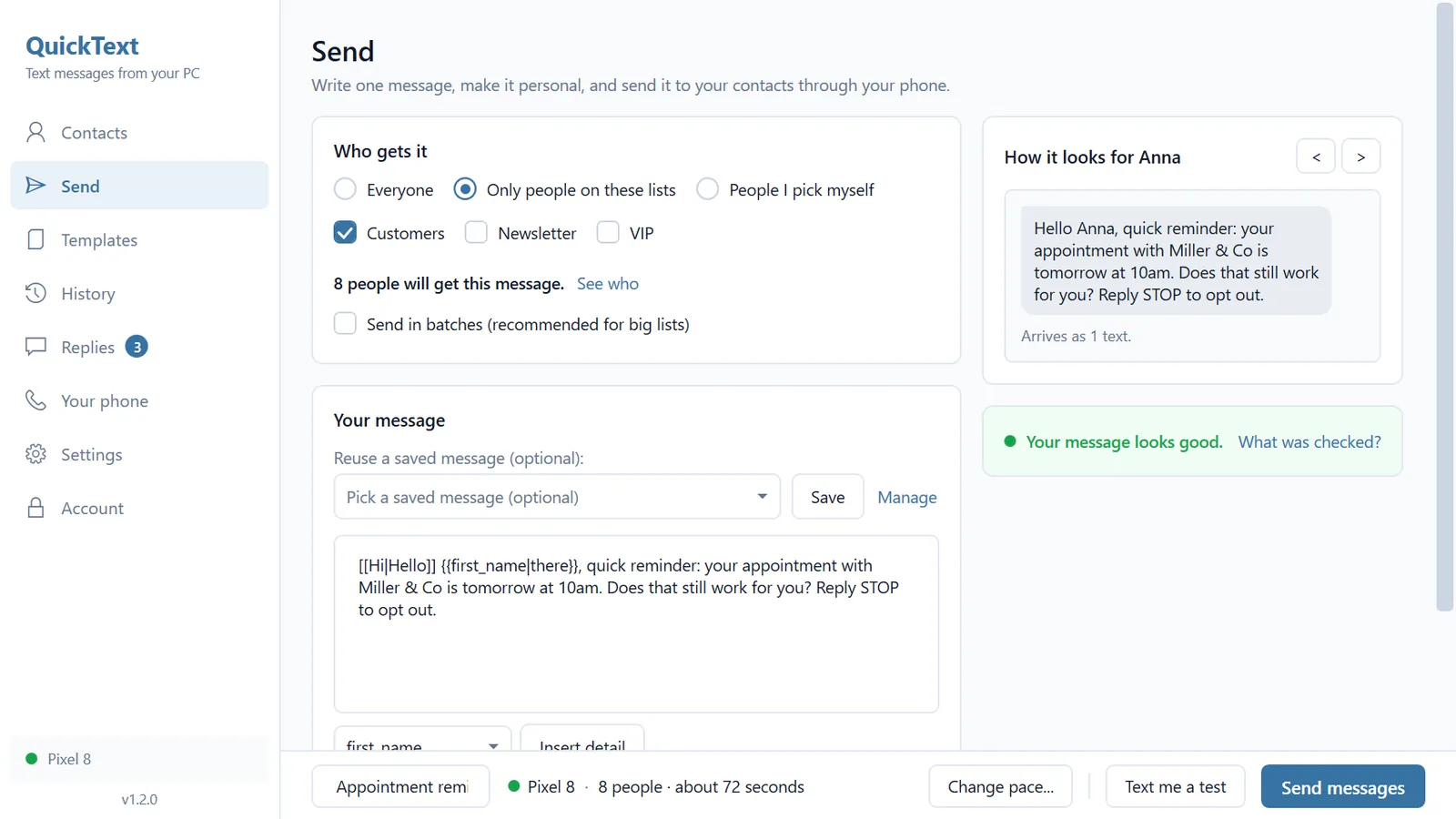
QuickText sends personalized texts to hundreds of contacts through your own Android phone. Import your list from Excel or CSV, hit send, and replies land right back on your phone. No third-party gateway, no per-message fees. The spreadsheet you just downloaded is exactly the format it works with.
Try QuickText for free- Everything happens in your browser
- No sign-up, no daily limit
- vCard 2.1, 3.0 and 4.0
- Excel, CSV or straight to the clipboard
How It Works
Drop Your VCF File
Drag in the .vcf export from your phone, Gmail, iCloud or Outlook. Several files at once are fine, they get merged into one list.
Contacts Are Parsed Locally
Your browser reads every contact and sorts names, numbers, emails and addresses into columns. Nothing is uploaded anywhere.
Download Excel or CSV
Check the preview table, then grab the file you need: Excel for working with the list, CSV for importing it somewhere else.
How to Get a VCF File out of Your Phone
Every phone and contact service can export contacts as a vCard. Here is where the button hides.
Apple Devices
Sign in at iCloud.com, open Contacts, select the contacts you want (Ctrl+A or Cmd+A for all), then choose Export vCard. For a single contact, use Share Contact in the Contacts app on the phone.
Android
Open the Contacts app, tap Fix and manage (Google Contacts) or the menu in Samsung and other apps, then Export to file. You get a single .vcf containing every contact, often with quirks this converter handles automatically.
Google Contacts
Go to contacts.google.com, tick the contacts (or select all), click Export and pick vCard. This is also the easiest way to grab everything an Android phone has synced to your Google account.
Outlook and Email Attachments
Outlook saves a contact as a vCard via Save As on the contact card. And any .vcf file that reached you as an email or WhatsApp attachment works here as well, just drop it in.
What Ends Up in Your Spreadsheet
The converter maps every standard vCard field to a proper column. Columns only appear when at least one contact actually uses them, so the sheet stays clean.
- First, middle and last name in separate columns, plus the full display name
- Phone numbers sorted by type: Mobile, Home, Work, Fax and Other
- Extra numbers get numbered columns (Mobile 2, Email 2, and so on)
- All email addresses and websites
- Company, department and job title
- Street, city, state, postal code and country as separate columns
- Birthday, anniversary, categories, nickname and notes
- Duplicate numbers and duplicate contact entries are merged automatically, with a toggle to switch it off
Why Not Just Open the VCF in Excel?
| What Happens | Opening .vcf in Excel | This Converter |
|---|---|---|
| What you see | Raw vCard code stacked in one column | One row per contact, one column per field |
| Phone numbers | Plus signs and leading zeros get mangled | Stored as text, kept exactly as saved |
| Umlauts and accents | Often turn into garbled characters | UTF-8, UTF-16 and old encodings decoded correctly |
| Contact photos | Endless blocks of encoded photo text | Skipped automatically, count reported |
| Multiple numbers per contact | Buried inside TEL;CELL code lines | Sorted into Mobile, Home, Work and Fax columns |
| Duplicate contacts | Every copy shows up again as raw text | Merged into one row, with a toggle to switch it off |
| Effort | Manual cleanup for every single contact | Drag, drop, download |
What People Use This For
Bulk SMS and WhatsApp Campaigns
Get every mobile number into a clean Excel column, ready for tools like QuickText that send personalized messages to the whole list at once.
CRM and Newsletter Imports
HubSpot, Salesforce, Zoho, Mailchimp and most other platforms accept CSV. Convert the phone export once and import the same list anywhere.
Cleaning Up a Messy Contact List
Sort by name, filter duplicates and fix typos in Excel, where editing hundreds of entries takes minutes instead of an afternoon of tapping.
A Backup You Can Actually Read
A spreadsheet in your cloud drive beats a cryptic .vcf when you need to look up a number from an old phone two years from now.
Switching Phones or Services
Moving between Android, iPhone, Outlook and Gmail? Convert to CSV once and import the same contacts wherever you land.
Mail Merge and Labels
Use the name and address columns for letters, envelopes and label printing straight from Word and Excel.
Frequently asked questions
Drop your .vcf file into the converter above. It reads every contact, shows a preview table, and gives you two download buttons: Excel (.xlsx) or CSV. There is no signup and no upload, and most files convert in under a second.
No. This converter runs entirely in your browser. Your file is read locally, parsed locally, and the Excel or CSV file is generated locally. Nothing is sent over the network, which you can verify in your browser's developer tools. That matters, because a contact list is some of the most personal data on your phone.
All common ones: vCard 2.1 (older Android and Nokia exports), vCard 3.0 (iPhone, iCloud and Google Contacts) and vCard 4.0. The parser also handles the messy details: quoted printable encoding from old Android phones, folded lines, UTF-8 and UTF-16 files, and exports where one file holds hundreds of contacts.
A .vcf file is not a spreadsheet. It is a plain text format where each contact is wrapped in BEGIN:VCARD and END:VCARD and every field has its own prefix, like TEL;CELL for a mobile number. Excel does not understand that structure, so it dumps the raw code into one column. This converter parses the format properly and reorganizes it into rows and columns.
Excel (.xlsx) is best when you want to work with the list yourself: phone numbers are stored as text so plus signs and leading zeros survive, columns come sized to fit, and filters are already switched on. Pick CSV when another app needs to read the file, for example Google Contacts, Outlook or a CRM import.
That is Excel, not the file. When Excel opens a CSV it guesses column types and converts anything that looks like a number, which destroys +49 prefixes and leading zeros. Use the Excel download instead (it stores phone numbers as text), or import the CSV via Data > From Text/CSV and set the phone columns to text.
Photos embedded in the VCF are skipped, and the tool tells you how many. Spreadsheet cells cannot hold images in a useful way, and keeping the photo data would flood the sheet with thousands of characters of encoded text per contact. Every other field is kept.
Yes. With Merge duplicate contacts switched on (the default), entries that clearly belong to the same person are combined into one row: matching names with a shared number or email, a bare name only card absorbed by a complete one, or a nameless entry that matches an existing number. Middle names missing on one side are handled too, so Sarah Miller and Sarah Ann Miller with the same email become one row. Fields are combined, meaning a card that only holds the email tops up the card that holds the phone numbers.
The matching is deliberately careful: two entries with different names stay separate even when they share a landline, so family members are never collapsed into one row. The tool reports how many entries were merged, and you can flip the toggle to compare the result with and without merging.
Yes. Select or drop as many .vcf files as you like, up to 25 MB in total, and they are merged into one sheet with one row per contact. Handy when a phone exported every contact as its own little file.
Download the CSV version. In Google Contacts, click Import and choose the file. In Outlook, go to File > Open and Export > Import/Export and pick the option for comma separated values. Both services map the name, phone and email columns automatically or let you adjust the mapping during import.
No. Because everything runs on your own device there are no daily limits, no contact caps and no premium tier. A file with several thousand contacts converts in a couple of seconds on a normal laptop.
Yes, completely free. No signup, no email, no watermark, no daily limit and no premium tier hiding the useful features. Because the conversion runs entirely in your browser, there are no server costs behind it, so there is nothing to charge for. The site is funded by paid tools like QuickText, not by this converter.
Turn That Contact List into a Text Campaign
QuickText sends personalized texts to hundreds of contacts through your own Android phone.
Try QuickText for free