
Find and Replace Values in Multiple Excel Files With Python

openpyxl can open every workbook in a folder, walk each worksheet, replace cell values that exactly match an entry in a dictionary, and save a copy. A product or segment rename across dozens of files becomes one script run instead of a day of manual find and replace.
The example data
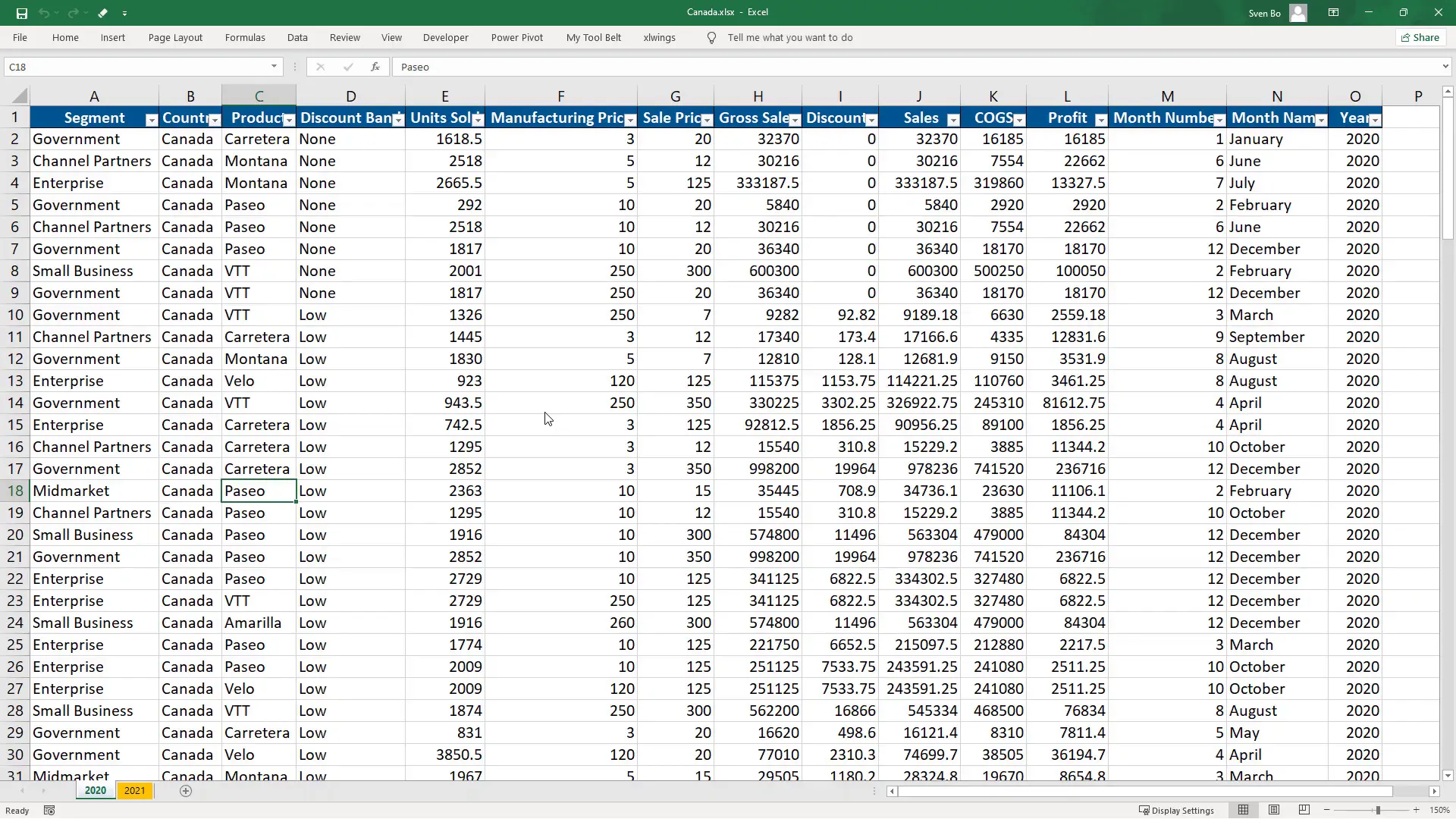
The example workbooks hold financial data with a Segment column. The goal is to replace “Midmarket” with “Midsize Market” and “Small Business” with “Small Market” in every worksheet of every file, here one workbook per country.
Replace values in one workbook
openpyxl reads and writes .xlsx files without opening Excel. Load the workbook, loop over every cell of every worksheet, swap the values you want to change, and save the result under a new name.
Install the library first:
pip install openpyxlThen put the replacements in a dictionary: each key is the text to find, each value the text that replaces it.
import openpyxl

replacement_pair = {"Small Business": "Small Market", "Midmarket": "Midsize Market"}
load_workbook() opens the file. When the script sits in the same folder as the workbook, the file name alone is enough; the folder version below uses proper paths.
openpyxl.load_workbook('your_excel_file.xlsx')wb.worksheets holds every sheet, and iter_rows() walks every row of a sheet. When a cell value matches a key in the dictionary, the cell gets the new value.
wb = openpyxl.load_workbook("Canada.xlsx")
for ws in wb.worksheets:
    # Iterate over the columns and rows, search for the text and replace
    for row in ws.iter_rows():
        for cell in row:
            if cell.value in replacement_pair.keys():
                cell.value = replacement_pair.get(cell.value)
The comparison is an exact match on the whole cell value. A cell that contains “Small Business Unit” stays as it is. Here is the complete script for one file, which saves the result as Canada_NEW.xlsx:
import openpyxl

replacement_pair = {"Small Business": "Small Market", "Midmarket": "Midsize Market"}

wb = openpyxl.load_workbook("Canada.xlsx")
for ws in wb.worksheets:
    # Iterate over the columns and rows, search for the text and replace
    for row in ws.iter_rows():
        for cell in row:
            if cell.value in replacement_pair.keys():
                cell.value = replacement_pair.get(cell.value)
wb.save("Canada_NEW.xlsx")
If openpyxl is new to you, I also use it to copy data from closed Excel files into a master file.
Run it on every file in a folder
The folder version wraps the same loop in a second loop over all Excel files in an input folder, subfolders included. Each result is saved to an output folder with _NEW added to the file name, so the originals stay untouched.
pathlib, which ships with Python, handles the paths. BASE_DIR is the folder of the script, Files holds the workbooks to change, and Output receives the copies. mkdir() creates the output folder: parents=True also creates missing parent folders, and exist_ok=True skips the error when the folder already exists. My pathlib quickstart covers the essentials.
from pathlib import Path
import openpyxl

BASE_DIR = Path(__file__).parent
INPUT_DIR = BASE_DIR / "Files"
OUTPUT_DIR = BASE_DIR / "Output"

# Create output directory
OUTPUT_DIR.mkdir(parents=True, exist_ok=True)
rglob(“*.xls*”) finds every file whose extension starts with .xls, such as .xlsx and .xlsm, in the folder and all its subfolders. For a single folder without subfolders, glob() is enough. I compare both in how to loop through folders and subfolders in Python. Here is the full script:
from pathlib import Path
import openpyxl

BASE_DIR = Path(__file__).parent
INPUT_DIR = BASE_DIR / "Files"
OUTPUT_DIR = BASE_DIR / "Output"

# Create output directory
OUTPUT_DIR.mkdir(parents=True, exist_ok=True)

replacement_pair = {"Small Business": "Small Market", "Midmarket": "Midsize Market"}

files = list(INPUT_DIR.rglob("*.xls*"))
for file in files:
    wb = openpyxl.load_workbook(file)
    for ws in wb.worksheets:
        # Iterate over the columns and rows, search for the text and replace
        for row in ws.iter_rows():
            for cell in row:
                if cell.value in replacement_pair.keys():
                    cell.value = replacement_pair.get(cell.value)
    wb.save(OUTPUT_DIR / f"{file.stem}_NEW.xlsx")
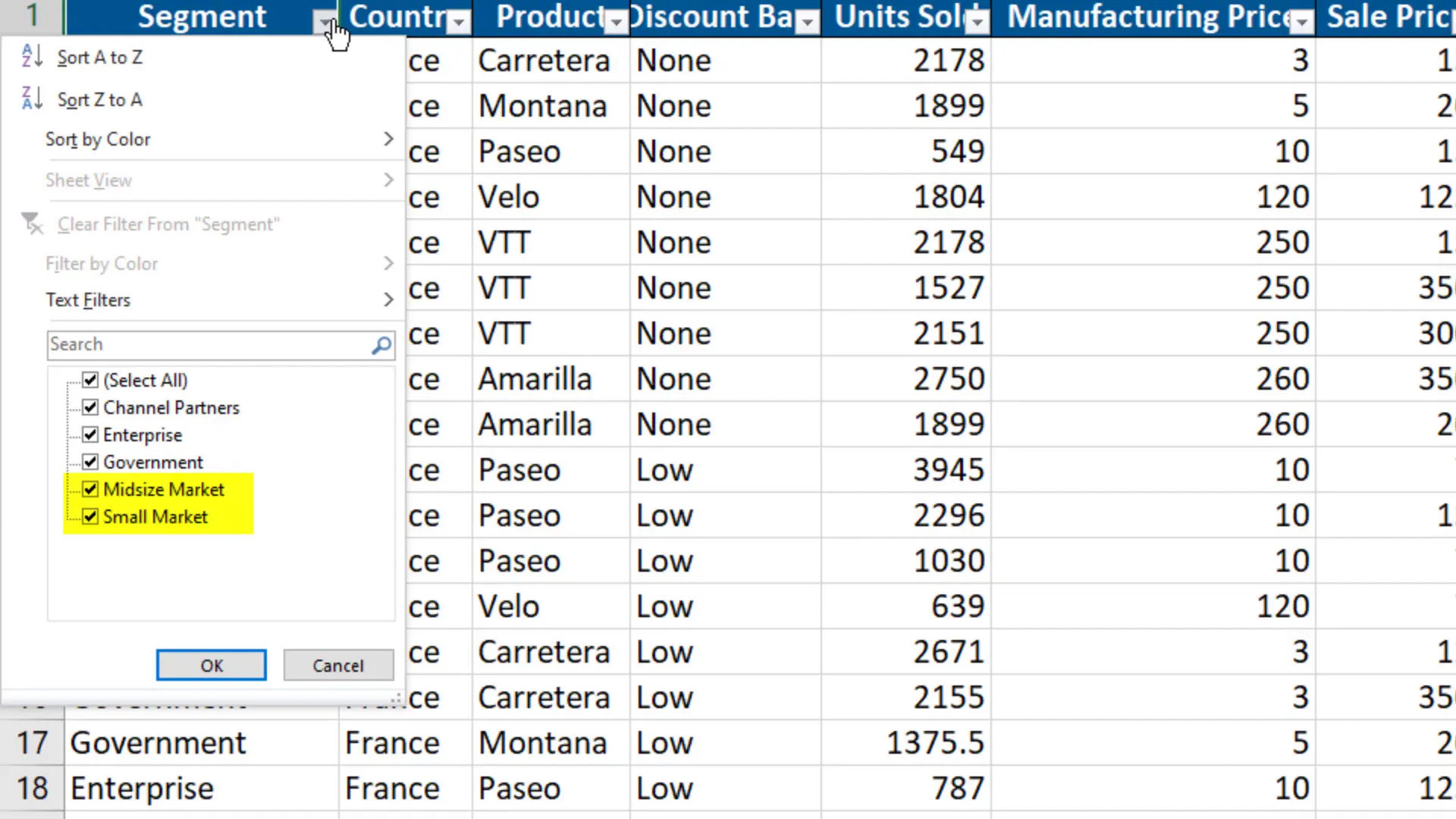
On my example folder the script finishes in under two seconds. Open one of the new files and filter the Segment column to check the result.

Limits
The script replaces whole cell values only, works on .xlsx and .xlsm files, and writes new copies. A few things trip people up:
- openpyxl cannot open the old .xls format, so the script stops with an error if the folder contains one. Convert those files to .xlsx first.
- Close the workbooks in Excel before you run it. An open workbook leaves a hidden ~$ lock file in the folder that matches the pattern too.
- Every result is saved as .xlsx, so a macro workbook loses its macros in the copy.
- openpyxl does not keep every Excel feature when it saves. Shapes, for example, are dropped, so check a copy before you replace the originals.
A related clean-up job is to convert all Excel formulas into values with Python before you send files out.