
How to Merge Excel Files with Different Headers in Python

Merging Excel files whose headers differ, for example the same employee data exported from Germany, Spain, Italy and the US in four languages. You build a mapping from each file’s headers to a common set, rename the columns on load, then concatenate.

The problem
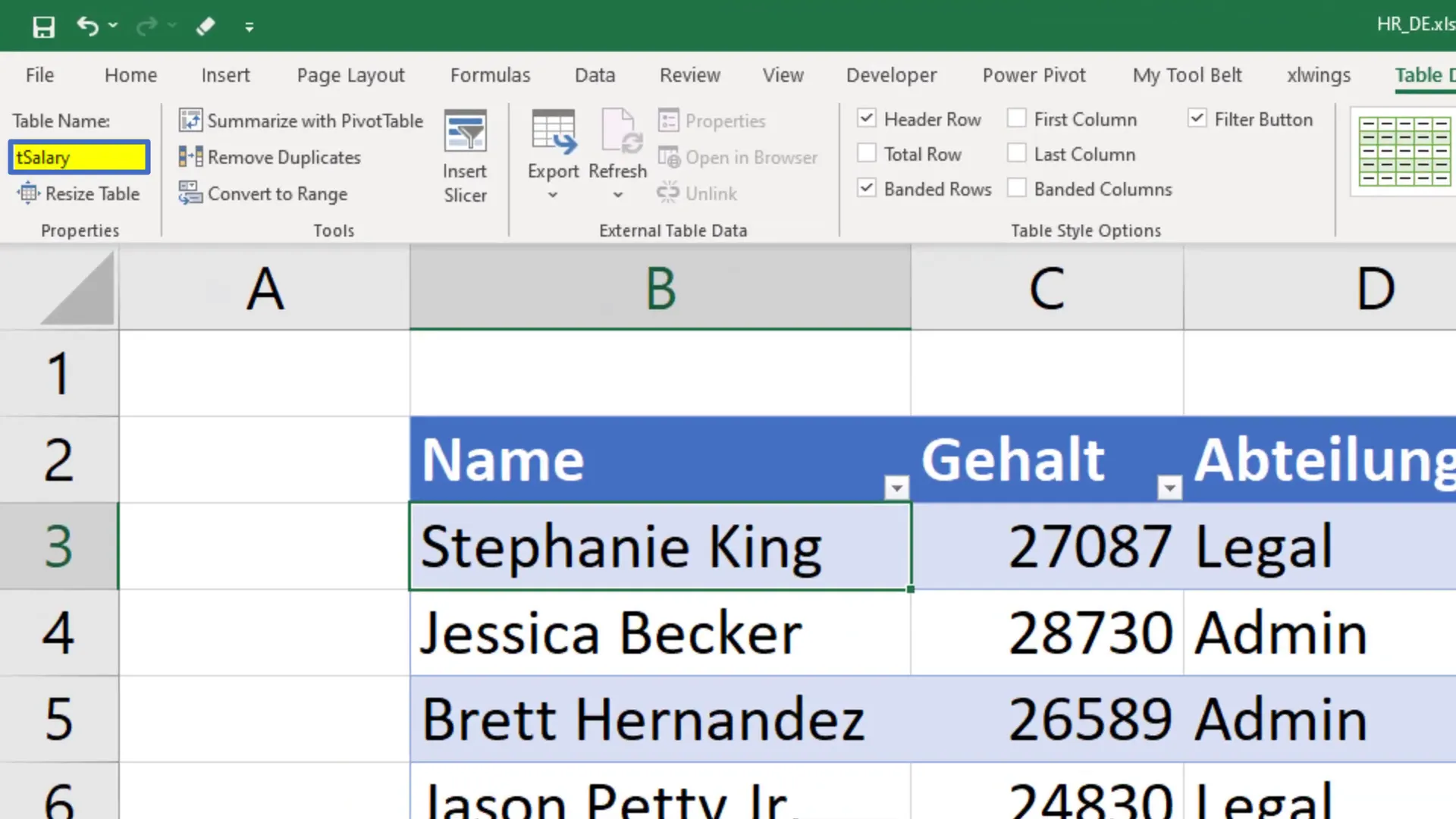
A plain concatenation fails when the same column has a different name in every file. In this example, four workbooks hold employee data for Germany, Spain, Italy and the US. Each has a table named tSalary, but the headers are in the local language: in the German file, Gehalt means Salary and Abteilung means Department. The goal is one master file with English headers.
Install the packages
The script uses pandas to combine the data and xlwings to read the Excel tables by name. Install both from the command prompt:
pip install pandas xlwingsxlwings drives a real Excel instance in the background, so the script needs Excel installed on Windows or Mac.
Map the headers
A dictionary maps every local header to its English name. The script collects all .xls, .xlsx and .xlsm files from the INPUT folder next to it, then defines the mapping for the Spanish, Italian and German headers:
from pathlib import Path

import pandas as pd
import xlwings as xw

INPUT_DIR = Path(__file__).parent / "INPUT"

files = list(INPUT_DIR.glob("*.xls*"))

# Mapping table for different header names
mapping_table = {
    "Nombre": "Name",
    "Salario": "Salary",
    "Departmento": "Department",
    "Nome": "Name",
    "Stipendio": "Salary",
    "Dipartimento": "Department",
    "Abteilung": "Department",
    "Gehalt": "Salary",
}
The keys must match the headers exactly as they are written in the files, including spelling and capital letters. Headers that already match, such as Name in the German file, need no entry, and a header missing from the mapping keeps its original name and ends up as an extra column.
Read, rename and merge
The loop opens each workbook, reads the tSalary table into a DataFrame, renames the columns with the mapping table and adds the file name as a Source Name column. After the loop, pd.concat stacks all DataFrames and the result goes into a new workbook.
dataframes = []
with xw.App(visible=False) as app:
    for file in files:
        # open each excel file
        wb = app.books.open(file)
        sht = wb.sheets[0]

        # convert table to dataframe, rename headers, add source column & append to dataframes list
        df = sht.tables["tSalary"].range.options(pd.DataFrame, index=False).value
        df = df.rename(columns=mapping_table)
        df["Source Name"] = file.stem
        dataframes.append(df)
        wb.close()

    # concatenate dataframes and export to new excel workbook
    combined_df = pd.concat(dataframes)
    wb_combined = app.books.add()
    wb_combined.sheets[0].range("A1").options(pd.DataFrame, index=False).value = combined_df
    wb_combined.save(Path(__file__).parent / "Combined_Data.xlsx")
    wb_combined.close()
Because the table is read by its name, it can sit anywhere on the first sheet. The result is Combined_Data.xlsx with the columns Name, Salary, Department and Source Name.

Without Excel installed
When Excel is not available, for example on a server, openpyxl can read the tables straight from the files. It finds the tSalary table by name, so the result is the same Combined_Data.xlsx, and no Excel instance has to start. Install the packages with pip install pandas openpyxl:
from pathlib import Path

import pandas as pd
from openpyxl import load_workbook

INPUT_DIR = Path(__file__).parent / "INPUT"

mapping_table = {
    "Nombre": "Name",
    "Salario": "Salary",
    "Departmento": "Department",
    "Nome": "Name",
    "Stipendio": "Salary",
    "Dipartimento": "Department",
    "Abteilung": "Department",
    "Gehalt": "Salary",
}

dataframes = []
for file in INPUT_DIR.glob("*.xlsx"):
    ws = load_workbook(file, data_only=True).worksheets[0]
    rows = [[cell.value for cell in row] for row in ws[ws.tables["tSalary"].ref]]
    df = pd.DataFrame(rows[1:], columns=rows[0])
    df = df.rename(columns=mapping_table)
    df["Source Name"] = file.stem
    dataframes.append(df)

combined_df = pd.concat(dataframes)
combined_df.to_excel(Path(__file__).parent / "Combined_Data.xlsx", index=False)
openpyxl reads .xlsx and .xlsm files but not the old .xls format, which is why this version only collects .xlsx files. I tested it with pandas 2.2 and openpyxl 3.1 on the four sample files from the repository.
Related cases
Two variations of this problem need a different starting point.
If the headers in your files already match and you only need every sheet in one workbook, the simpler script in combine all Excel files in a folder into one workbook is enough. If your header names are messy rather than translated (extra spaces, mixed case), my pandas trick to clean up column headers helps before the merge.