
Barcodes that scan, right next to your data
Turn a column of SKUs or product numbers into Code 128, EAN, UPC, GS1-128 or DataMatrix barcodes in Excel. No fonts to install. Windows, Mac and the web.
- Every value checked first: check digits, lost leading zeros, rounded numbers
- Real pictures in the workbook that colleagues see without any add-in
- Update redraws only what changed after you edit or sort
Coming soon to Microsoft Marketplace
Excel on Windows, Mac and the web.
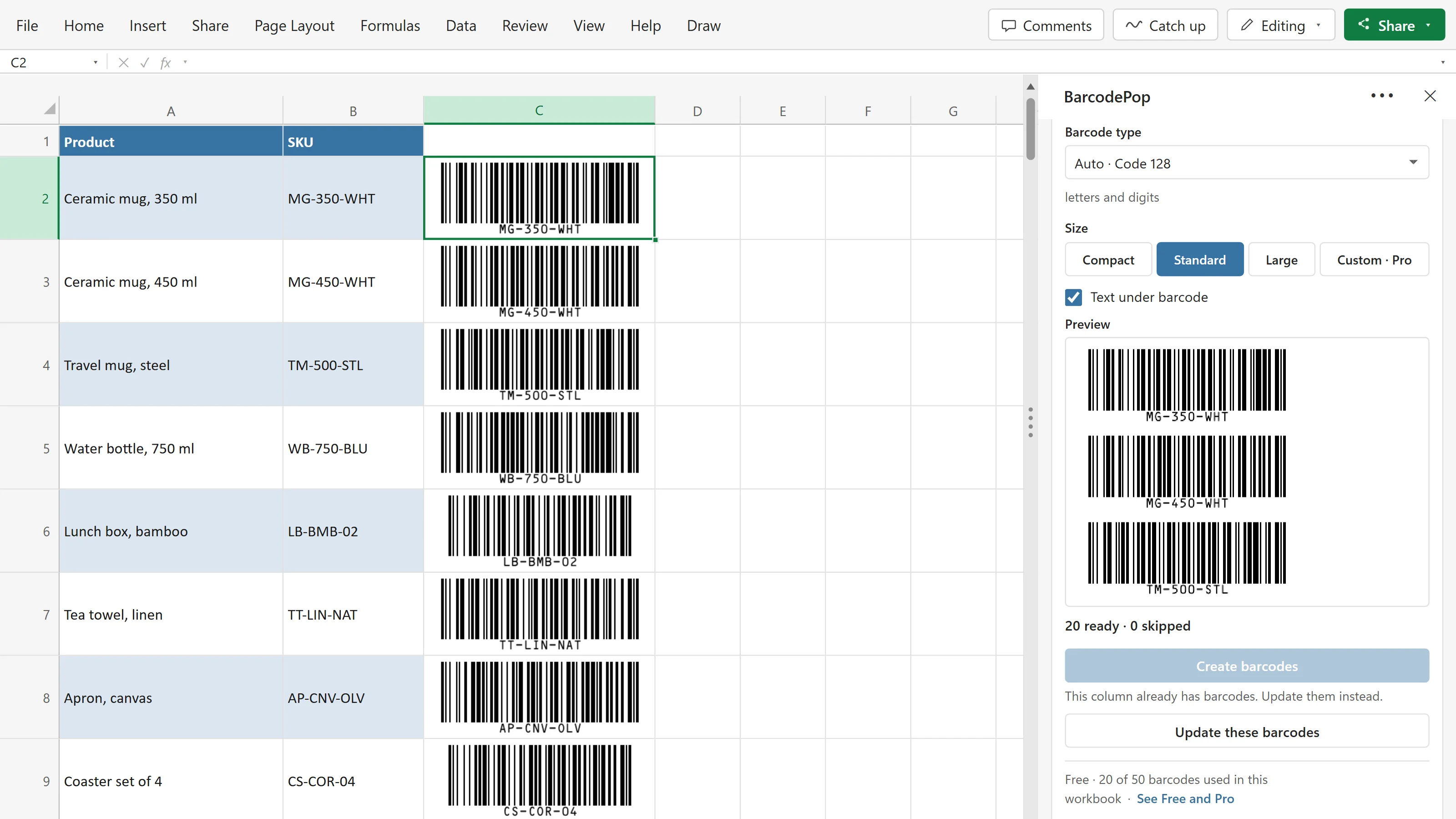
From a column of SKUs to barcodes in the next column
Click a cell in your list. BarcodePop picks the barcode type, checks every value, shows a preview and puts one barcode picture next to each value.
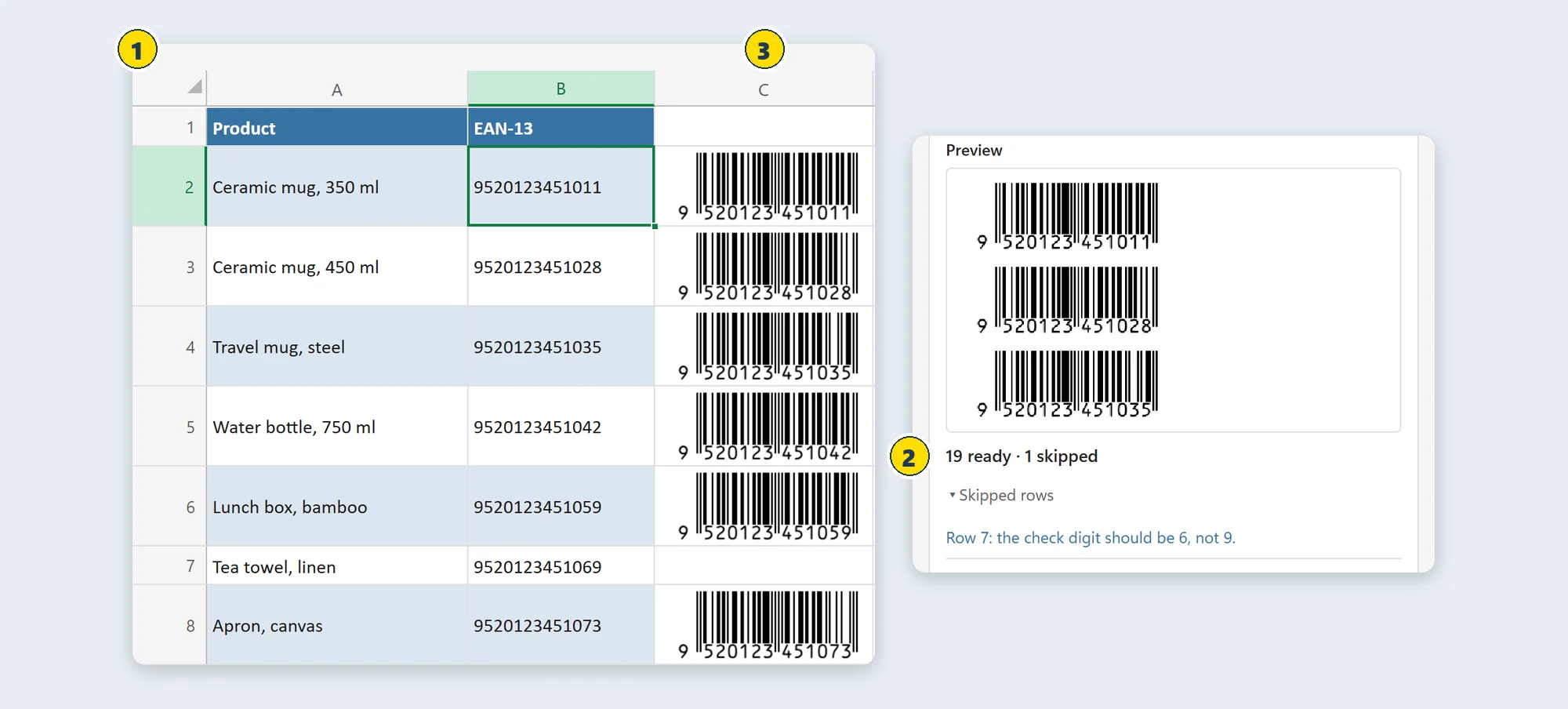
- Your list, as it isClick any cell in the column. BarcodePop reads the whole column, skips the header row and suggests the type from the values: EAN-13 for 13 digits, UPC-A for 12, Code 128 for everything else.
- Checked before anything is drawnWrong check digits, leading zeros Excel dropped and long numbers Excel rounded are caught first. Each skipped row says why, and a click selects it.
- Pictures that stay with the fileOne barcode per value in the next empty column, sized to the cell. Sorted the list or changed a value? Update moves and redraws only what changed.
Why a barcode font often does not scan
A font only changes how characters look. A barcode needs more than that, and it has to look the same on every computer that opens the file.
A barcode font
Characters drawn as bars
- Needs encoding: start, stop and check characters added by a formula or a macro, or the bars do not scan.
- Does not travel: a colleague without the font sees plain digits instead of bars.
- Has to be installed on every computer, often with admin rights, and Excel on the web cannot use it.
- Check digits are your job, and a wrong one prints a barcode that scans the wrong number or not at all.
BarcodePop
Real barcode pictures
- Complete barcodes with the start, stop and check characters drawn in.
- Part of the workbook: whoever opens it sees the barcodes, on Windows, Mac and the web.
- Nothing to install for you or your colleagues: no fonts, no macros.
- Every value checked first: check digits, lost leading zeros and numbers Excel has rounded.
How it works
Open the pane from the Home tab. Three steps later the barcodes are in your sheet.
Click a cell
Click any cell in a column of SKUs, product numbers or codes. BarcodePop reads the column and suggests the barcode type.
Check the preview
See the first barcodes and how many values are ready. Rows that would not scan are listed with the reason.
Create barcodes
Click Create barcodes. One picture goes next to each value, in the first empty column. Update keeps them current.
The barcode types you need, and the right one picked for you
Retail, general, logistics and 2D barcodes. BarcodePop suggests the type from your values, and you can always change it.
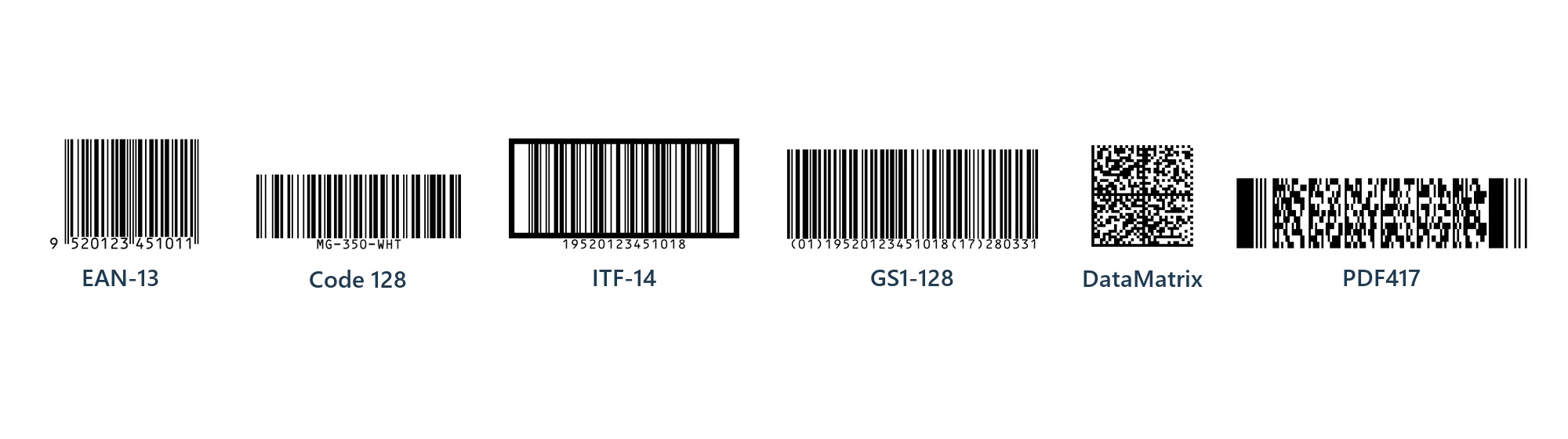
Retail
Free- EAN-13Free13 digits. Products sold in shops worldwide
- UPC-AFree12 digits. Retail products in the US and Canada
- EAN-8Free8 digits. Small packs with little room
- UPC-EFree6 to 8 digits. Small US packs, a short form of UPC-A
Logistics
Free and Pro- ITF-14Free14 digits with bearer bars. Outer cartons and cases
- GS1-128ProBatch, expiry date, serial number and more, with the GS1 builder
General
Free- Code 128FreeLetters, digits and symbols. SKUs, stock, assets, tickets and files
- Code 39FreeDigits, capital letters and a few symbols. Older scanners and systems
- CodabarFreeDigits and a few symbols. Older systems such as libraries
2D
Pro- DataMatrixProUp to 1,500 characters in a small square, accents included
- GS1 DataMatrixProGS1 data with Application Identifiers in a square
- PDF417ProLong text in a wide, stacked barcode
Compact, Standard and Large sizes for every type, text under the bars, and custom sizes in Pro.
EAN and UPC numbers for retail products are issued by GS1 to your company; BarcodePop draws the barcode for the number, it does not issue numbers. GS1 is a trademark of GS1 AISBL. BarcodePop is an independent product by Bosau Digital LLC and is not affiliated with or endorsed by GS1.
Coming to Microsoft Marketplace
BarcodePop installs from Microsoft's add-in store, inside Excel. It is on its way and not listed yet.
Once it is listed, this is the whole install:
- 1In Excel, go to Home → Add-ins → More Add-ins.
- 2On the Store tab, search for BarcodePop by Bosau Digital.
- 3Click Add, open BarcodePop from the Home tab, then click a cell in your list.
Depending on your Excel version, look under Insert → Get Add-ins instead.
- Windows, Mac and the web
- No fonts, no macros
- Barcodes are made on your computer
- The pictures stay in your workbook
Pay once. No subscription.
Every 1D barcode type is free for up to 50 barcodes per workbook. Pro removes the limit and adds GS1-128, 2D barcodes and image files.
- Every 1D type: Code 128, EAN, UPC, ITF-14 and more
- Automatic type and every value checked
- Update and Remove
- Up to 50 barcodes per workbook
- Lifetime license for 3 devices
- Every Pro feature
- Every future update included
- 14-day money-back guarantee
- Lifetime license for 15 devices
- Every Pro feature
- Every future update included
- 14-day money-back guarantee
Pro adds unlimited barcodes (up to 5,000 in one run), GS1-128 with a builder for Application Identifiers, DataMatrix, GS1 DataMatrix, PDF417, custom sizes and Save as images: PNG at 300 or 600 dpi, or SVG, with a CSV list.
Frequently asked questions

Still have a question?
I’m Sven, the developer, and I usually reply within a day.
Your list, as barcodes that scan.
BarcodePop is on its way to Microsoft Marketplace. The free version will make up to 50 barcodes per workbook in every 1D type, with no account.
BarcodePop is an independent product by Bosau Digital LLC. It is not affiliated with, endorsed by or sponsored by Microsoft or GS1. Microsoft and Excel are trademarks of the Microsoft group of companies.