
Send Gmail From Excel With Python (Template and Script)
To send Gmail from Excel with Python, create a Gmail app password, read your Excel rows with openpyxl, fill each person’s details into the subject and text, and send every email through smtp.gmail.com on port 465 with smtplib. The script below does that with fields, per-person attachments, a dry run and a pause between emails.
Table of contents
What you need
You need Python 3, a Gmail or Google Workspace account with 2-Step Verification and an app password, and the openpyxl package to read the Excel file. Sending itself uses smtplib and email, which come with Python, so there is nothing else to install.
- Python 3.9 or newer. Check with
python --version. - openpyxl to read the workbook:
pip install openpyxl. - An Excel list with one person per row and the column names in row 1. You can start from my mail merge contact list template below.
- A Gmail app password, explained in the next section.
This post shows two ways. First a plain Python script that reads the Excel file and sends. Then my free Excel template from the video, which adds a Send Emails button inside Excel through xlwings.
Create a Gmail app password
Turn on 2-Step Verification in your Google account, open App passwords, type a name such as Python and click Create. Google shows a 16-letter password once. Your script uses it instead of your normal password, and you can delete it any time without changing your real password.
-
Turn on 2-Step Verification. In your Google account, go to Security and switch on 2-Step Verification if it is off. Google only offers app passwords when it is on.
-
Create the app password. Search for App passwords in your Google account settings. Type a name, for example Python Gmail sender, and click Create.
-
Copy it. Google shows the password in a yellow box only once. If you lose it, delete it and create a new one.
Treat the app password like your real one: anyone who has it can send email as you. Keep it out of shared files and out of Git. The script below reads it from an environment variable called GMAIL_APP_PASSWORD if you set one.
If App passwords is missing, the usual reasons are 2-Step Verification being off, an account secured only with security keys, or a Google Workspace admin who turned app passwords off. School accounts often cannot create one.
Send one email
Build an EmailMessage with From, To, Subject and the text, open an SSL connection to smtp.gmail.com on port 465, log in with your Gmail address and the app password, and call send_message. That is about ten lines of standard library code.
import smtplib
from email.message import EmailMessage

GMAIL_ADDRESS = "you@gmail.com"
APP_PASSWORD = "abcd efgh ijkl mnop"

msg = EmailMessage()
msg["From"] = GMAIL_ADDRESS
msg["To"] = "anna.berger@example.com"
msg["Subject"] = "Hello from Python"
msg.set_content("Hi Anna,\n\nthis email was sent by a Python script.\n\nSam")

with smtplib.SMTP_SSL("smtp.gmail.com", 465) as server:
    server.login(GMAIL_ADDRESS, APP_PASSWORD.replace(" ", ""))
    server.send_message(msg)
print("Sent")
Replace the two settings at the top and the To address, run it, and the email shows up in the recipient’s inbox and in your Gmail Sent folder. If this small script works, your app password and network are fine, and everything else is about reading the Excel list.
Send personal emails from an Excel list
Read each row of the workbook into a dictionary, replace fields like {{First name}} in the subject and text with that row’s values, attach the person’s file if the row names one, and send. Skip rows without a valid address and duplicates before anything goes out.
The script expects a sheet called Contacts with columns such as First name, Email, Company, Due date, Amount due and Invoice file. That is exactly the layout of this template:
Mail merge contact list template
The Excel list the script below reads: first name, email, company, due date, amount and invoice file, plus a Check column that flags missing, broken and duplicate addresses.
Save it as contacts.xlsx next to the script and put the attachments in a folder called invoices. Here is the full script:
import mimetypes
import os
import re
import smtplib
import time
from datetime import date, datetime
from email.message import EmailMessage
from pathlib import Path

from openpyxl import load_workbook  # pip install openpyxl

# --- Settings -------------------------------------------------------
GMAIL_ADDRESS = "you@gmail.com"
APP_PASSWORD = os.environ.get("GMAIL_APP_PASSWORD", "abcd efgh ijkl mnop")
EXCEL_FILE = "contacts.xlsx"
SHEET = "Contacts"
EMAIL_COLUMN = "Email"
MONEY_COLUMNS = ["Amount due"]         # shown as 1,250.00
FILE_COLUMN = "Invoice file"           # leave "" for no attachments
ATTACHMENT_FOLDER = Path("invoices")
DELAY_SECONDS = 5                      # pause between two emails
DRY_RUN = True                         # True = print only, send nothing

SUBJECT = "Your invoice from Riverside Studio, {{First name|there}}"
BODY = """Hi {{First name|there}},

your invoice for {{Company}} is attached. The amount of {{Amount due}}
is due on {{Due date}}.

Reply to this email if you have any questions.

Best,
Sam"""
# --------------------------------------------------------------------

FIELD = re.compile(r"\{\{\s*([^{}|]+?)\s*(?:\|([^{}]*))?\}\}")
EMAIL_OK = re.compile(r"^[^@\s]+@[^@\s]+\.[^@\s]+$")


def key(name):
    """Column names match without case or spaces: 'First name' = 'firstname'."""
    return re.sub(r"\s+", "", str(name or "")).lower()


def as_text(value, money=False):
    if isinstance(value, (datetime, date)):
        return value.strftime("%b %d, %Y")
    if money and isinstance(value, (int, float)):
        return f"{value:,.2f}"
    return "" if value is None else str(value).strip()


def fill(template, row):
    def replace(match):
        value = row.get(key(match.group(1)), "")
        return value if value else (match.group(2) or "")
    return FIELD.sub(replace, template)


def read_rows(path, sheet):
    ws = load_workbook(path, data_only=True)[sheet]
    rows = ws.iter_rows(values_only=True)
    headers = [key(h) for h in next(rows)]
    money = {key(c) for c in MONEY_COLUMNS}
    for number, values in enumerate(rows, start=2):
        if any(v not in (None, "") for v in values):
            yield number, {h: as_text(v, h in money) for h, v in zip(headers, values)}


def build_email(row, to):
    msg = EmailMessage()
    msg["From"] = GMAIL_ADDRESS
    msg["To"] = to
    msg["Subject"] = fill(SUBJECT, row)
    msg.set_content(fill(BODY, row))
    if FILE_COLUMN:
        for name in filter(None, (n.strip() for n in row.get(key(FILE_COLUMN), "").split(";"))):
            path = ATTACHMENT_FOLDER / name
            if not path.is_file():
                raise FileNotFoundError(f"attachment not found: {path}")
            ctype, _ = mimetypes.guess_type(path.name)
            maintype, subtype = (ctype or "application/octet-stream").split("/", 1)
            msg.add_attachment(path.read_bytes(), maintype=maintype,
                               subtype=subtype, filename=path.name)
    return msg


def main():
    seen = set()
    jobs = []
    for number, row in read_rows(EXCEL_FILE, SHEET):
        to = row.get(key(EMAIL_COLUMN), "")
        if not EMAIL_OK.match(to):
            print(f"Row {number}: skipped, no valid email address ({to or 'empty'})")
        elif to.lower() in seen:
            print(f"Row {number}: skipped, {to} is on the list twice")
        else:
            seen.add(to.lower())
            jobs.append((number, row, to))

    server = None
    if not DRY_RUN:
        server = smtplib.SMTP_SSL("smtp.gmail.com", 465)
        server.login(GMAIL_ADDRESS, APP_PASSWORD.replace(" ", ""))
    sent = 0
    try:
        for i, (number, row, to) in enumerate(jobs):
            try:
                msg = build_email(row, to)
                if DRY_RUN:
                    files = [a.get_filename() for a in msg.iter_attachments()]
                    print(f"\nRow {number} -> {to} | {msg['Subject']} | files: {files}")
                    print(msg.get_body().get_content())
                    continue
                server.send_message(msg)
                sent += 1
                print(f"Row {number}: sent to {to}")
            except (smtplib.SMTPException, OSError) as e:
                print(f"Row {number}: NOT sent to {to}: {e}")
            if i + 1 != len(jobs):
                time.sleep(DELAY_SECONDS)
    finally:
        if server:
            server.quit()
    if DRY_RUN:
        print("\nDry run: nothing was sent. Set DRY_RUN = False to send.")
        return
    print(f"Done: {sent} of {len(jobs)} emails sent.")


if __name__ == "__main__":
    main()
What each part does:
- Settings. Everything you normally change sits at the top: your address, the file, the column names, the subject and the text.
- Fields.
{{Company}}is replaced with that row’s Company value. Upper and lower case and spaces don’t matter, and{{First name|there}}uses “there” when the cell is empty, so nobody gets “Hi ,”. - Dates and amounts. openpyxl returns real dates and numbers, so
as_textturns dates into “Dec 15, 2026” and the columns inMONEY_COLUMNSinto “1,250.00”. - Checks before sending. Rows without a valid address and second copies of the same address are skipped and reported with their row number.
- Attachments. The Invoice file column names each person’s file. Several files go in one cell, separated by a semicolon. A missing file stops only that person’s email.
- One connection. The script logs in once and sends every email over the same connection, with a pause between two emails.
The same pattern works for any report. If each person needs their own Excel file instead of a PDF, my tutorial on creating and emailing Excel files with Python splits a table per person first. For reminders that go out on a schedule, see my Python payment reminder script.
Run the script safely
Run it first with DRY_RUN = True. It prints every email it would send, with the subject, the text and the attachments, and sends nothing. When the output looks right, send to yourself once, then set DRY_RUN = False and run it for the whole list.
With the template’s sample rows, the dry run starts like this:
Row 7: skipped, no valid email address (empty)
Row 8: skipped, no valid email address (grace.hill@example)
Row 9: skipped, ben.carter@example.com is on the list twice

Row 2 -> anna.berger@example.com | Your invoice from Riverside Studio, Anna | files: ['Invoice-1041.pdf']
Hi Anna,

your invoice for Berger Design is attached. The amount of 480.00
is due on Dec 15, 2026.
A safe routine for a real send:
-
Dry run. Read the printed emails for a few people, including someone with an empty cell.
-
Test to yourself. Make a copy of the list with only your own address and send for real. Check the email in Gmail and in another inbox if you can.
-
Send. Point the script at the real list, set
DRY_RUN = Falseand run it. Keep the console output: it is your record of who got the email and who did not.
To run a script like this on a schedule, my Python payment reminder script shows Task Scheduler, cron and GitHub Actions.
The Excel template with a Send button
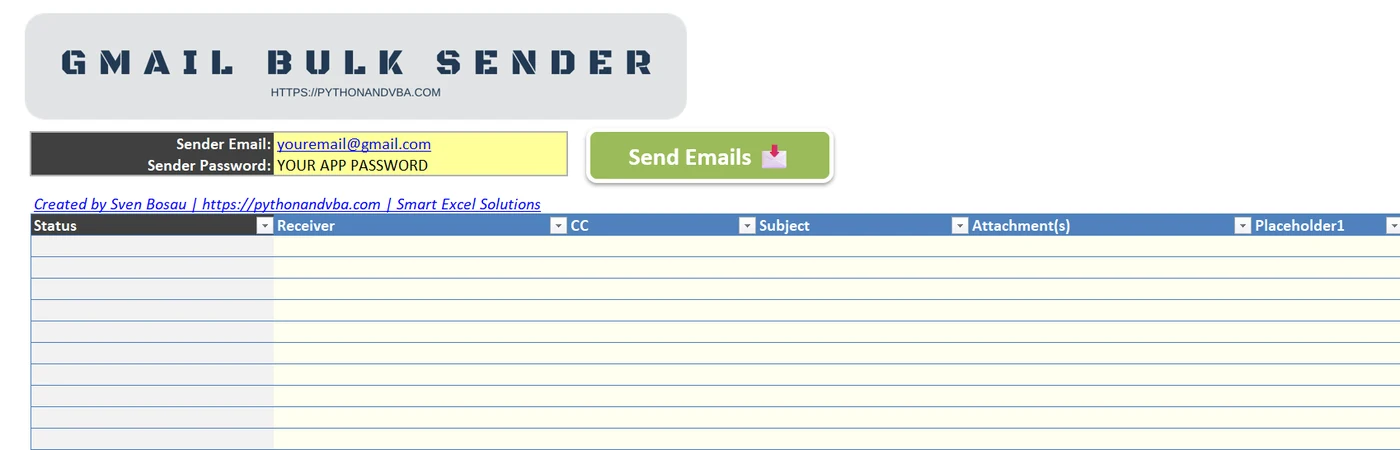
The free template is a macro-enabled workbook with a Send Emails button. You enter your Gmail address and app password at the top, fill one row per email in the table, write the text on the EMAIL_BODY sheet, and click the button. xlwings runs the Python code and writes Sent or Failed with the reason into the Status column.
How the template is set up:
- SEND_LIST sheet. The table tblSendList has the columns Status, Receiver, CC, Subject, Attachment(s) and Placeholder1 to Placeholder7. Several receivers or files in one cell are separated by commas.
- EMAIL_BODY sheet. The text goes into one cell and may contain HTML for bold text, links or images.
{{Placeholder1}}to{{Placeholder7}}are replaced with that row’s values. - Named cells. SenderEmail and SenderPassword hold the login, so the code does not depend on cell addresses.
- Status column. Each row gets “Sent” with a time stamp or “Failed” with the error, for example a missing attachment.
To use it you need Python, pip install xlwings, desktop Excel and macros enabled. Download the workbook and the code from the excel-gmail-bulk-sender-with-python repository on GitHub. If you are new to xlwings, my post on automating Excel with Python using xlwings covers the setup.
The template sends with a fresh login per row and has no pause between emails. That is fine for a few dozen emails. For bigger lists, use the script above, which keeps one connection open and waits between emails.
Gmail’s sending limits
Python itself has no limit, Gmail does. A free Gmail account can send about 500 emails a day and Google Workspace about 2,000. Each email may go to at most 500 recipients in a free account. Go over and Google blocks sending for up to a day.
Keep a few seconds between emails, as DELAY_SECONDS does, and split big lists over several days. Send only to people who expect your email. Hundreds of identical emails to strangers in a few minutes is exactly what Google’s filters look for, and it can get the account suspended.
For newsletters to thousands of people, use a newsletter service or a sending service with your own domain instead of a personal Gmail account. I wrote more about the limits of each route in my guide to mail merge from Excel to Outlook or Gmail.
Troubleshooting
Most errors are about the login: Gmail rejects your normal password, the app password has a typo, or 2-Step Verification is off. The rest are a blocked port on the network, a missing attachment, an empty value from a formula cell, or Gmail’s daily limit.
- SMTPAuthenticationError 534, “Application-specific password required”. You used your normal Gmail password. Create an app password and use that.
- SMTPAuthenticationError 535, “Username and Password not accepted”. The address or the app password is wrong. Copy the app password again, or delete it and create a new one.
- TimeoutError or ConnectionRefusedError. Your network blocks port 465, which happens on some company and school networks. Try another network, or use
smtplib.SMTP("smtp.gmail.com", 587)followed byserver.starttls(). - SSL: CERTIFICATE_VERIFY_FAILED. Usually a company proxy that inspects traffic. Try another network or ask your IT team.
- A field stays empty although Excel shows a value. The cell holds a formula, and openpyxl reads the value Excel saved last. Open the workbook in Excel, save it, and run the script again.
- 550 5.4.5, “Daily user sending limit exceeded”. You hit Gmail’s daily limit. Wait up to 24 hours, then send to the remaining rows.
- Emails land in spam. Write a real subject, keep links few and never shortened, say who you are, and send to people who know you.
If you would rather not maintain a script, the Windows app I built for this job does the same without code. It reads the Excel file, adds a check step and a preview, keeps count of Gmail’s daily limit, and can send each person their own rows of a table. My post on sending personal emails from Gmail with an Excel list shows it step by step.
The no-code version of this script: one personal email to everyone on your Excel list through your own Gmail, Outlook or other account, with fields, per-person attachments and a preview before sending. Try it with 100 free emails.