
Bulk Create PDF Invoices from Excel Using Python Automation

You can create PDF files in Excel in bulk by using the free xlwings Lite add-in, pandas, and ReportLab. Put your order data in an Excel table, group rows by invoice number, then run one button to generate polished invoices with totals, logos, and multi-page support. Grab the invoice workbook and Python script to follow along.
Create PDF Files in Excel Without Copying Anything Into Word
If you regularly turn spreadsheet data into invoices, quotes, delivery notes, certificates, or statements, you probably know the usual routine. Copy data into Word, format it, export a PDF, repeat. It works, but it gets old very quickly.
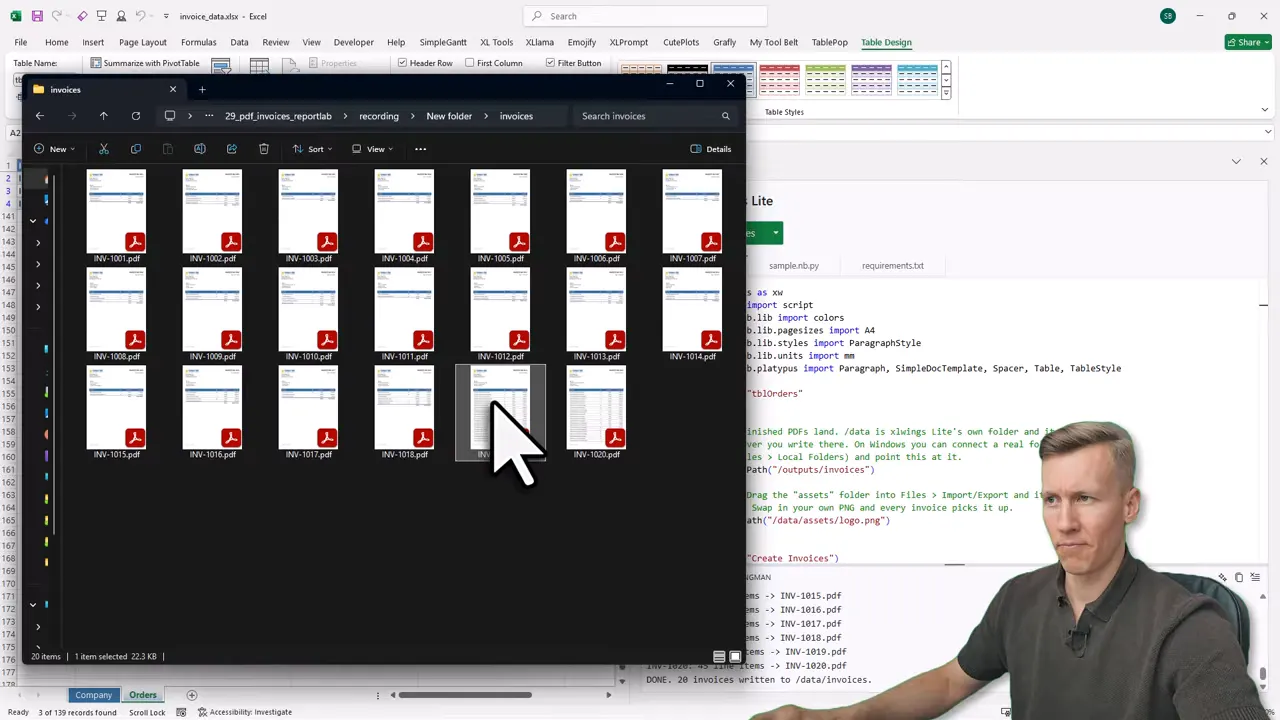
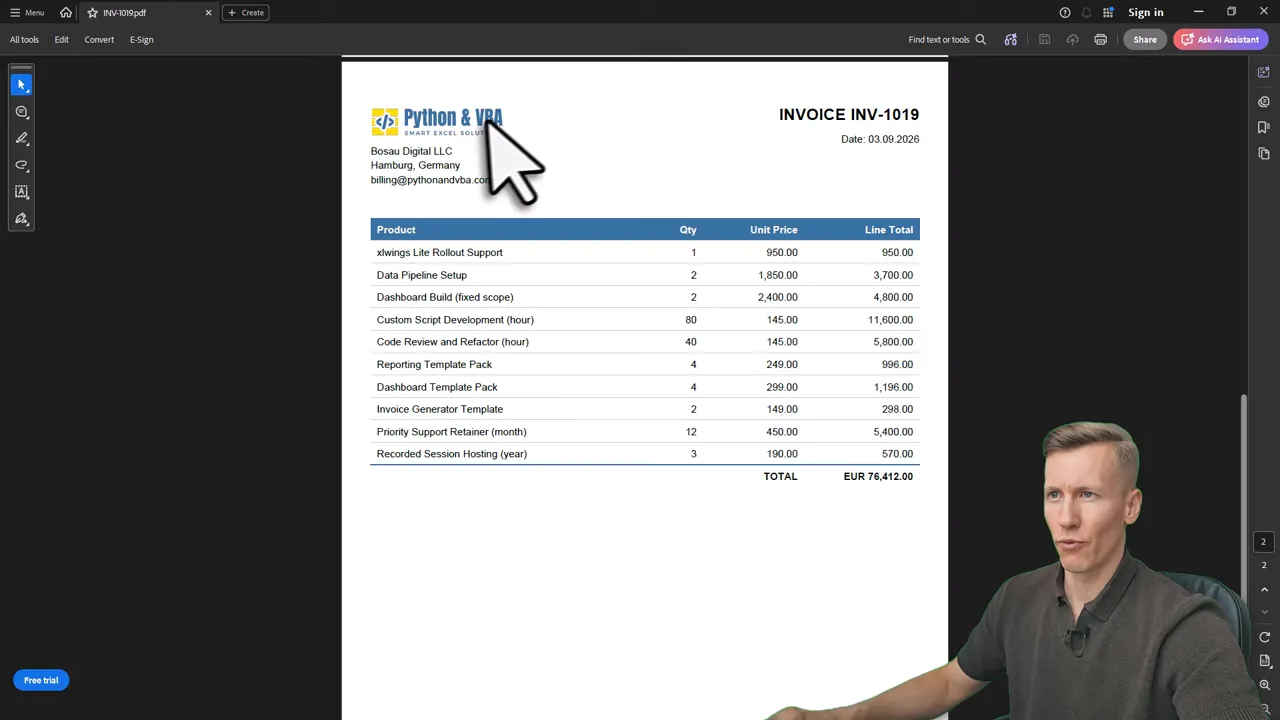
A much better approach is to create PDF files in Excel directly from the source data. In this example, one Excel table becomes 20 individual PDF invoices after clicking a single button. Each invoice includes a logo, company details, customer address, line items, payment terms, and a calculated total.
The useful bit is that this is not limited to invoices. Once you can create PDF files in Excel this way, the same pattern works for almost any structured report. The spreadsheet remains the friendly place where people update data, while Python handles the repetitive work in the background. A pretty good division of labor, if you ask me.
The Tools Behind the Automation
This setup uses xlwings Lite, a free Excel add-in that provides a Python editor directly inside Excel. You do not need Python installed locally to get started.
There are three main moving parts:
- xlwings Lite connects the workbook to Python and provides the clickable script button.
- pandas reads the Excel table into a DataFrame, calculates values, and groups rows by invoice number.
- ReportLab draws the actual PDF documents, including tables, headers, and page breaks.
To install xlwings Lite, go to Home > Add-ins > More Add-ins, search the official Office add-in store for “xlwings Lite”, select it, then choose Add and Continue.
Once the task pane loads, you have an editor where you can run Python code in the workbook. The included examples are a nice sanity check. For example, the seaborn demo creates a new sheet, table, and chart from Python right inside Excel.
Set Up the Workbook for PDF Generation
The workbook has two main sheets. Keep it simple.
1. Store company details in normal cells
The Company sheet holds the values that appear on every invoice. In this case, cells B4 through B7 contain the company name, address, email address, and payment terms.
That matters more than it may seem. You should not have to edit Python just because your company address changes. With this structure, you update the yellow cells in Excel and the next batch of PDFs uses the new information automatically.
2. Put invoice data in an Excel table
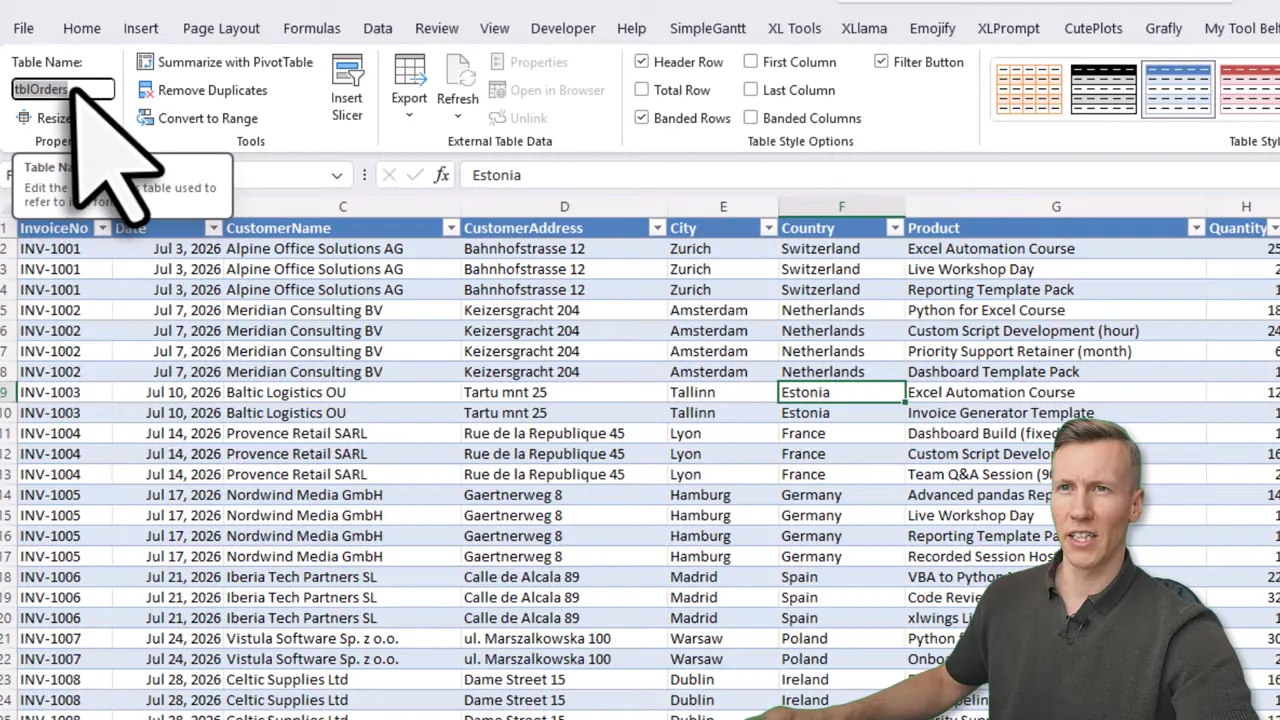
The Orders sheet contains a proper Excel table called tblOrders. It holds invoice numbers, dates, customer names and addresses, products, quantities, and unit prices.
Using an Excel table rather than a fixed cell range makes the automation dynamic. Add more rows and the table expands. The script reads the expanded table on the next run, with no need to revise cell references.
Turn a Python Function Into a Button
xlwings lets you expose a Python function as a button with the @script decorator. The function needs the active workbook as its parameter, so it can access sheets, tables, and ranges.
import xlwings as xw
from xlwings import script

@script(name="Create Invoices")
def create_invoices(book: xw.Book):
    pass
That script name becomes the action users run from the xlwings Lite pane. The rest of the code lives in the workbook, but the day-to-day experience can be just one button. More on that shortly.
Inside the function, the company values are read into a dictionary from the Company sheet. This gives the PDF creation code one tidy object containing the details it needs on every page.
Read the Orders Table With pandas
Next, read tblOrders into a pandas DataFrame. A DataFrame is basically a spreadsheet-like table in Python, which makes this very comfortable for Excel users.
The date column is parsed deliberately. Excel often supplies dates as serial numbers, so parsing converts them into real datetime values that can be formatted correctly in the PDF.
orders = (
    book.sheets["Orders"]
    .tables["tblOrders"]
    .range.options(pd.DataFrame, index=False, parse_dates=["Date"])
    .value
)
From there, calculating each line total is straightforward. Multiply the Quantity and UnitPrice columns for every row at once.
orders["LineTotal"] = orders["Quantity"] * orders["UnitPrice"]This is the Python equivalent of filling an Excel formula down a column, except it happens in one line. Then the key operation is grouping the data by invoice number. Each group becomes the complete set of line items for one PDF invoice.
That is the core pattern when you create PDF files in Excel in bulk: one large source table, one grouping field, and one output document per group.
Install ReportLab and Define File Locations
ReportLab is the PDF library used to draw each invoice. Add reportlab in xlwings Lite’s Requirements tab, then restart the add-in. The default list also carries matplotlib and seaborn for the built-in samples, and this project needs neither, so you can delete them at the same time. pandas handles the data side, while ReportLab takes care of layout and pagination.
The project also uses Python’s built-in pathlib library for folder paths. The default output folder is:
/data/invoicesIn xlwings Lite, /data is the add-in’s own file storage. Drag the assets folder into Files > Import/Export so the logo is available at:
/data/assets/logo.pngThe script creates the invoice output folder if it does not exist, so there is no manual folder housekeeping required. Small win, but those add up.
How the PDF Invoice Is Built
The invoice drawing function receives three things: the invoice number, the grouped line items, and the company dictionary. It creates an A4 PDF using ReportLab’s SimpleDocTemplate.
The layout contains:
- A logo in the upper-left corner, if the image file exists.
- An invoice number and invoice date on the right.
- Company name, address, and email below the logo.
- A bill-to block built from the first order row for that invoice.
- A product table with quantity, unit price, line total, and a final total row.
- Payment terms in the footer.
The item table repeats its blue column header row if an invoice flows onto another page. The letterhead function runs on the first page and later pages too, so the logo, company details, and invoice heading do not disappear halfway through a large invoice.
That is an important practical detail. Invoice INV-1019 and INV-1020 contain 33 and 45 line items respectively, so they naturally extend to a second page. ReportLab handles the page break while keeping the document usable and properly branded.
If you want the finished workbook, the complete script, and the logo assets, you can download the PDF invoice demo files from my code library. If your use case is template-based documents rather than programmatic PDF layout, my docxtpl tutorial is a useful alternative.
Run the Automation and Retrieve the PDFs
When you click Create Invoices, the function loops through every invoice group and writes one PDF for each invoice number. In this example, it creates 20 invoices in about two seconds.
The output pane confirms what happened, including each invoice number, its number of line items, and the final message showing how many invoice files were written.
Open Files in the xlwings Lite menu to see the generated documents in the add-in’s data folder. From there, individual files can be opened or downloaded, and the full output can be exported as a ZIP.
Save PDF Files to a Local Windows Folder
If you are using Windows, you can also write the PDFs straight into a folder on your computer instead of the add-in data folder.
- Create a local folder, such as
outputs. - Open the xlwings Lite Local Folders tab.
- Select Add Folder and choose your new folder.
- Save the changes and allow xlwings Lite to read and write to that location.
- Change the script’s output directory from
/data/invoicesto the localoutputspath.
Run the script again and an invoices folder appears inside your chosen local folder, containing all the PDFs. This is handy when PDFs need to land directly in an existing shared location or file workflow.
Share a Workbook Without Exposing the Code
The whole automation lives inside a normal .xlsx workbook. You can save it and send it to a colleague. They only need the xlwings Lite add-in from the Office add-in store to run it.
For a cleaner experience, turn on App Mode under the xlwings Lite settings. App Mode hides the code editor and leaves only the green Create Invoices button.
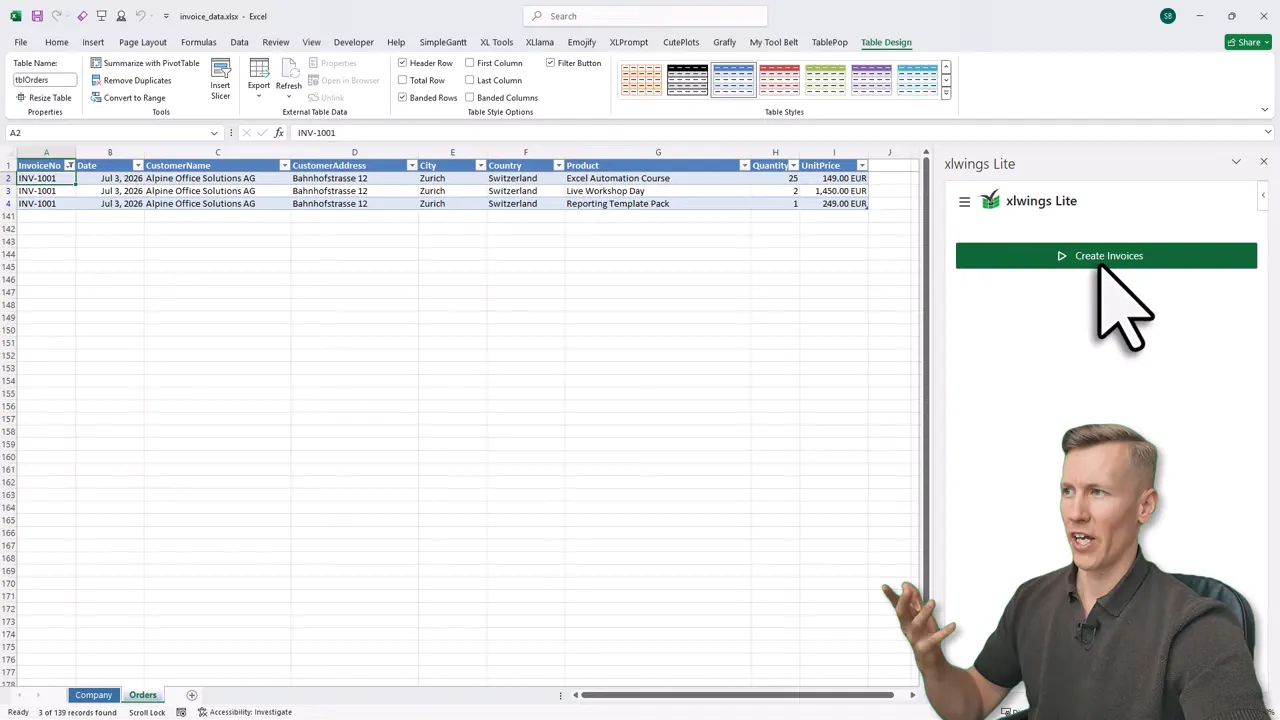
This is ideal when someone needs the automation but does not need to touch the implementation. They update the Excel table, adjust company cells if necessary, and click the button. No code safari required.
Take the Same Pattern Beyond Invoices
Once you can create PDF files in Excel using this structure, invoices are only the beginning. The same workflow can produce:
- Quotes and proposals
- Order confirmations
- Delivery notes
- Certificates
- Customer statements
- Custom PDF reports
You could even extend the workflow further by emailing each PDF as an attachment after it is generated. The data preparation, grouping logic, and document generation pattern remain the same.
The real advantage is that the workbook stays flexible. More source rows are picked up automatically, and company details stay editable in familiar Excel cells. That gives you a repeatable way to create PDF files in Excel without rebuilding documents by hand every time.
If this xlwings and pandas workflow made sense but you want the fundamentals behind it, the course covers merging files, building dashboards, and generating documents in bulk.