
Convert Multiple TXT or CSV Files Into Excel Using Python

Hundreds of TXT files, one per student, each holding an ID and a list of answers, combined into a single Excel workbook. The script walks the input folder, parses each file into a row, and writes the assembled table out in one pass.
Problem Statement
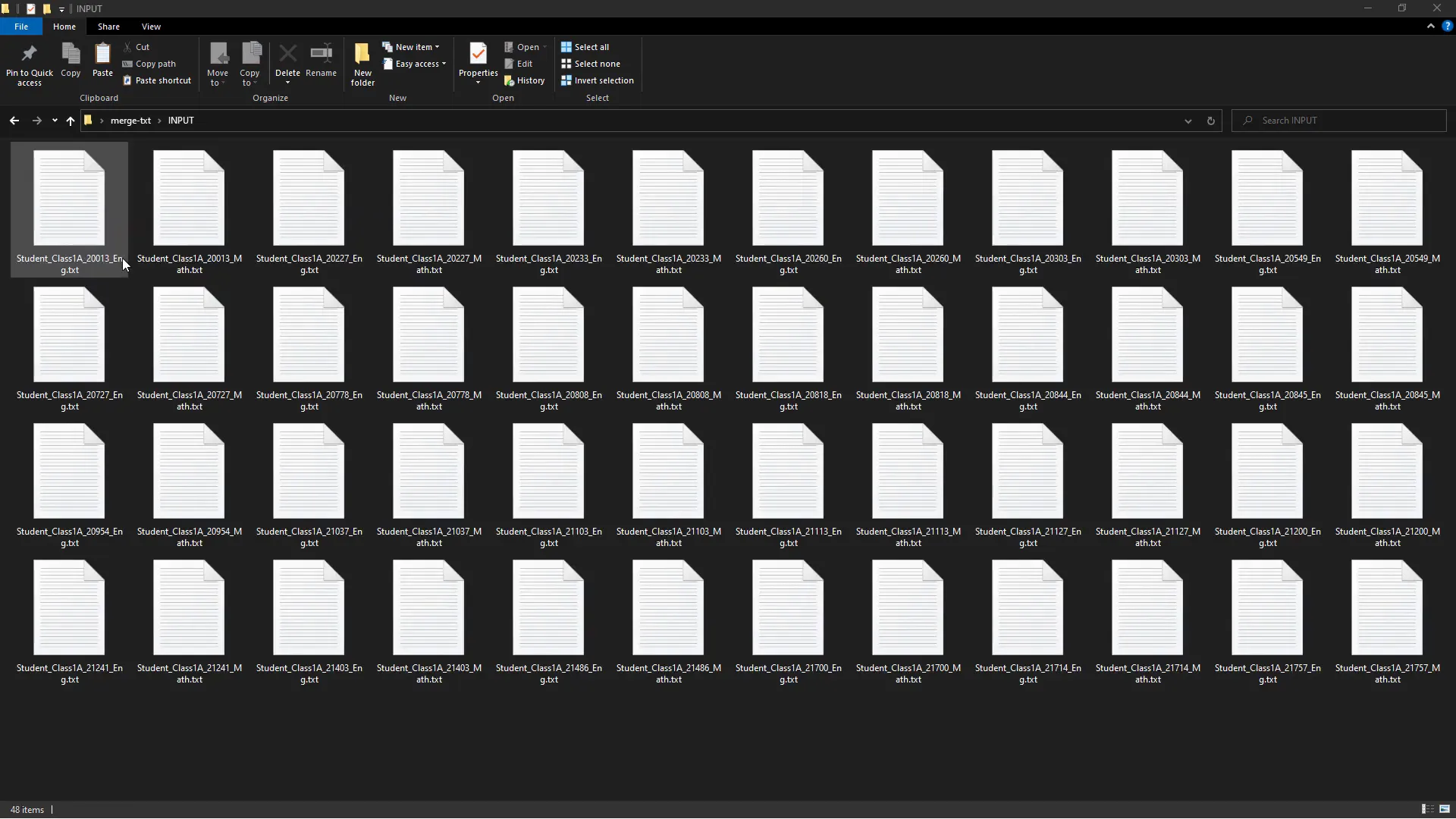
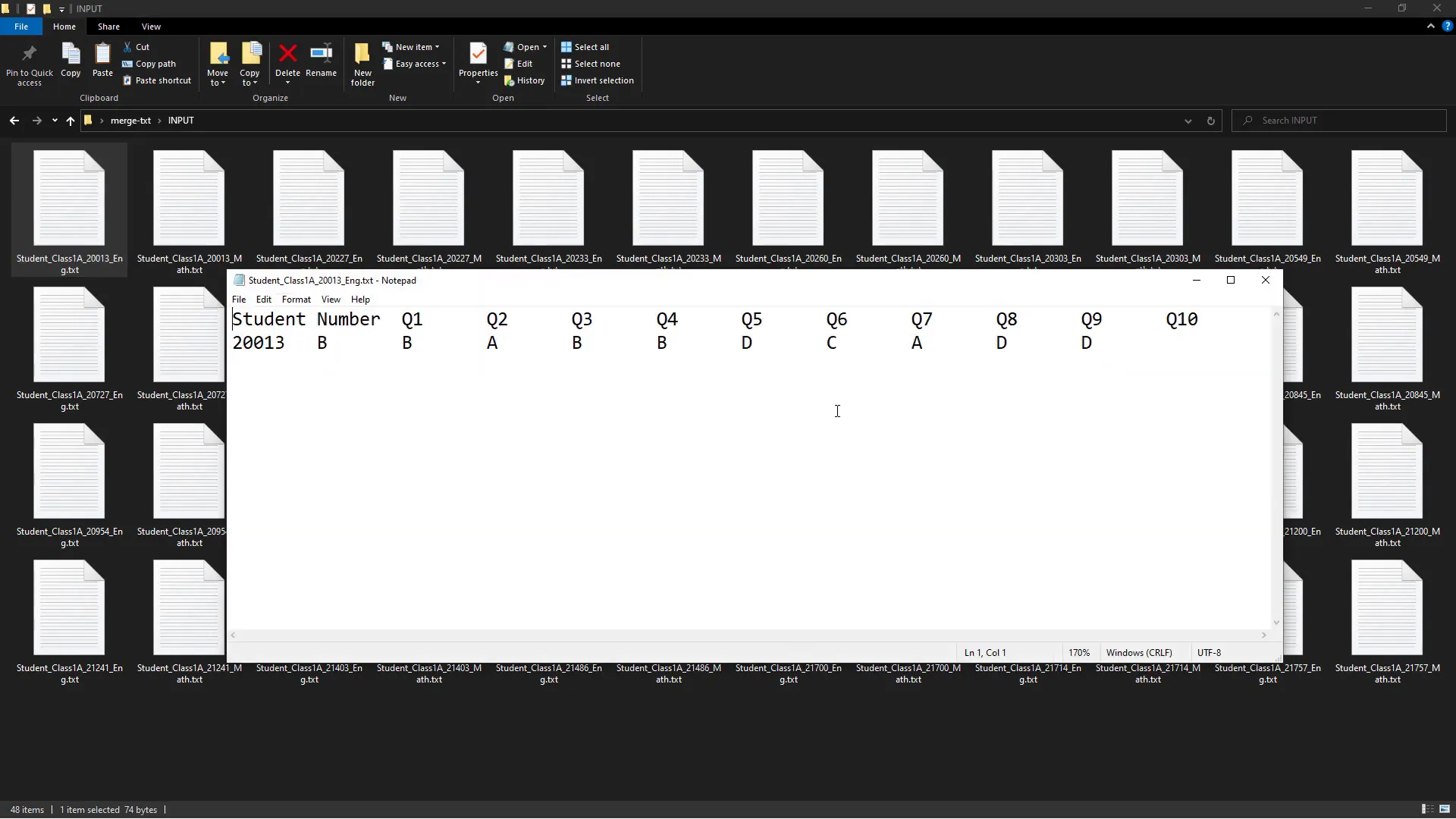
In my directory, I have an input folder filled with text files. Each file contains a student’s ID followed by their answers to various questions, separated by tabs. For every student, there are two files: one for English results and another for Math results. The goal is to create one workbook per student, consolidating their results in a structured manner.
Coding Out the Solution
To automate this task, I will use the pandas and xlwings libraries. The first step is to install these dependencies. I can do this by running the command:
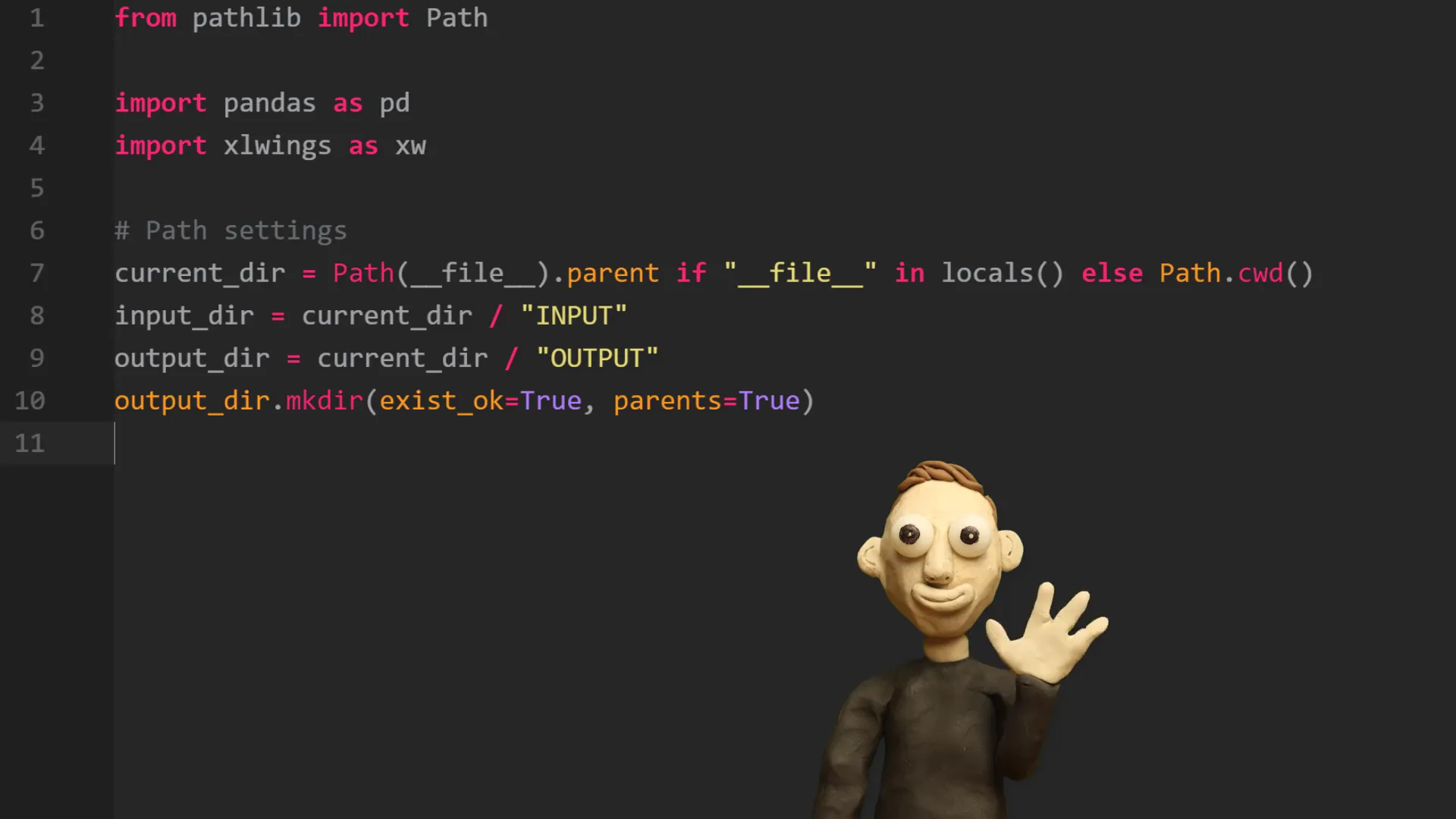
pip install pandas xlwingsNext, I will import the necessary libraries. I’ll use Path from pathlib to handle file paths, along with pandas and xlwings.
After this, I will define the paths needed for the current directory, the input folder, and the output folder. If the output folder does not exist, I will create it using the make_directory method from pathlib.
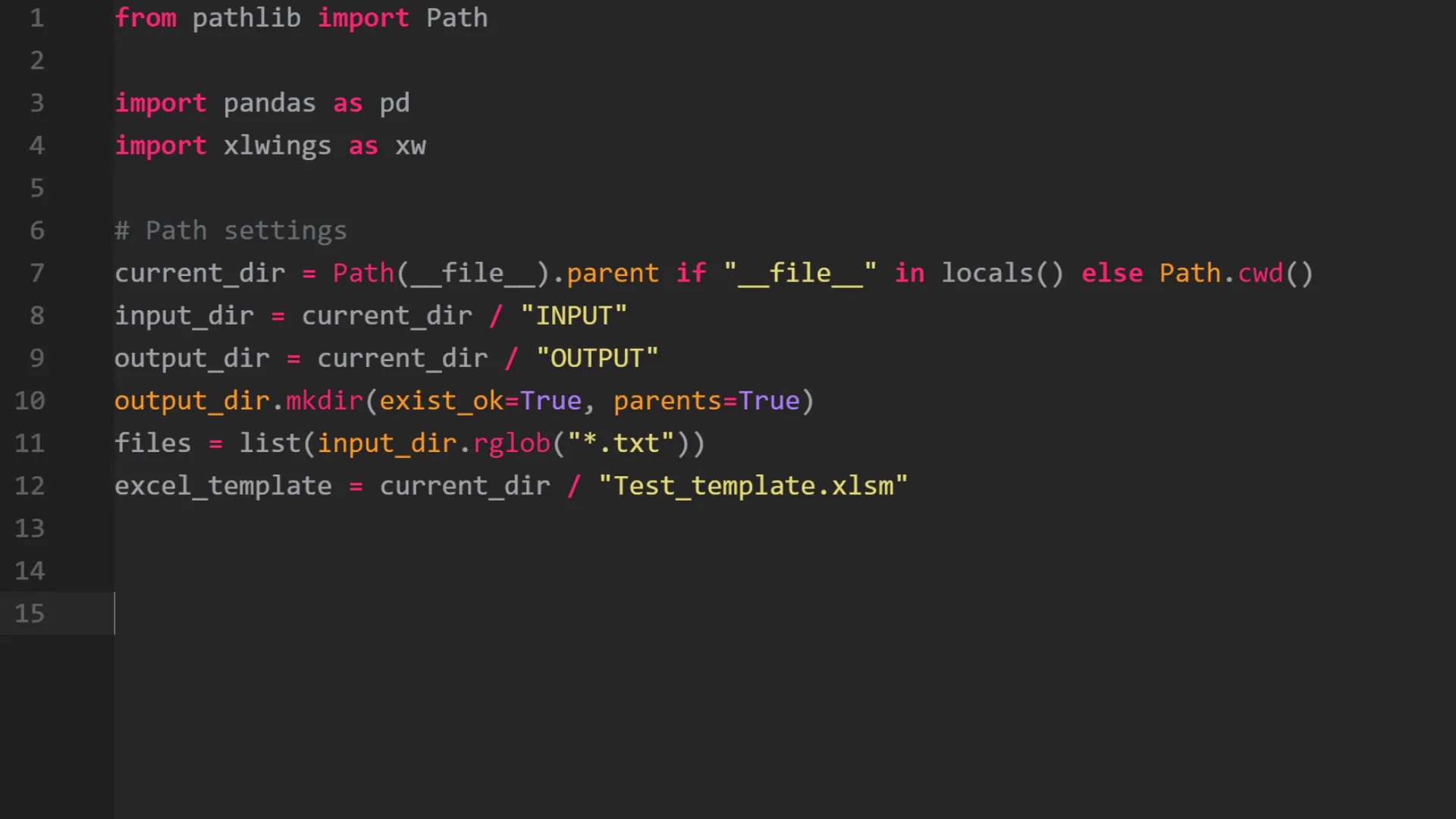
Now, I will list all the text files in the input directory. For each student, I will create a unique key based on the file names, allowing me to group the English and Math results together.
Next, I will open an Excel instance in the background using xlwings. For each key, I will open the Excel template. I will iterate over the text files in the input directory and check if the file name starts with the key. If it does, I will check if the file ends with _Eng or _Math to determine which results to insert into the respective sheet in the Excel template.
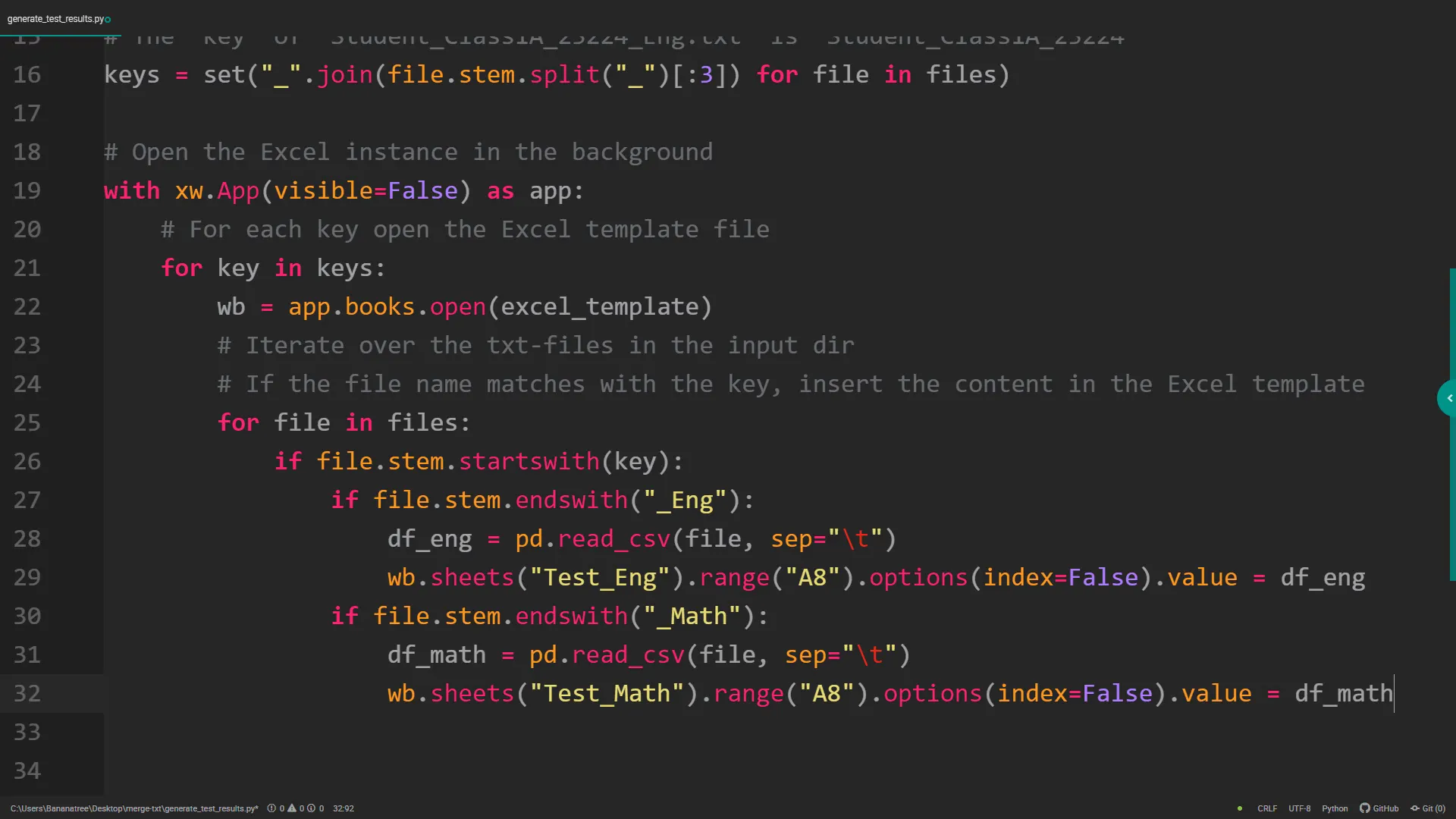
For the English results, I will create a pandas DataFrame from the text file and then insert it into the Excel template at the specified cell range. This process will be repeated for the Math results, ensuring that the data is correctly placed in the respective sheets.
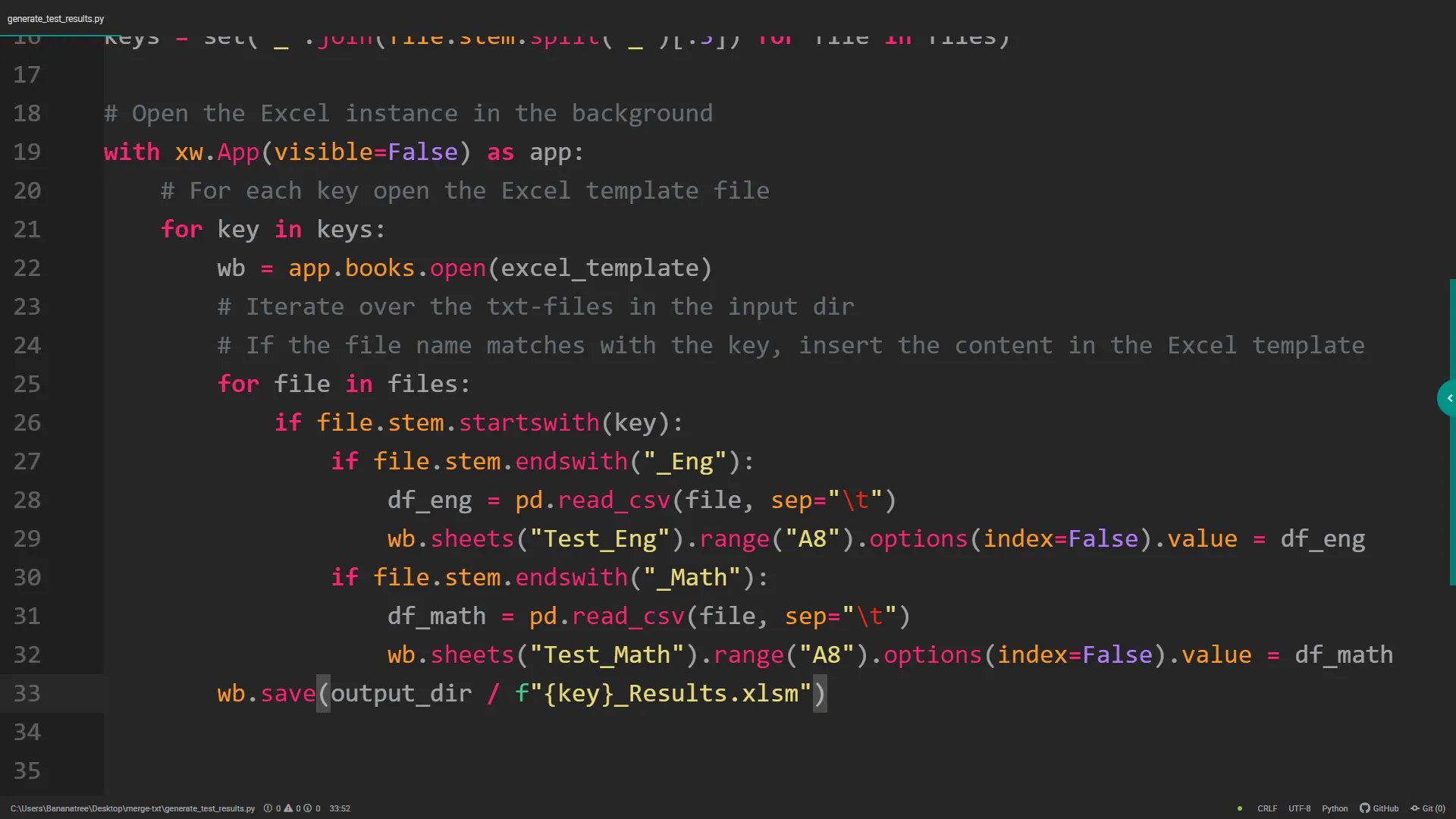
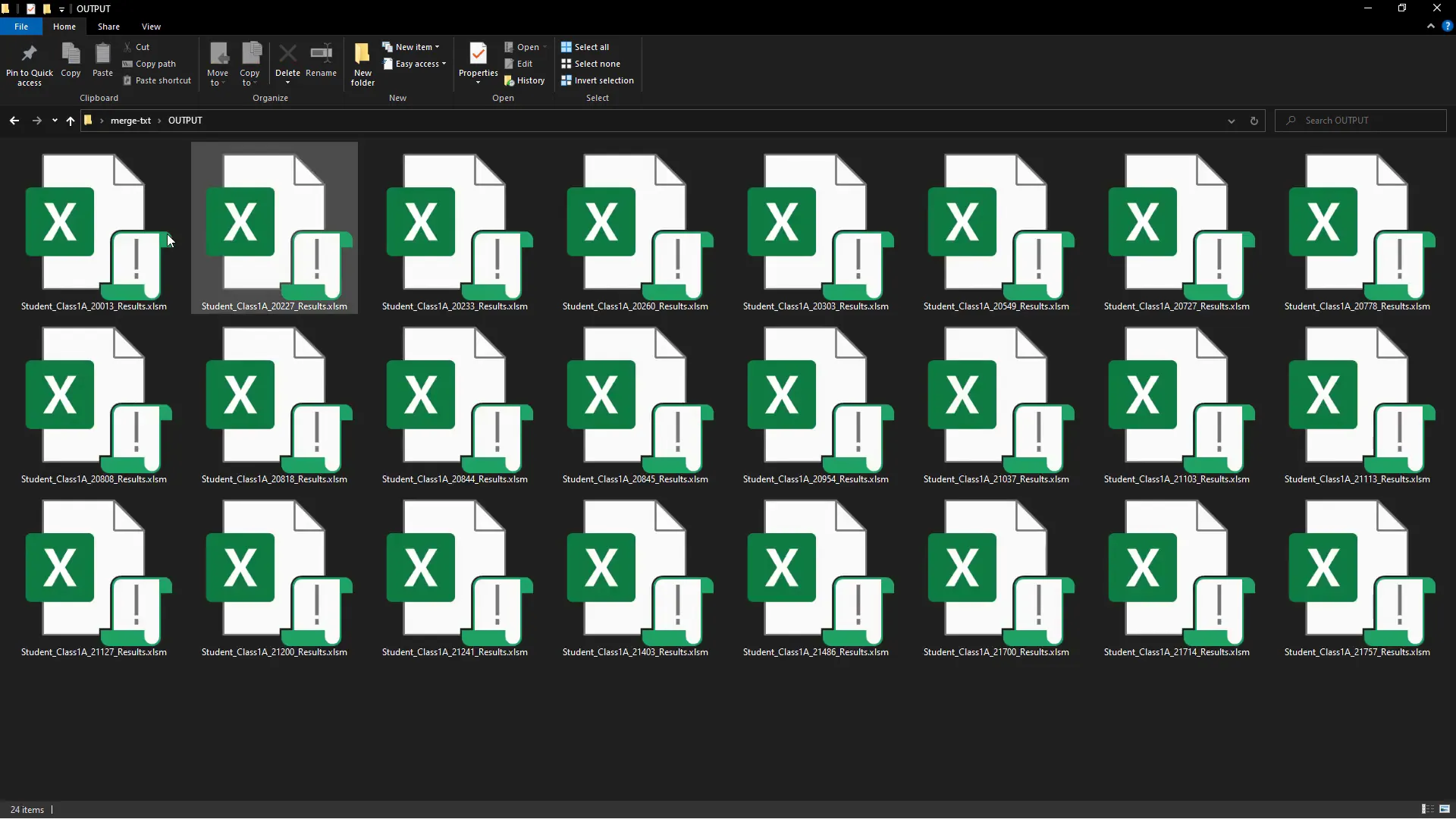
Finally, I will save the completed workbook to the output directory, naming it with the student ID followed by _results. Once the script runs, it will generate all the spreadsheets needed for the students.
Conclusion
This method significantly reduces the time and effort required to compile student results into Excel. By automating the process, I can handle large volumes of data efficiently. If you have any questions or need further clarification on any part of the process, feel free to ask in the comments!