
How To Execute A Python Script From Excel Using VBA
![How To Execute A Python Script From Excel Using VBA | Step-by-Step Tutorial [EASY]](https://pythonandvba.com/wp-content/cache/flying-press/3115e0727b2493094058ad92e17c3132.jpg)
VBA can launch a Python script with the Shell function, given the full path to python.exe and to your script. It works, but it is brittle: hardcoded paths, no return value, and a console window. The post covers those limits and a cleaner alternative.
VBA Code to run a Python script
Follow these steps:
- Open Excel and navigate to the Developer tab.
- Click on “Visual Basic” to open the VBA editor.
- In the editor, insert a new module.
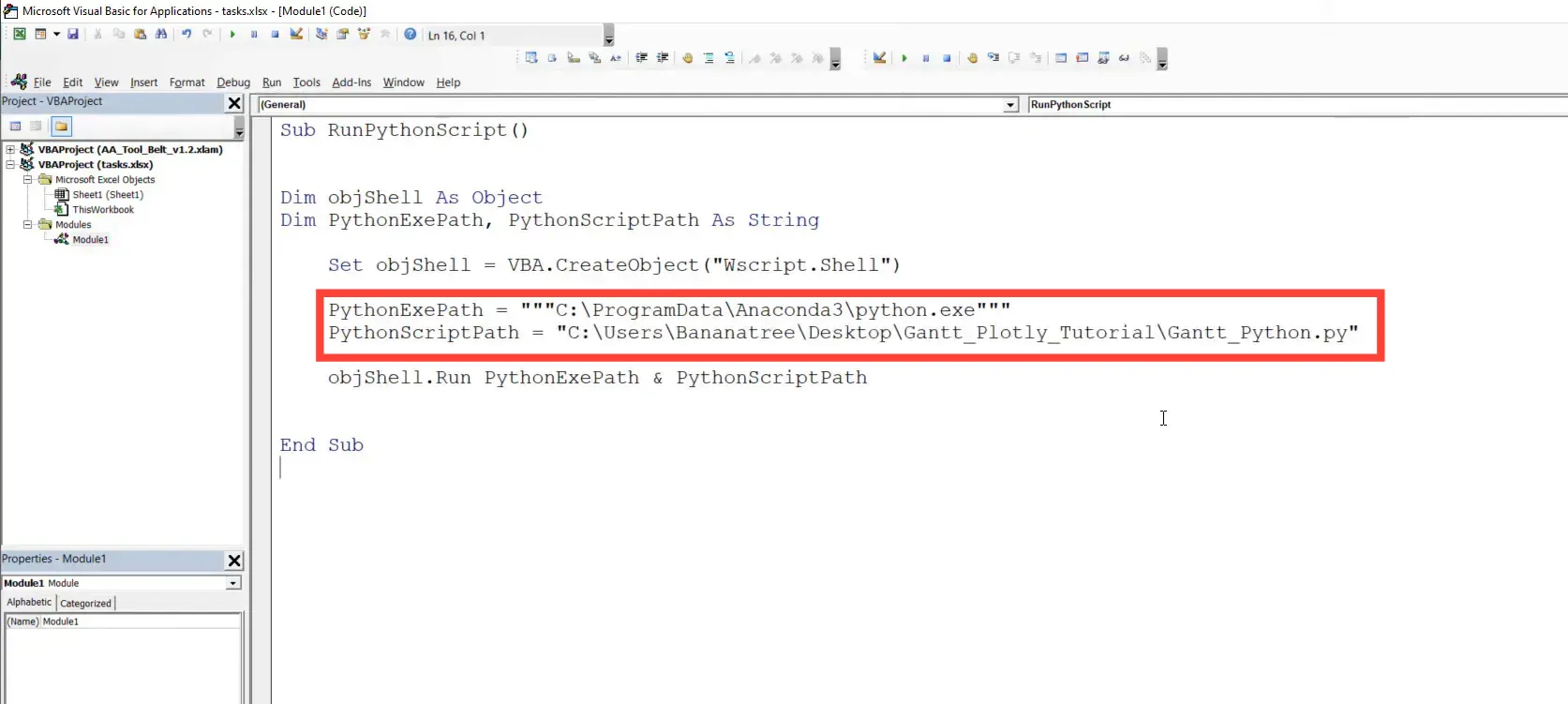
- Copy and paste the following code into the module:
Sub RunPythonScript()
    Dim objShell As Object
    Dim PythonExePath As String, PythonScriptPath As String
    ActiveWorkbook.Save
    ChDrive ActiveWorkbook.Path
    ChDir ActiveWorkbook.Path

    Set objShell = VBA.CreateObject("Wscript.Shell")

    'PythonExePath = """ Insert Path to Python EXE here """
    'PythonScriptPath = """ Insert Path to Python SCRIPT here """

    objShell.Run PythonExePath & " " & PythonScriptPath
End Sub
Make sure to replace the placeholders for PythonExePath and PythonScriptPath with the actual paths to your Python executable and script.
Executing the Script
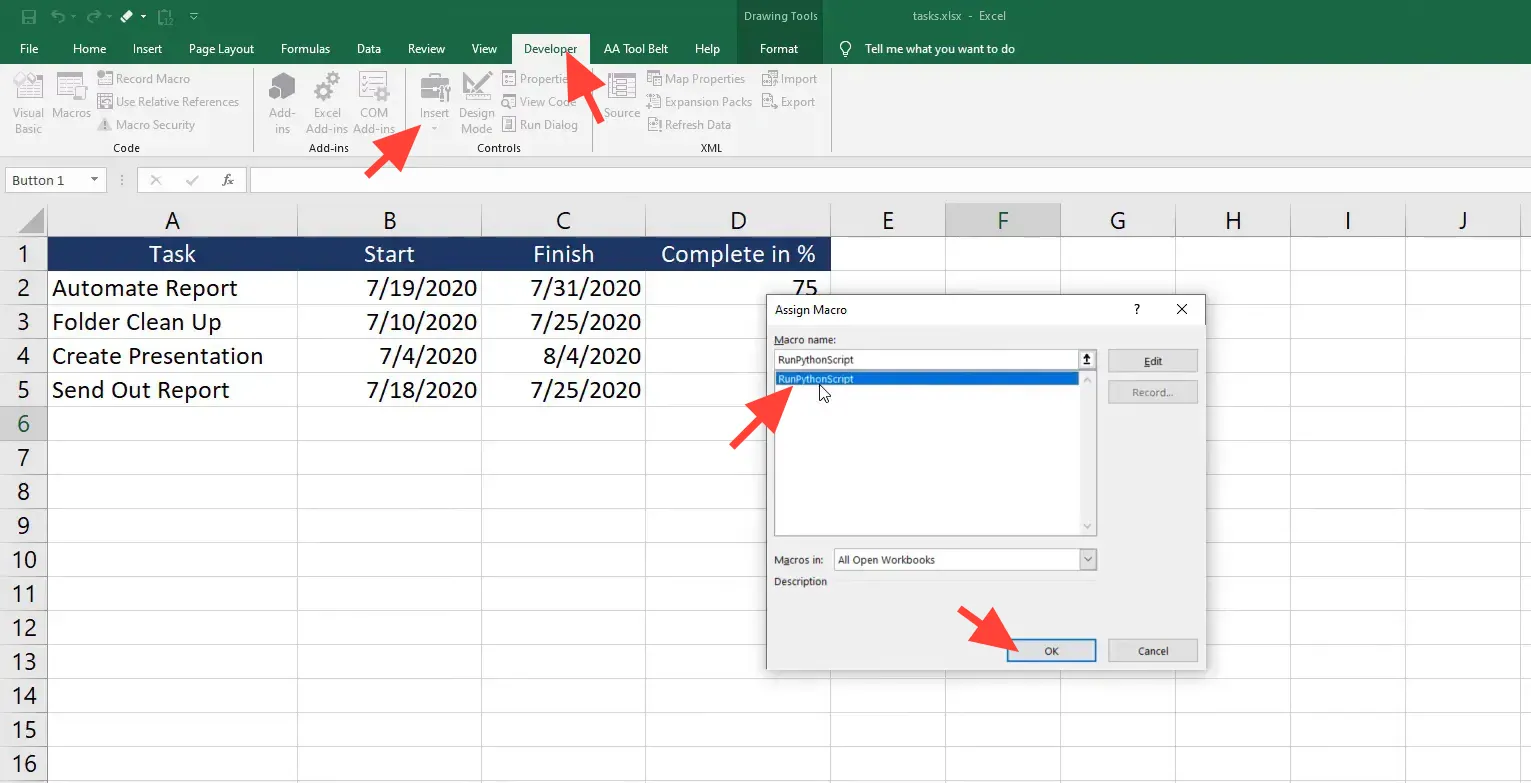
With your VBA code in place, it’s time to execute the script. You can do this by creating a button in Excel:
- In the Developer tab, click on “Insert” and select a button control.
- Draw the button on your Excel sheet.
- Right-click the button and select “Assign Macro.”
- Choose the RunPythonScript macro and click OK.
Debugging Common Issues
If you encounter any issues while running your script, check the following:
- Ensure that the paths to your Python executable and script are correct.
- Wrap both paths in quotes if they contain spaces, and keep the space between them in the objShell.Run line. Without it the two paths run together into one unusable command.
- If your workbook lives on a different drive than the one Excel is currently pointed at, ChDir alone will not switch drives. That is what the ChDrive line above is for.
- Make sure your Python script does not require any inputs that have not been provided.
- Check for syntax errors in your Python code.
The Limits of This Approach
Shelling out to Python is the quickest way to get the two talking, and for a script you run on your own machine it is often all you need. It is worth knowing what it cannot do, so nothing catches you out later:
- It is fire and forget. objShell.Run launches the script and moves on. Excel never learns whether it worked, and no result comes back into your sheet.
- The paths are hardcoded. Send the file to a colleague and their Python sits somewhere else, so the macro breaks on their machine.
- Everyone needs Python installed. Not just Python, but the right version with the right packages.
- The file has to be an .xlsm. That means a security warning for whoever opens it, and plenty of IT departments block macros outright.
- Windows only. Wscript.Shell does not exist on a Mac or in Excel for the web.
The Alternative: Run Python Inside Excel
If any of those are a problem for you, there is a second route: instead of shelling out to Python, run it inside Excel.
A free add-in called xlwings Lite puts a Python editor right in Excel’s task pane. Your code runs locally on your own computer and lives inside a normal .xlsx file, so there are no paths to hardcode, no separate Python install, no macros, and no security warnings for your colleagues. It works on Windows, Mac, and Excel in the browser. You can read and write cells, build charts, generate Word and PDF files, and use libraries like pandas, all without leaving the spreadsheet.
That is exactly what I teach in my course, Automate Hours of Excel Work with Python. It is built for Excel users with zero coding background, runs about 3.5 hours, and a few lessons are free to preview.
Conclusion
In this post, I covered how to execute a Python script from Excel using VBA. By following these steps, you can integrate Python’s powerful capabilities directly into your Excel workflow, enhancing your data analysis and automation tasks. Running scripts from Excel can save time and streamline your processes.
And if you want to go further, turning these one-off scripts into automations you can actually hand to a colleague, take a look at the course. It walks through the whole path, from your first line of Python to a finished, shareable automation.
Merge dozens of files into one table, build interactive dashboards, generate Word documents in bulk. 52 lessons for Excel users with no coding background.