
The Easiest Way to Automate Excel with Python

Replace VBA with Python: The Easiest Way to Automate Excel
Imagine you are buried in repetitive Excel tasks: copying data between sheets, generating the same reports every week, or building little dashboards with lots of manual steps. You know VBA can do it, but you also want access to a huge ecosystem of libraries, better debugging, and more modern language features. If your goal is to Replace VBA with Python, there is a practical path that feels familiar while unlocking new capabilities.
Why Replace VBA with Python?
VBA is great for in-workbook automation and quick macros. The problem shows up when you want to fetch live data, use modern plotting libraries, or reuse code in other projects. Python adds access to packages for finance, data fetching, machine learning, and robust plotting. But switching can feel scary because VBA talks to Excel through COM and your teammates may not have Python installed.
The good news is there is a middle ground that keeps the same Excel-first workflow while letting you code in Python. In short, you can keep the Excel workbook as the user interface and trigger Python from buttons and macros. That is one of the simplest ways to Replace VBA with Python without rewriting everything from scratch.
Meet xlwings: Python that acts like VBA
xlwings is a Python package that connects to Excel through the same interface that VBA uses. It exposes familiar objects like workbooks, sheets, ranges, and the Excel application itself. The API mirrors the VBA mental model so the learning curve is small for anyone who already knows Excel automation.
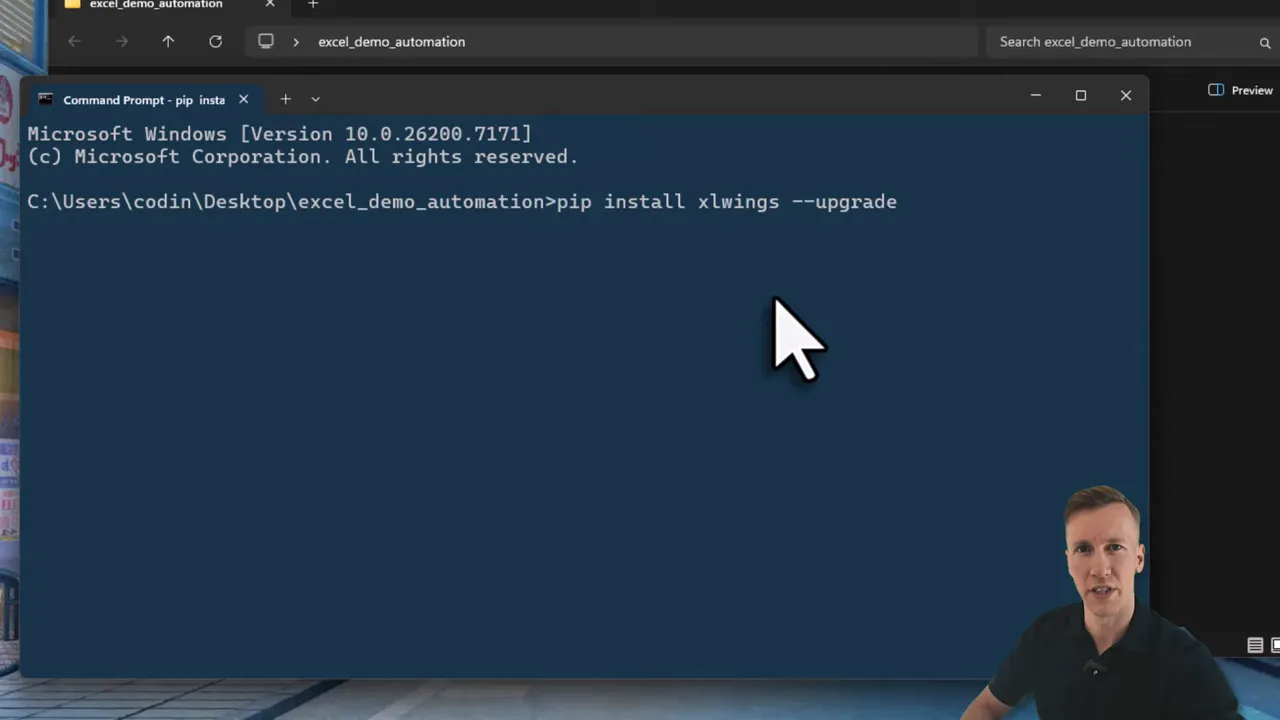
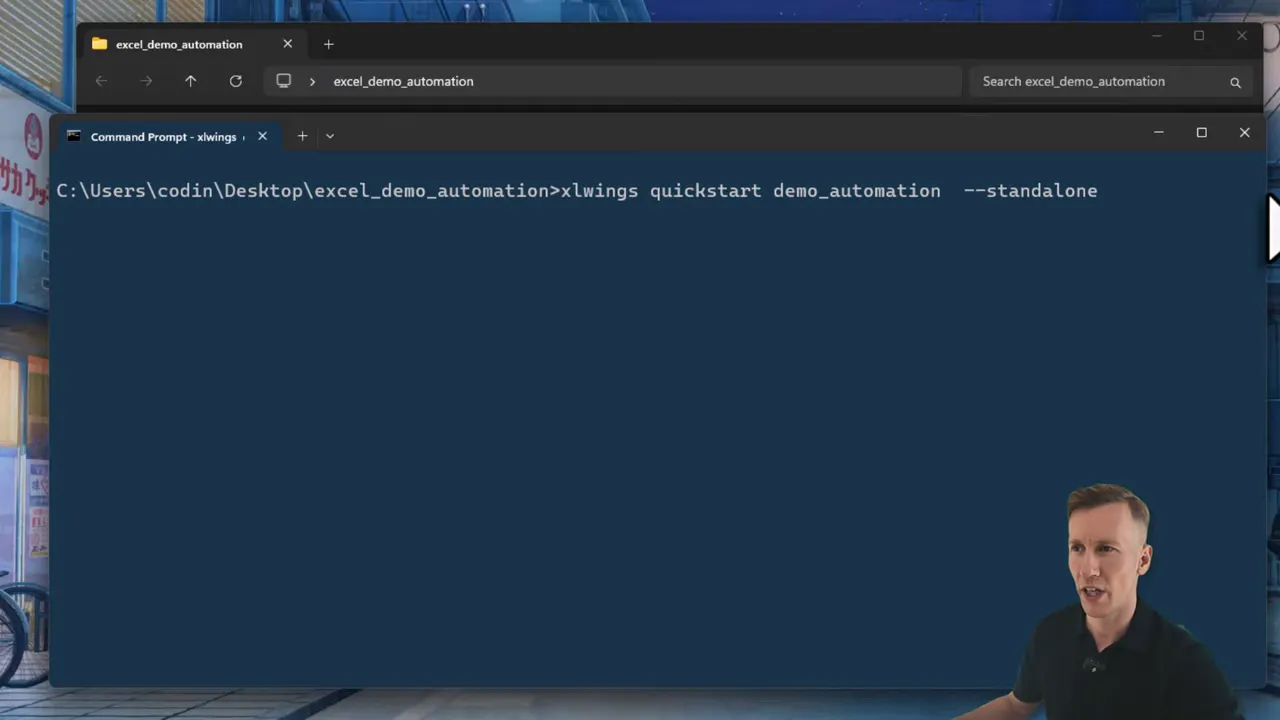
Installation is straightforward. From a terminal run pip install xlwings, then use the quickstart command (xlwings quickstart <project_name> –standaline) to scaffold a project. The scaffold includes a macro-enabled workbook that contains small VBA wrappers which call into Python. Those wrappers let you trigger Python functions from buttons or macros just like you would trigger VBA routines.
How the Excel-to-Python bridge works
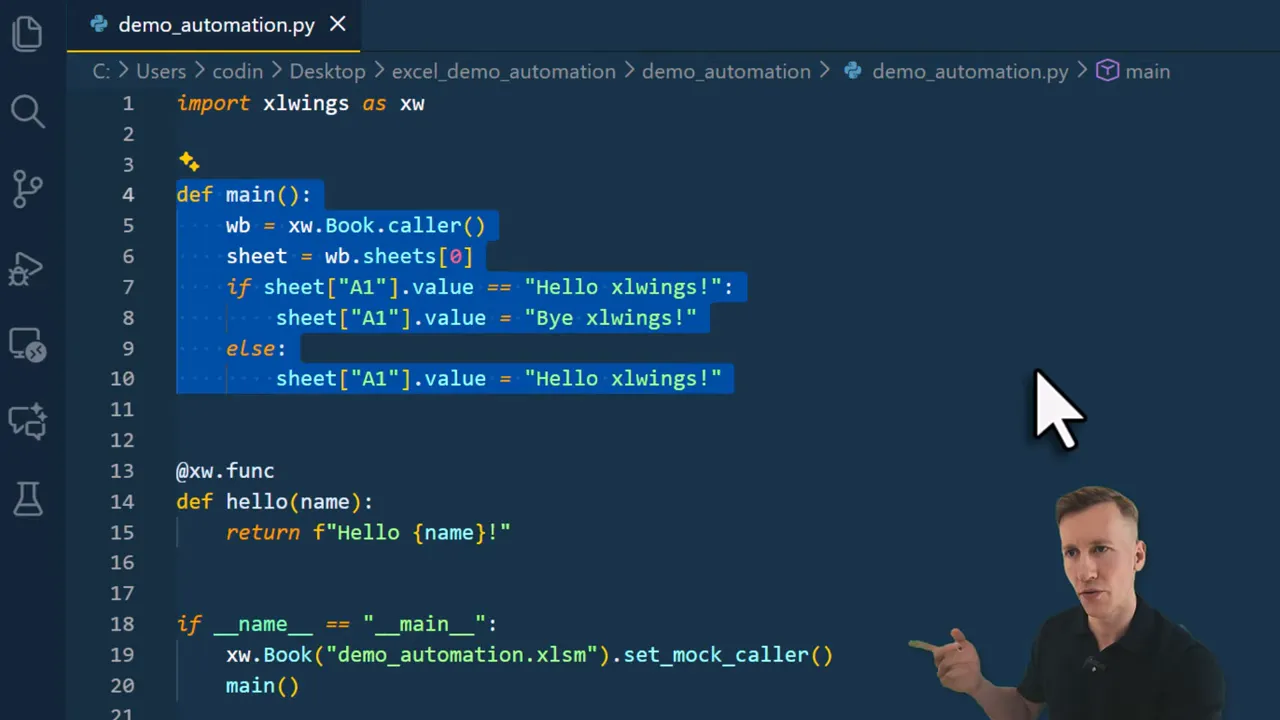
Under the hood a small VBA module extracts the workbook name and calls a run function that launches your Python main. In Python you use xlwings as xw and get the calling workbook via xw.Book.caller(). From there you can manipulate sheets, ranges, formatting, etc.
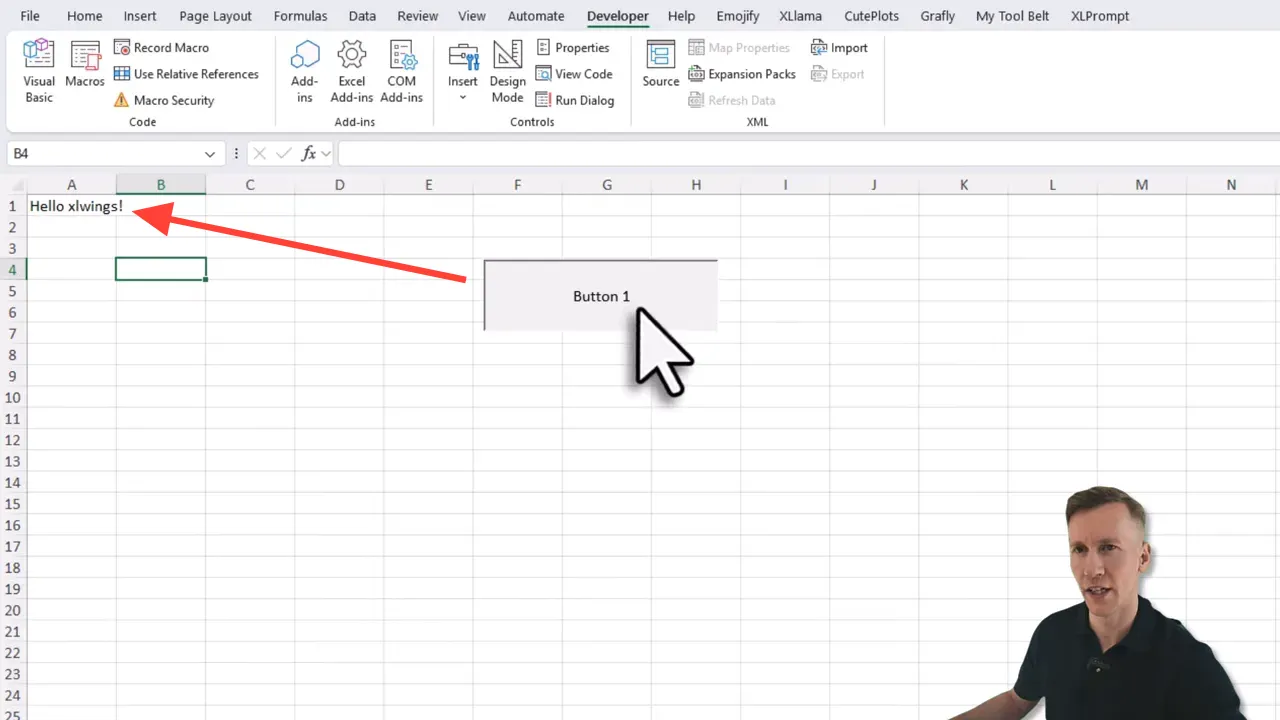
Because xlwings uses the same COM interface, syntax often reads like VBA translated into Python. For example, selecting the second sheet is as simple as grabbing the sheets collection and indexing into it (remember Python starts indexing at zero). That familiarity is why many people choose this route when they want to Replace VBA with Python while preserving existing workbook logic.
Real example: a small stock dashboard
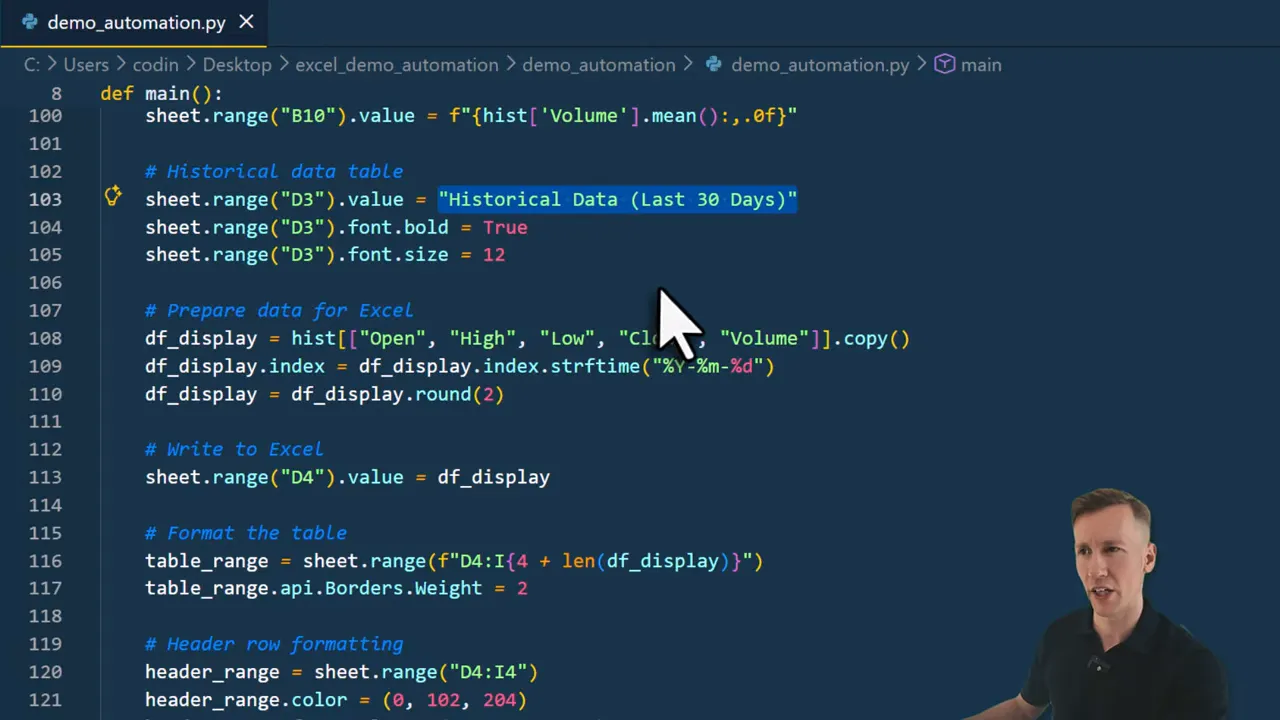
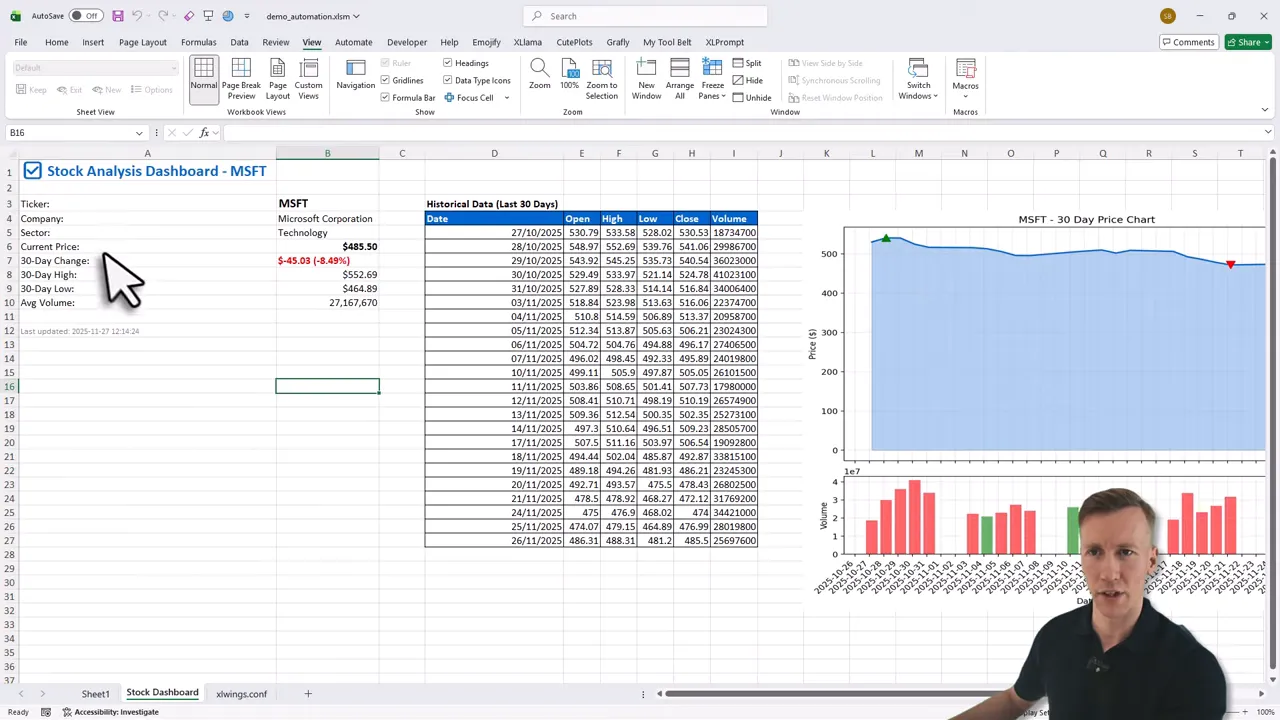
A useful practical example is building a stock dashboard. Using Python libraries such as yfinance to fetch historical prices and matplotlib to create plots, you can bring the data and visuals back into Excel as cells, tables, and inserted images. The workflow looks like this:
- Read a named range in Excel for the ticker symbol.
- Fetch company info and one-month historical prices via yfinance.
- Create an Excel sheet, insert headers and KPIs, autofit columns.
- Plot price and volume with matplotlib and paste the plot as an image into the sheet.
- Show an alert with current price and 30-day change, then add a timestamp.
Deploying to coworkers – options and tradeoffs
One obvious drawback is that coworkers need Python installed to run xlwings scripts directly. If you want to distribute a tool without requiring Python on every machine, there are two main directions:
- xlwings Server – host the Python runtime centrally and expose endpoints. More technical to set up, but centralizes dependencies.
- xlwings Lite – an Excel add-in that runs Python in the browser using Pyodide and WebAssembly. It runs locally in a sandboxed environment and does not send your data to the cloud. This makes it easy to prototype or share tools with minimal installation.
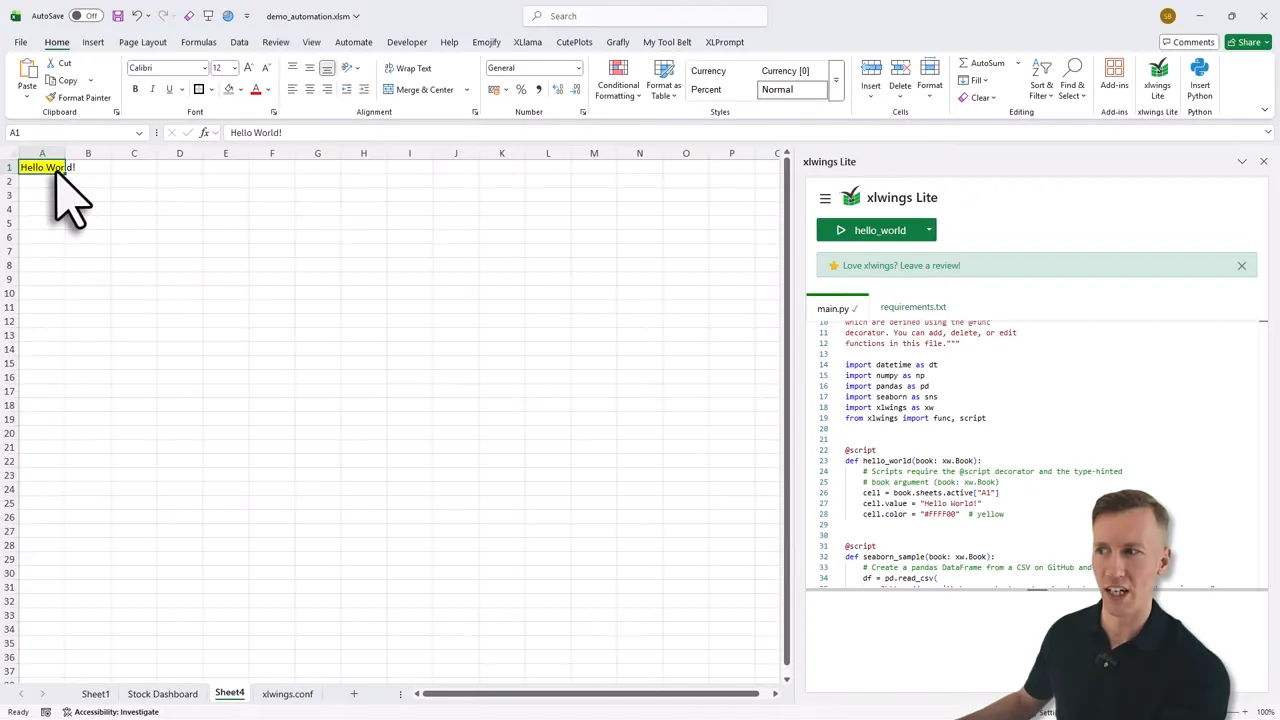
xlwings Lite even provides a task pane to write and run Python code directly inside Excel. For small utilities or team demos this can be a life saver (and yes, you can still use plotting and CSV data hosted on GitHub for examples).
Practical tips when you Replace VBA with Python
- Keep the workbook interface intact. Use Python for heavier logic and external data.
- Name ranges and rely on them in Python. It makes the bridge between Excel and code less fragile.
- Document environment paths in the project config so the VBA wrapper can locate the Python interpreter.
Final thoughts
Switching from VBA to Python is not an all-or-nothing move. By using tools that speak the same language as Excel, you can keep the comfortable workbook experience while gaining the power of Python libraries. If your aim is to Replace VBA with Python, xlwings provides a low-friction bridge that preserves the mental model of Excel automation and opens the door to a much larger ecosystem.
Think of it like upgrading the engine under the hood without rebuilding the dashboard. It still looks familiar to the users, but it goes further and faster. Happy automating (and may your macros be ever maintainable). —Sven
