
Play Minesweeper in Excel with the Free CellSweeper Add-In
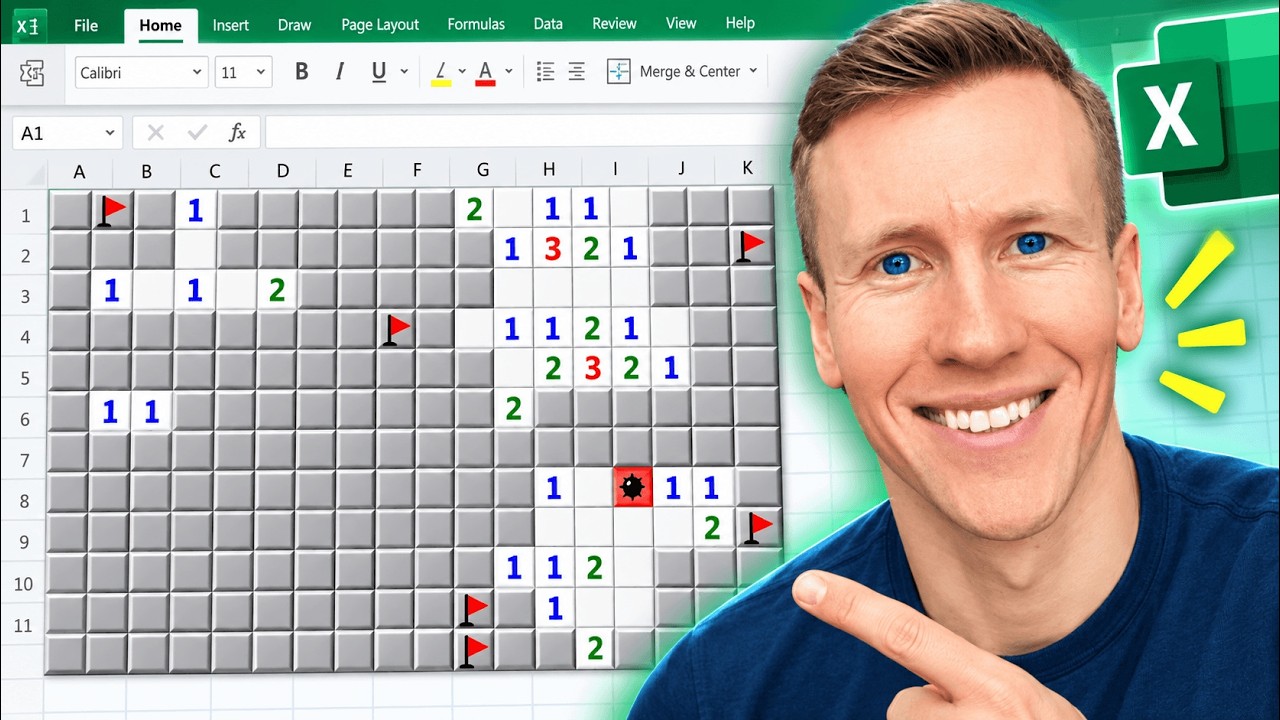
CellSweeper is a free, no-VBA Excel add-in that puts a playable Minesweeper board on its own worksheet. Choose Beginner, Intermediate, or Expert, reveal and flag real cells, pause and save your game, then delete the sheet when it is time to get back to work.
I Built Minesweeper Into Excel With a Free Add-In
Sometimes you need a short break from formulas, pivot tables, and the mysterious spreadsheet someone sent you five minutes ago. So I built Minesweeper directly into Excel.
It is called CellSweeper, and it turns a separate worksheet into a proper Minesweeper board. No VBA, no account, no license key, and no need to open a browser tab that somehow becomes a 40-minute detour.
The add-in is free and available through the official Office Add-ins store, so it works in Excel on Windows, Mac, and the web.
Choose a Difficulty and Create a Game Sheet
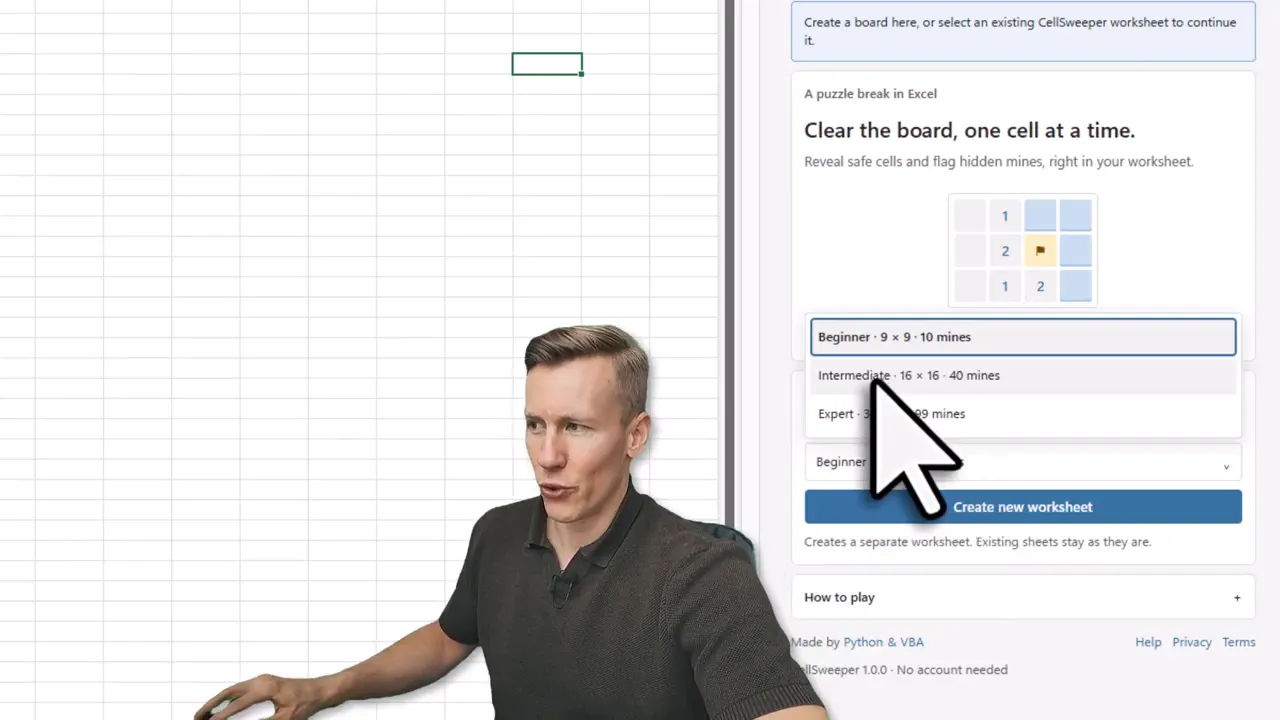
CellSweeper starts in an Excel task pane. Pick one of the three familiar difficulty levels:
- Beginner: a 9 x 9 board with 10 mines.
- Intermediate: a 16 x 16 board with 40 mines.
- Expert: a 30 x 16 board with 99 mines.
After choosing a level, select Create new worksheet. CellSweeper creates the game board on its own sheet, leaving your existing workbook sheets alone.
Your first reveal is always safe. After that, it is classic Minesweeper: click a covered cell to reveal it, use the numbers as clues, and work out where the mines are hidden among the eight surrounding cells.
How to Play Minesweeper in Real Excel Cells
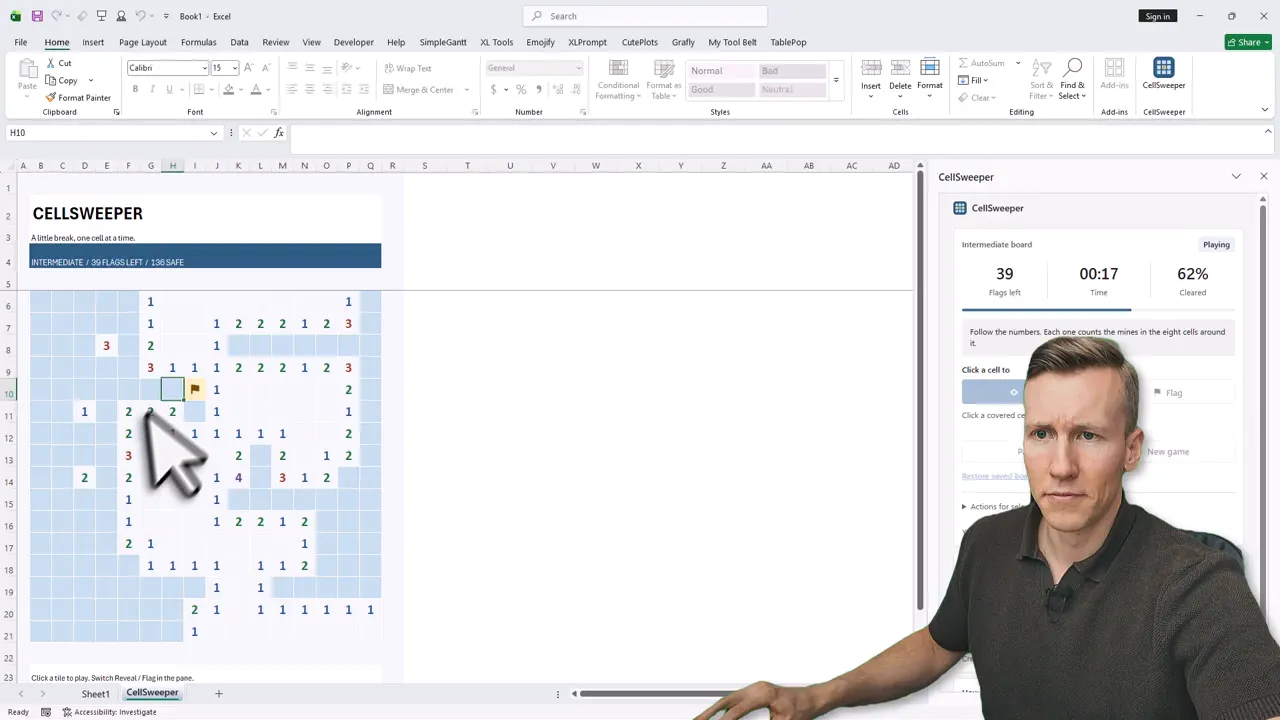
The board uses actual worksheet cells. Reveal a safe cell and it shows a number, or opens a larger empty area automatically when there are no nearby mines.
Each number tells you how many mines are located in the eight cells around it. That is the whole puzzle: use the visible numbers to identify safe moves and likely mine locations.
When you think a cell contains a mine, switch the task pane to Flag mode and select that cell. Flagging is handled through the pane because right-clicking in Excel still needs to open Excel’s normal context menu. Fair enough, Excel has a day job too.
The task pane keeps the useful game details in one place:
- The number of flags you have left
- Your current play time
- The number of cleared cells
- Pause and resume controls
Once the game ends, the board reveals the outcome, including mines and incorrect flags. It is a very efficient way to discover that your confidence was not backed by evidence.
Pause, Save, and Continue Later
A spreadsheet break does not always fit neatly between meetings. CellSweeper stores the game state in the worksheet, so you can pause a board, save the workbook, close Excel, and continue the same game later.
The timer can be paused and resumed, and CellSweeper also tracks a personal best time for each difficulty level. When you are finished, simply delete the game worksheet. Your work sheets remain exactly where they were.
The game logic runs locally, and the add-in does not send your workbook contents anywhere. It also does not require macros, which is handy if you just want a small game in Excel without changing your normal workbook setup.
How to Install CellSweeper
Installing CellSweeper takes a minute:
- Open any workbook in Excel.
- Go to the Home tab.
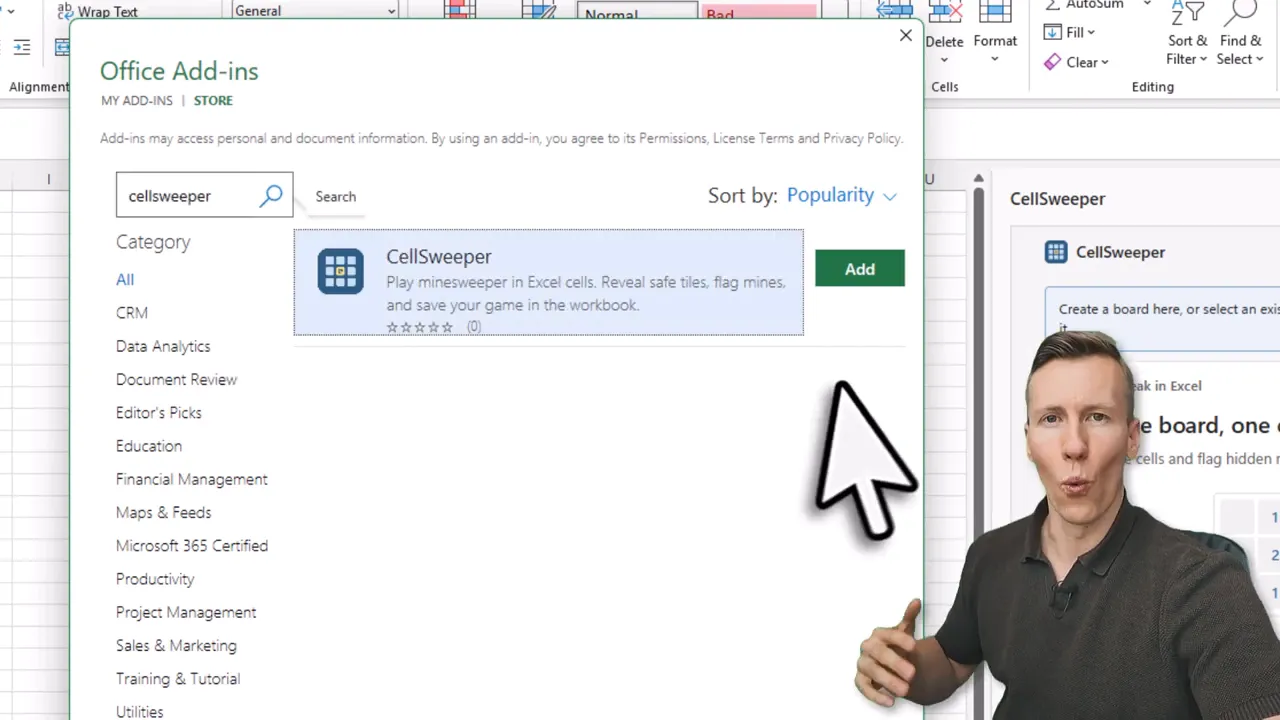
- Select Add-ins, then More Add-ins.
- Search for CellSweeper.
- Select Add.
In some Excel versions, the route may appear as Insert > Get Add-ins instead. Once installed, CellSweeper is available from the Excel ribbon and opens in the task pane.
You need Office 2021 or newer, including Microsoft 365. Since it is an Office Store add-in, you can use it in Excel for Windows, Mac, and the web. An internet connection is needed to load the add-in, and workplace IT settings may prevent Office add-ins from being installed in some organizations.
A Small Break Without Leaving Excel
CellSweeper is not trying to replace your work. It is just a quick game sheet when you need a minute away from the formulas.
Create a board, clear a few safe cells, flag a mine or two, and get back to business when the break is over. Your spreadsheet is still open, your work is still there, and hopefully your Minesweeper instincts are a little sharper.
CellSweeper
The free Excel add-in from this article. Pick a difficulty, get a Minesweeper board on its own worksheet, pause and save your game, then delete the sheet when the break is over.