
How to Send Free Bulk SMS from Excel Using Your Phone (Template) | QuickText
What is QuickText?
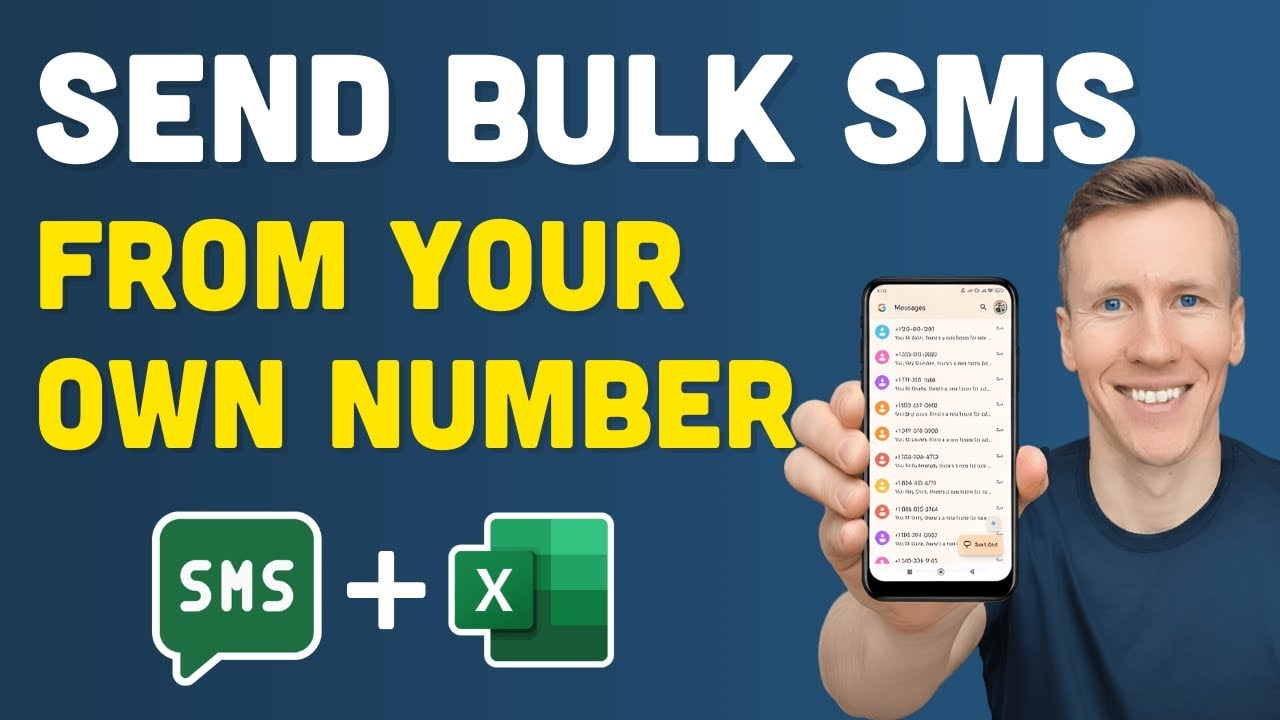
I’m Sven from Coding Is Fun, and I built QuickText to solve a specific problem: sending SMS to multiple contacts without typing each message manually on my phone or paying per message to a bulk SMS platform. QuickText is a lightweight Excel template that sends SMS through your Android phone. You enter phone numbers and message text into a spreadsheet, click send, and your Android handles the delivery using your SIM card and your existing mobile plan.
No cloud servers, no per-message fees, no external accounts to manage. Everything runs locally between your PC and your phone. 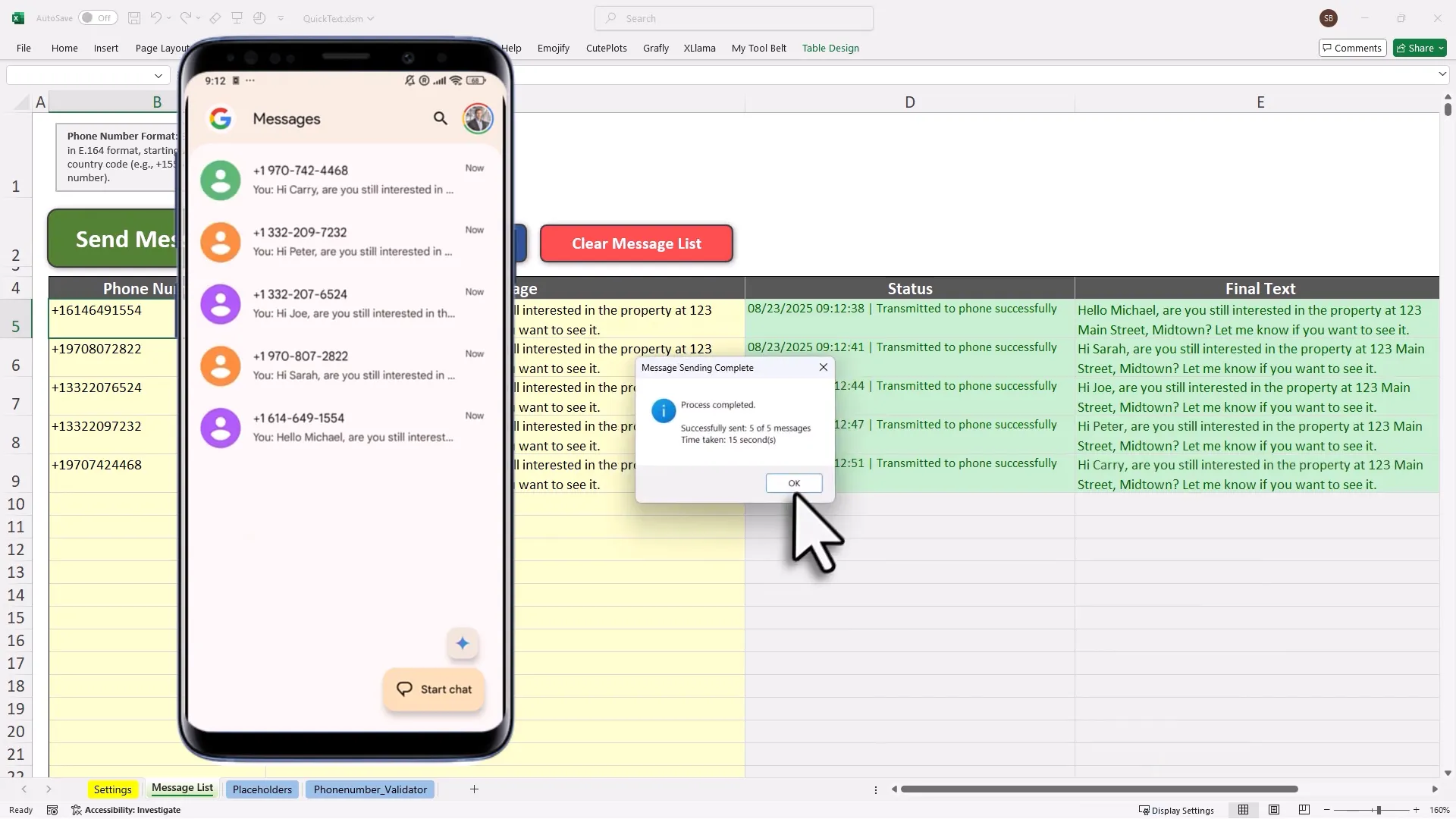
Why Send Bulk SMS from Your Android Phone?
Most SMS platforms send messages from shortcodes or shared sender IDs that your recipients don’t recognize. Messages from unknown numbers get ignored, flagged as spam, or deleted without being read. When you send bulk SMS from your own Android phone, every message comes from your actual number. Recipients see a text from you, which changes how they respond.
There’s also a cost angle. If your mobile plan includes unlimited SMS, those messages cost nothing extra. QuickText uses that existing allowance. No subscription to a bulk SMS service, no per-message billing, no minimum spend.
Replies come straight to your phone’s native messaging app. You don’t need to log into a dashboard to see who responded. If that sounds useful, QuickText is the tool that makes it work.
How the Android-to-PC Connection Works
QuickText uses a free, open-source application called KDE Connect to bridge your Windows PC and your Android phone. KDE Connect is available on the official Microsoft Store and Google Play, so there’s no need to install anything from unofficial sources.
Here’s the full setup process:
- Install KDE Connect on your Windows PC from the Microsoft Store.
- Install KDE Connect on your Android phone from Google Play.
- Make sure both devices are on the same WiFi network. They’ll recognize each other automatically.
- Open the QuickText Excel template and click “Connect your phone.”
- Select your phone from the list and confirm. Done.
The whole setup takes about five minutes. Once paired, KDE Connect stays ready whenever your phone and PC are on the same network. You can also connect multiple Android phones and choose which one sends your messages. 
Sending Personalized Bulk SMS from Excel
Bulk messages don’t have to sound generic. QuickText supports placeholders so each person receives a message with their own details filled in. Add a tag like {{first_name}} in your message text, then provide the values for each contact in a separate sheet tab. QuickText fills those in automatically before each message goes out.
Before anything sends, turn on test mode to preview exactly what each recipient will receive. This catches typos, wrong placeholders, or formatting problems before you commit. You can send one message or a hundred. Either way, you watch the progress directly in Excel.
For extra variety, the spintext feature rotates different words or phrases across your batch. Set up alternatives like “Hello,” “Hi,” and “Hey” for your greeting, and each message picks one at random. It makes a batch of texts read less like a copy-paste blast and more like something you actually typed. 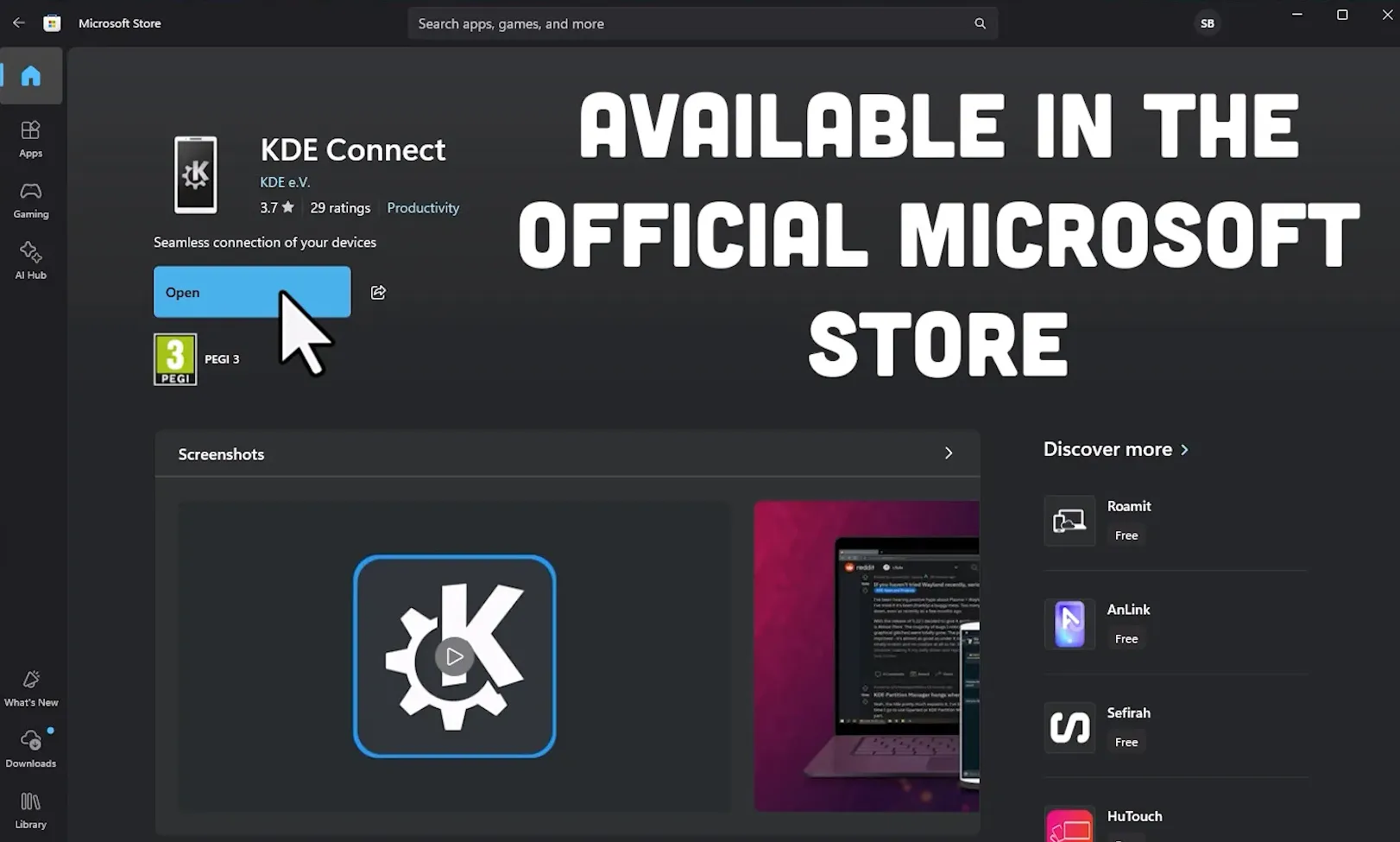
Other Features Worth Knowing
Number cleaning: Paste in a contact list from any format. QuickText checks and standardizes all the numbers automatically, flagging landlines, missing country codes, or invalid entries before you send anything.
Custom delays: Add a pause between messages for large batches. Useful if you’re sending a bigger campaign and want to stay within normal carrier sending speeds.
Money-back guarantee: QuickText comes with a 14-day money-back guarantee, so you can try it without risk.
Is It Legal to Send Bulk SMS from Your Android Phone?
Yes, provided you have the right consent in place. QuickText sends messages from your personal phone number rather than through an A2P (application-to-person) commercial platform, which puts it in a different category when it comes to carrier registration requirements.
In the United States, A2P bulk SMS campaigns sent through 10-digit long codes require 10DLC brand and campaign registration with carriers. Because QuickText sends through your real personal number at normal P2P (person-to-person) sending speeds and volumes, that formal registration process does not apply in the same way. Carriers draw the P2P/A2P line based on volume and traffic patterns, so this tool is best suited for targeted outreach to existing contacts rather than mass marketing blasts.
That said, consent requirements apply regardless of the tool you use. In the US, the TCPA requires consent before sending marketing messages. In the EU, GDPR and the ePrivacy Directive set similar requirements. These rules cover messages sent from personal numbers just as they cover shortcodes.
In practical terms: if you’re texting customers or contacts who gave you their number and expect to hear from you, you’re in solid ground in most jurisdictions. For cold outreach, check the specific rules for your country. The general principle is straightforward: only message people who opted in, and give them a clear way to stop receiving texts.
Carriers also care about how you send, not just what you send. Things like message volume, sending pace, and using spam trigger words all affect whether your messages get delivered. The QuickText SMS best practices guide covers timing, message variation, and what to avoid if you want to stay out of carrier filters.
Requirements and Limitations
- Windows PC required. QuickText runs in desktop Excel (2007 or later). Mac computers and Excel Online are not supported.
- Android phone required. iOS does not allow third-party apps to access SMS sending, so iPhones won’t work.
- Same WiFi for pairing. Your phone and PC need to be on the same network when setting up KDE Connect.
- Sending speed. Messages go out at standard P2P rates. Use custom delays for larger batches.
- Message costs. If you have unlimited SMS on your plan, there are no extra charges. If your plan has a message limit, those texts count toward it.
Get Started
Get QuickText and install KDE Connect on your PC and Android phone. Pair the devices, open the template, and you’ll be sending bulk SMS from your own phone number in under ten minutes. There’s a 14-day money-back guarantee if it doesn’t work for you. 
