
Read Messy & Poorly Structured Excel Files Using Pandas (Python)
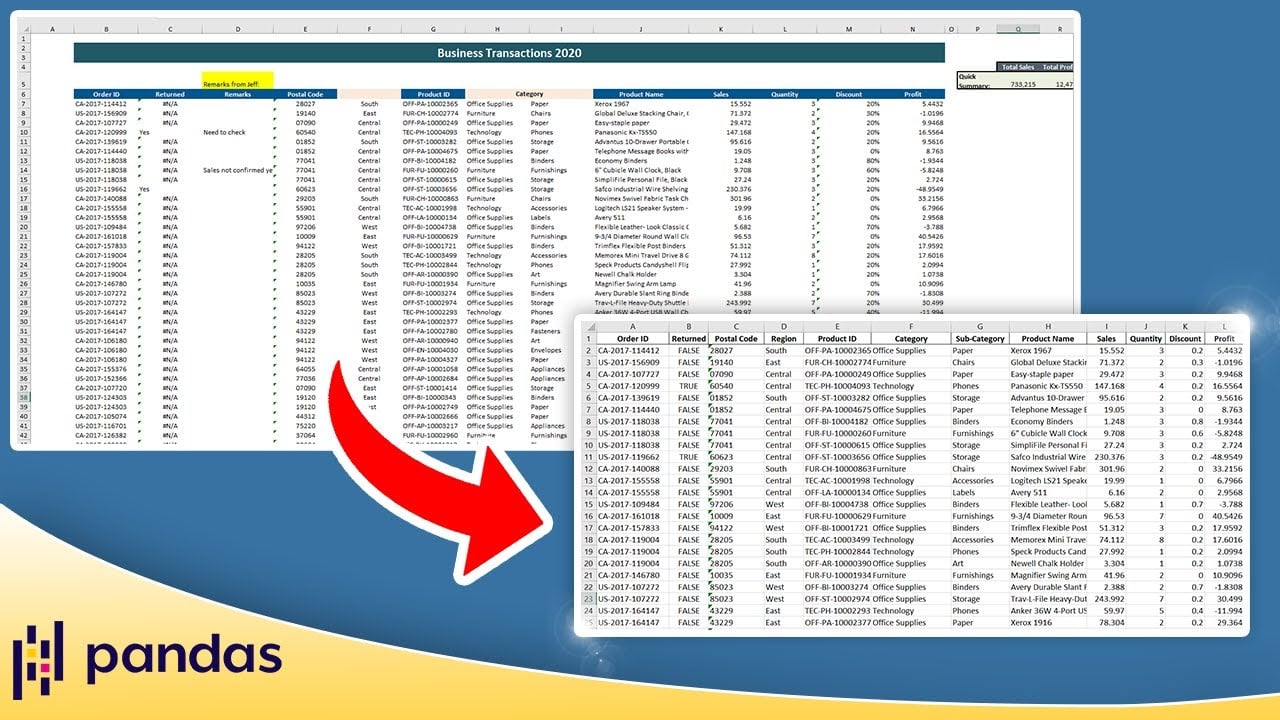
Real Excel files rarely start at A1 with clean headers. read_excel takes skiprows, usecols, header and nrows to cut past title blocks, blank columns and footers, so you can load the actual table without editing the source file.
Getting Started with Pandas
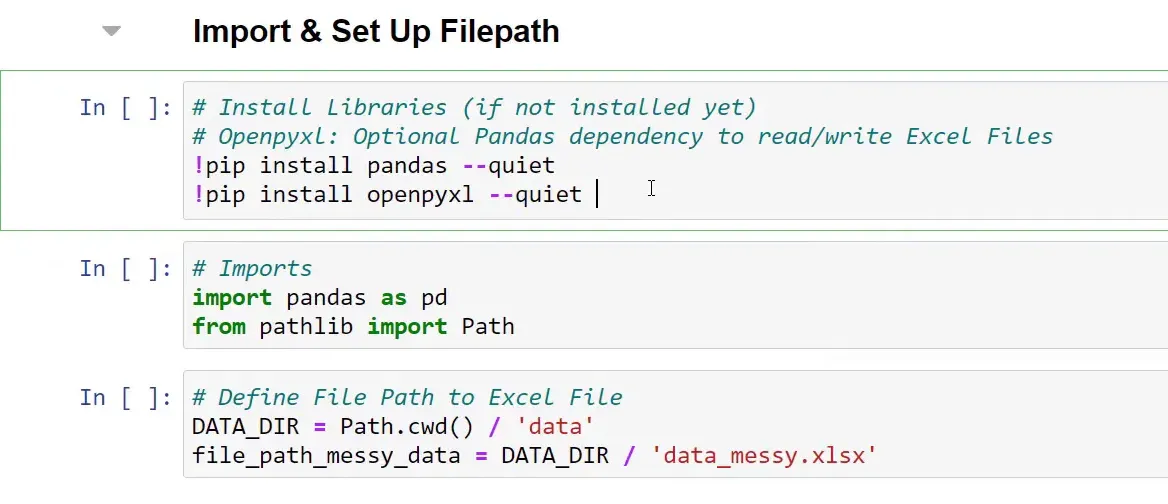
To work with Excel files in Python, we use the pandas library. First, you need to install pandas and the necessary libraries to read Excel files. You can do this using pip:
Reading Excel Files
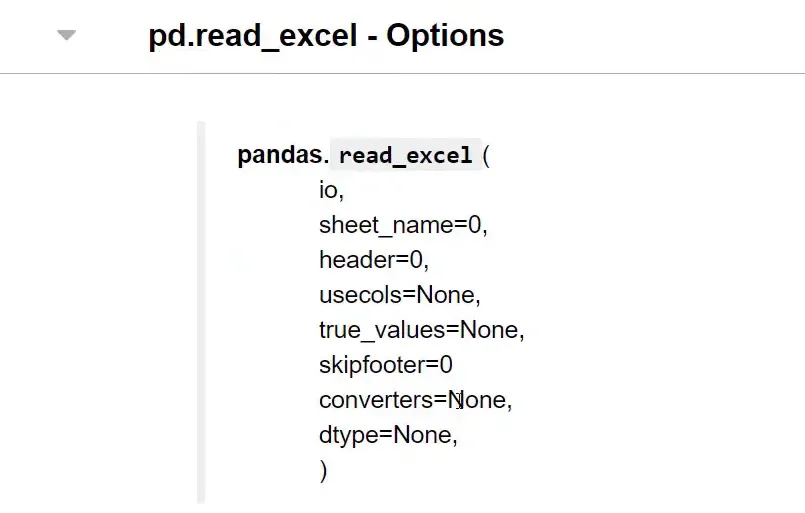
Once you have pandas installed, you can start reading Excel files. The read_excel() function allows you to specify various parameters to handle messy data. Here’s a breakdown of some of these parameters:
- io: The path to the Excel file.
- sheet_name: The specific sheet you want to read.
- header: The row number to use as the column names.
- usecols: Specify which columns to read.
- skipfooter: Number of rows to skip at the end of the file.
These options give you the flexibility to read messy Excel files more effectively.
Converting Data Types
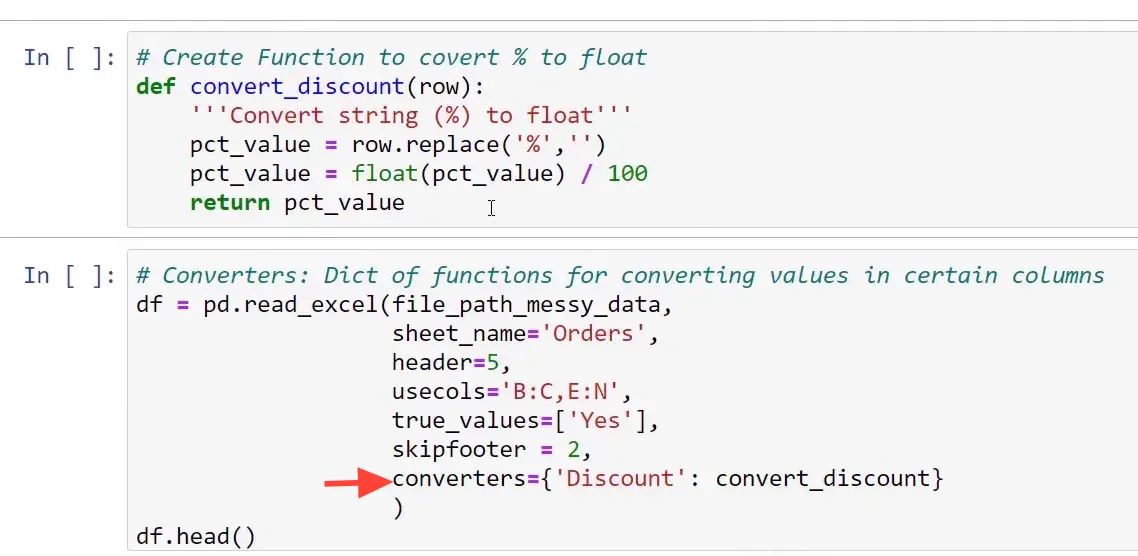
Another common issue with messy Excel files is incorrect data types. For example, numbers might be read as strings. You can convert these using the astype() method. This is crucial for ensuring that calculations and data analysis work correctly.
Cleaning Up Data
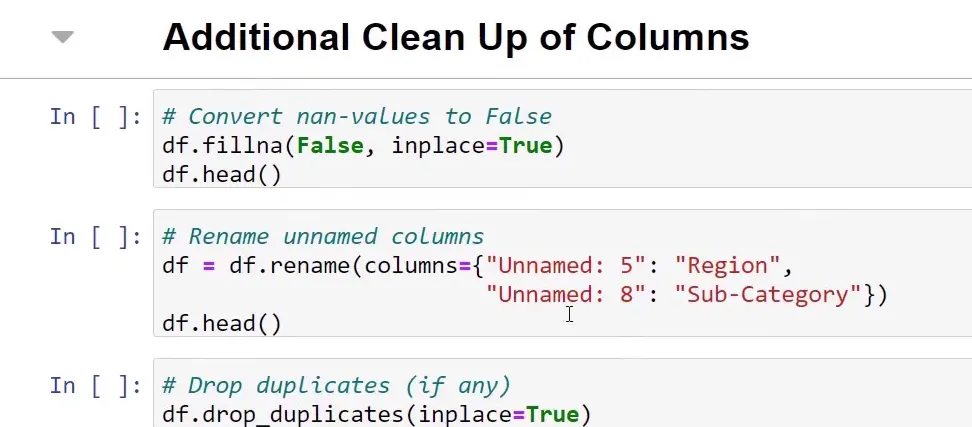
After loading your data into a DataFrame, you may need to clean it up. This includes removing unnecessary columns, renaming headers, and filtering rows based on certain conditions.
Final Thoughts
Working with messy Excel files can be challenging, but with the right tools and techniques, you can effectively manage and analyze your data. The pandas library offers powerful functions to help you read, clean, and manipulate your Excel data, making it easier to derive insights.
Further Links
- Example Files incl. Jupyter Notebook Source Code: Link