
Run SQL Queries in Excel Like a Normal Formula

A custom worksheet function that takes a SQL string and a range and returns the query result into the sheet. xlwings provides the bridge, so the query recalculates like any other Excel formula when the underlying data changes.
Installing the dependencies
To start using SQL in Excel, you need to install the Python package called xlwings. You can do this by running the following command in your command prompt or terminal:
pip install xlwingsAfter installing the package, you also need to install the xlwings Excel add-in. The installation is straightforward; just type:
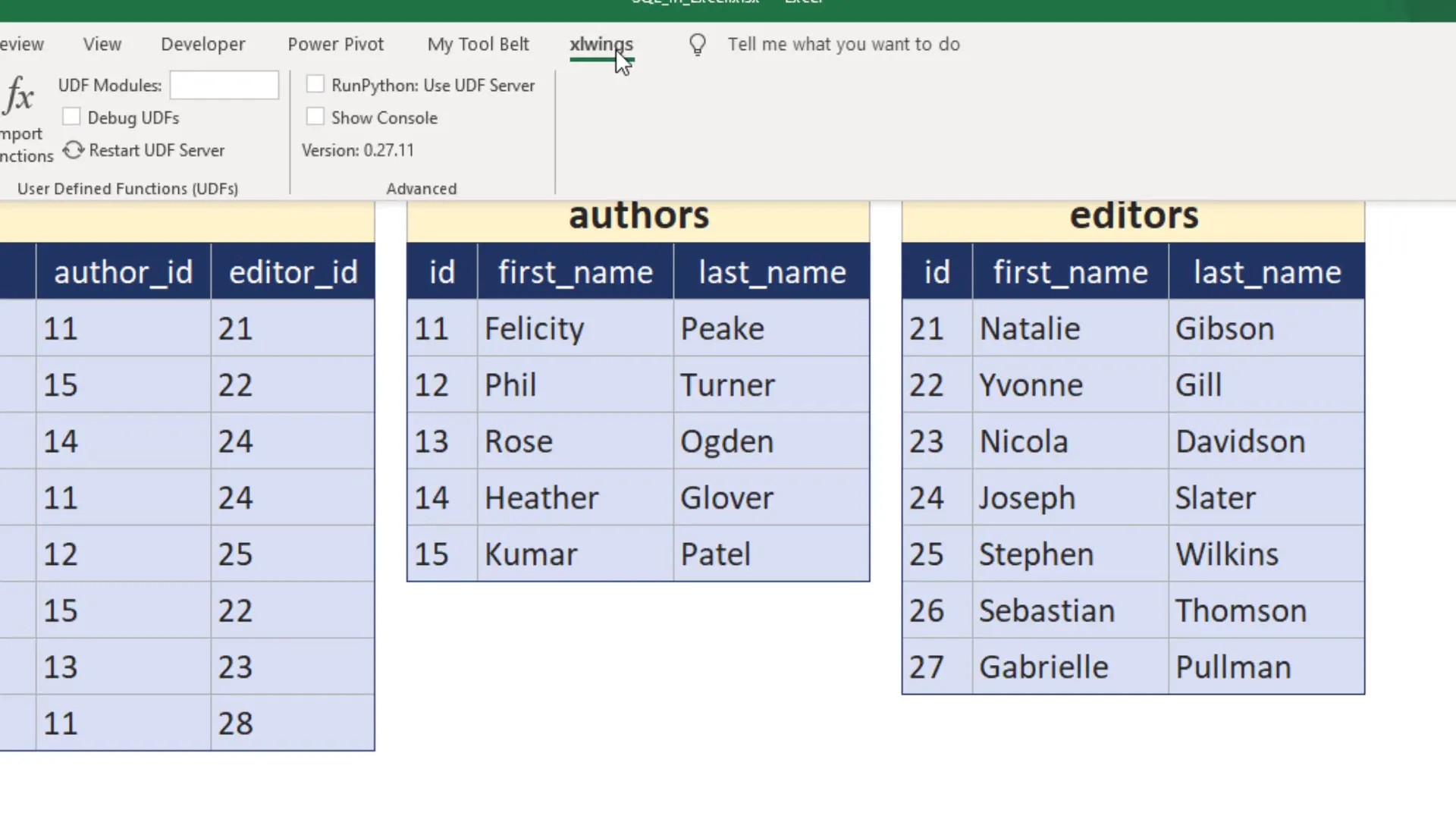
xlwings addin installOnce you close and reopen your current workbook, you should see a new section in the ribbon called xlwings.
First SQL Example
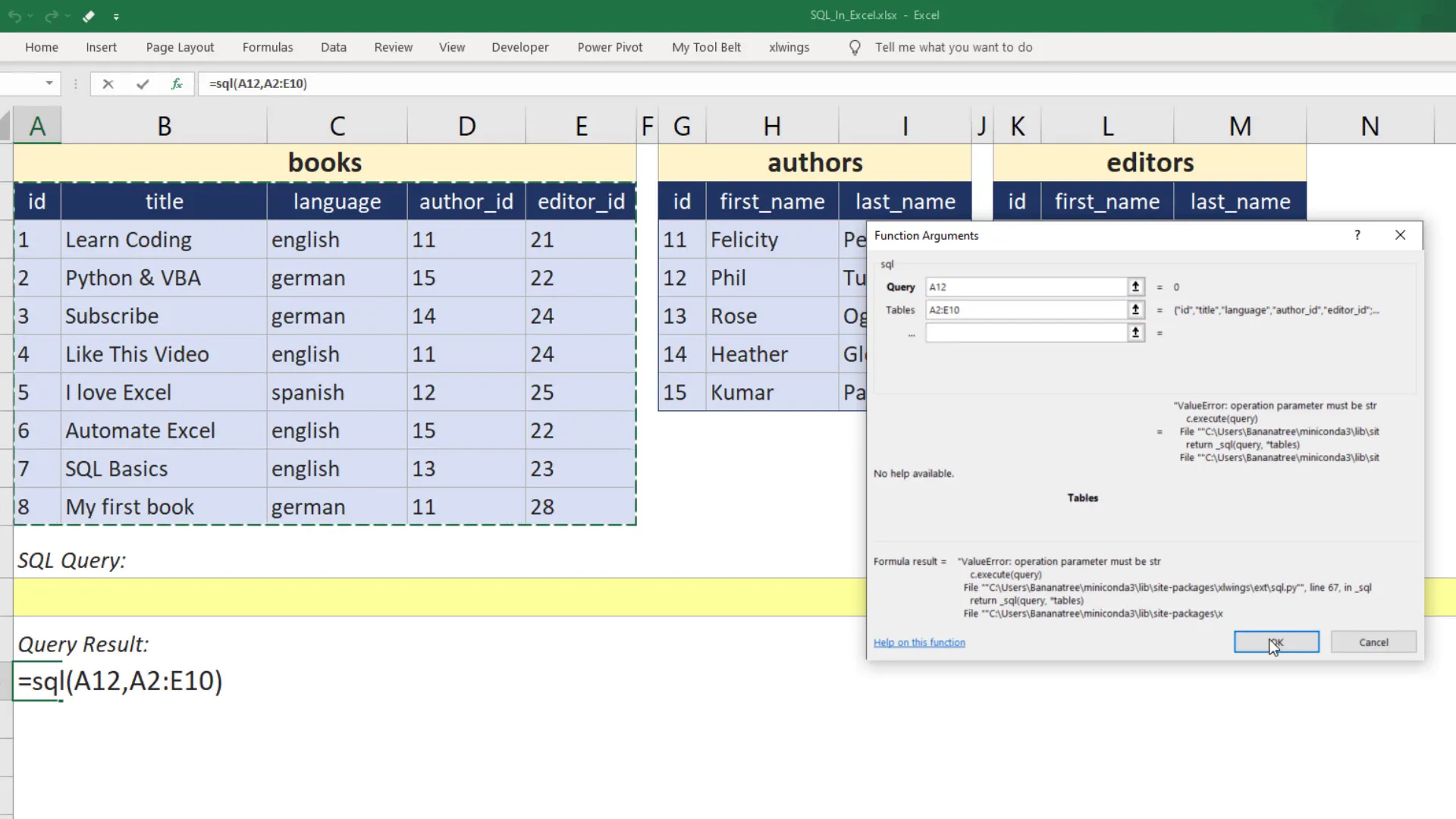
Now, let’s write some SQL in Excel. When you start typing SQL in a cell, you will see an autocomplete suggestion for the SQL formula. This formula takes two arguments: the query and the table. You can input the SQL query directly into the formula or link it to a cell.
For example, I will link it to cell A12 and specify the table. After confirming my inputs, I will initially get an error message, which is expected since I haven’t entered a SQL query yet.
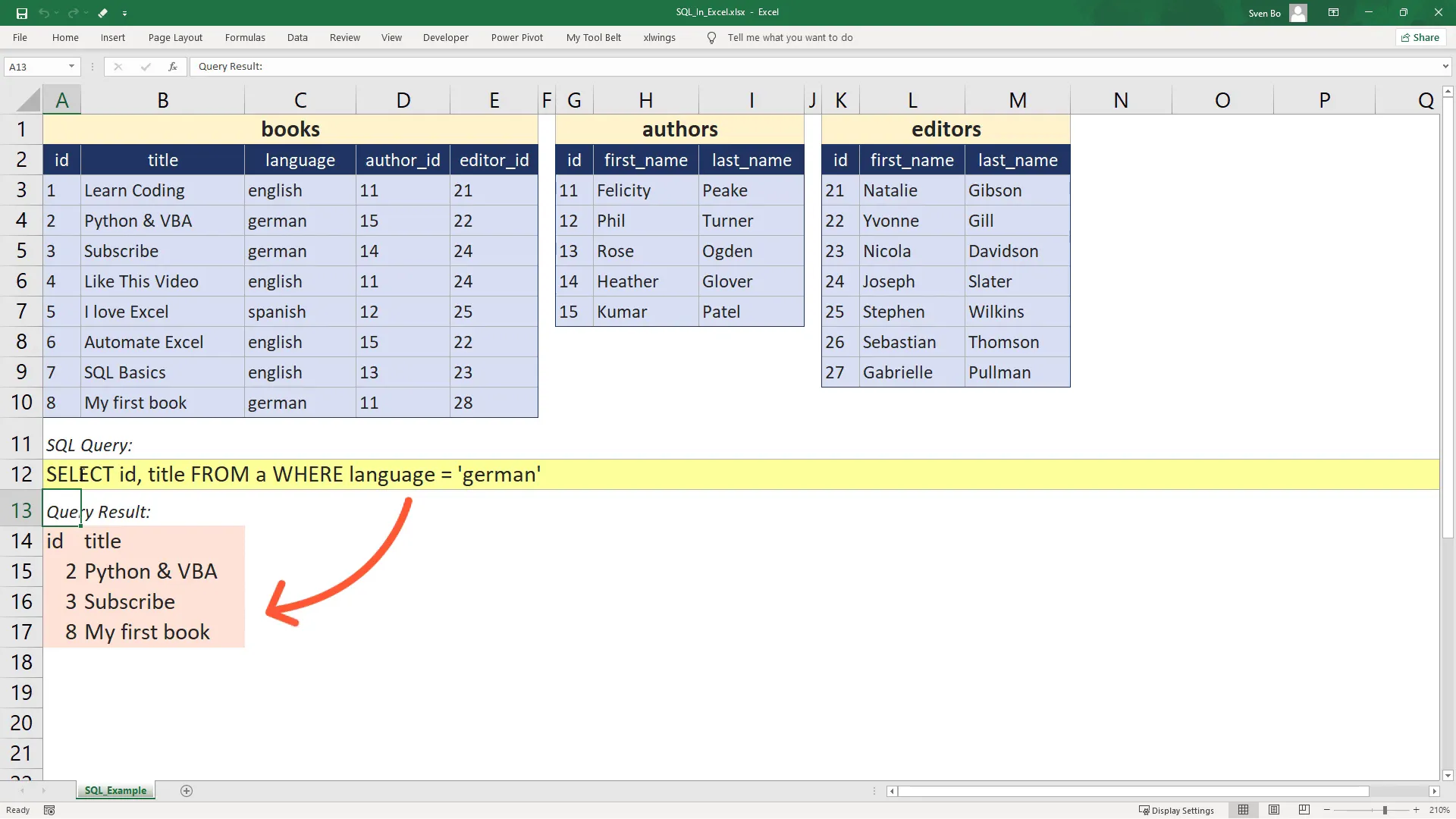
Let’s write a query to select the ID and Title from our table and filter it by language. Once I enter the query, the results will populate dynamically below.
More SQL sample queries
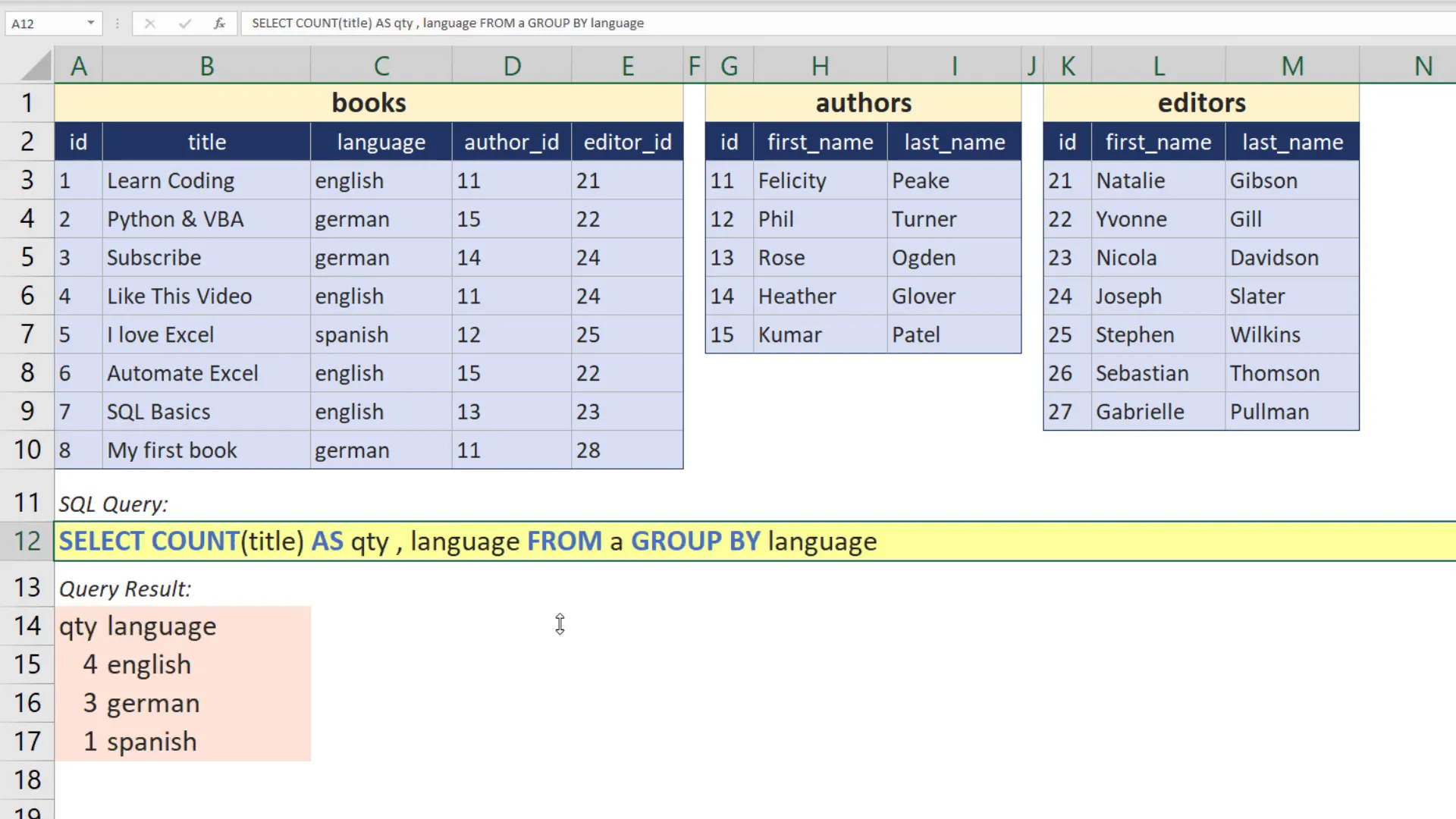
I have prepared several SQL sample queries that I will demonstrate. You can see the SQL statements highlighted in blue for easy identification. I will also upload this workbook to GitHub for you to download and test it yourself.
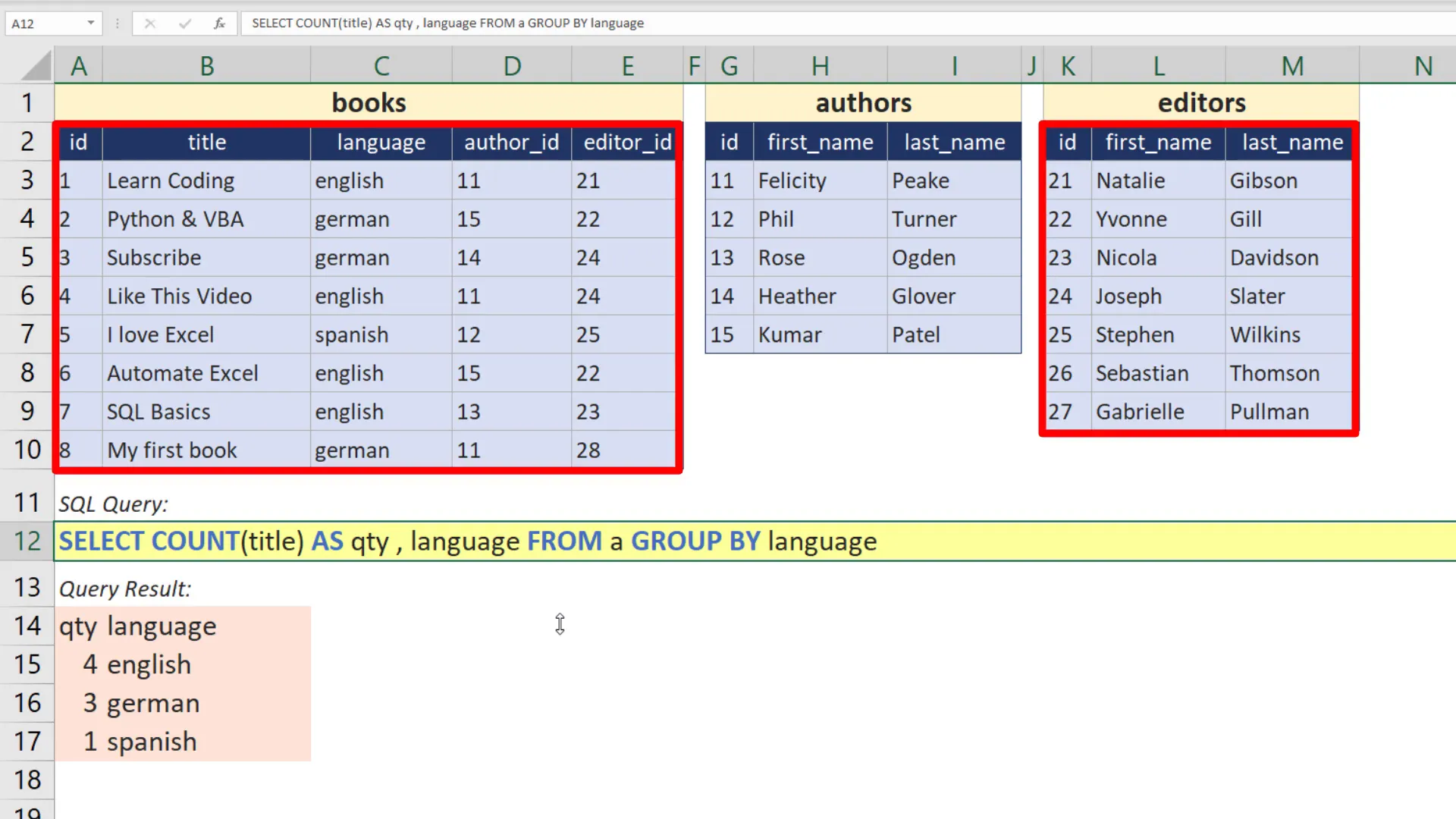
For the first example, let’s count the book titles and group them by language.
Next, let’s combine the book table with the editor table using an inner join. When I attempt to run this query, I will initially encounter an error because I haven’t defined the second table in my formula.
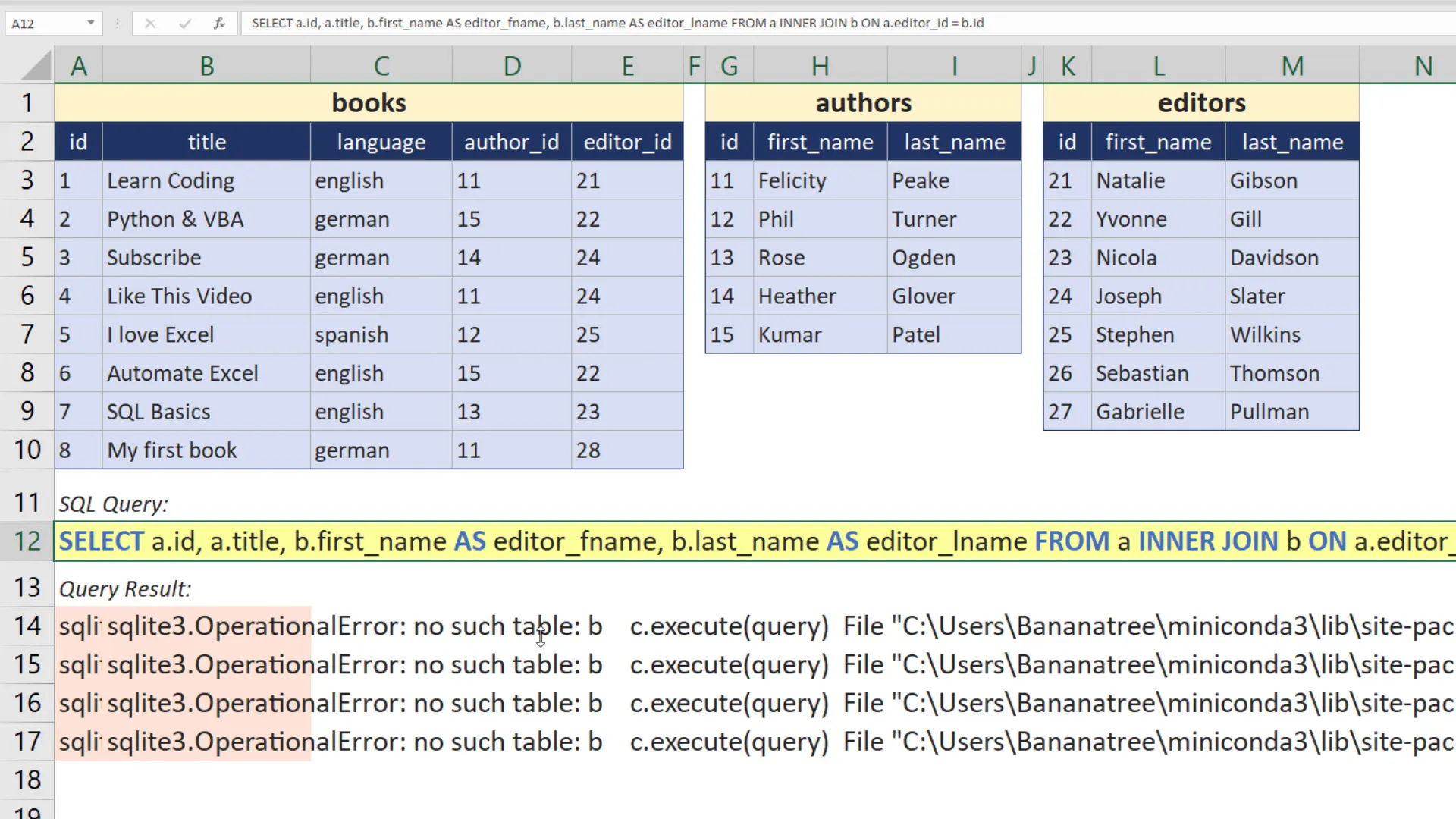
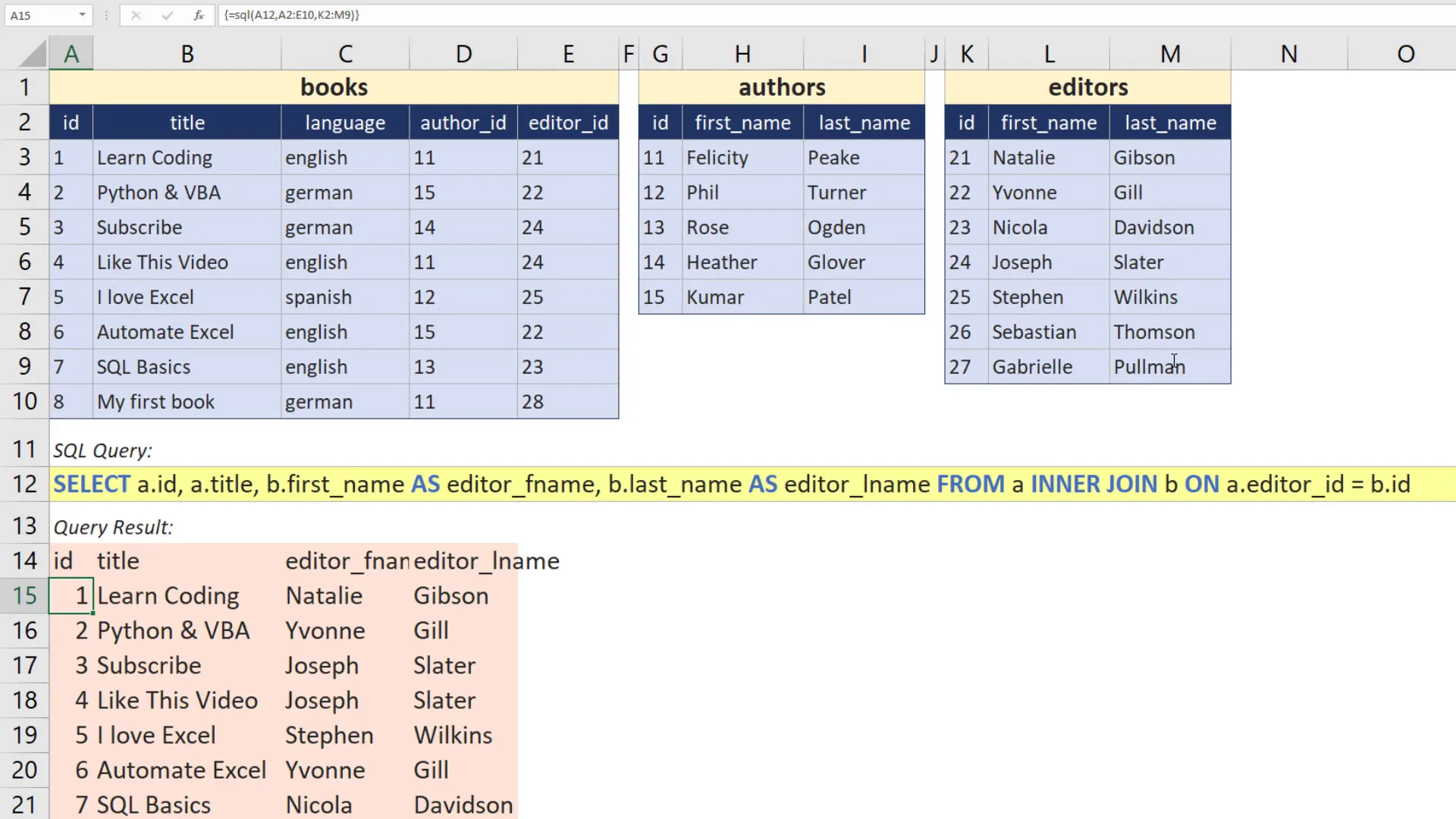
To fix this, I will rewrite the formula to include both tables, Table A for books and Table B for editors. After hitting enter, I can see the results populate correctly, confirming that the inner join worked.
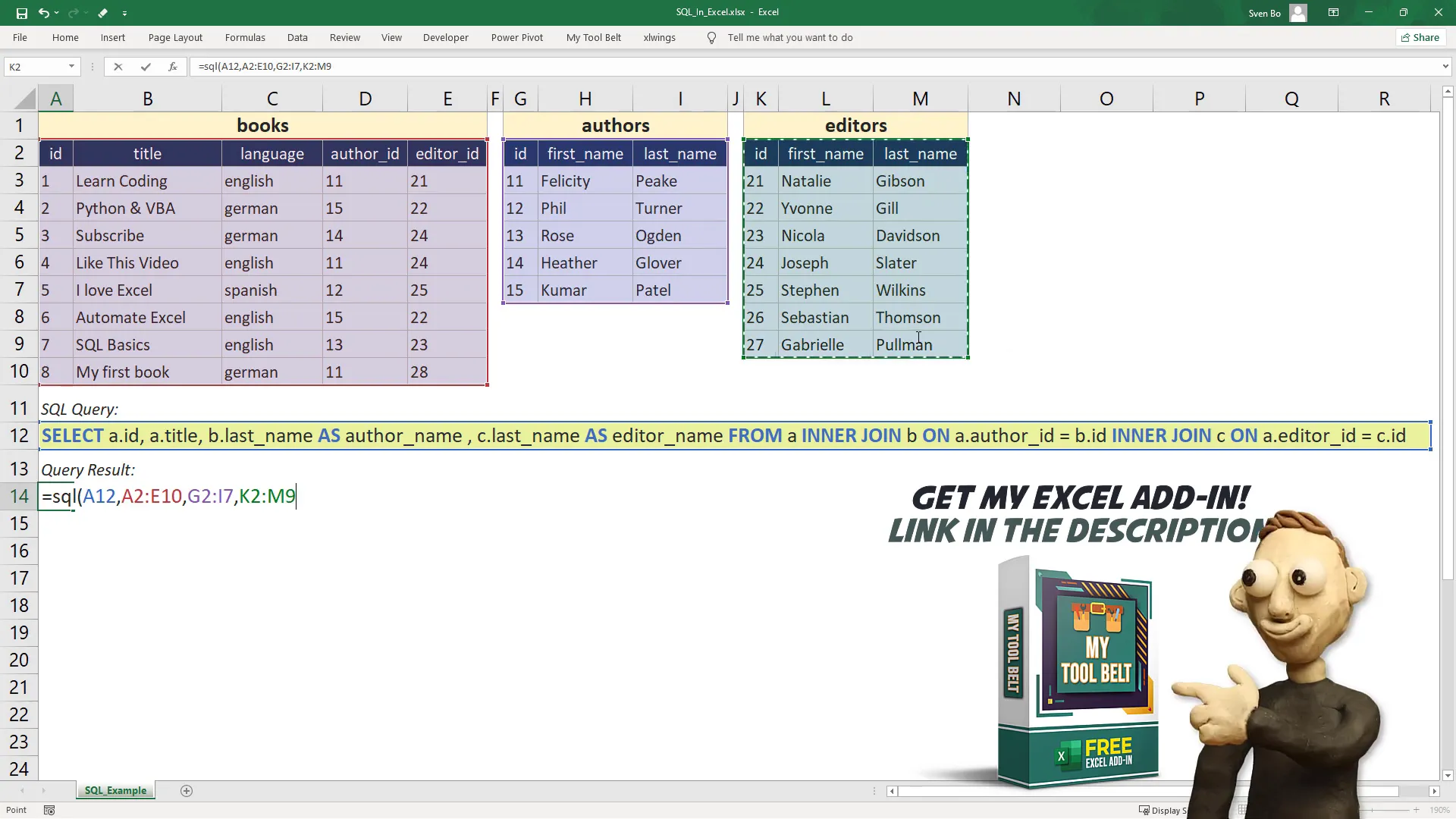
For the last example, I will merge all three tables, which requires defining a third table. If I receive an error message indicating a missing table, I will simply update the formula to include all three tables. This will also work if the tables are located on different worksheets.
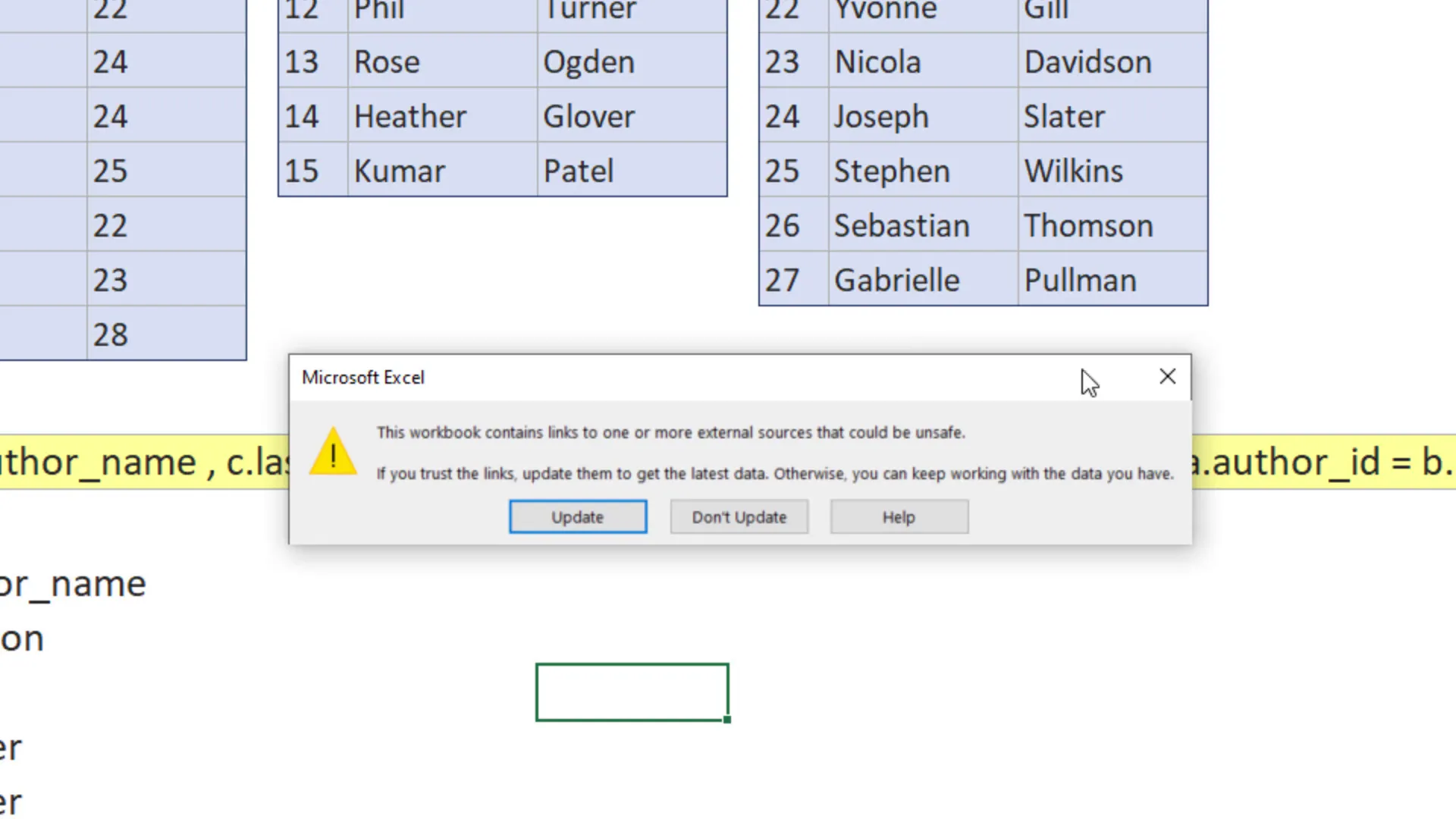
It’s important to note that if you save this workbook and share it with someone who does not have Python and the xlwings add-in installed, they will encounter errors when trying to use the SQL formula. In this case, it’s advisable to copy and paste the results as hard values before sharing.
Conclusion
And that’s it! You now know how to run SQL queries in Excel using the xlwings package. This setup enables you to harness the full power of SQL within your spreadsheets, making data analysis much more efficient. As always, thank you for following along!