
How to Send Bulk SMS from Your PC Using Your Android Phone (Step-by-Step)
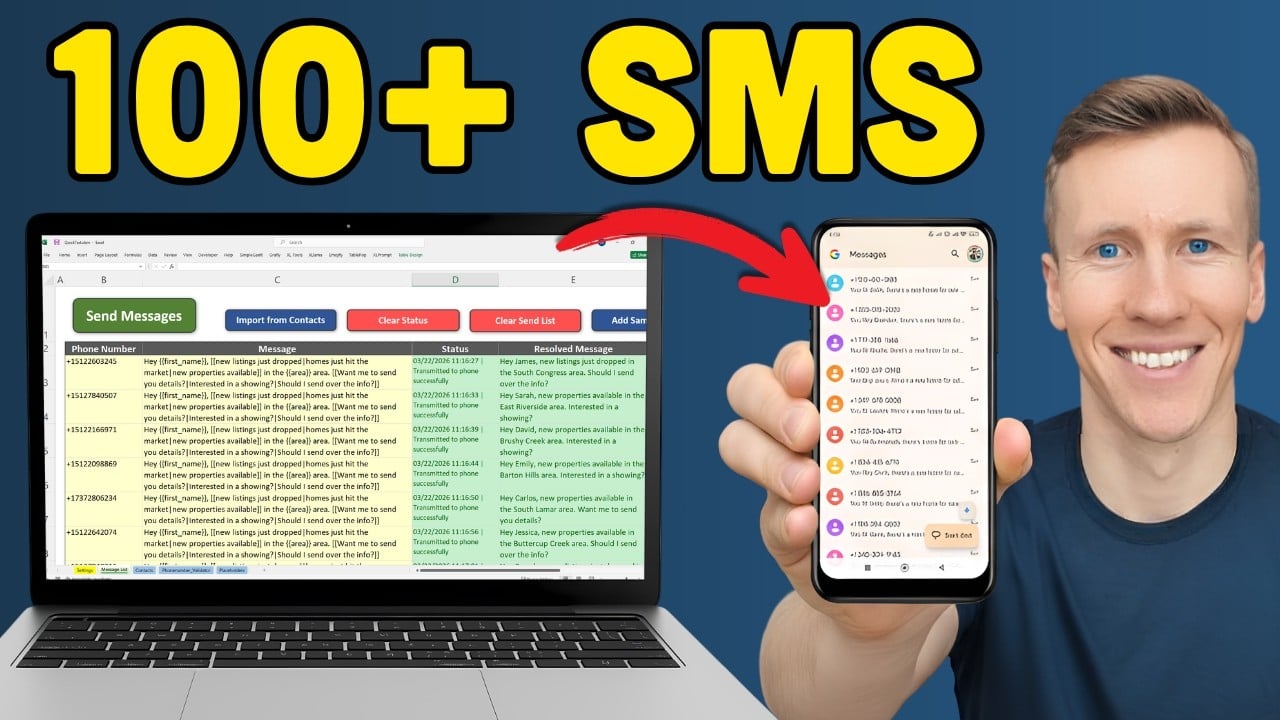
How do you send bulk SMS from your PC using your Android phone?
You can send bulk SMS from your PC through your Android phone by pairing them over Wi-Fi with KDE Connect, then using an Excel tool called QuickText to import contacts, personalize messages, and send them from your actual phone number. No API, no Twilio, no shortcodes. Replies come straight back to your phone.
I built QuickText for exactly this use case. Real estate agents following up with leads, tutors messaging students, small business owners updating customers. The setup takes a few minutes, and once it is done you can send personalized bulk texts right from Excel. This guide walks through everything from connecting your phone to sending your first batch.
Table of contents
- What do you need to send bulk SMS from your PC to your Android phone?
- How do you connect your Android phone to your PC for texting?
- How do you set up QuickText to send bulk texts from Excel?
- How do you import contacts from Excel or CSV into QuickText?
- How do you personalize bulk SMS so each message feels unique?
- How do you actually send the bulk SMS from your PC?
- How long does it take to send a batch of SMS messages?
- How many bulk SMS can you send per day from your phone?
- What mistakes should you avoid when sending bulk SMS?
- Can you send a mass text from your computer without an API or Twilio?
- Is this method good for cold outreach or spam?
- Is it legal to send bulk SMS from your own phone number?
- What are the limitations of sending bulk SMS from your phone?
- How is this different from Twilio, SMS gateways, or group messaging?
What do you need to send bulk SMS from your PC to your Android phone?
You need a Windows PC with Microsoft Excel, an Android phone, a free app called KDE Connect to connect them over Wi-Fi, and QuickText, which is the Excel-based SMS sender that handles contacts and messages. Here is the full list:
- Windows PC with Microsoft Excel
- Android phone with an active phone plan (most plans include unlimited texting)
- KDE Connect (free, available on Microsoft Store and Google Play Store)
- QuickText (paid Excel tool with a 14-day money-back guarantee)
- A contact list in Excel or CSV format with phone numbers
Important: This setup only works with Windows and Android. iPhones and macOS are not supported.
How do you connect your Android phone to your PC for texting?
You connect them using KDE Connect, a free app that pairs your phone and computer over the same Wi-Fi network. Once paired, your PC can send SMS messages through your phone. This is the part where most people get stuck, and it is almost always the same issue: SMS permissions. I will call that out below so you do not run into it.
Install KDE Connect on your Windows PC
- Open the Microsoft Store on your computer.
- Search for KDE Connect.
- Click Install, then open the app.
When it opens, you will likely see no devices listed. That is normal until your phone also has KDE Connect installed. 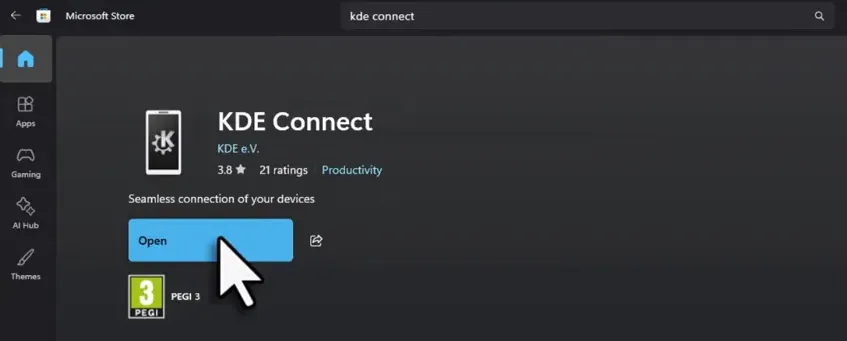
Install KDE Connect on your Android phone
- Open the Google Play Store on your phone.
- Search for KDE Connect and install it.
- Open the app and tap Allow for notifications if prompted.
Before pairing, make sure your phone and computer are on the same Wi-Fi network. Pairing will fail if they are on different networks.
Pair your devices
- On your Windows PC, click the device name that appears in KDE Connect.
- Click Pair.
- On your phone, accept the pairing request in the notification.
Once paired, you will see a green icon next to your device name in KDE Connect. 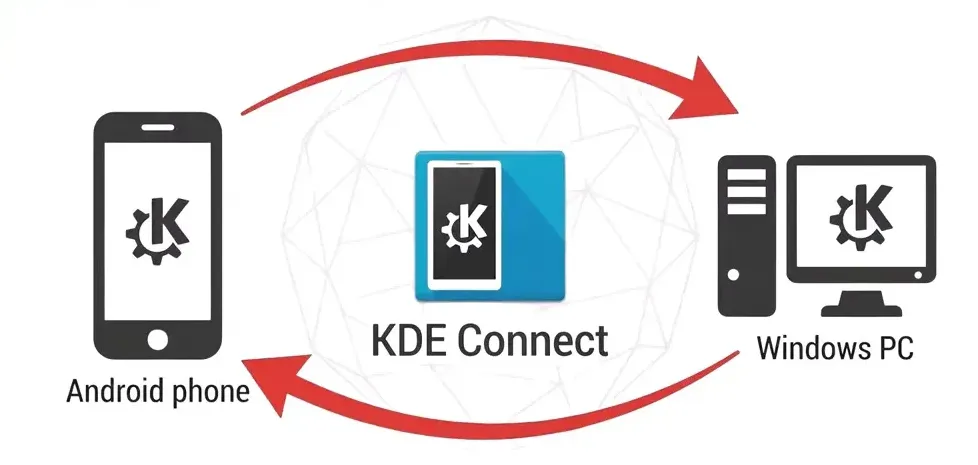
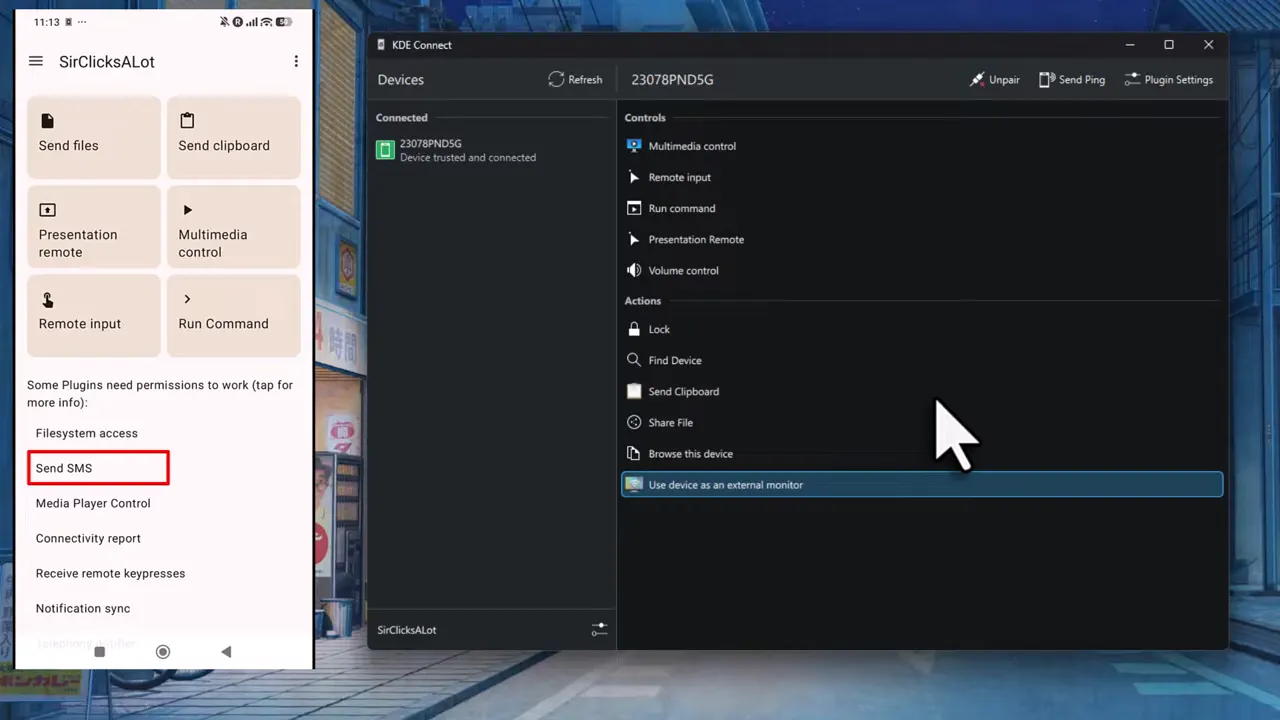
Enable SMS permissions (do not skip this)
This is the number one issue I see from new users. KDE Connect pairs fine, QuickText connects fine, but then messages do not send. The reason is almost always that Android has not granted KDE Connect permission to send SMS.
- On your phone, open the KDE Connect app.
- Look for the section that says “Some plugins need permission to work (tap for more info)”.
- Tap on Send SMS.
- Android will ask for permissions. Allow everything it asks for.
If you skip this step, nothing will work. Android blocks SMS access by default, so you have to explicitly allow it through the KDE Connect app on your phone.
How do you set up QuickText to send bulk texts from Excel?
Download QuickText, open it in Excel, and click Connect Your Phone. If KDE Connect is running and your devices are paired, QuickText will detect your phone automatically and show it as paired and reachable.
- Download QuickText and open it in Excel.
- Click Connect Your Phone.
- Confirm your phone shows as paired and reachable.
If your phone does not show up, check that KDE Connect is still running on both devices and that they are on the same Wi-Fi network. 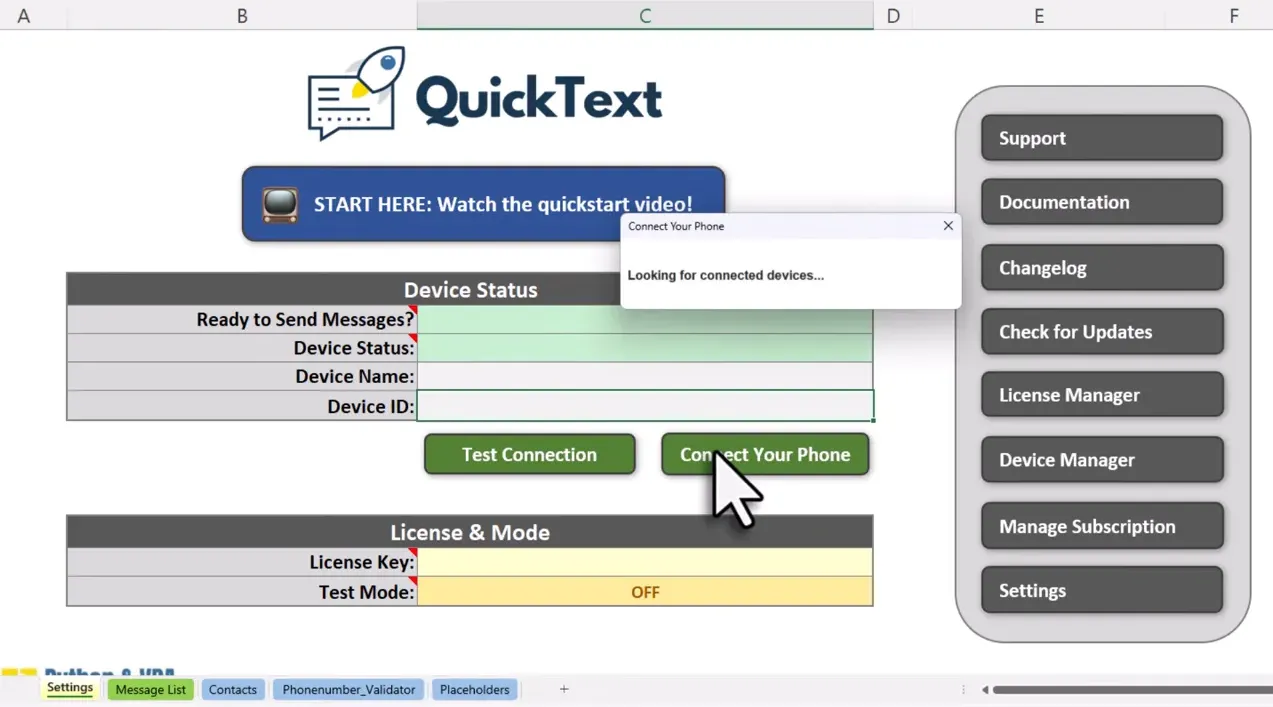
How do you import contacts from Excel or CSV into QuickText?
In QuickText, go to the Contact Manager and click Import Contacts. Select your Excel or CSV file, choose the worksheet, and pick the column that contains phone numbers. QuickText cleans and validates the numbers during import, so the format does not matter. You can also skip the file import entirely and just copy and paste phone numbers directly into QuickText. You can have different sheets in the same file. For example, one for leads and one for clients. Just import them separately.
Step-by-step import
- In QuickText, go to the Contact Manager.
- Click Import Contacts.
- Select your Excel or CSV file.
- Choose the worksheet (for example, Leads).
- Select the column with phone numbers. QuickText usually detects it automatically.
After import, QuickText shows how many numbers were cleaned up and how many invalid numbers were skipped. 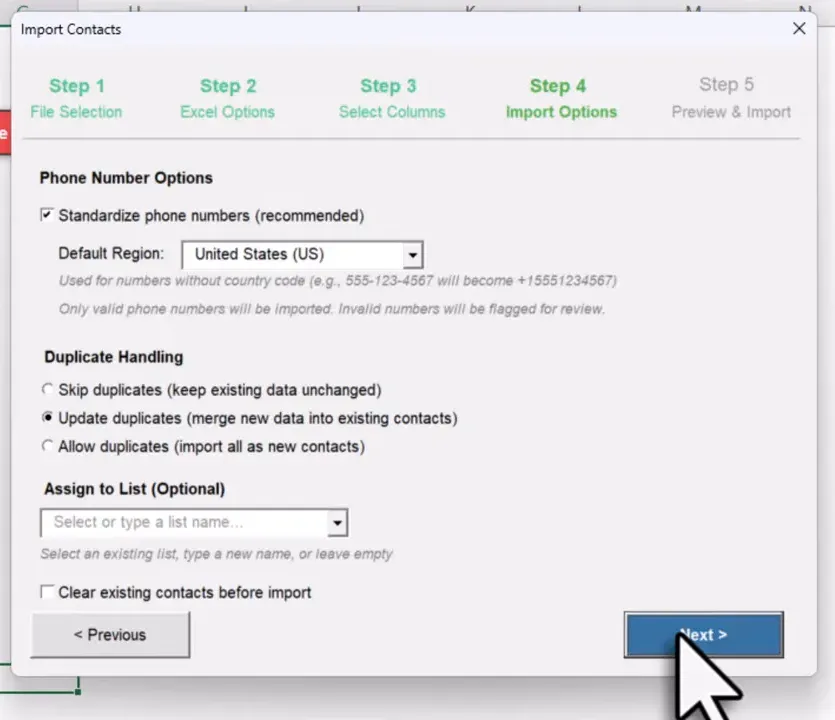
Import extra columns for personalization
This is important, and I will explain why in the next section. You can import additional columns like first name, city, or any other field from your spreadsheet. These become placeholders you can use in your message templates. For example, importing a “First Name” column lets you address each person by name.
Organize contacts with lists (optional)
During import, you can assign contacts to a list like “Leads” or “Clients.” Lists are optional but help you stay organized when sending to different groups.
How do you personalize bulk SMS so each message feels unique?
QuickText uses placeholders and spintext to make each message different. Placeholders pull in data from your spreadsheet columns, like the contact’s name. Spintext randomly picks between phrase variations you define, so no two messages read exactly the same. Personalization is not just a nice touch. It is essential. Personalized SMS messages see up to 29% higher response rates than generic ones (Attentive Mobile). And from a practical standpoint, carriers are more likely to flag identical messages sent in bulk. When every message is slightly different, it looks like real one-on-one texting.
Using placeholders
After importing contacts into your message list, write your message and insert placeholders like {{first_name}} or {{area}}. QuickText replaces them with the actual values for each contact. So instead of “Hi, just checking in” going to 200 people, each person gets “Hi Sarah, just checking in about the listing in Denver.”
Using spintext
Spintext lets you write multiple phrase options separated by a pipe symbol. QuickText randomly picks one for each message. So you might write “[[Hey|Hi|Hello]] {{first_name}}” and each contact gets a slightly different greeting. The result is that every text feels personal and unique, like you actually typed it out yourself.
Using fallback values for messy data
If some contacts are missing details, you can set a fallback value. For example, {{first_name|there}} will use “there” when the first name is empty. That way the message still reads well even with incomplete data.
Not sure how to write a good SMS?
A lot of people get stuck on the actual message. What to write, how long it should be, how to sound natural. I built a free SMS Template Generator that helps you create personalized message templates. It is a good starting point if you are not sure where to begin.
How do you actually send the bulk SMS from your PC?
Add your contacts and message to the send list in QuickText, then click Send. QuickText runs validations, lets you choose to send all messages or a specific range, and then transmits each message to your phone. Your phone sends them out one by one with a delay between each message.
- In QuickText, add your contacts and message to the send list. Each row shows one message per contact.
- Click Send.
- QuickText runs validations on your messages and numbers.
- Choose to send all messages or a custom range.
- Click Send again to start.
You can open your SMS app on your phone to confirm messages are going out one after another. 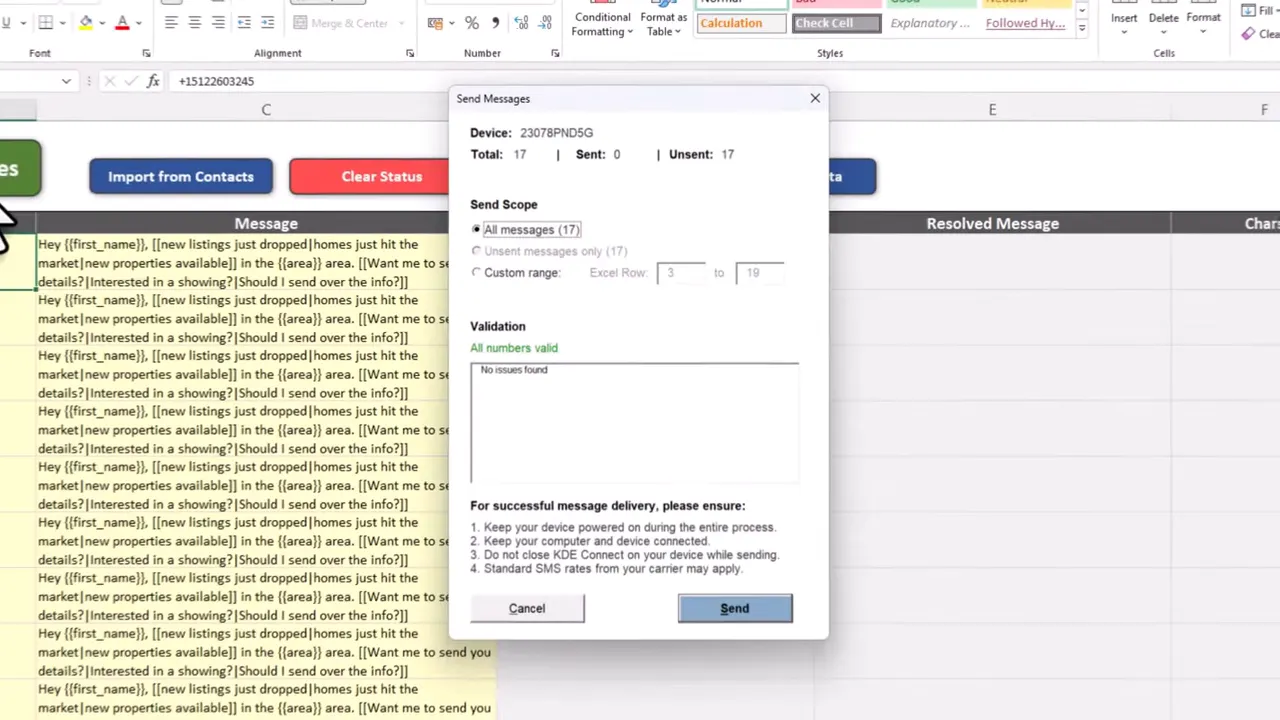
Once done, you can see that every placeholder was replaced and the spintext wording varies across messages. 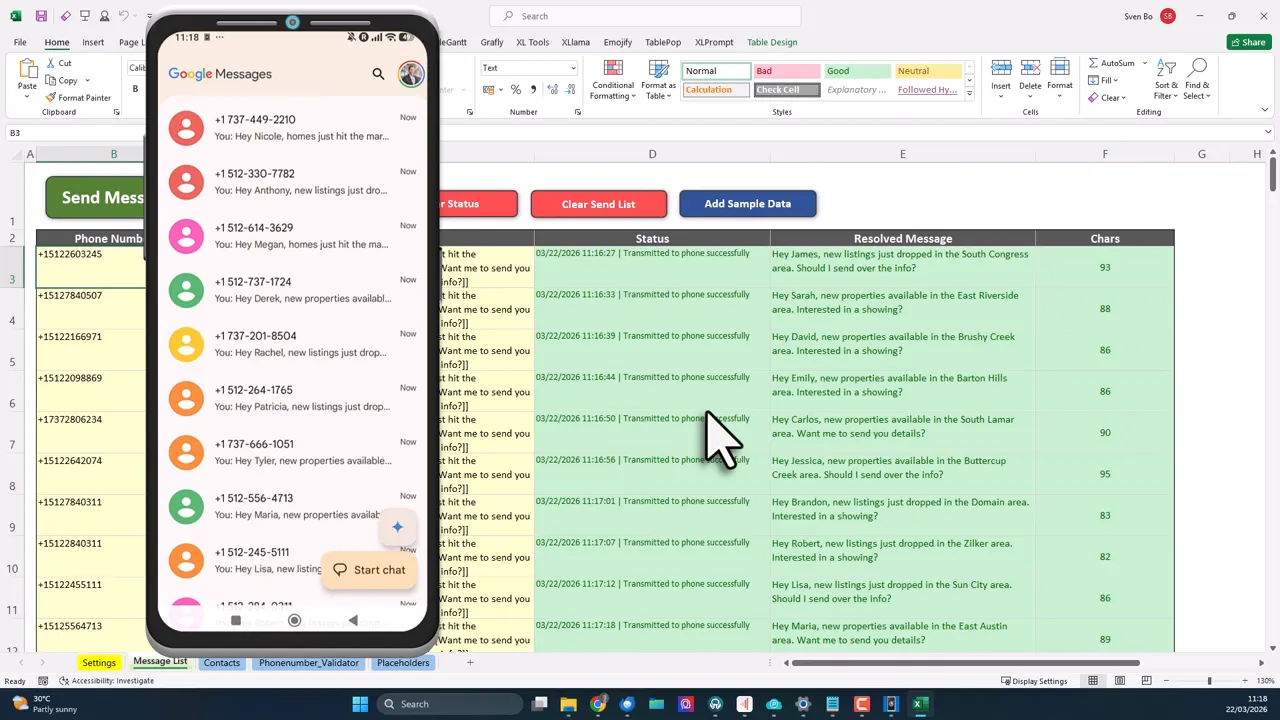
How long does it take to send a batch of SMS messages?
It depends on how many messages you are sending and what delay you set between them. QuickText adds a custom delay between each message to mimic natural human sending behavior. I recommend setting it to around 10 to 20 seconds. Here is a rough idea of what to expect with a 15-second average delay:
- 50 messages takes about 12 minutes
- 100 messages takes about 25 minutes
- 150 messages takes about 37 minutes
That might sound slow, but it is slow on purpose. You want your phone to send texts at a pace that looks like a person typing and sending, not a machine blasting out hundreds in a row. Carriers notice the difference, and so does your deliverability.
How many bulk SMS can you send per day from your phone?
A safe range is around 100 to 150 messages per day, spread across multiple batches throughout the day. Some users send more, but going beyond that increases the risk of your carrier temporarily throttling your messaging. The biggest mistake I see from new users is sending the exact same message to hundreds of people in one sitting. That is the fastest way to get restricted. Carriers look at patterns, and identical messages sent back-to-back look like spam. To stay on the safe side:
- Keep batches to around 50 messages at a time.
- Send some in the morning, some in the afternoon, some in the evening.
- Use placeholders and spintext so every message is different.
- Set a custom delay of 10 to 20 seconds between messages.
- End every message with a question so people have a reason to reply.
That last point matters a lot. SMS has a roughly 45% response rate when messages feel like real conversations. But if your text reads like a broadcast with no reason to reply, that number drops fast. Carriers notice low reply rates too. It is one of the signals they use to detect automated messaging.
What mistakes should you avoid when sending bulk SMS?
The most common mistakes are sending identical messages, using spam trigger words, and writing texts that sound like marketing blasts instead of real conversations. These lead to carrier restrictions and low response rates. Here is what I see go wrong most often:
- Sending the exact same text to everyone. No placeholders, no spintext, just one generic message blasted to the whole list. Carriers flag this quickly.
- Using spam trigger words. Words and phrases like “act now,” “limited time,” “free,” “guaranteed,” “click here,” “you’ve won,” or “risk-free” come straight from the email spam playbook. Carriers filter for these in SMS too.
- Using URL shorteners. Links from bit.ly, tinyurl, or similar services get heavy scrutiny from carriers. Always use your full domain URL instead.
- Using emojis and special characters without knowing the cost. A standard SMS holds 160 characters. But the moment you include an emoji, smart quotes (” “), or em dashes, the encoding switches from GSM-7 to Unicode. That drops your limit to 70 characters per segment. So a message that would be one text suddenly becomes two or three. Use straight quotes, regular hyphens, and three dots (…) instead of the ellipsis character.
- Not ending with a question. Messages that do not invite a reply look like broadcasts. A simple “Does that work for you?” or “Are you still interested?” makes a big difference. Texts with a direct question see roughly double the reply rate compared to statements (Heymarket). Replies are also the strongest carrier signal that your messaging is legitimate.
- Writing like a marketer instead of a person. Read your message out loud before sending. If it sounds like an announcement or a newsletter, rewrite it. Write like you are texting one person, not an audience.
- Sending too many at once. Blasting 300 messages in a row without a delay is a red flag for carriers. Use custom delays and split your sends across the day.
- Skipping SMS permissions in KDE Connect. This is the number one setup issue. Everything pairs fine, but then messages do not send because Android never granted KDE Connect permission to send SMS.
Before you send a batch, it is worth running your message through the free SMS Spam Checker. It uses a machine learning model trained on thousands of real messages to score your text for spam likelihood and flags specific issues like risky keywords, URL shorteners, or encoding problems. Better to catch those before they reach your carrier. And if you need help writing the actual message, the SMS Template Generator gives you a solid starting point.
Can you send a mass text from your computer without an API or Twilio?
Yes. This setup uses your actual Android phone to send messages, not an API or third-party SMS gateway. Your PC controls the process through KDE Connect, but every text goes out from your real phone number using your existing phone plan. No per-message fees, no shortcodes, no API keys. The main advantage is that replies come straight back to your phone. You can follow up naturally in a one-on-one conversation, just like any normal text thread. There is no separate inbox to check, no web dashboard. Just your regular SMS app.
Is this method good for cold outreach or spam?
No. QuickText is not built for cold outreach or spam. It is meant for people who already know you and expect to hear from you. Clients, students, customers, event attendees. Sending unsolicited texts to strangers is a fast way to get your number reported and blocked. Carriers take spam complaints seriously, and your phone number is your real one. There is no hiding behind a shortcode or virtual number here. If you need a cold outreach tool, this is not it.
Is it legal to send bulk SMS from your own phone number?
Yes, but consent requirements apply regardless of how you send. QuickText sends messages as regular SMS from your real phone number, not through a commercial A2P (application-to-person) platform. That distinction matters for a few reasons.
A2P registration and 10DLC
In the United States, businesses sending bulk SMS through commercial platforms over 10-digit long codes are required to register with 10DLC. Because QuickText sends from a personal phone number at person-to-person volumes and speeds, it operates differently. That said, carriers still monitor traffic patterns to distinguish genuine P2P messaging from bulk automated sends. This is why QuickText is best suited for targeted outreach to your own contacts, not large-scale cold marketing.
Consent requirements
The legal obligation around consent does not change based on how you send. In the US, the TCPA requires prior express consent before sending marketing texts. In the EU, GDPR and the ePrivacy Directive require opt-in for direct marketing communications. These rules apply equally whether you are using a shortcode, a virtual number, or your personal phone.
Transactional vs. marketing messages
Not all messages carry the same risk. Appointment reminders, order updates, event confirmations, or follow-ups to contacts who already gave you their number carry significantly lower regulatory risk than cold outreach or promotional blasts.
Practical guidance
Only message people who have opted in or who gave you their number expecting to hear from you. Keep your messages relevant. Give recipients an easy way to stop receiving your texts. If you stick to existing customers, students, or leads who voluntarily shared their contact info, you are in a good position across most jurisdictions.
What are the limitations of sending bulk SMS from your phone?
The three main limitations are: no message scheduling, Windows and Android only, and carrier monitoring. Everything runs locally on your computer and phone, which is great for privacy but means you cannot schedule messages for later. You need to be there when the messages go out.
No scheduling
Because everything runs on your local machine and phone, there is no server to queue messages. The trade-off is better privacy. Your contacts and messages never leave your devices. Nothing gets uploaded to a cloud service.
Windows and Android only
This setup requires a Windows PC and an Android phone. iPhones and macOS are not supported.
Carriers monitor texting activity
If you send hundreds of texts at once without getting any replies, your carrier might temporarily limit your messaging. The section above on daily limits covers how to avoid this.
How is this different from Twilio, SMS gateways, or group messaging?
Twilio and SMS gateways send messages through their own servers using shortcodes or virtual numbers. Recipients see an unfamiliar number, and you pay per message. With this setup, messages go out from your actual phone number through your phone plan. People see your real number, replies go to your phone, and there are no per-message costs beyond your plan. Group messaging is also different. Group texts create a single thread where everyone sees each other’s replies. QuickText sends individual one-on-one messages. Each person gets their own private text, and any reply stays between you and that person.
