Skip to content
New Saw the Excel template in one of my videos? The Address Formatter is an add-in now. What changed?

Separate Addresses in Excel into Street, City, State and ZIP

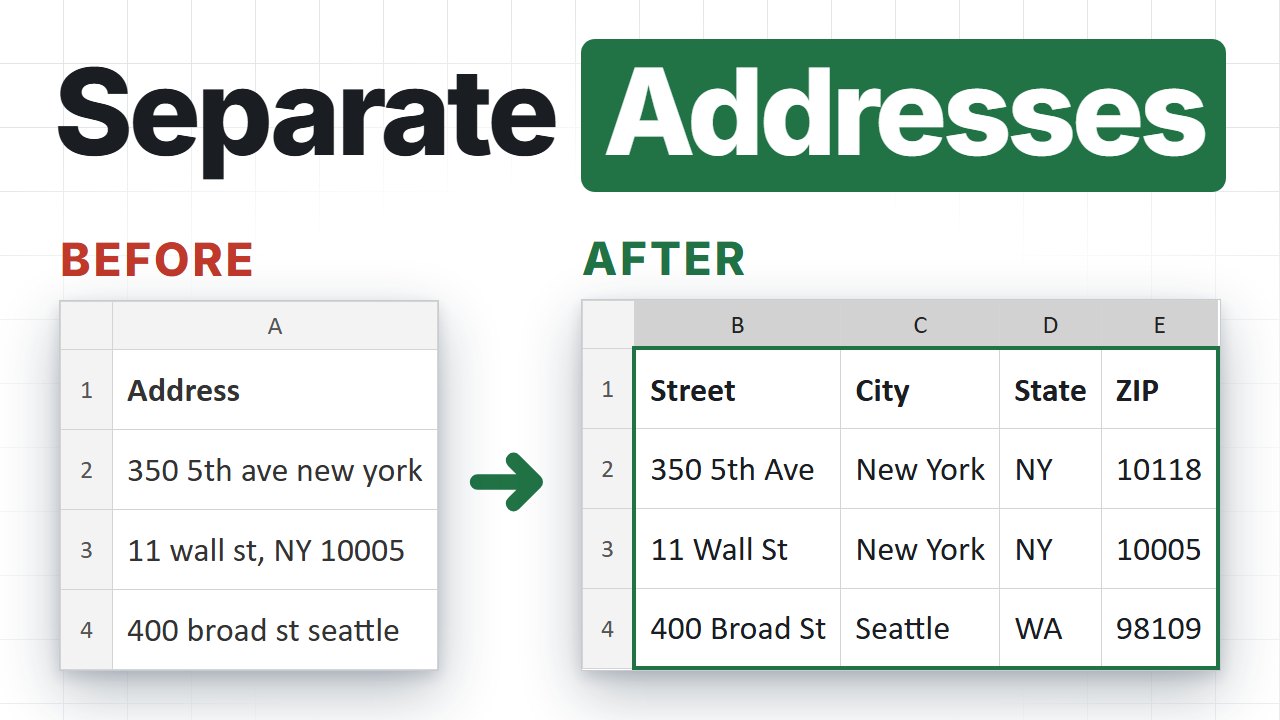
Whole addresses crammed into one cell? One click splits every row into street, city, state and ZIP, fills in missing ZIP codes, and adds the county and coordinates. No Text to Columns, no formulas.

One-time price. Windows, Mac and the web.

Reviewed by Microsoft Listed on Microsoft Marketplace

How do you separate addresses in Excel today?

If the answer is "text to columns, then fix the rest by hand", this page will save you a few afternoons.

Doing it by hand
  • Text to columns breaks the moment a row has a comma in the wrong place, or none at all.
  • LEFT, MID and FIND formulas only work while every address has exactly the same layout.
  • A missing ZIP code or state stays missing, and the county was never in the cell.
  • Paste an address into Google Maps, copy the clean one back, split it into columns. Repeat 500 times.
With the add-in
  • Select your address column and click Format addresses.
  • Street, city, state, ZIP and county land in their own columns, spelled the way Google Maps spells them.
  • Missing ZIP codes and states are filled in, and every row gets its latitude and longitude.
  • New rows next week? Run it again. It can skip the rows that are already done.

See how it works

Three steps, and none of them is "learn something new".

Excel with the Address Formatter pane open and clean address columns filled in next to a column of messy inputs
Walkthrough video is on its way
1

Select your addresses

One column, or several if the address is already split into street, city and zip. Clicking one cell inside your data is enough, and an Excel table works the same way.

2

Pick the columns you want

All 13 fields, or just city and postal code. Tick them once and the add-in remembers. Preview the first address if you want to see the shape before a big run.

3

Click Format addresses

Clean fields appear in new columns to the right, row by row as it runs. Interrupted halfway? Everything already written stays in the sheet.

What you put in, and what you get back

If Google Maps can find it, the add-in can clean it. Anywhere in the world, and you can mix all of these in one column.

What you type What it is
Addresses and places
350 Fifth Ave, New York, NY 10118 A full address
gran via 1, madrid Half an address, badly typed
84121 Only a ZIP code
Eiffel Tower A landmark or place name
Street | City | ZIP in three columns Joined into one address per row
GPS coordinates, turned back into an address
40.7128, -74.0060 Latitude, longitude
40°42'46"N 74°00'22"W Degrees, minutes, seconds
40° 42.767' N 74° 0.367' W Straight off a GPS device

Out the other side: full address, street, unit, building, city, county, state or province, postal code, country, country code, latitude, longitude and match precision. Plus a Status column, always.

13 fields
Out of one messy cell
10,000
Free Google lookups a month
25,000
Rows in a single run
14 days
No-questions refund

Made for the list you already have

Your columns, your fields, your language. Every picture comes from real runs of the add-in, with real Google Maps results.
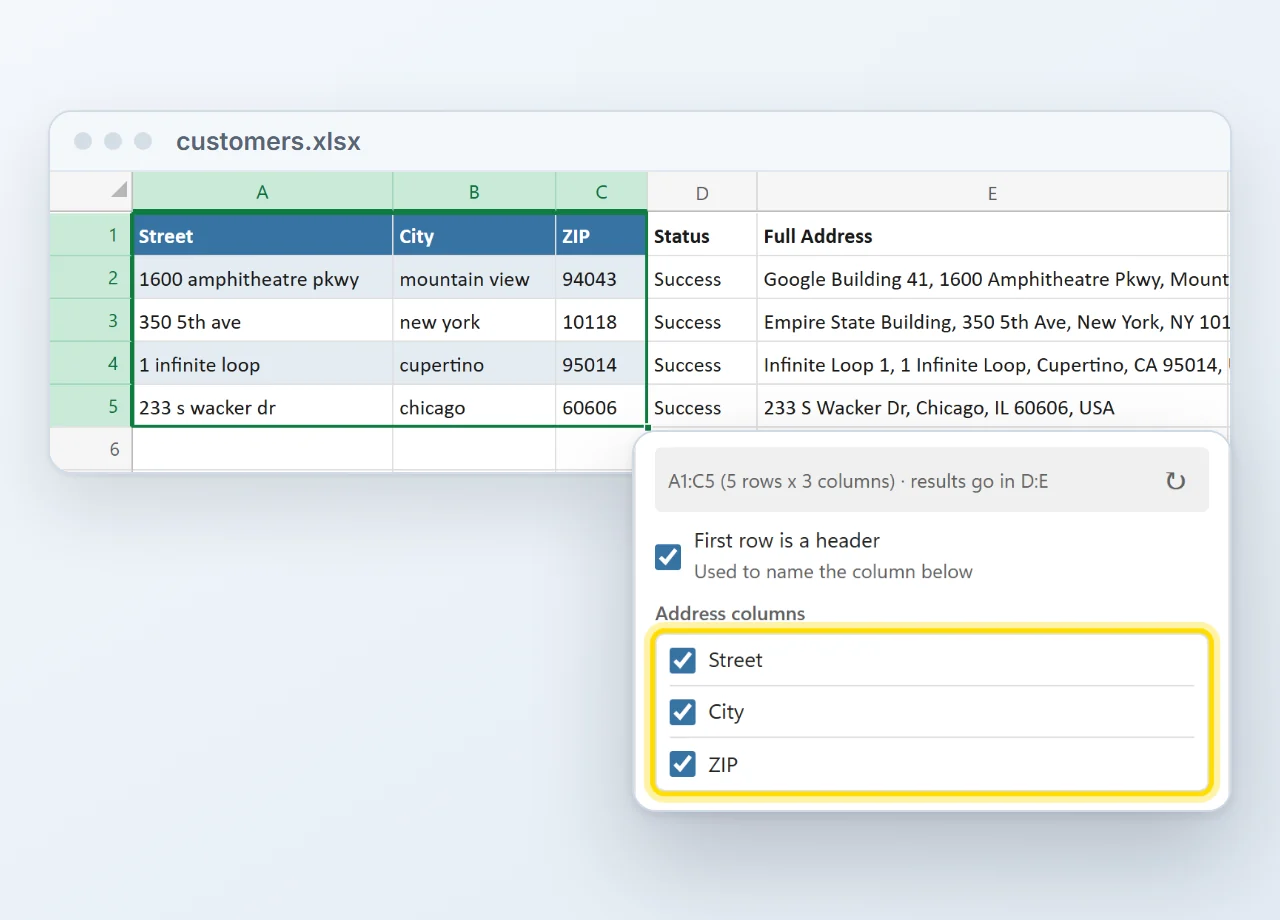
Addresses split across Street, City and ZIP columns, typed in lowercase. The pane's Address columns list has Street, City and ZIP ticked, and a Status and a clean Full Address column are filled in next to them.
Flexible

Works with your existing columns

Address split across Street, City and ZIP? Tick the columns that hold it and they are joined left to right into one address. The clean result lands in new columns right next to your data.
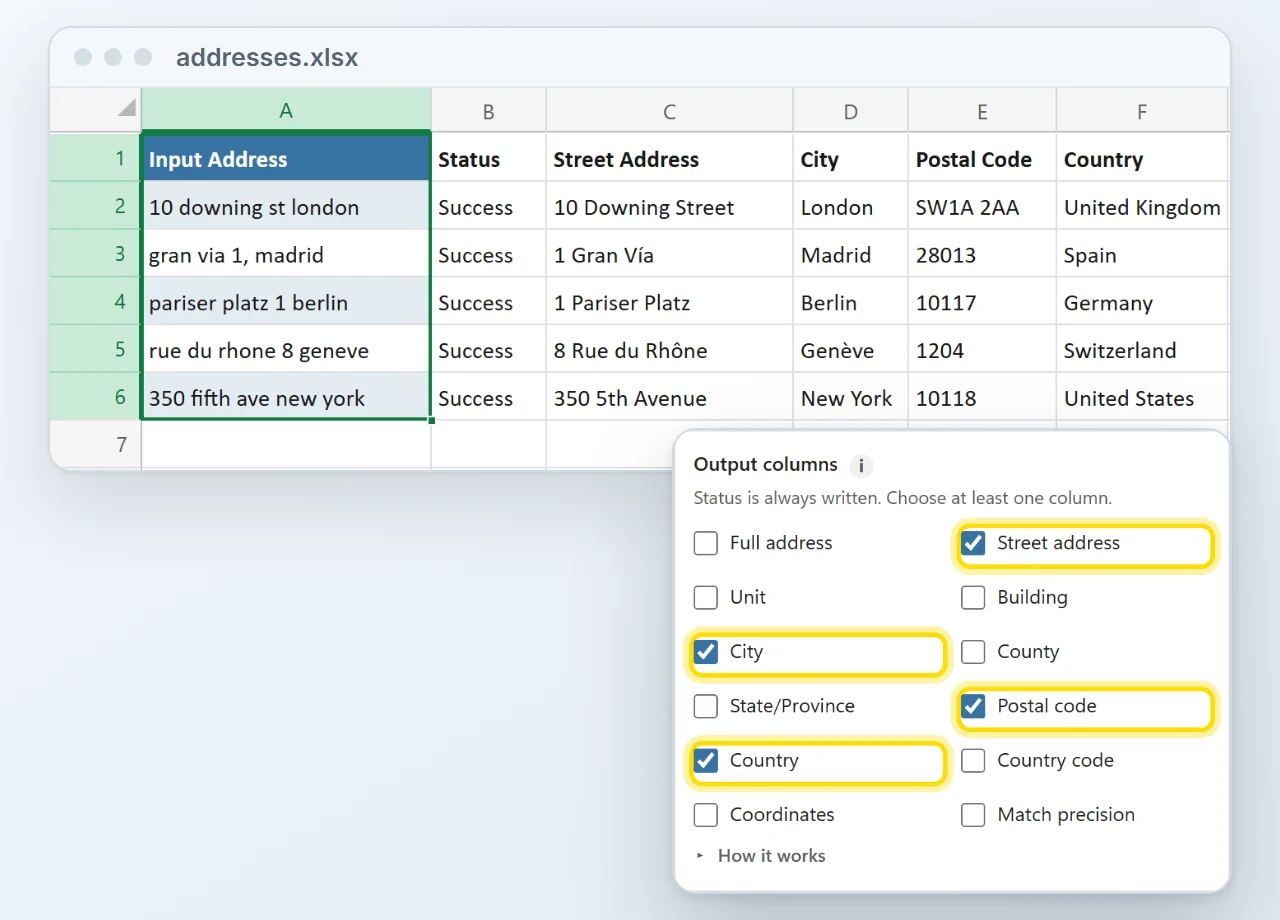
Five messy addresses cleaned into Street Address, City, Postal Code and Country columns, next to the pane's Output columns list with exactly those four ticked.
Fields

Only the fields you need

Thirteen fields to choose from: full address, street, unit, building, city, county, state or province, postal code, country, country code, latitude, longitude and match precision. Tick the ones your report needs.
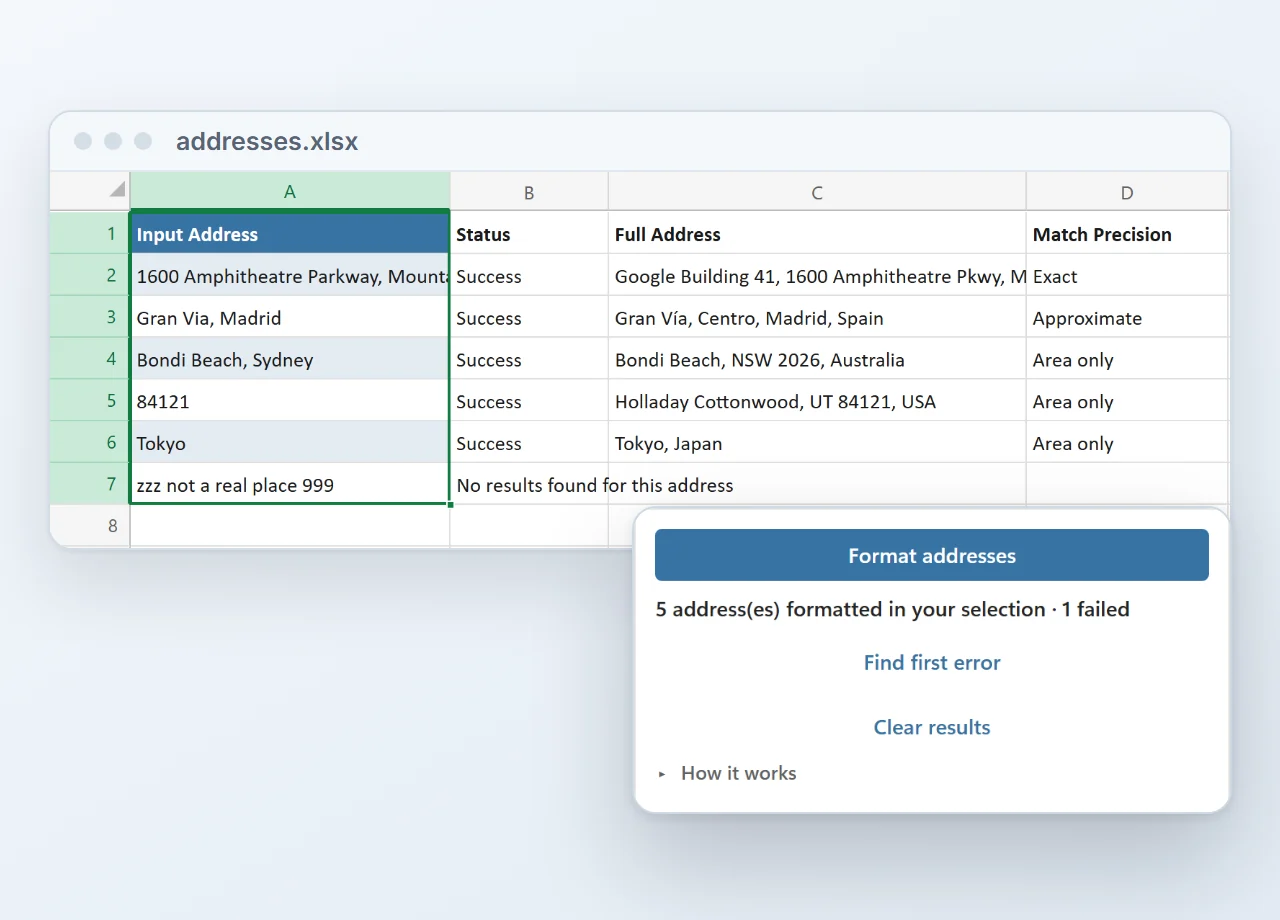
Six inputs with their Status, Full Address and Match Precision: an exact street address, approximate and area-only matches, and one input with no result found, next to the pane's run summary of 5 formatted and 1 failed.
Confidence

Know which results to trust

Every row gets a Status, Success or what went wrong, and an optional match precision from Exact down to Area only. You check the few rows that need a second look, not the whole list.
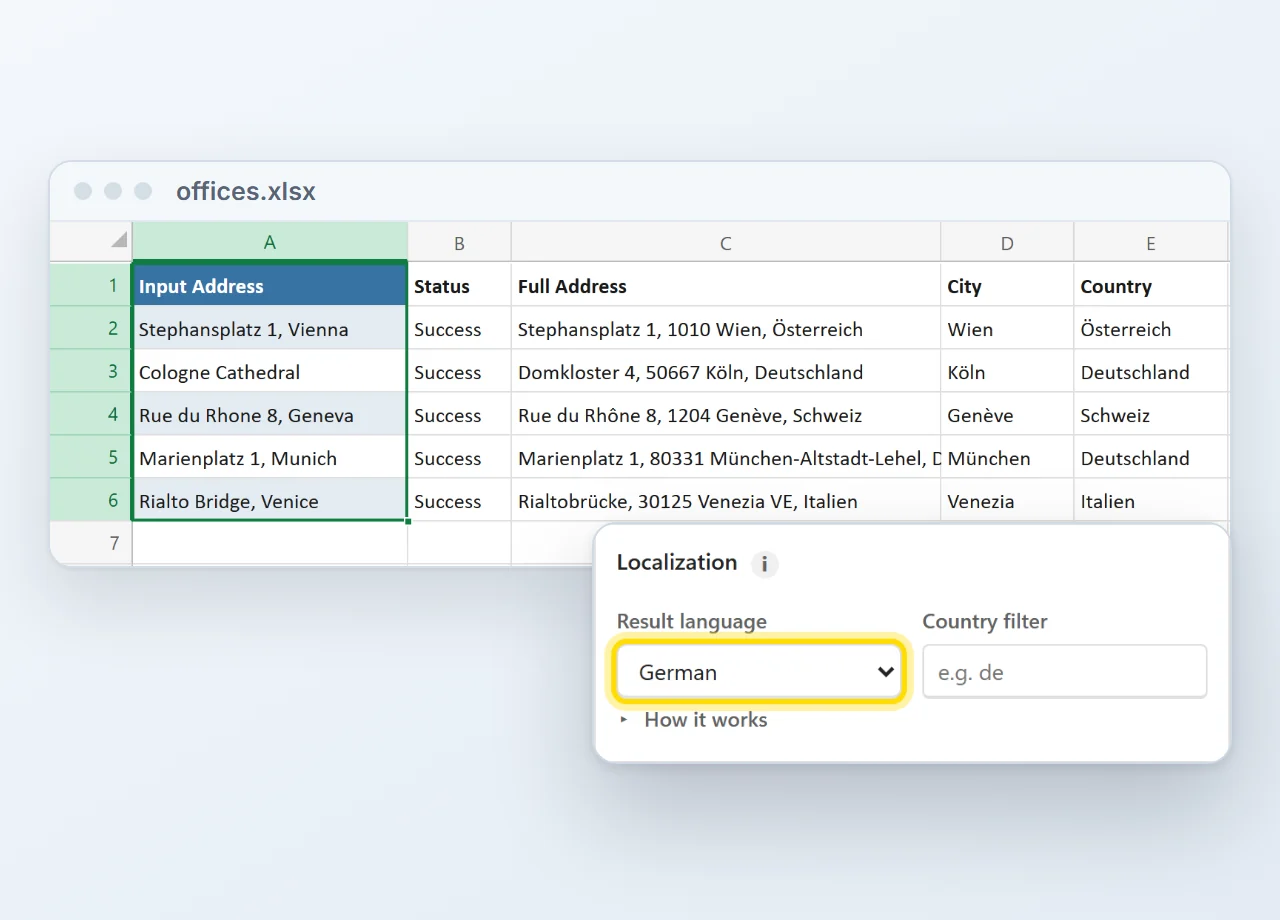
Five European addresses returned in German, such as Wien, Österreich and Köln, Deutschland, next to the pane's Result language setting set to German.
Language

Results in your language

Get addresses back in English, German, Spanish, French, Italian, Portuguese or Dutch, and add a country filter so a bare postcode lands in the right country.

Prefer formulas? They are in there too.

  • Type it like any Excel function. =GEO.FULL(A2) for the clean address, =GEO.FIELD(A2, "city") for one field, =GEO.LAT and =GEO.LNG for the coordinates.
  • Fill down like any formula. Drag the little green handle down the column and every row gets its clean value.
  • Recalculating costs nothing. Results are cached, so an address the add-in already knows is never sent to Google again.
Input Full Address City Latitude
Eiffel Tower Av. Gustave Eiffel, 75007 Paris Paris 48.8584
SW1A 1AA London SW1A 1AA, UK London 51.5010
40.7128,-74.0060 New York, NY 10007, USA New York 40.7128

Click any cell: the formula bar shows what is inside it. GEO.FIELD takes any of the 13 field names, so one formula covers the lot.

Installed in about a minute

Straight from Microsoft's add-in store, inside Excel. No installer file, no macros to enable, and from then on it is there in every workbook.

  1. 1In Excel, go to Home → Add-ins → More Add-ins.
  2. 2On the Store tab, search for Address Formatter by Bosau Digital.
  3. 3Click Add, open it from the Home tab and paste your license key and Google Maps key.
Reviewed by Microsoft Address Formatter passed Microsoft's review before it went on Microsoft Marketplace: Microsoft's own validation team tested it in Excel on Windows, Mac and the web. See Address Formatter on Microsoft Marketplace

Depending on your Excel version, look under Insert → Get Add-ins instead.

  • Windows, Mac and the web
  • No macro warnings
  • Updates arrive by themselves
  • Follows your light or dark theme

What you need

Three things, and two of them you have already.

Excel Microsoft 365, or Office 2021 and later.
Windows, Mac or a browser Excel on the desktop, or Excel on the web. Your pick.
A Google Maps API keyA personal code from your own Google account that lets the add-in ask Google Maps to look up an address. Creating one is free, and you paste it into the add-in once. Free to create. Comes with 10,000 lookups a month at no cost.
Never made an API key before? You are covered. After purchase you get a video that walks you through the setup, click by click. It is a one-time job of about 5 to 10 minutes, and every step is explained. And because the key is your own, there is no markup from the add-in on your lookups: Google bills you at Google's prices, which under 10,000 a month means paying nothing at all.

Your addresses go to Google, and nowhere else

The add-in uses your own Google Maps key, and your Excel talks to Google directly. There is no server of mine in the middle, and I never see your customer list.

No middleman Each lookup goes straight from your computer to Google Maps. Nothing is uploaded to me, ever.
Your key, your budget Google gives your key 10,000 free lookups a month, and the add-in takes no markup on top. The same address twice in one run is only looked up once.
Keys stay on your side License and Google key are stored in your own Office profile, not inside the workbook. Share a file and they stay behind.

Pay once. Keep it forever.

No subscription, free updates, and no markup on lookups: your Google key pays Google directly, which under 10,000 a month means paying nothing.

Lifetime license
Single user
$69
one-time payment
  • One license key for 1 user on up to 3 computers
  • Batch runs and the GEO formulas
  • All 13 output fields, plus a Status column
  • Reverse geocoding from GPS coordinates
  • Excel on Windows, Mac and the web
  • Free updates, forever
  • Email support, usually within 24 hours
Get the single user license
Lifetime license
Team
$199
one-time payment
  • One license key for up to 15 users
  • Batch runs and the GEO formulas
  • All 13 output fields, plus a Status column
  • Reverse geocoding from GPS coordinates
  • Excel on Windows, Mac and the web
  • Free updates, forever
  • Email support, usually within 24 hours
Get the team license

14-day refund, no questions asked. If it is not for you, email me and you get your money back.

  • Excel on Windows
  • Excel on Mac
  • Excel on the web
  • Microsoft 365 or Office 2021 and later

Frequently asked questions

Select the column that holds the addresses, tick Street address, City, State and Postal code in the add-in, and click Format addresses. Each part lands in its own column next to your data. Text to Columns and LEFT or MID formulas cut at commas and spaces, so they fail as soon as one address is laid out differently. The add-in looks every address up on Google Maps instead, so the layout of the cell does not matter, and a missing ZIP code or state is filled in on the way.
Yes. Tick Latitude and Longitude and every row gets its coordinates, ready for a map, a distance calculation or a GIS tool. That is geocoding, and it happens in the same run as the split. For a single cell there are formulas too: =GEO.LAT(A2) and =GEO.LNG(A2). To try it on a short list without Excel, use the free address to coordinates converter.
Yes. County is one of the 13 fields, so a whole list gets a County column in one run. Outside the US the same column holds the district or province, where Google has one. To check a single US address or ZIP code without Excel, use the free county lookup on this site.
Thirteen to choose from: full address, street address, unit, building, city, county, state or province, postal code, country, country code, latitude, longitude and match precision. Tick the ones you want and leave the rest out. A Status column is always written, so you can see at a glance which rows worked.
The Match Precision column says how sure Google was: Exact means it found the building, Estimated means the right street, Approximate means the right area, and Area only means it got no further than a postcode or region. Sort by that column and you know exactly which rows need a human.
Yes, that is the same button. Put coordinates in the column instead of an address and you get the address back. Decimal pairs, degrees with compass letters, degrees and minutes straight off a GPS device, and full degrees, minutes and seconds all work, and you can mix them with normal addresses in the same column.
Yes, and that is a feature, not a catch. Your key means your addresses go straight to Google, there is no markup on your lookups, and Google includes 10,000 of them a month for free. Setting it up is a one-time job of about 5 to 10 minutes: after purchase you get a video that walks you through every step, and the add-in tests the key for you.
Up to 25,000 rows in a single run, several requests at a time so it moves quickly. Results are written into the sheet as the run goes, so if you cancel or something interrupts it, everything done so far is already saved. Run it again with "skip rows that already have results" on and it finishes only what is missing, retrying the failures and leaving the successes alone.
Google includes 10,000 lookups a month for free and charges beyond that. The add-in is careful with them: the same address twice in one run is only fetched once, formula results are cached so recalculating a workbook costs nothing, and you can preview a single address for one request before starting a big run. A large batch asks you to confirm first, and you can set a hard spending cap in your Google account.
Yes. Tick street, city and zip together and they are joined into one address per row before the lookup. Separate latitude and longitude columns work the same way.
Yes. Pick a result language in the settings and Google returns the addresses in it. There is also a country filter, which keeps a single-country list from matching a same-named street on the other side of the world.
Yes. It runs in Excel on Windows, on Mac and in the browser at excel.office.com, with Microsoft 365 or Office 2021 and later. The GEO formulas need the same versions; they are not available on iPad or in Excel 2019 and older.
From Microsoft's add-in store, right inside Excel: go to Home, Add-ins, More Add-ins, search the Store for Address Formatter and click Add. The listing itself is free to install; your license key unlocks it. No installer file, no admin rights on most setups, and updates arrive through the store by themselves.
Yes. An admin can deploy it to people or groups from the Microsoft 365 admin center (Settings, then Integrated apps), and it appears in Excel on Windows, Mac and the web by itself, so nobody installs it by hand. That needs a Microsoft 365 plan with Exchange Online mailboxes, and a fresh rollout can take up to a day to reach everyone. Each person still enters the license key and their own Google Maps key once.
The add-in is the successor to the Address Formatter macro workbook. Same job, but it works in every workbook instead of one fixed file, runs on Mac and in the browser too, lets you pick which fields to write, adds the GEO formulas, and updates itself. And here is the good part: your existing license key works in the add-in as it is. Install the add-in, paste the key you already have, done. No new purchase, and the template keeps working too, so you can switch whenever it suits you.
For a handful of addresses there is the free bulk address formatter on this site: up to 25 addresses a run, three runs a day, right in your browser, with no sign-up and no Google key. If all you need is the county of US addresses, the free county lookup does 50 at a time. The add-in is for everything beyond that: your own workbooks, up to 25,000 rows in one run, and the GEO formulas.
Email me at sven@pythonandvba.com. You are writing to the person who built it, not a ticket queue, and I usually reply within a day. There is also a step-by-step guide and a help page right inside the add-in.
Yes, 14 days, no questions asked. Email me at sven@pythonandvba.com.
Sven Bosau

Still have a question?

I’m Sven, the developer, and I usually reply within a day.

Please enter your first name.

Please enter a valid email address.

Please write a little more (at least 10 characters).

Your email is only used to reply. No newsletter.

Ready to stop cleaning addresses by hand?

Turn a messy column into clean, structured address data in your own workbook.

Get the Address Formatter add-in

Desktop apps, Excel add-ins, and free tools for everyday work.

Stay Updated

Get new tool updates and exclusive deals.

Hi 👋