
Skip to content
New Saw the Excel template in one of my videos? The Route Planner is an add-in now. What changed?

Plan the Fastest Multi Stop Route Directly in Excel

Put up to 25 stops in a column and click once. Google Maps works out the best order, and the add-in writes the visit order, the distance and the travel time for every leg right next to your data.

One-time price. Windows, Mac and the web.

Reviewed by Microsoft Listed on Microsoft Marketplace

How do you decide the order of the stops today?

Fourteen stops can be visited in more orders than there are people on earth. Nobody eyeballs that correctly.

Doing it by hand
  • Drag pins around a map until the order looks about right.
  • The driver ends up crossing town twice, and nobody notices until the fuel bill.
  • Times are guesses, so the schedule slips from the third stop onwards.
  • One stop cancels and the whole order has to be thought through again.
With the add-in
  • Click one cell in your list of stops and press Optimize route.
  • Google puts every stop in between the start and the end in the best order.
  • Visit order, distance and travel time per leg land next to your data, with the totals in the pane.
  • A stop drops out? Delete the row and run it again. It takes seconds.

See how it works

Three steps, and none of them is "learn something new".

Excel with the Route Planner pane open, a column of stops and the visit order, distance and travel time columns filled in next to them
Walkthrough video is on its way
1

List your stops in one column

The first row is where the driver starts, the last row is where the route ends, and everything in between gets reordered. Clicking one cell inside the list is enough.

2

Round trip or not

Tick Round trip if the driver comes back to where they started. The return leg is then part of the totals too. That is the only decision you have to make.

3

Click Optimize route

Visit order and the distance and time from the previous stop appear next to your data. The pane shows the itinerary and the totals, and one link opens the whole route in Google Maps.

Your stops can look like anything

If Google Maps can find it, the add-in can route to it. Anywhere in the world, and you can mix all of these in one list.

Stop What it is
350 5th Ave, New York, NY 10118 A full address
Hauptstraße 12, Heidelberg Just street and city
Brooklyn Bridge A landmark or place name
JFK Airport, Queens, NY An airport
10119 A ZIP or postcode
40.7484, -73.9857 Latitude, longitude

Working in an Excel table? That works too: the result columns are appended as proper table columns.

1 click
For the whole route
25 stops
Between the start and the end
10,000
Free Google lookups a month
14 days
No-questions refund

Made for the list you already have

Your list, your units, your kind of trip. Every picture comes from real runs of the add-in, with real Google Maps results.
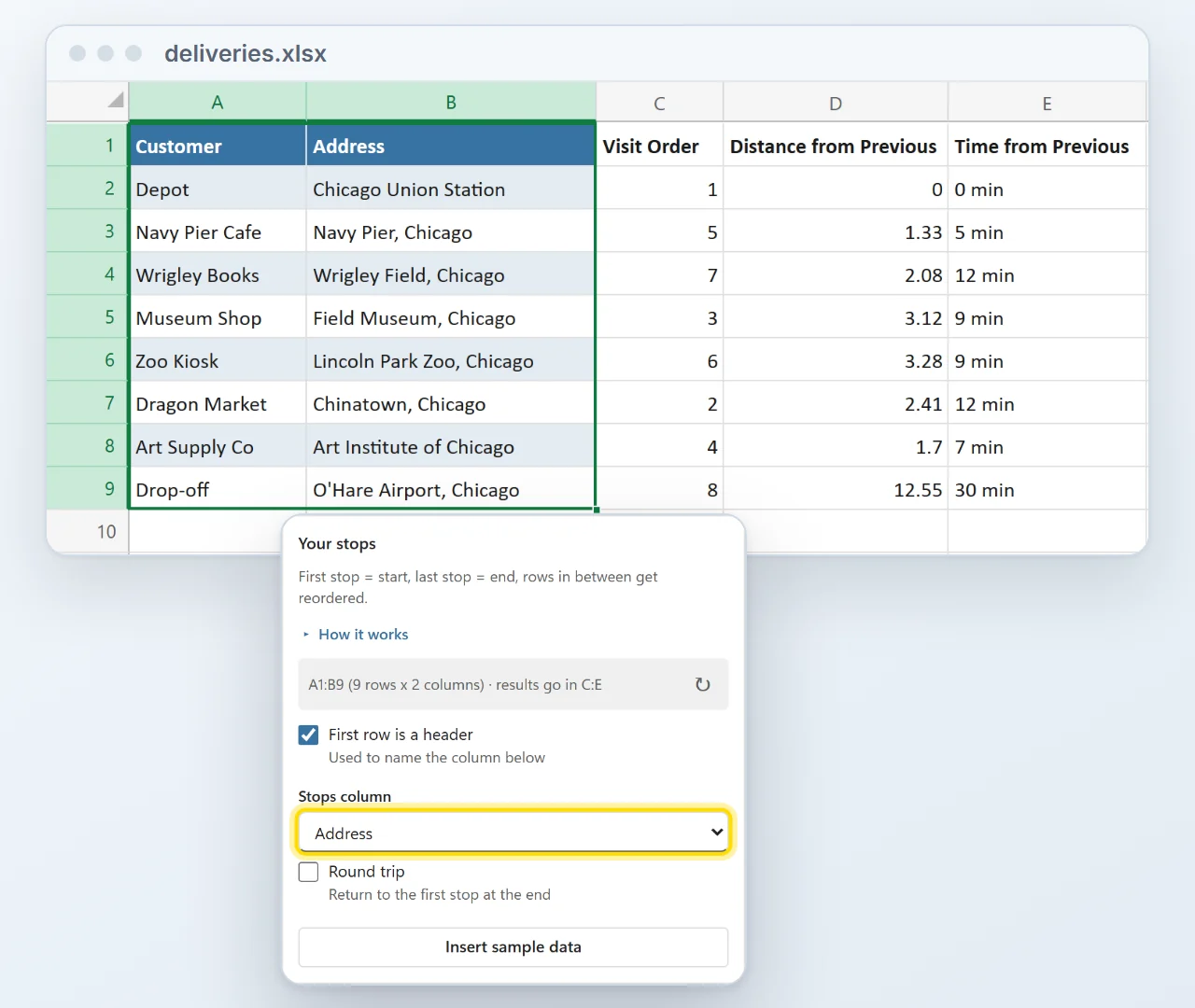
A delivery list with Customer and Address columns. The pane's Stops column is set to Address, and the Visit Order, Distance from Previous and Time from Previous columns are filled in next to the list.
Flexible

Works with your existing list

No template to copy your stops into. Click a cell in the list you already have and pick the column that holds the stops. The first row is the start, the last is the end, and the visit order lands right next to your data.
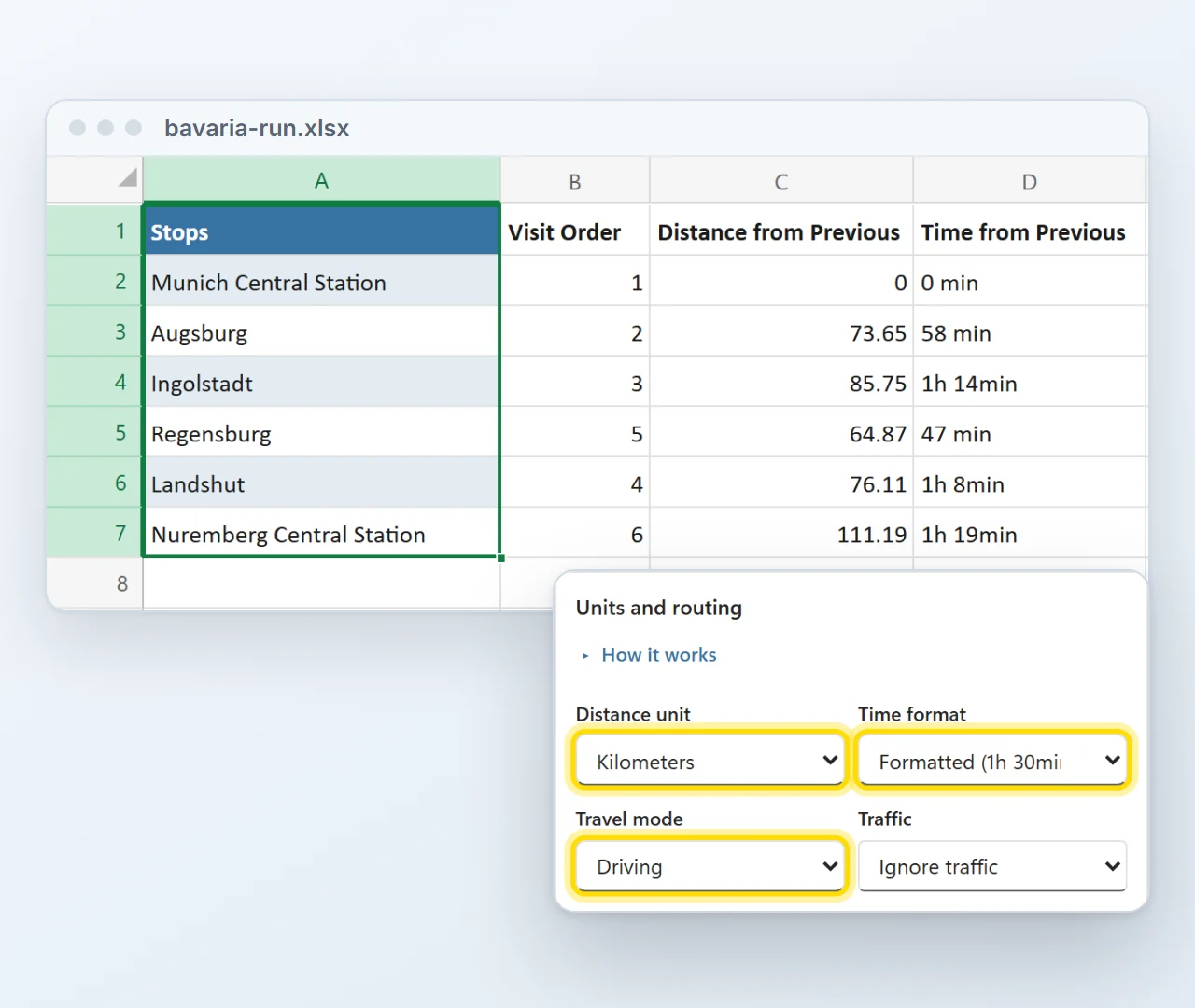
A route through six Bavarian stops with distances in kilometers and times such as 1h 14min, next to the pane's Units and routing settings with Kilometers, the formatted time and Driving selected.
Units

Kilometers or miles, and times like 1h 14min

Pick miles or kilometers and minutes, hours or a readable 1h 14min. Drive, walk, cycle or ride a two-wheeler, with traffic-aware driving when today's roads matter.
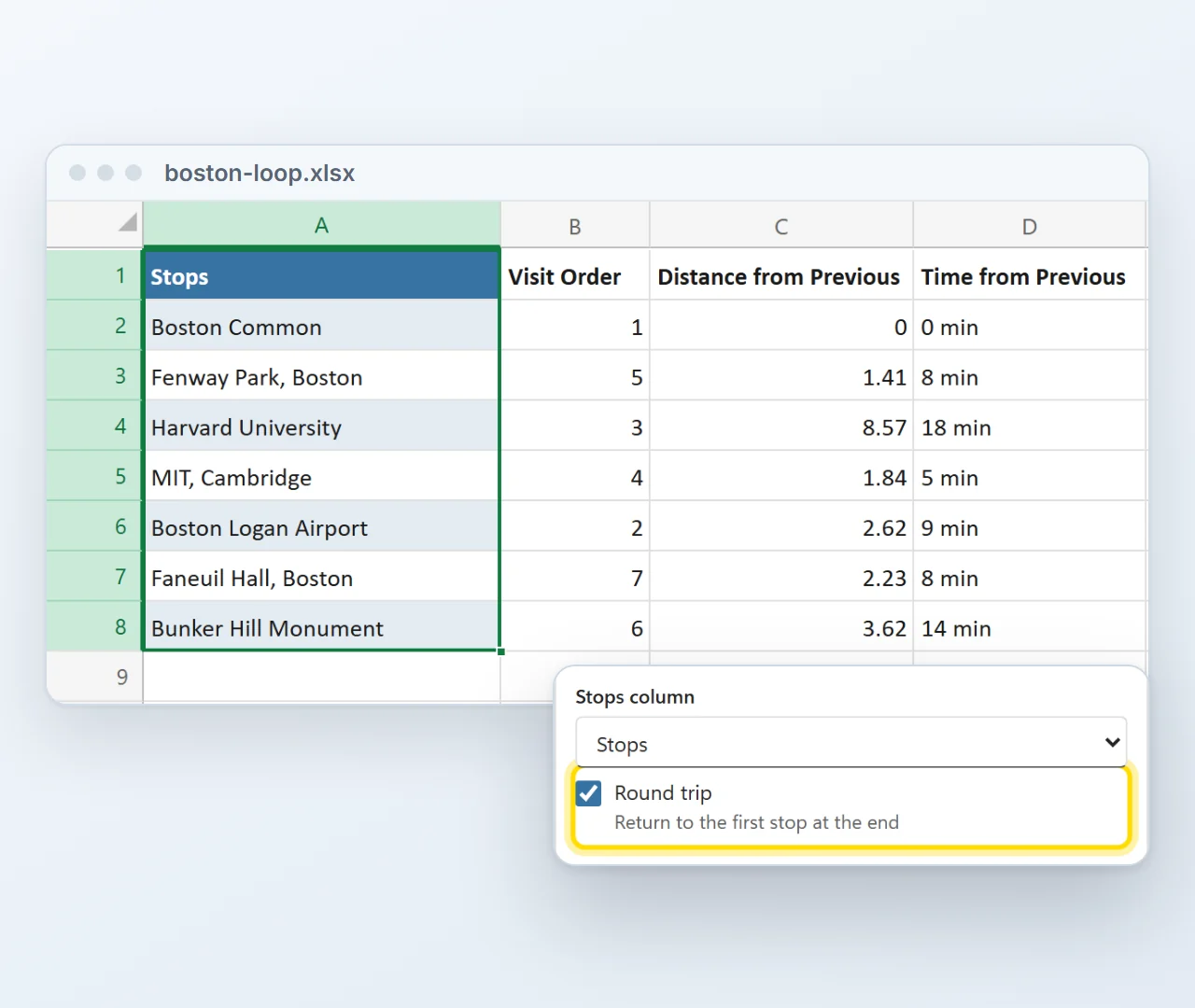
A loop of seven Boston stops with its visit order filled in, next to the pane's Round trip option, ticked.
Round trip

Back where you started

Tick Round trip and the route returns to the first stop at the end. The return leg is part of the itinerary and the totals, so the day's distance is the real one.
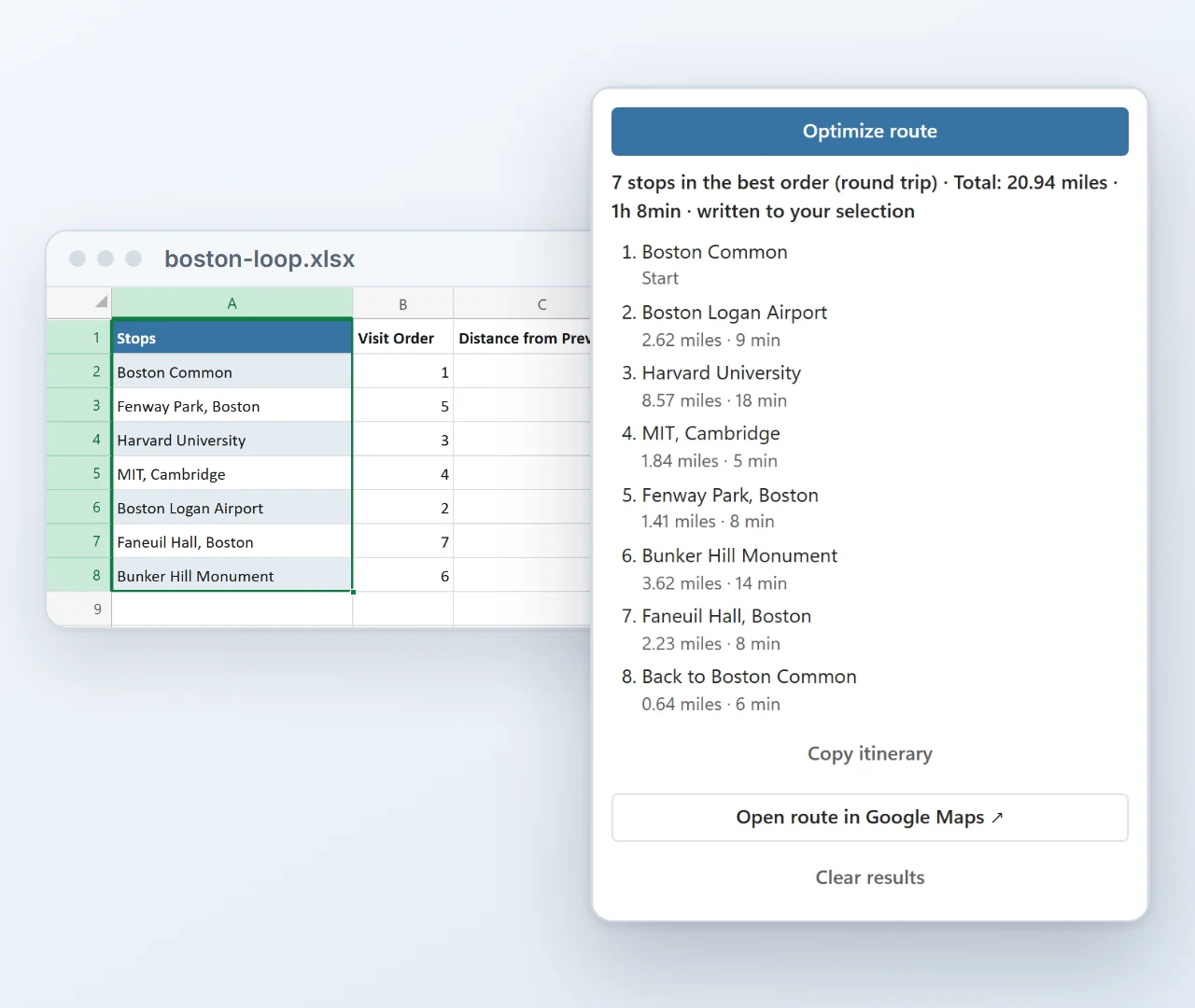
The pane's result: 7 stops in the best order as a round trip, 20.94 miles and 1h 8min in total, each leg with its distance and time, the return to Boston Common last, and buttons to copy the itinerary or open the route in Google Maps.
Itinerary

Every leg, ready for the road

The pane lists the stops in order with the distance and time of each leg, plus the totals. Copy the itinerary in one click, or open the route in Google Maps.

Installed in about a minute

Straight from Microsoft's add-in store, inside Excel. No installer file, no macros to enable, and from then on it is there in every workbook.

  1. 1In Excel, go to Home → Add-ins → More Add-ins.
  2. 2On the Store tab, search for Route Planner by Bosau Digital.
  3. 3Click Add, open it from the Home tab and paste your license key and Google Maps key.
Reviewed by Microsoft Route Planner passed Microsoft's review before it went on Microsoft Marketplace: Microsoft's own validation team tested it in Excel on Windows, Mac and the web. See Route Planner on Microsoft Marketplace

Depending on your Excel version, look under Insert → Get Add-ins instead.

  • Windows, Mac and the web
  • No macro warnings
  • Updates arrive by themselves
  • Follows your light or dark theme

What you need

Three things, and two of them you have already.

Excel Microsoft 365, or Office 2021 and later.
Windows, Mac or a browser Excel on the desktop, or Excel on the web. Your pick.
A Google Maps API keyA personal code from your own Google account that lets the add-in ask Google Maps for routes. Creating one is free, and you paste it into the add-in once. Free to create. Comes with 10,000 lookups a month at no cost.
Never made an API key before? You are covered. After purchase you get a video that walks you through the setup, click by click. It is a one-time job of about 5 to 10 minutes, and every step is explained. And because the key is your own, there is no markup from the add-in on your lookups: Google bills you at Google's prices, which under 10,000 a month means paying nothing at all.

Your stops go to Google, and nowhere else

The add-in uses your own Google Maps key, and your Excel talks to Google directly. There is no server of mine in the middle, and I never see your routes.

No middleman Each route goes straight from your computer to Google Maps. Nothing is uploaded to me, ever.
Your key, your budget A whole route is one request to Google, however many stops it has. Your key gets 10,000 free lookups a month, and the add-in takes no markup on top.
Keys stay on your side License and Google key are stored in your own Office profile, not inside the workbook. Share a file and they stay behind.

Pay once. Keep it forever.

No subscription, free updates, and no markup on lookups: your Google key pays Google directly, which under 10,000 a month means paying nothing.

Lifetime license
Single user
$69
one-time payment
  • One license key for 1 user on up to 3 computers
  • Up to 25 stops between start and end
  • Round trips, itinerary and one-click Google Maps link
  • All travel modes, units and options
  • Excel on Windows, Mac and the web
  • Free updates, forever
  • Email support, usually within 24 hours
Get the single user license
Lifetime license
Team
$199
one-time payment
  • One license key for up to 15 users
  • Up to 25 stops between start and end
  • Round trips, itinerary and one-click Google Maps link
  • All travel modes, units and options
  • Excel on Windows, Mac and the web
  • Free updates, forever
  • Email support, usually within 24 hours
Get the team license

14-day refund, no questions asked. If it is not for you, email me and you get your money back.

  • Excel on Windows
  • Excel on Mac
  • Excel on the web
  • Microsoft 365 or Office 2021 and later

Frequently asked questions

Up to 25 stops between the start and the end, so 27 rows in total. That is Google's own limit for stop-order optimization, not something the add-in adds. Longer runs are usually split into day routes anyway, and each one takes a couple of seconds.
Yes, and that is a feature, not a catch. Your key means your stops go straight to Google, there is no markup on your lookups, and Google includes 10,000 of them a month for free. Setting it up is a one-time job of about 5 to 10 minutes: after purchase you get a video that walks you through every step, and the add-in tests the key for you.
Very little, because a whole route is one request no matter how many stops it has. Google includes 10,000 requests a month for free and charges beyond that, and you can set a hard spending cap in your Google account. Most people never leave the free tier.
Yes. Tick Round trip and the first stop becomes the end as well, so every other row is free to be reordered. The return leg shows up in the pane itinerary and in the totals.
One click. The pane has a link that opens the optimized route in Google Maps, in order, ready to send to a phone. You can also copy the itinerary as plain text and paste it into an email or a message to the driver.
Driving, walking, bicycling and two-wheeler, with optional traffic-aware driving. Public transit is not offered, because Google does not optimize the order of stops for transit. Distances come back in miles or kilometers, times in minutes, hours or a readable "1h 30min".
Yes. It runs in Excel on Windows, on Mac and in the browser at excel.office.com, with Microsoft 365 or Office 2021 and later.
From Microsoft's add-in store, right inside Excel: go to Home, Add-ins, More Add-ins, search the Store for Route Planner and click Add. The listing itself is free to install; your license key unlocks it. No installer file, no admin rights on most setups, and updates arrive through the store by themselves.
Yes. An admin can deploy it to people or groups from the Microsoft 365 admin center (Settings, then Integrated apps), and it appears in Excel on Windows, Mac and the web by itself, so nobody installs it by hand. That needs a Microsoft 365 plan with Exchange Online mailboxes, and a fresh rollout can take up to a day to reach everyone. Each person still enters the license key and their own Google Maps key once.
The add-in is the successor to the Route Planner macro workbook. Same job, but it works in every workbook instead of one fixed file, runs on Mac and in the browser too, adds round trips and an itinerary you can copy, and updates itself. And here is the good part: your existing license key works in the add-in as it is. Install the add-in, paste the key you already have, done. No new purchase, and the template keeps working too, so you can switch whenever it suits you.
For a single route there is the free route planner on this site: up to 15 stops, three runs a day, right in your browser, with no sign-up and no Google key. The add-in is for everything beyond that: up to 25 stops between the start and the end, as many routes as you like, straight from the lists in your own workbooks.
Email me at sven@pythonandvba.com. You are writing to the person who built it, not a ticket queue, and I usually reply within a day. There is also a step-by-step guide and a help page right inside the add-in.
Yes, 14 days, no questions asked. Email me at sven@pythonandvba.com.
Sven Bosau

Still have a question?

I’m Sven, the developer, and I usually reply within a day.

Please enter your first name.

Please enter a valid email address.

Please write a little more (at least 10 characters).

Your email is only used to reply. No newsletter.

Ready to stop guessing the order of the stops?

Plan the route in the workbook you already have.

Get the Route Planner add-in

Desktop apps, Excel add-ins, and free tools for everyday work.

Stay Updated

Get new tool updates and exclusive deals.

Hi 👋