
Copy Data From Multiple Excel Files Into a Master Workbook With Openpyxl

openpyxl reads and writes Excel files without opening Excel, which makes consolidating 300 sales workbooks into one master file practical. The script loops over the folder, pulls the same range from each file, and writes every result into the master sheet row with the matching date.
The task
My folder contains over 300 Excel files, one per day, with sales by product category. The layout is identical in every file: column A holds the product categories and column B the sales amounts. The master workbook has one worksheet per month, with the dates in column B.
Copying those values by hand is tedious. The script below takes about 2 seconds to fill the master file, and you can check the result against the original reports.
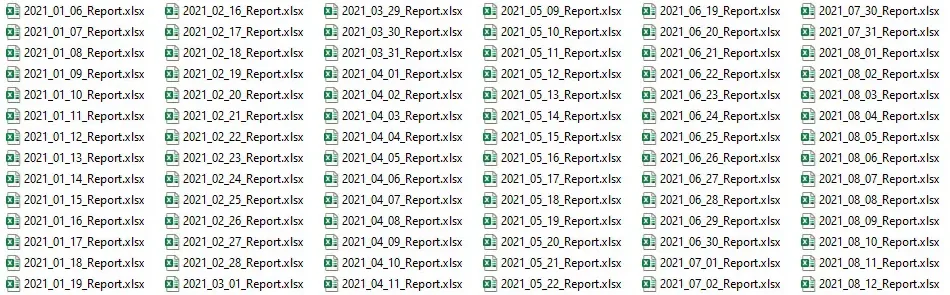
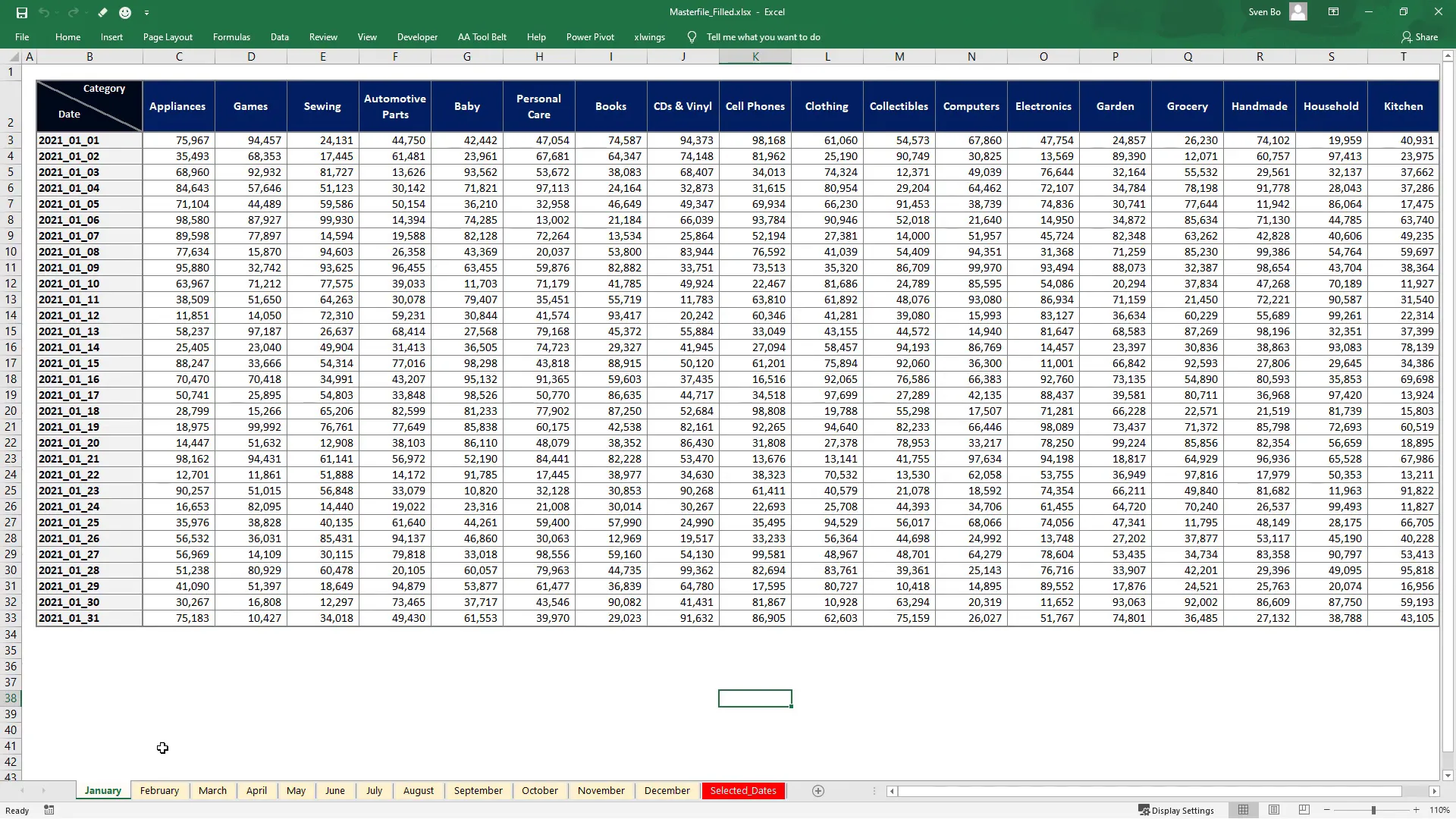
The solution has three steps: list the files, read each one into a dictionary keyed by date, then walk the master workbook and write the values next to each matching date.
Step 1: List the Excel files
Use Path and glob to collect every .xlsx file in the source folder. pathlib ships with Python; openpyxl needs pip install openpyxl.
from pathlib import Path  # Standard Python Module
from openpyxl import load_workbook, Workbook  # pip install openpyxl


# -- 1.STEP
# Get all excel file paths from given directory
SOURCE_DIR = "Daily_Reports" # e.g. r"C:\Users\Username\Desktop\Sample Files"
excel_files = list(Path(SOURCE_DIR).glob("*.xlsx"))
My pathlib quickstart explains Path and glob in more detail.
Step 2: Read the values from each file
The data sits in the first worksheet, in the range B2:B19. For each file, collect those values in a list and store the list in a dictionary with the report date as the key. The date comes from the file name, for example 2021_01_06_Report.xlsx becomes 2021_01_06. This step takes about 2 seconds for all 300 files.
values_excel_files = {}
for excel_file in excel_files:
    report_date = excel_file.stem.replace("_Report", "")
    wb = load_workbook(filename=excel_file, read_only=True)
    rng = wb["Sheet1"]["B2":"B19"]
    rng_values = []
    for cells in rng:
        for cell in cells:
            rng_values.append(cell.value)
    values_excel_files[report_date] = rng_values
Step 3: Write the values to the master file
Open the master template and go through every worksheet. For each date in column B that exists as a key in the dictionary, write that report’s values into the columns to the right of the date. Each value in the list lands in its own column, so the order of the list must match the column order in the master.
# a) Iterate over all worksheets in the master workbook
# b) For each worksheet, iterate over defined Excel range (dates)
# c) If date matches with the key of dictionary (values_excel_files) then insert values & save workbook
wb = load_workbook(filename="Masterfile_Template.xlsx")
for ws in wb.worksheets:
    clm = "B"
    first_row = 3
    last_row = len(ws[clm])
    rng = ws[f"{clm}{first_row}:{clm}{last_row}"]
    for cells in rng:
        for cell in cells:
            if cell.value in values_excel_files:
                # Iterate over values (list inside the dictionary) and write values to column
                for i, value in enumerate(values_excel_files[cell.value]):
                    cell.offset(row=0, column=i + 1).value = value
wb.save("Masterfile_Filled.xlsx")
The dates in the master must be in the same text format as the dictionary keys, otherwise nothing matches and those rows stay empty. The script writes to a new file, so the template stays untouched.
Why openpyxl
Other libraries such as xlwings can do this too, but they start an Excel instance. openpyxl loads the files straight into memory, which is faster when you process hundreds of files.
The same approach works to find and replace values in multiple Excel files.