
Automate Excel with Python and Turn Repetitive Work into One Click

Excel can run Python directly through xlwings Lite, which turns the weekly routine of copying, reformatting and regenerating documents into a single button. Nothing for your colleagues to install, and the code travels inside the workbook rather than living on one machine.
With the free xlwings Lite add-in you can combine and clean files, pull live data, build dashboards, generate Word documents in bulk, and hand the whole thing over as a normal Excel file. It is the same idea as automating Excel with xlwings, without installing Python locally or asking anyone for admin rights.
If you spend hours every week copying data between files, fixing formats, updating formulas, and creating the same documents again and again, there is a better way. When you Automate Excel with Python, Excel can become the friendly front end for work that would otherwise take half a day.
From raw sales data to an interactive dashboard
Picture a regular sheet of raw sales data. Nothing fancy, just rows and columns. With a single button, that data can become a complete interactive dashboard in roughly two seconds.
The result is not a static chart pasted into a workbook. It is a dashboard you can filter, explore with hover tooltips, and send to a manager as one file. That is a huge difference when reporting needs to be quick, clear, and actually useful.
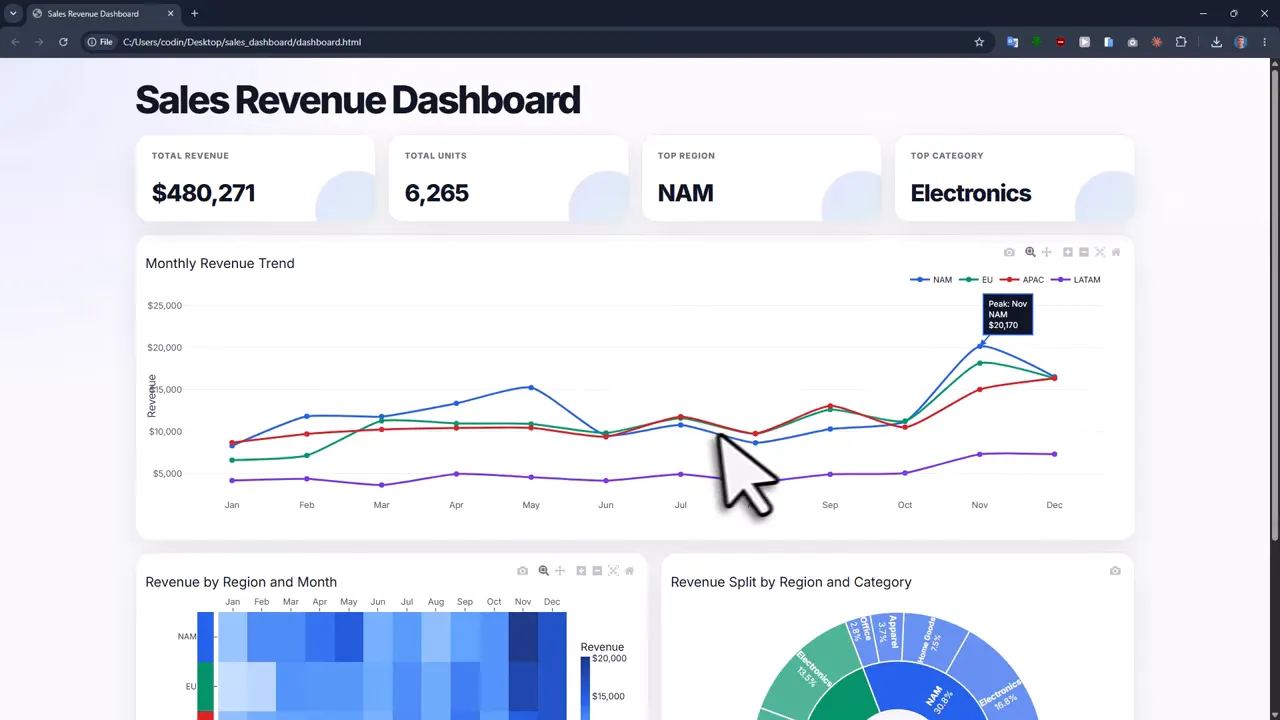
This is one of the reasons I like to Automate Excel with Python. Excel remains the place where you keep and understand your data, while Python handles the repetitive processing and turns the output into something more polished.
A realistic automation example: messy files to finished documents
Dashboards are nice, but the bigger wins usually come from those messy processes nobody wants to touch.
Take four separate sales files that need to be combined and cleaned. Perhaps they contain slightly inconsistent data, and you need current exchange rates before calculating commissions. Then, after all that, you need to create a batch of Word documents with the correct names and numbers.
That workflow can be handled with one Excel button:
- Combine the source sales files into one dataset.
- Clean and prepare the data automatically.
- Pull live exchange rates from the internet.
- Run calculations that would otherwise require Excel formulas.
- Create Word documents in bulk using values from Excel.
- Save an interactive chart for presenting the results.
Instead of manually repeating every step, the process can finish in a few seconds. That is the practical promise of learning to Automate Excel with Python, not writing code for the sake of it, but removing work that should never have been manual in the first place.
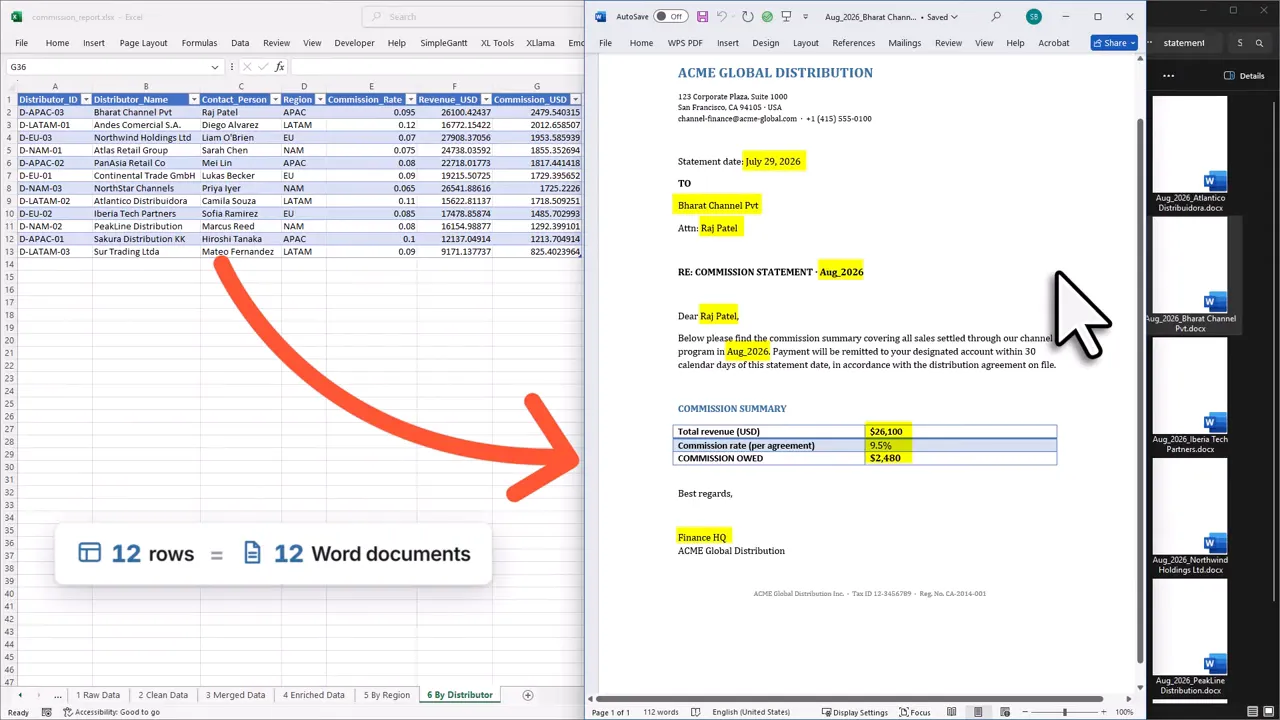
If bulk document creation is a recurring headache in your work, this guide on creating Word documents from Excel data is also worth keeping handy.
Why xlwings Lite makes this approachable
All of this runs through a free Excel add-in called xlwings Lite. It works on Windows, Mac, and Excel in the browser.
You install it from the official Office Add-ins store in a couple of clicks. There is no local Python installation to wrestle with, no admin rights required, and no extra software setup. Honestly, that removes one of the biggest reasons Excel users put off trying Python.
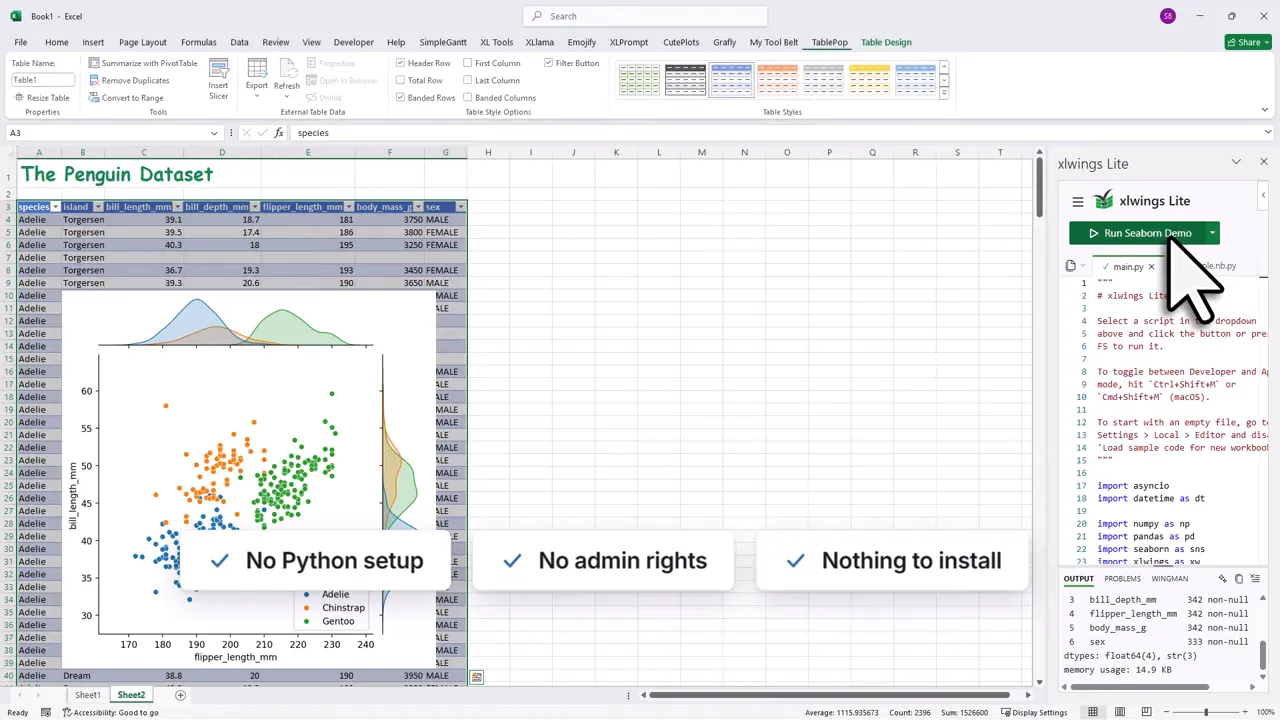
There are a few particularly useful details here:
- Everything runs locally: Your data stays on your computer.
- Your code lives in the Excel file: You do not need a separate VBA macro-enabled workbook.
- Sharing is simpler: A colleague can run the same automation with the same free add-in.
- Excel stays familiar: The workbook can provide the buttons, inputs, and outputs while Python does the heavy lifting.
This is a different approach from using Python purely outside Excel. For many Excel users, that connection is exactly what makes automation feel practical rather than intimidating. For a concrete walkthrough of that style of setup, see this tutorial on how to automate Excel using Python.
What you can automate beyond formulas
Power Query is excellent for cleaning and combining data. I use it too. If that is your exact problem, it may be the right tool.
But Python opens up a larger set of possibilities directly from Excel. You can Automate Excel with Python to handle:
- Data cleaning and transformation
- Connecting to APIs and online data sources
- Excel automation beyond formulas
- Word document creation
- PDF reports
- PowerPoint slides
- Interactive charts
- Forecasting and statistics
- Machine learning tasks
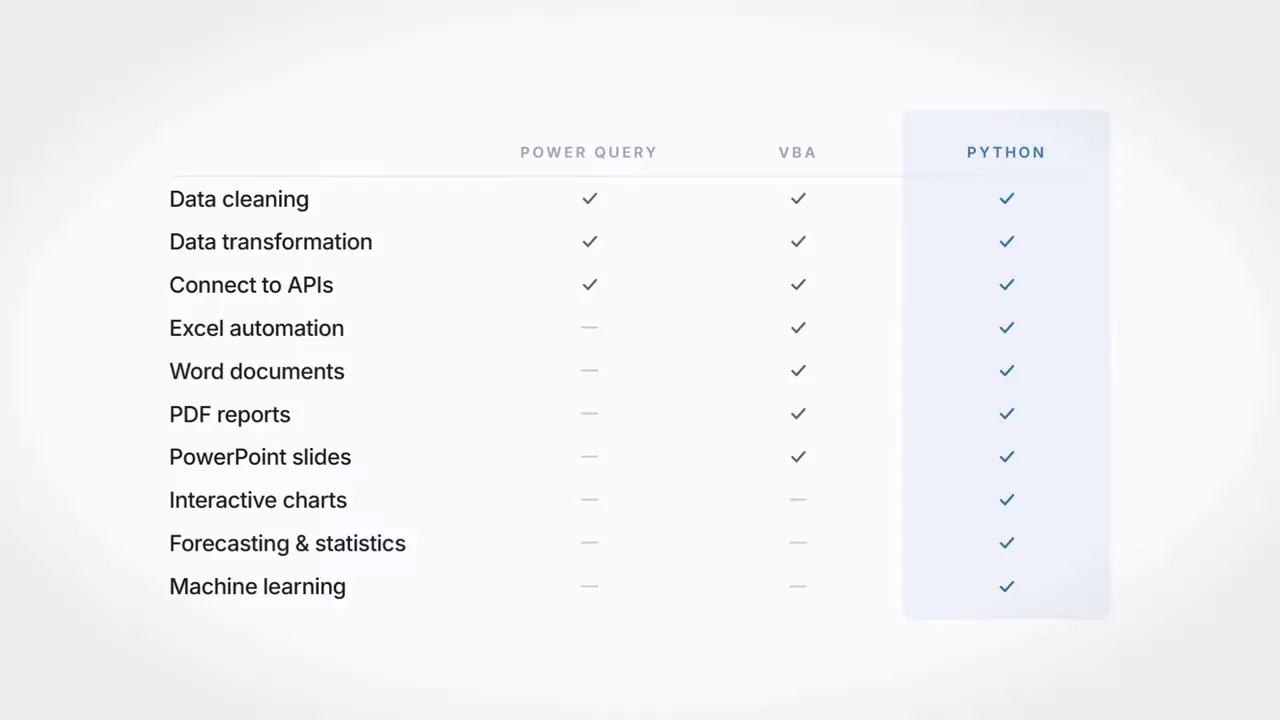
VBA can do many of these things as well. The tradeoff is that it often requires more code, and many companies block macros entirely. Python is not automatically better for every job, but it is a flexible option when the process reaches beyond the spreadsheet itself.
Do you still need Python when AI can write code?
That is a fair question. I use AI to help write code too. It can be genuinely useful, especially once you know what you are trying to build.
But you still need the basics. You need to understand what is possible inside Excel, how your data should be structured, and whether the code AI produced makes sense. Otherwise, AI becomes a black box that works right until it does not. And it always chooses the least convenient moment, naturally.
A solid learning path looks like this:
- Learn the Python basics through familiar Excel concepts.
- Build a complete automation project by hand.
- Understand how the workbook, inputs, code, and outputs connect.
- Use AI as a helper for your own automation projects.

A course built for normal Excel users
You do not need previous coding experience to Automate Excel with Python. The goal is to start from zero and explain Python in a way that makes sense if formulas, tables, and worksheets are already your comfort zone.
The Excel Automation Course builds the dashboard, file processing workflow, and document automation project from scratch. Each line of code is explained, and each lesson builds on the last until you have completed an end-to-end automation project.
It is deliberately concise rather than being one of those enormous courses that quietly turns into a guilt subscription. You can complete it in one afternoon, then start applying the ideas to your own work the next morning.
There is also an interactive learning app that translates familiar Excel formulas into Python concepts, plus a place to ask questions below each lesson.
Start with the work you already hate doing
The best first project is usually not complicated. It is the task you repeat often enough that you sigh before opening the workbook.
Maybe that means combining monthly files. Maybe it is refreshing a report, exporting the same documents, or pulling data into a clean format. Pick one process, make it reliable, and save yourself the next round of copy and paste.
Automate Excel with Python one useful workflow at a time. A single good button can save far more time than another clever formula.
Happy automating!
Merge dozens of files into one table, build interactive dashboards, generate Word documents in bulk. 52 lessons for Excel users with no coding background.