
How to Automate Excel with Python (Crash Course)

A short course in xlwings: install it, connect Python to an open workbook, read and write cells, work with ranges and formulas, and push a pandas DataFrame into a sheet, then run the script from a button in Excel. Enough to automate most day-to-day Excel work.
Install xlwings
xlwings is the package that lets Python control a running Excel. It needs Excel installed on Windows or Mac. Install it with pip, and pandas too if you want the DataFrame examples:
pip install xlwingsConnect to a workbook
xw.Book() covers three cases. Without an argument it creates a new workbook. With a file name such as example.xlsx it opens a saved file. With the name of an open, unsaved workbook such as Book1 it connects to that one. From the workbook you get sheets by position or name, and add or delete them.
import xlwings as xw  # pip install xlwings
import pandas as pd   # pip install pandas

# Connect to Excel (comment/uncomment as needed)
wb = xw.Book()  # Create a new workbook
# wb = xw.Book('example.xlsx')  # Open an existing workbook

# Get the active sheet
sheet = wb.sheets.active
sheet = wb.sheets[0]
sheet = wb.sheets("Sheet1")

# Add a sheet at a specific position (e.g., before the first sheet)
new_sheet = wb.sheets.add(name="FirstSheet", before=wb.sheets[0])

# Delete a specific sheet by name
wb.sheets["FirstSheet"].delete()

# Display the name of the active sheet
sheet.name
Read and write cells
A cell is a range, and its value property works in both directions: assign to it to write, read it to get the content back.
# Write to a cell (comment/uncomment to test)
sheet.range("A1").value = "Hello, xlwings!"

# Read from a cell
value = sheet.range("A1").value
value
Ranges and formulas
A list of lists written to one cell fills the rows and columns below and to the right of it. Reading a multi-cell range returns a list of lists. A string that starts with an equals sign is written as a formula, and Excel calculates it as usual.
# Writing multiple values to a range
sheet.range("A2").value = [["Name", "Age"], ["Alice", 25], ["Bob", 30]]

# Reading multiple values from a range
data = sheet.range("A3:B4").value
data

# Writing a formula
sheet.range("C2").value = "=SUM(B3:B4)"
pandas DataFrames
A pandas DataFrame goes into a sheet with one assignment, including its index and headers. To read a table back, use options(pd.DataFrame, expand="table"), which grows the range until it reaches an empty row or column.
A full example is my Excel reporting automation with pandas, Plotly and xlwings.
# Create a pandas DataFrame
df = pd.DataFrame({
    "Product": ["A", "B", "C"],
    "Sales": [100, 150, 200]
})

# Write DataFrame to Excel (comment/uncomment to test)
sheet.range("A5").value = df

# Read data back into a DataFrame (comment/uncomment to test)
df_from_excel = sheet.range("B5").options(pd.DataFrame, expand="table", index=False, numbers=int).value
df_from_excel
Save and close
wb.save() with a file name saves the workbook under that name. wb.close() closes it without asking, so anything not saved is lost.
# Close the workbook without saving
# wb.close()

# Or save the workbook
wb.save("automated_report.xlsx")
wb.close()
Context manager
For scripts that run unattended, start Excel with xw.App in a with block. Excel runs invisibly in its own process and quits when the block ends, even if the script fails halfway, so no hidden Excel instances pile up.
import xlwings as xw

# Open an Excel app as a context manager
with xw.App(visible=False) as app:  # Ensure the app runs in the background
    # Add a new workbook
    wb = app.books.add()

    # Get the active sheet
    sheet = wb.sheets[0]

    # Write data to the sheet
    sheet.range("A1").value = "Hello, xlwings!"

    # Read the written data
    print(sheet.range("A1").value)

    # Save the workbook
    wb.save("example_context_manager.xlsx")

    # Close the workbook
    wb.close()

# At this point, the app is automatically closed
Run Python from a button
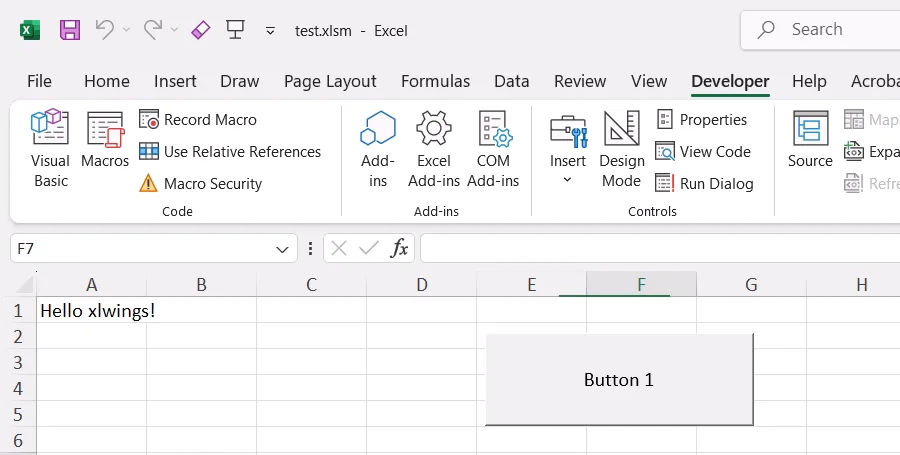
A button in Excel can run the Python script, so coworkers use the automation without opening Python. The xlwings quickstart command creates a workbook and a Python file of the same name. --standalone embeds the xlwings VBA code, so the workbook works without the xlwings add-in.
xlwings quickstart test --standaloneAssign the SampleCall macro to a button. A click runs main() in the Python file next to the workbook, which here toggles the text in A1.
import xlwings as xw

def main():
    wb = xw.Book.caller()
    sheet = wb.sheets[0]
    if sheet["A1"].value == "Hello xlwings!":
        sheet["A1"].value = "Bye xlwings!"
    else:
        sheet["A1"].value = "Hello xlwings!"

@xw.func
def hello(name):
    return f"Hello {name}!"

if __name__ == "__main__":
    xw.Book("test.xlsm").set_mock_caller()
    main()
The full walkthrough is in running Python in an open Excel workbook.
Two bigger examples
The same building blocks scale to real reports. The first example pulls stock prices, calculates the cumulative return and drawdown with pandas, and writes a report with a chart into Excel.
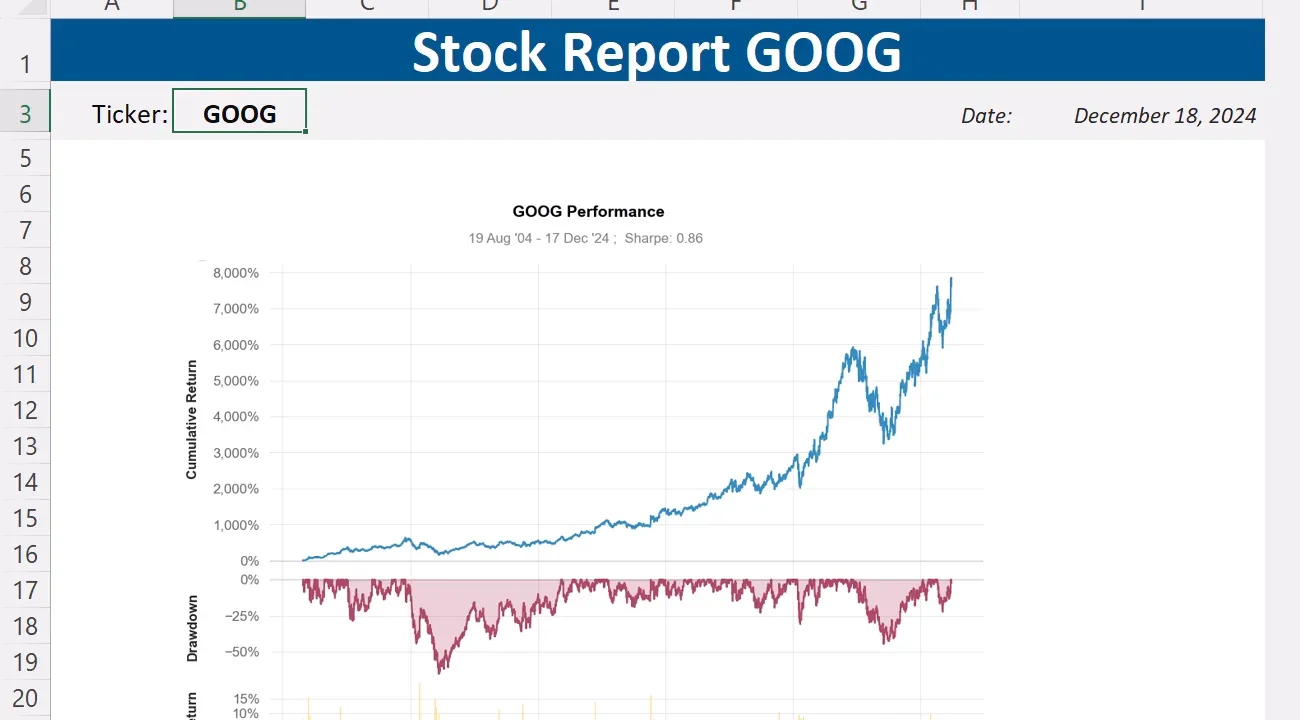
For the data part on its own, see how to get stock data and export it to Excel with Python.
The second collects values from many workbooks in a folder: you list the sheets and cells to read on a control sheet, and the script fills a summary table.
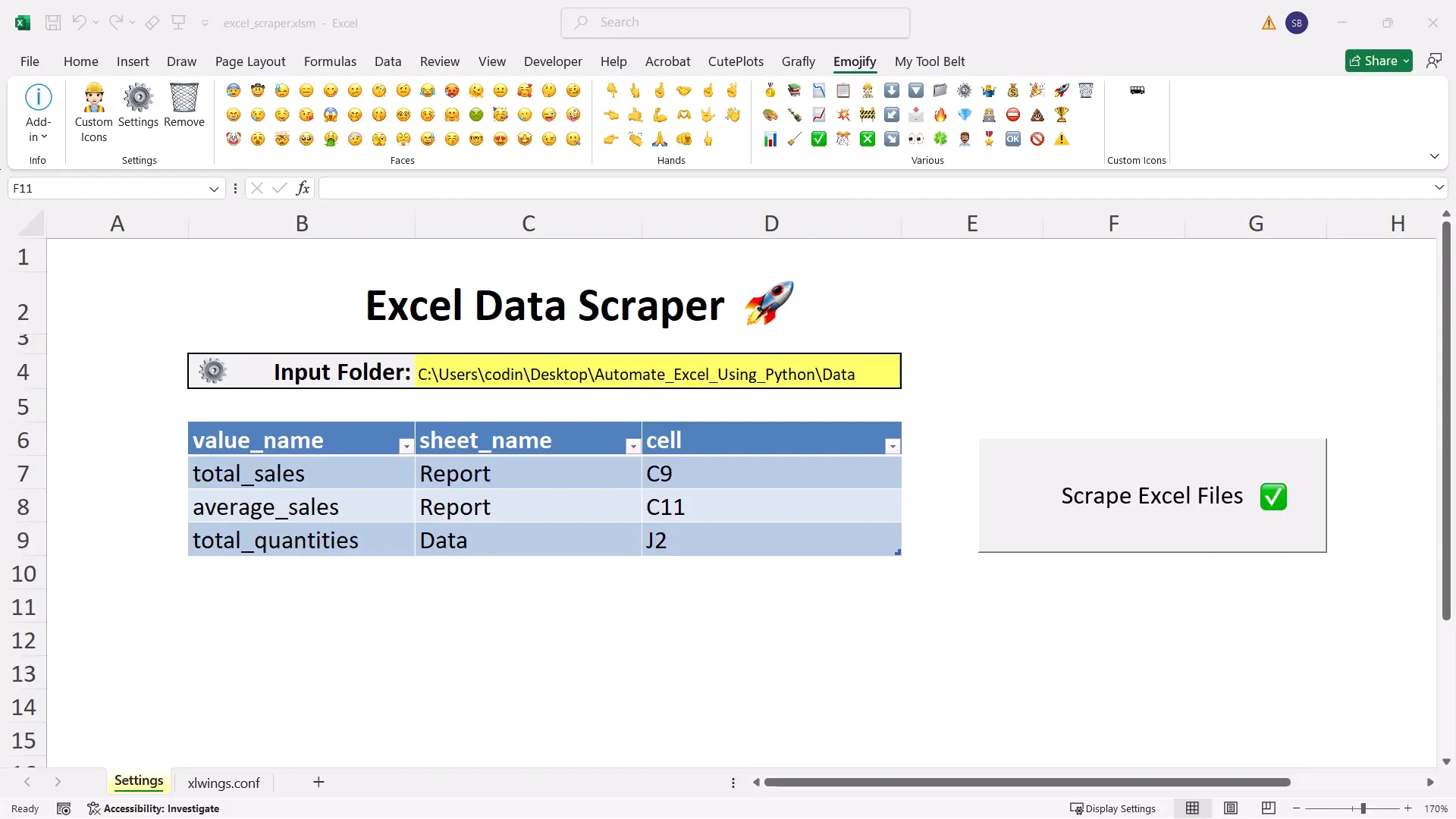
I build the full version in this Excel data scraper tutorial.
When I recorded this video, my Excel automation course was still in the works. It is out now and teaches Python for Excel users with the free xlwings Lite add-in instead of the desktop xlwings shown here, so there is no local Python installation to set up: Excel Automation Course.