
Generate Word Documents in Bulk From an Excel List Using Python
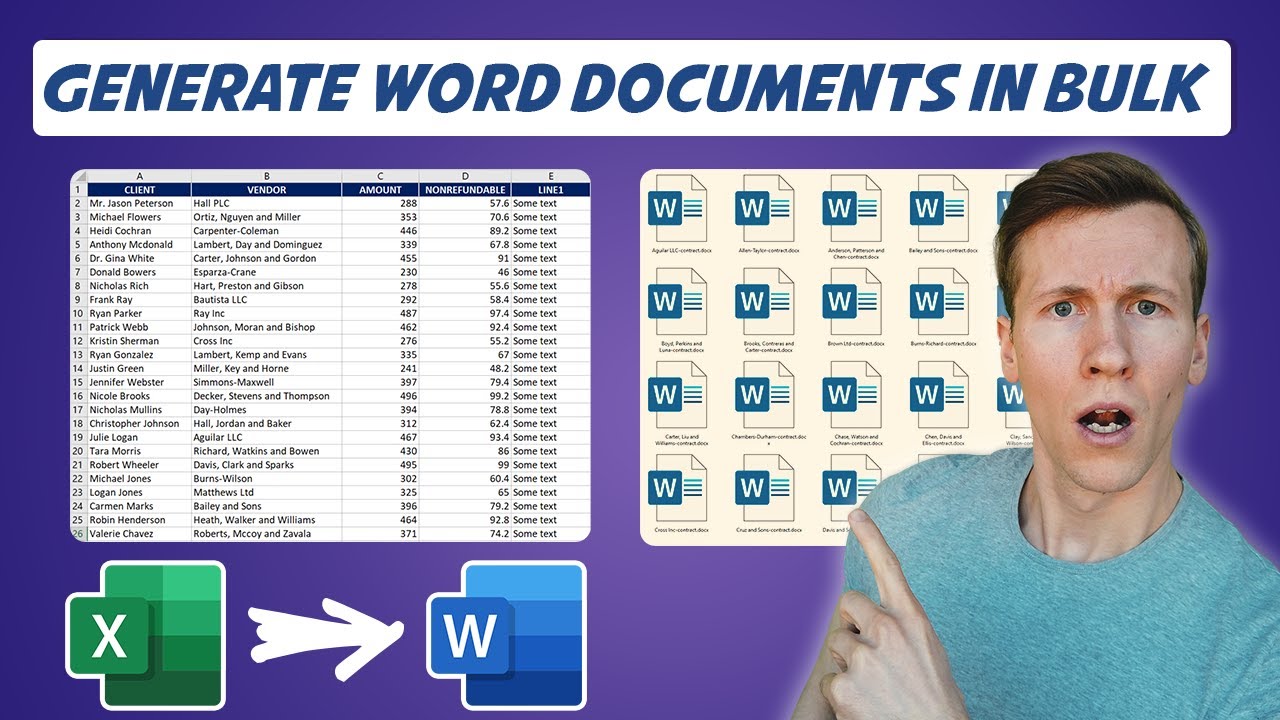
One Word template with placeholders, one Excel list of records, and a Python loop that renders a finished document per row. docxtpl handles the substitution, so the layout stays in Word where you can edit it and the data stays in the spreadsheet.
How it works
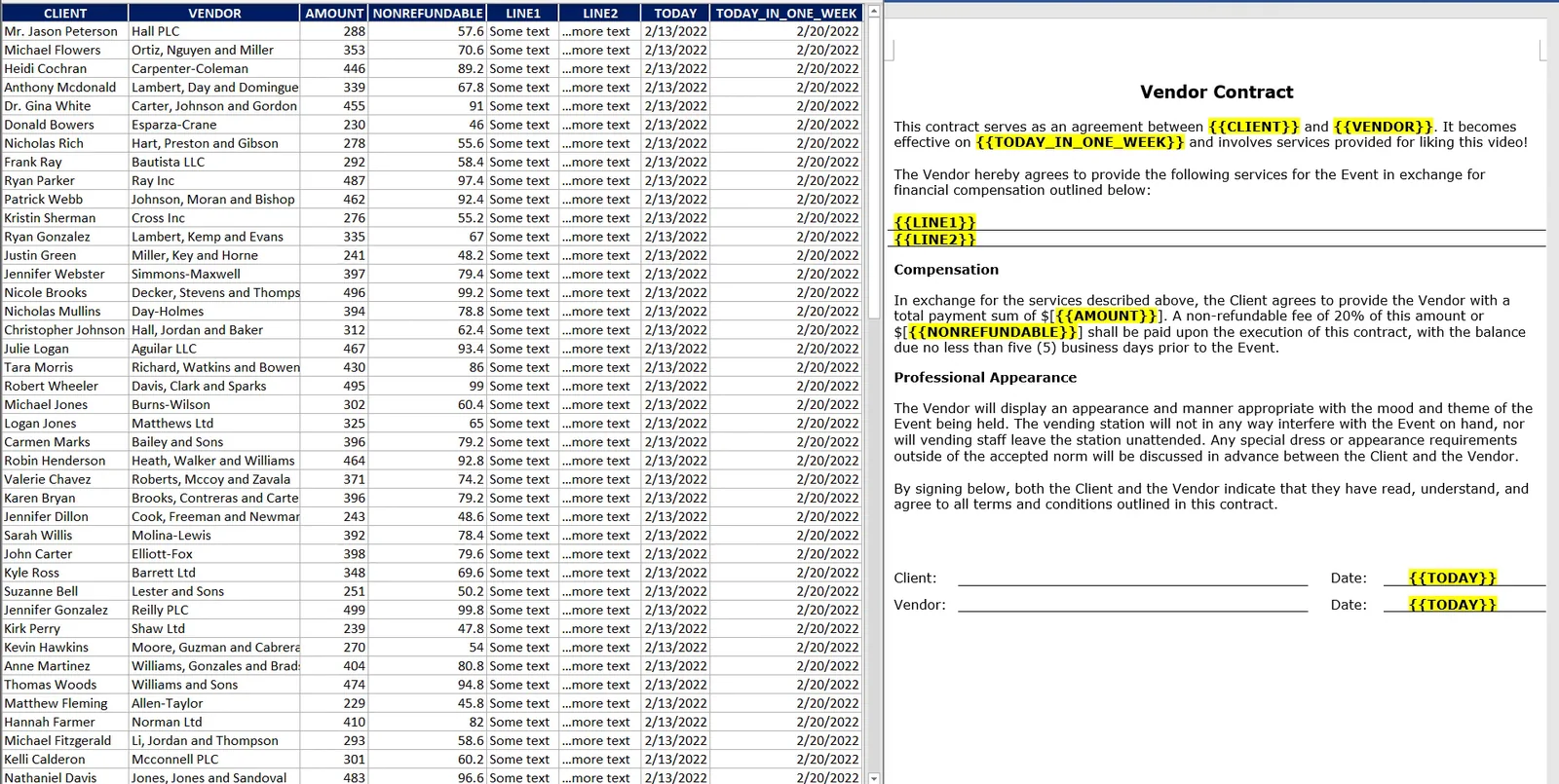
The Word template contains placeholders, and every Excel row holds the values for one document. For the first row, the script replaces:
- CLIENT with Mr Jason Peterson
- VENDOR with Hall PLC
It repeats this for every row and saves the results in one output folder.
Install the packages
The project needs three packages: pandas reads the Excel list, openpyxl is the engine pandas uses for .xlsx files, and docxtpl fills the Word template.
pip install pandas openpyxl docxtplRender one document
Start with a single document to check the template. The script loads the template, builds a dictionary whose keys are the placeholder names, renders it and saves the result. Python’s datetime module supplies today’s date and the date one week from now.
import datetime
from pathlib import Path

from docxtpl import DocxTemplate  # pip install docxtpl

base_dir = Path(__file__).parent
word_template_path = base_dir / "vendor-contract.docx"

today = datetime.datetime.today()
today_in_one_week = today + datetime.timedelta(days=7)

doc = DocxTemplate(word_template_path)
context = {
    "CLIENT": "Sven",
    "VENDOR": "YouTube Tutorial Ltd.",
    "LINE1": "Subscribe, like..",
    "LINE2": "..and comment! :)",
    "AMOUNT": 1234,
    "NONREFUNDABLE": round(1234 * 0.2, 2),
    "TODAY": today.strftime("%Y-%m-%d"),
    "TODAY_IN_ONE_WEEK": today_in_one_week.strftime("%Y-%m-%d"),
}

doc.render(context)
doc.save(base_dir / "generated_doc.docx")
Every placeholder in the template needs a key in the dictionary. The contract template also contains a non-refundable fee and both dates, so they are part of the context too.
Generate one document per Excel row
For the bulk run, the values come from the Excel list instead of a hardcoded dictionary. The column headers match the placeholder names, and Excel formulas can do the calculations, such as the non-refundable fee at 20% of the amount. pandas loads the sheet, df.to_dict(orient="records") turns each row into a dictionary, and the loop renders one file per row.
The whole job fits in about 20 lines. It works unchanged with docxtpl 0.20 and pandas 3.0 on the repository files.
from pathlib import Path

import pandas as pd  # pip install pandas openpyxl
from docxtpl import DocxTemplate  # pip install docxtpl

base_dir = Path(__file__).parent if "__file__" in locals() else Path.cwd()
word_template_path = base_dir / "vendor-contract.docx"
excel_path = base_dir / "contracts-list.xlsx"
output_dir = base_dir / "OUTPUT"

# Create output folder for the word documents
output_dir.mkdir(exist_ok=True)

# Convert Excel sheet to pandas dataframe
df = pd.read_excel(excel_path, sheet_name="Sheet1")

# Keep only date part YYYY-MM-DD (not the time)
df["TODAY"] = pd.to_datetime(df["TODAY"]).dt.date
df["TODAY_IN_ONE_WEEK"] = pd.to_datetime(df["TODAY_IN_ONE_WEEK"]).dt.date

# Iterate over each row in df and render word document
for record in df.to_dict(orient="records"):
    doc = DocxTemplate(word_template_path)
    doc.render(record)
    output_path = output_dir / f"{record['VENDOR']}-contract.docx"
    doc.save(output_path)
A few details worth knowing:
- The headers are the placeholders. The template contains tags such as
{{ CLIENT }},{{ VENDOR }}and{{ AMOUNT }}, and the Excel columns carry exactly those names. Use names without spaces, because a tag like{{ client name }}is not valid. - Dates need a nudge. pandas reads Excel dates with a time part, so the two
.dt.datelines keep only the date. - Each row gets a fresh template. The
DocxTemplateis created inside the loop, so one document never inherits values from the previous one. - File names come from the data. The vendor name becomes the file name. If a value contains characters such as a slash, clean it before saving.
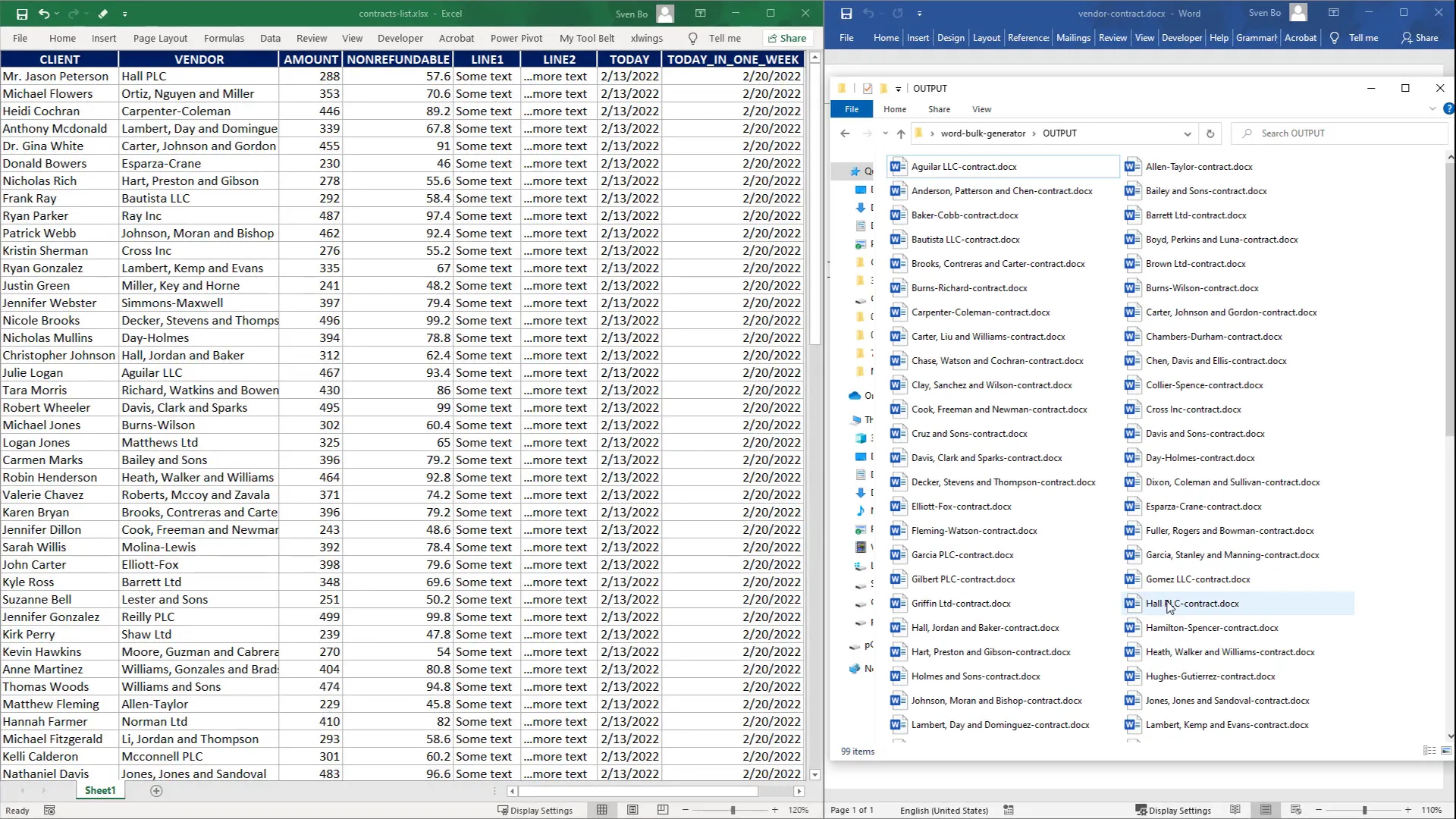
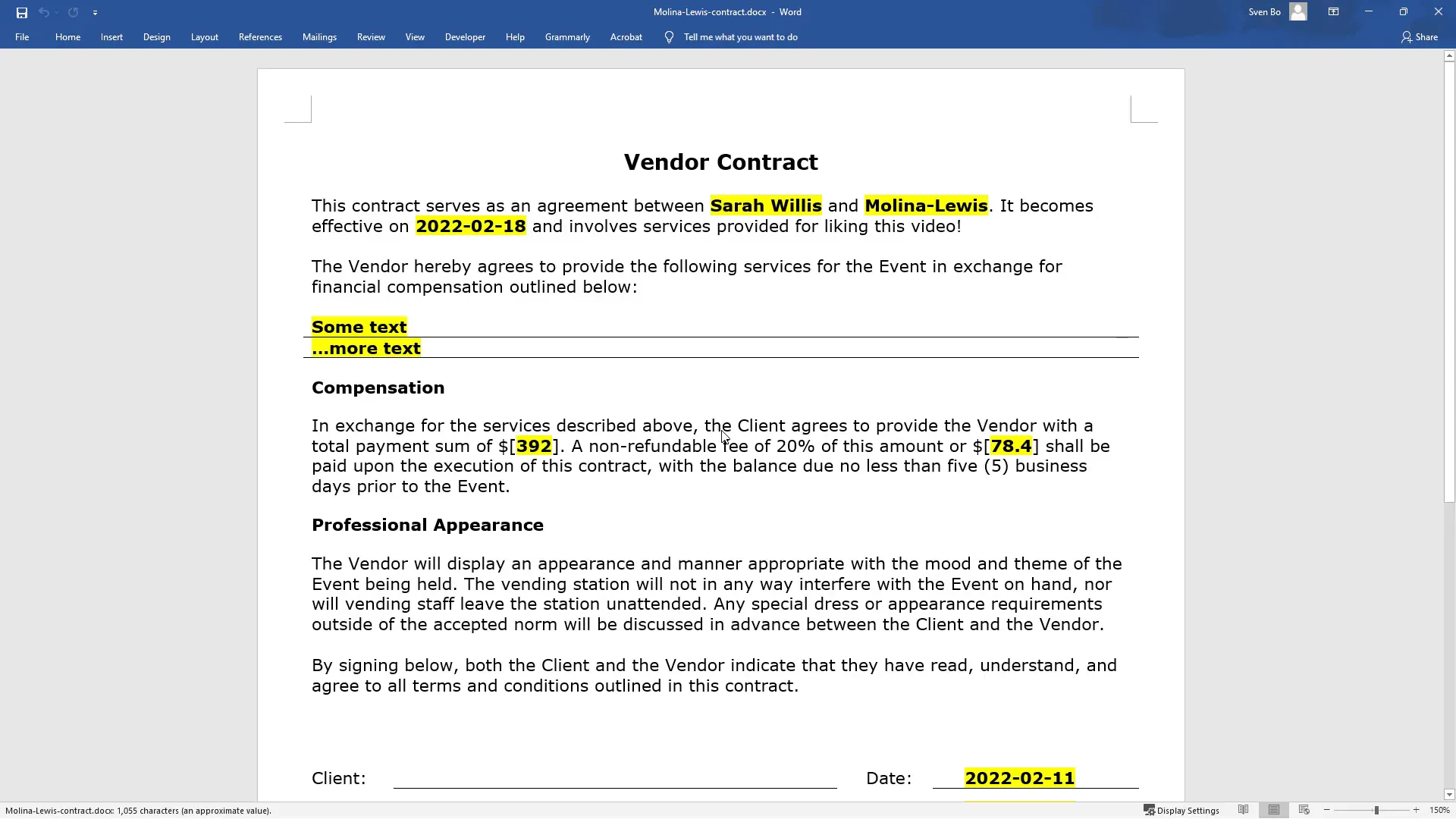
After the run, the OUTPUT folder holds one contract per row, with every placeholder filled from its row.
Troubleshooting
When a placeholder stays in the output, Word usually split the tag internally. If you edit a placeholder halfway, change its formatting or let spell check flag it, Word can store {{ CLIENT }} as several pieces, and docxtpl no longer sees one tag. Delete the placeholder and type it again in one go.
The other common cause is a mismatch between the tag and the column header, such as Client against CLIENT. Names are case sensitive, and a tag without a matching column is simply left empty in the output.
Going further
The same template approach scales to richer documents, to PDF output and to a version without any code.
To add charts, pictures or an Excel button that runs the script, see my docxtpl tutorial with xlwings. When each document is an invoice built from several order lines, drawing the PDF directly is often easier: my guide on creating PDF invoices from Excel with Python groups the rows by invoice number and writes one PDF per invoice.
If you would rather not code at all, my ExcelToWord add-in fills a Word template from your sheet, including PDF output.