
By default, the heatmap colors each value compared to the other values in its From column. With custom ranges you set the limits yourself, for example: up to 2 hours green, up to 4 hours yellow, up to 6 hours orange and up to 10 hours red. A trip of 3 hours then always looks the same, no matter what else is in the matrix.
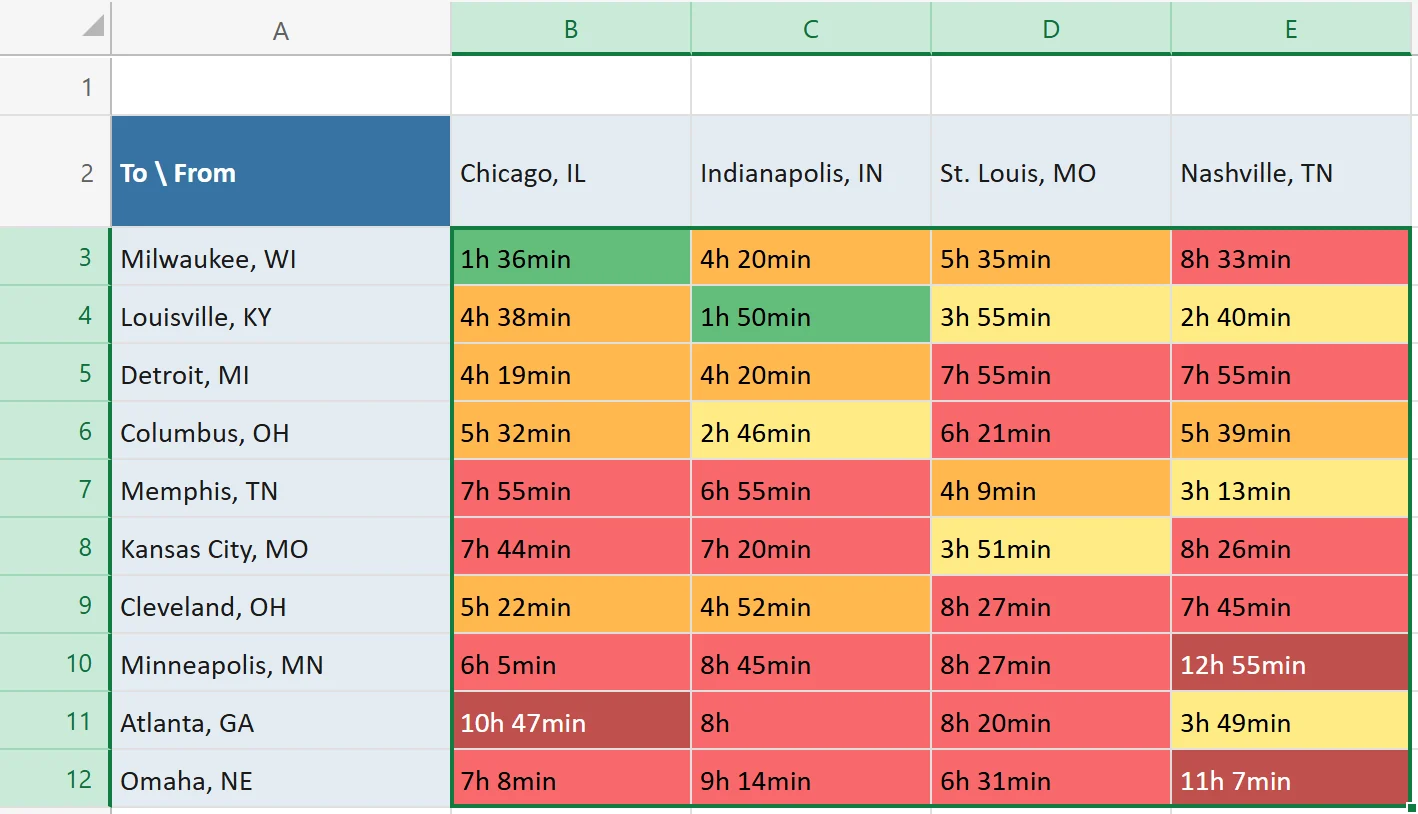
This is what it looks like with those four ranges:
1. Show travel times in hours and minutes #
- Open the menu (top left) and go to Settings.
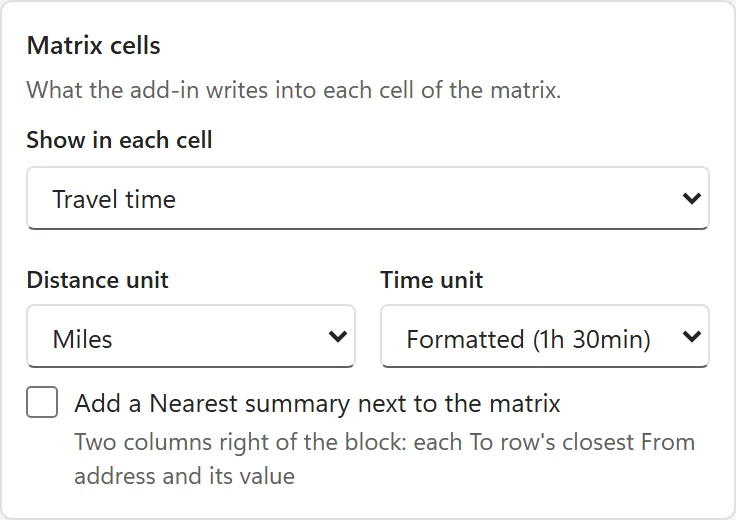
- Under Matrix cells, set Show in each cell to Travel time (or Distance and time if you want the distance too).
- Set Time unit to Formatted (1h 30min). The other options are Minutes and Hours.
Pick the time unit before you calculate. It decides how the travel times are written into the cells.
2. Set your ranges #
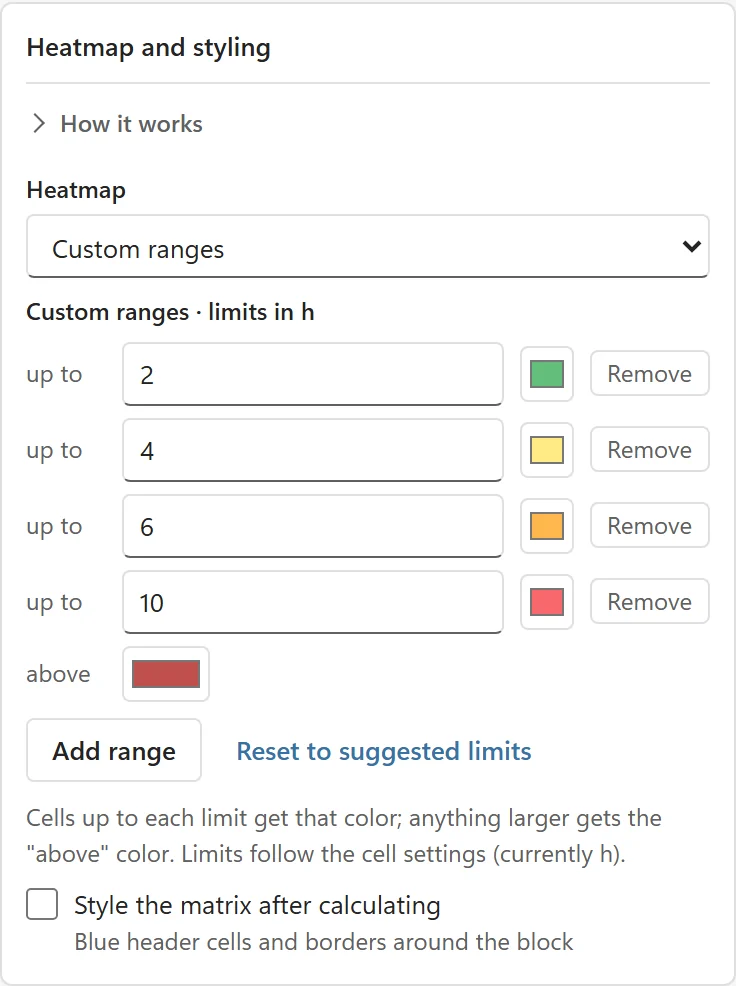
- In the same Settings view, go to Heatmap and styling and set Heatmap to Custom ranges.
- Each row is one range: type the upper limit next to up to and click the color box to pick its color.
- Use Add range for another row (up to six) and Remove to delete one.
- Anything larger than your last limit gets the above color.
The limits use the same unit as your cells. With Formatted or Hours they are in hours, so 2 means 2 hours and 1.5 means 1 hour 30 minutes. With Minutes they are in minutes. The line above the rows tells you which unit is active, for example limits in h.
Cells set to Distance and time? Then a Color by field appears below Heatmap. Choose Travel time to color by time, or Distance to color by miles or kilometers (the limits then switch to that unit).
3. Calculate the matrix #
Go back to the main view and click Calculate matrix. Each cell gets the color of the first range its value fits into. In the example at the top, 2h 40min is above 2 hours but within 4, so it turns yellow, and 10h 47min is above the last limit, so it gets the above color. A value exactly on a limit, like 2h, still counts as “up to 2”. Cells where From and To are the same address stay gray, and cells without a result stay light red.
Change the ranges later #
The add-in remembers your ranges, so the next matrix uses them too. To recolor a matrix you already calculated, change the ranges in Settings, then click Remove heatmap in the main view and click the same button again, now called Add heatmap. Only the colors change, so this sends no new requests to Google.
To go back to automatic colors, set Heatmap to Per From column (each column colored on its own) or Whole matrix. Reset to suggested limits fills in a starting set of ranges for the current unit.