
This guide takes you from installing the Distance Matrix Calculator add-in to your first result. You will need your license key and a Google Maps project with billing enabled.
1. Install the add-in #
The whole install, start to finish:
- In Excel, go to Home > Add-ins (or Insert > Get Add-ins), search for Distance Matrix Calculator, and click Add.
- A Distance Matrix Calculator button appears on the Home tab; click it to open the task pane.
2. Enter your license key #
- Your license key is in the purchase email from pythonandvba.com. If you do not have one yet, you can get it here.
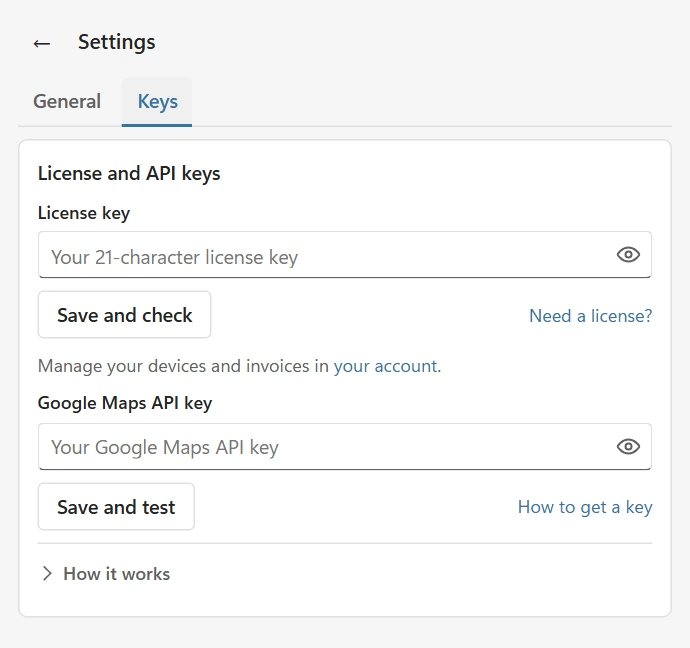
- In the task pane, open the menu (top left) and go to Settings > Keys.
- Paste the key and click Save and check. The badge shows Valid.
3. Create and connect your Google Maps API key #
The add-in talks to Google Maps directly with your own API key, so calculations run on your Google account and we never see your data. Google gives new accounts free monthly usage that covers typical spreadsheet workloads.
The video below walks through the whole setup, from creating the Google Cloud project to pasting the finished key into Excel:
The same steps in writing:
- Sign in to the Google Cloud Console and create a project (any name).
- Enable these two APIs for the project: Maps JavaScript API and Routes API.
- Make sure billing is enabled on the project. Google requires it even inside the free usage tier.
- Go to APIs & Services > Credentials, click Create credentials > API key, and copy the key.
- Back in Excel, paste it under Settings > Keys and click Save and test. The badge shows Valid.
Optional: restrict your API key. This step is not covered in the video. If you restrict the key to specific websites in the Google Cloud Console, add both of these as separate entries under Website restrictions, then click Save:
https://addins.pythonandvba.comhttps://addins.pythonandvba.com/*
4. Run your first calculation #
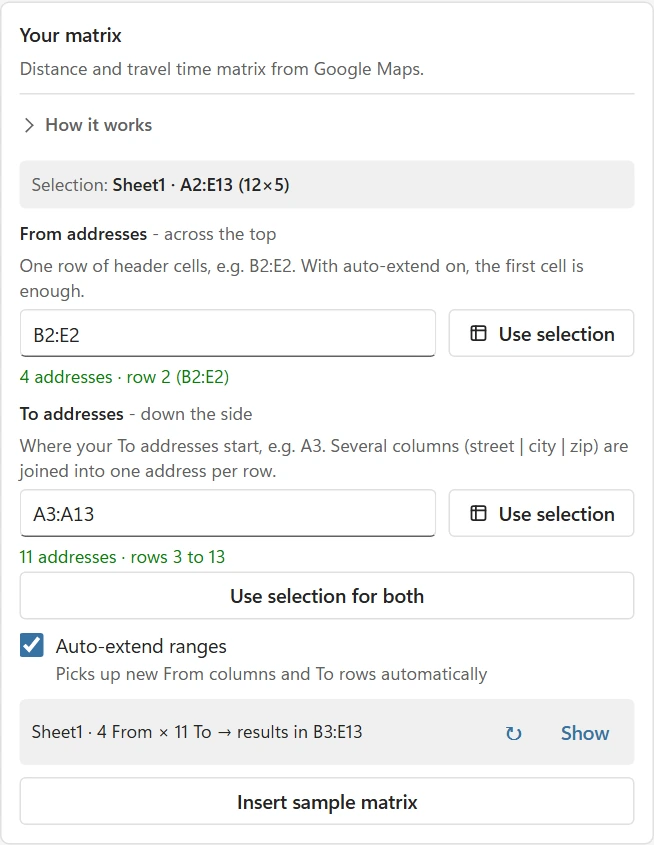
Click Insert sample matrix, confirm the origin and destination lists, and click Calculate matrix. The grid fills in as results arrive, and the optional heat map colors it from short (green) to long (red). To use your own limits, for example up to 2 hours green, see Color the matrix with your own ranges.
Having trouble? #
The most common causes are a Google key without billing, a missing API on the project, or a website restriction that blocks Excel. The task pane shows a plain-language message for each of these. If you are stuck, contact support.
Google Maps API not working? Follow the step-by-step API troubleshooting guide to check your key, billing and required APIs.