
A few minutes from opening the pane to your first card on a sheet. No account and no key: CardPop is free.
1. Get CardPop #
You need Excel on Windows or Mac with Microsoft 365 or Excel 2021 and later, or Excel on the web, and an internet connection to load the add-in. CardPop is free on Microsoft Marketplace. In Excel, open the Home tab, choose Add-ins, search for CardPop and choose Add. If the search shows no result, choose More Add-ins and search there.
2. Open the pane #
On the Home tab, click the CardPop button. The CardPop pane opens on the right with a card for the season already in the preview, for example Christmas from November until 26 December. The pane has three parts:
- At the top, the preview, which stays in view while you scroll. The two small buttons on it pause or play the animation and replay it from the start. If your computer is set to reduce motion, the preview starts paused.
- In the middle, the sections Occasion, Words and Style.
- At the bottom, a bar with the add-in’s messages and the buttons Put on sheet, Play on sheet, Save GIF, Save PNG, Save video and Copy card link. It also stays in view.
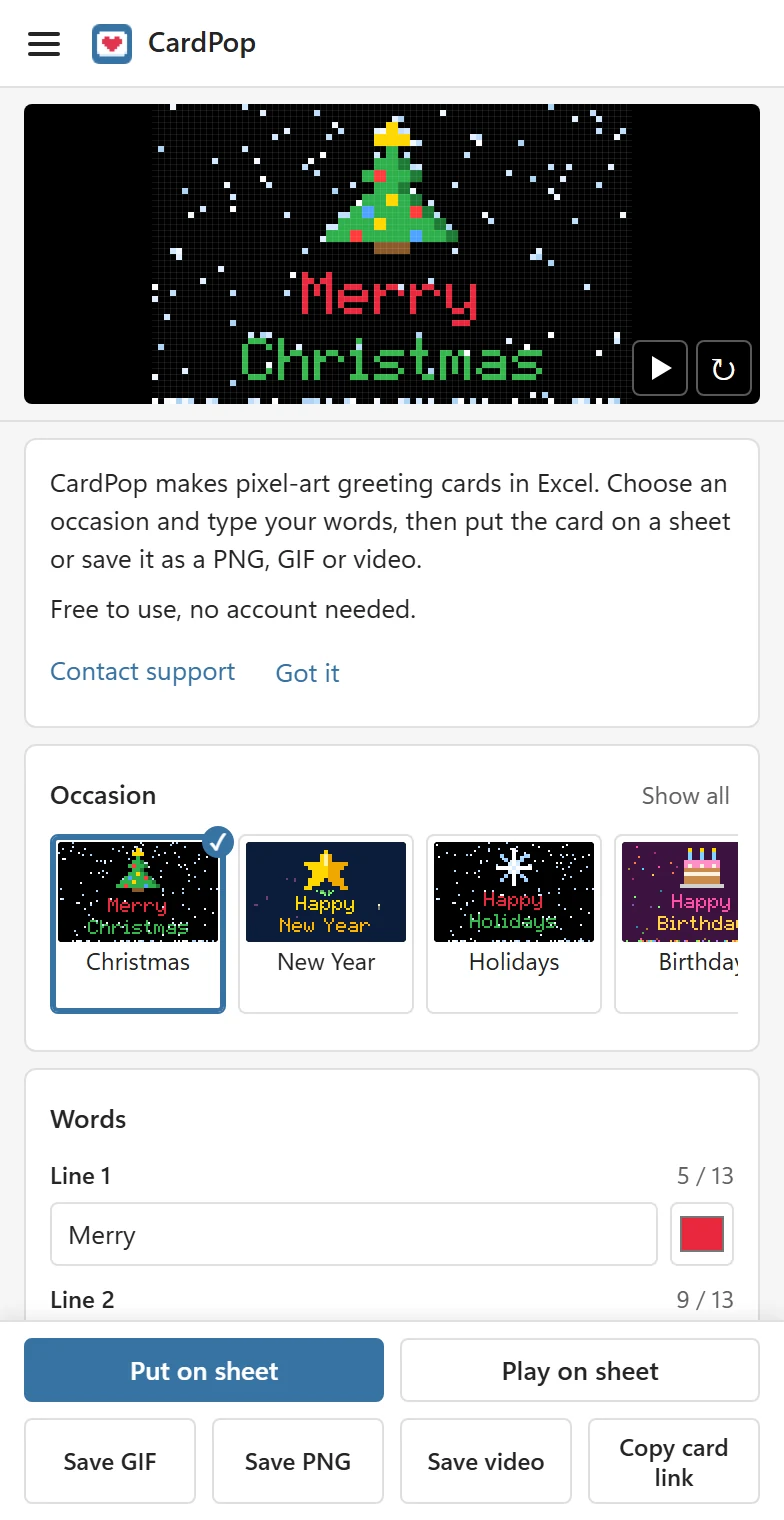
The first time, a short card under the preview explains what CardPop does and that it is free, with a Contact support link. It goes away for good on this device when you click Got it, or after your first card on a sheet, saved file or copied link. The menu is the three lines at the top left of the pane.
3. Pick an occasion #
Under Occasion, click one of the small cards, for example Birthday. Scroll the strip sideways, or click Show all to see all fourteen at once. An occasion sets the words, the colours, the icon and the effect, and the preview shows the result straight away.
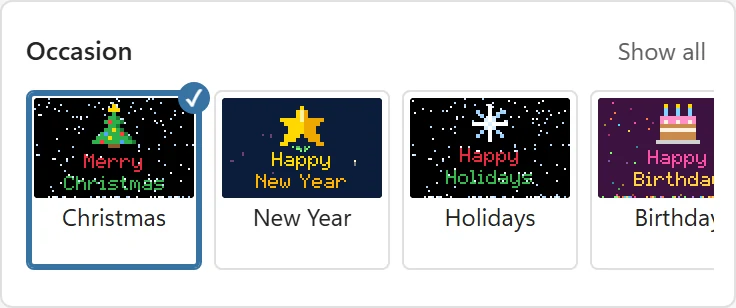
If you have already typed your own words, switching occasion keeps them and changes only the colours, the background, the icon and the effect. The bar then says Your words were kept. with a button such as Use Birthday words, in case you want the occasion’s words after all.
4. Type your words #
Under Words, change Line 1 and Line 2, for example keep Happy on line 1 and type a name on line 2. + Add a line gives you a third line. The Note is small text at the bottom of the card, for example who it is from, and is optional. Next to each field, a counter such as 5 / 13 shows how many characters you have typed and how many fit, and a small colour box sets the colour of that line. If something does not fit, a yellow message under the field says what to do; see Choose words, colours, icons, effects and shapes.
5. Change the style if you like #
Style is folded by default; its heading shows the current choices, for example Style · Classic · Tree · Snow · Card. Click it to choose other colours, a background, an icon, an effect and a shape (Card, Wide, Square or Story).
6. Put the card on a sheet #
In the bar at the bottom, click Put on sheet. CardPop adds a new sheet named Card and draws the card on it with coloured cells, starting at cell B2. The bar says The card is on the sheet Card. Below the card, a small grey line reads Made with CardPop · pythonandvba.com/cardpop, and under it are a blue ▶ Play cell and the link Open the animated card. You can turn both off in Settings.

Change something in the pane and click Put on sheet again to redraw the same sheet. More in Put the card on a sheet.
7. Play it or send it #
- Play on sheet, or a click on the ▶ Play cell under the card, animates the card in the cells until you stop it, for at most a minute. See Play the card on the sheet.
- Save GIF, Save PNG and Save video make a file. See Save as PNG, GIF or video.
- Copy card link copies a link that opens the animated card in any browser. See Share a card link.
Having trouble? #
If the bar shows a message you do not understand, see An error message appears. For anything else, contact support.