
The buttons Save GIF, Save PNG and Save video in the bar at the bottom of the pane make a file that you can send by email, Teams or WhatsApp, or post anywhere a picture or video fits. The card does not need to be on a sheet first: the file is made from the card in the pane.
The three formats #
| Button | File | Size of a Card shape |
|---|---|---|
| Save GIF | An animated GIF that loops forever, 10 frames a second, 4 seconds long by default. Usually a few hundred KB. The best choice for chat apps. | 640 x 400 pixels |
| Save PNG | A still picture, the same frame as the card on the sheet. | 960 x 600 pixels |
| Save video | A video, 20 frames a second, 8 seconds long by default: an MP4 file, or a WebM file in a browser that cannot make MP4 quickly. | 1280 x 800 pixels |
The other shapes keep the same pixel size per cell, so a Wide, Square or Story card gives a file of its own proportions. Files are named after the occasion and the time, for example CardPop-christmas-20261204-1530.gif.
The GIF and the video start once the words are complete, so the first frame already shows the whole message. GIF length (3, 4 or 5 seconds) and video length (5, 8 or 12 seconds) are in Settings.
In Excel on the web #
The file is made in the pane and downloads like any other download of your browser. While it is being made, the bar shows the progress, for example Making GIF · 45 %, with a Cancel button in place of the save buttons. When it is done, the bar names the file and its size:
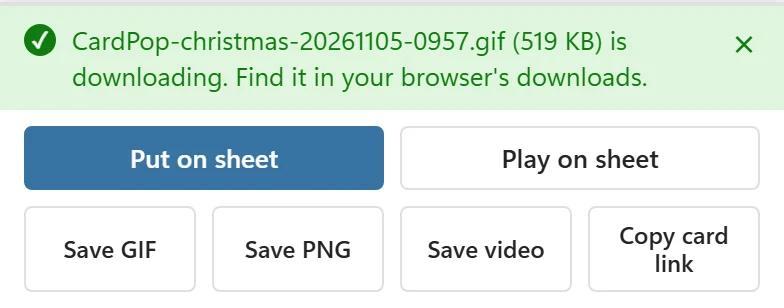
Most browsers make an MP4 video faster than it plays. Where that is not possible, the video is recorded while the card plays, so making it takes as long as the video lasts; keep the Excel window in front meanwhile, because the recording pauses while the page is hidden. If the result is a WebM file, the bar adds This browser made a WebM video, which plays in browsers. For WhatsApp or iPhone, save a GIF. If the browser can make no video at all, the bar says This version of Excel cannot make videos here. Use Copy card link and save the video from your browser. Open the card link in another browser and save the video there.
In Excel for Windows and Mac #
Downloads from inside the Excel window are not reliable, so CardPop opens the card in your default browser instead and the bar says, for example:
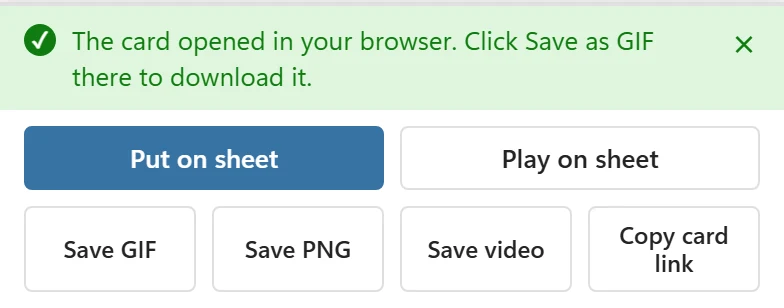
In the browser, the card plays and Save a copy is open below it, with the buttons Save as PNG, Save as GIF and Save as video. The format you chose in Excel is the highlighted button; when the file is made, the page says Your file is ready to save. Click the button to download it.

The card page makes the same frames as the pane, so the file is identical. The card travels in the page address, nothing is uploaded; see Share a card link. If Excel does not open your browser, the bar says Excel did not open your browser. Use Copy card link, then open the link in your browser to save the file.
If the browser cannot make videos, Save as video is greyed out and the page says This browser cannot make videos. Save a GIF instead, or open this page in another browser.
The Made with CardPop mark and the cell grid #
Two settings change how the files look:
- Made with CardPop line: on by default. Puts a small Made with CardPop in the bottom right corner of the PNG, GIF and video (and the grey line under the card on the sheet). Turn it off to leave it out.
- Cell grid in images: on by default. Draws thin lines between the pixels, like a spreadsheet. Turn it off for plain pixels.
On the card page in the browser, the files follow the settings you had in Excel when you clicked the button.
If it goes wrong #
- Still making the GIF. Wait for it or press Cancel. One file is made at a time.
- Export cancelled. You clicked Cancel. Nothing was saved.
- Making the GIF took too long. Try again, or use Copy card link. Making the file stopped moving forward, so CardPop gave up after a while. Try again, or open the card link in your browser and save the file there.
- CardPop could not make the GIF. Try again, or use Copy card link and save it from your browser. Making the file failed. Try once more, or save it from the card page.
- Not connected to Excel yet. Wait a moment and click again, or use Copy card link. The pane was still starting. Wait a few seconds and click the button again.