
Open the menu at the top left of the pane and choose Settings. Changes take effect at once; Back returns to the card. CardPop remembers the settings on this device, for every workbook.
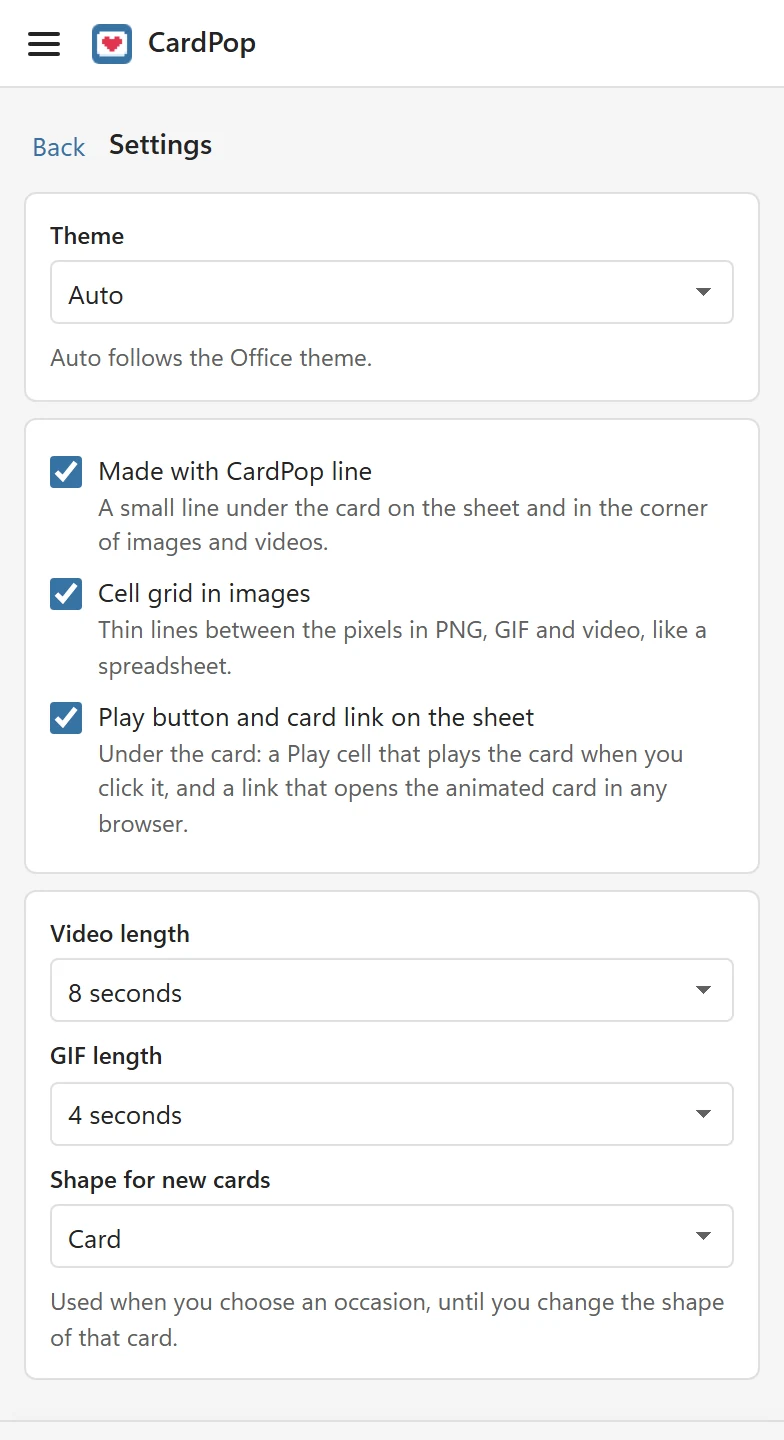
| Setting | Choices | What it does |
|---|---|---|
| Theme | Auto, Light, Dark | The look of the pane. Auto follows the Office theme. The card itself does not change. |
| Made with CardPop line | On (default) or off | A small line under the card on the sheet (Made with CardPop · pythonandvba.com/cardpop, linked to the CardPop page) and a small Made with CardPop in the corner of PNG, GIF and video files. |
| Cell grid in images | On (default) or off | Thin lines between the pixels in PNG, GIF and video, like a spreadsheet. The sheet is not affected; its gridlines are always hidden on a card sheet. |
| Play button and card link on the sheet | On (default) or off | Under the card on the sheet: a ▶ Play cell that plays the card when you click it, and a link that opens the animated card in any browser. Turn it off and the next Put on sheet removes the row; the open workbook also stops loading CardPop when it opens. |
| Video length | 5, 8 (default) or 12 seconds | How long a saved video lasts. |
| GIF length | 3, 4 (default) or 5 seconds | How long one loop of a saved GIF lasts. Shorter GIFs are smaller files. |
| Shape for new cards | Card (default), Wide, Square, Story | The shape a card gets when you choose an occasion, until you change the shape of that card under Style. |
The Made with CardPop line setting applies the next time you click Put on sheet or save a file. To remove the line from a card that is already on a sheet, turn the setting off, select the card sheet and click Put on sheet again.
What is stored where #
- The settings, the card you are working on and whether the Style section is open are kept in the add-in’s storage on this device, not in the workbook.
- Each card you put on a sheet is saved in the workbook together with its sheet, so Edit this card works on any computer that opens the workbook with CardPop.