
Everything you change in the Words and Style sections shows in the preview at once. Nothing reaches the sheet until you click Put on sheet, so you can try things freely.
Words #
- Line 1 and Line 2 are the big pixel letters. Leave a line empty if you need only one.
- + Add a line adds Line 3. The small × next to it removes it again.
- Note is small text at the bottom of the card, for example who it is from. It is optional.
- The colour box at the end of each field sets the colour of that line or of the note.
- Reset words, next to the Words heading, appears when your words differ from the occasion’s and brings the occasion’s words back.
A line takes up to 24 characters and the note up to 80. CardPop draws the big letters as large as the card allows: one short word fills the card, longer lines get smaller letters. A line that is longer than one row wraps at a space onto the next row, and a single long word is first drawn with narrower letters. The counter next to each field, for example 5 / 13, shows how many characters you have typed and how many fit on one row of the shape. At the smallest letter size these are the limits:
| Shape | Size in cells | Characters per row | Note |
|---|---|---|---|
| Card | 80 x 50 | about 13 | about 33 characters on up to 2 rows |
| Wide | 112 x 48 | about 19 | about 47 characters on up to 2 rows |
| Square | 64 x 64 | about 10 | about 40 characters on up to 3 rows |
| Story | 48 x 84 | about 7 | about 36 characters on up to 4 rows |
The numbers are measured with ordinary card wording; narrow letters such as i and l take less room, wide ones such as W and M take more. Because lines wrap, a line longer than one row usually still fits, as long as the card has room for the extra row.
When something does not fit
A yellow message says what is wrong, under the field it is about or, for characters that are left out, under the Words section. The preview shows what the card will look like:
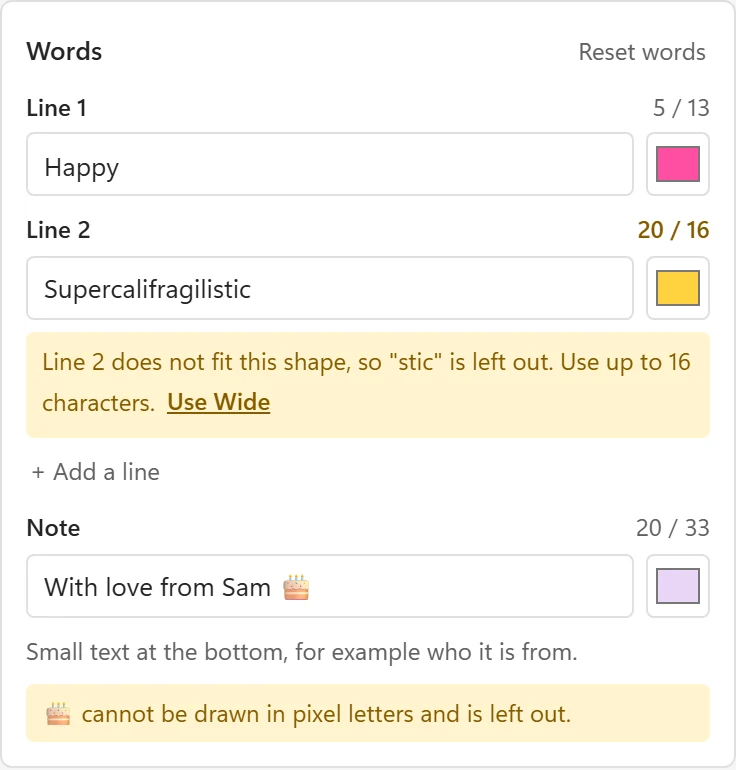
- Line 2 does not fit this shape, so “stic” is left out. Use up to 16 characters. A single word is wider than the card even with narrow letters, so its end is cut off. The counter turns yellow and shows how many characters fit. Shorten the word, or click Use Wide (or Use with another shape name) when the message offers a shape where it fits.
- There is no room left for line 3. Shorten the lines above or choose Wide. The rows above take all the height of the card. Shorten them or choose the suggested shape. The same message exists for the note.
- The note does not fit this shape, so “…” is left out. Use up to 33 characters. The end of the note is cut off. The number depends on the shape.
- A character followed by cannot be drawn in pixel letters and is left out. (with several characters, are left out). These characters, for example emoji, have no pixel letter and are not on the card.
If the card has no words at all, the Words section says The card has no words. Type a line, or keep it as a picture card. A card with only an icon works too.
Words that are hard to see
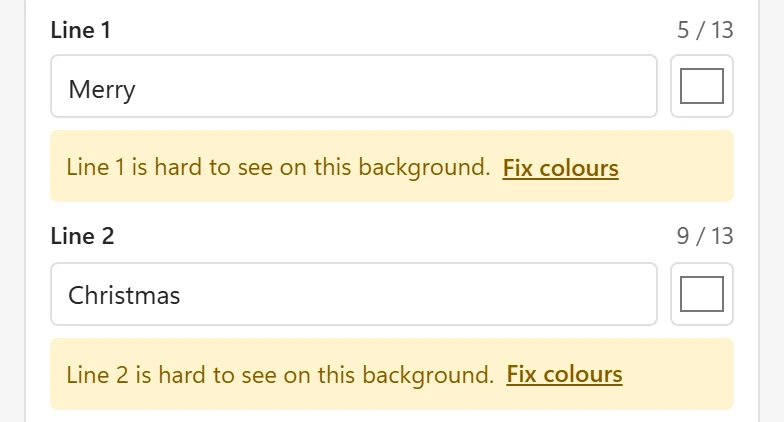
If a line or the note has nearly the same colour as the background, for example white words on the White background, the message is Line 1 is hard to see on this background. Click Fix colours to give the words colours that stand out from the background.
Which characters work
The big letters cover upper and lower case letters, digits and the usual punctuation, accented letters such as ä, é, ñ, ø and ß, and the signs €, £, ¡ and ¿. The note uses a smaller font that shows lower case letters as small capitals. Emoji and letters of other scripts, for example Chinese, Arabic or Cyrillic, are left out with the message above.
Occasions and your words #
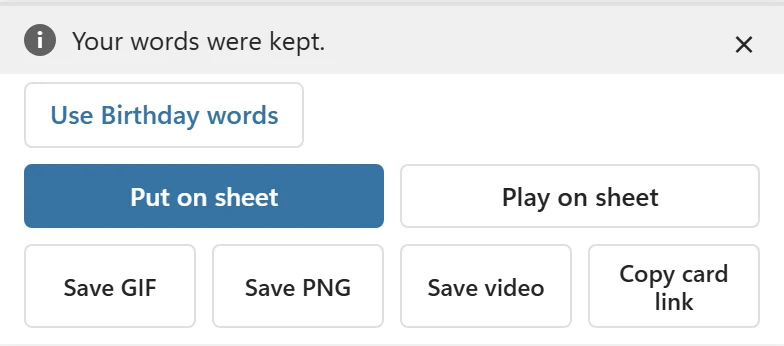
Choosing an occasion sets its words, colours, icon and effect. Once you have typed your own words, another occasion keeps them and changes only the colours, the background, the icon and the effect; the bar at the bottom says Your words were kept. Click the button next to it, for example Use Birthday words, to take the occasion’s words instead. A note you typed is always kept.
Style #
Style is folded by default; its heading shows the current choices, for example Style · Classic · Tree · Snow · Card. Click the heading to open it. CardPop remembers on this device whether you keep it open.
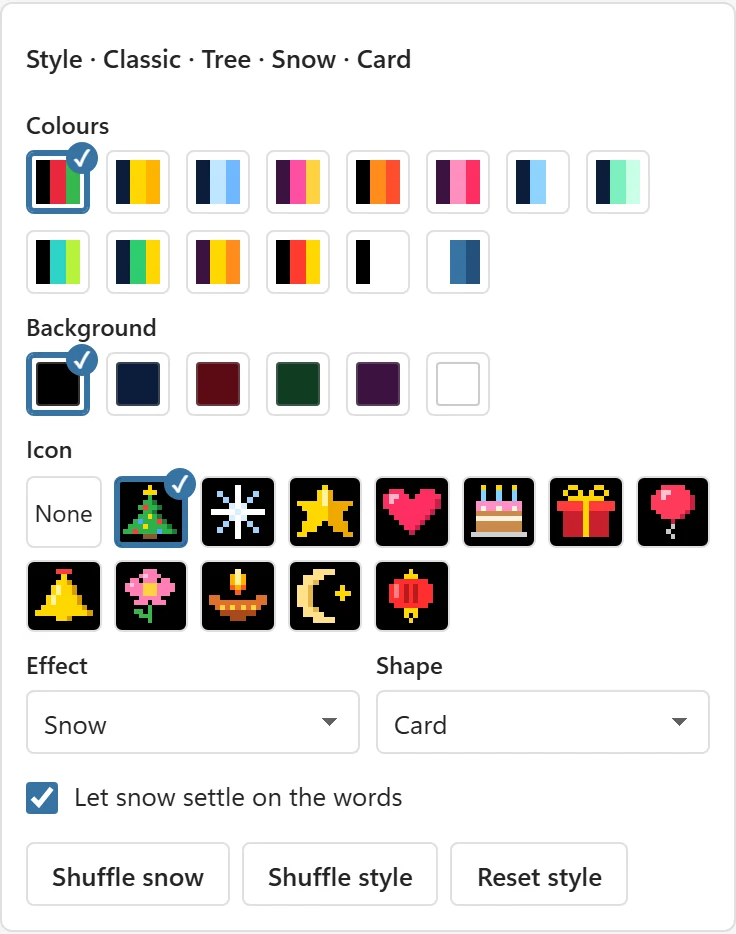
- Colours: a colour scheme sets the colour of every line, of the note and the background in one click. The selected swatch has a check mark.
- Background: Night, Midnight, Deep red, Forest, Plum or White.
- Icon: a pixel picture above the words, or next to them when there is no room above: Tree, Snowflake, Star, Heart, Cake, Gift, Balloon, Bell, Flower, Lamp, Moon and Lantern. None leaves it out. On a small shape with long words the icon can be left out to make room for the words.
- Effect: Snow, Confetti, Hearts, Fireworks, Balloons, Sparkles or None.
- Shape: Card (landscape), Wide (wider landscape, more characters per row), Square, or Story (tall, for a phone screen). The shape for new cards is in Settings.
- Let snow settle on the words (or Let confetti settle on the words) appears for Snow and Confetti. When it is on, snow settles on top of the letters and piles up at the bottom; confetti collects at the bottom.
- Shuffle with the effect’s name, for example Shuffle snow, gives the effect a new random pattern: the flakes, sparks or balloons start in other places. It is hidden when the effect is None.
- Shuffle style picks a random colour scheme, background and effect pattern. Your words, the icon and the shape stay.
- Reset style brings back the occasion’s colours, background, icon and effect.
The same card always plays the same way. That is why the pane, the sheet, the GIF, the video and the card link all show exactly the same animation.