
Play on sheet runs the card’s animation in the cells of the sheet: snow falls and settles, fireworks burst, balloons rise. It changes the fill colours of the cells several times a second.
Start and stop #
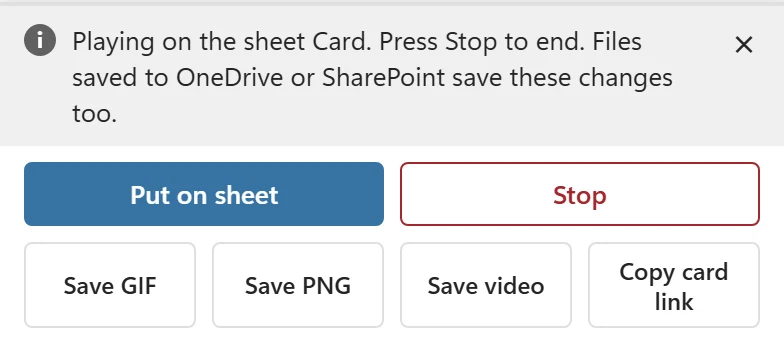
- Click Play on sheet in the bar at the bottom of the pane. CardPop first draws the still card, on the card’s own sheet or on a new sheet named Card, exactly as Put on sheet does, and then starts the animation there.
- The bar says Playing on the sheet Card. Press Stop to end. and the button turns into Stop. The first time, the message adds Files saved to OneDrive or SharePoint save these changes too.
- Click Stop to end it. The pane says Stopped. The sheet keeps the last frame. Put on sheet restores the still card.
Other ways to play #
- The ▶ Play cell under the card: click it to play, click it again to stop. While the card plays it reads ■ Stop. It plays the card that is stored with that sheet, also when the pane is closed.
- Play card and Stop card in the CardPop group on the Home tab play and stop the card of the selected card sheet, also with the pane closed. If the selected sheet holds no card, CardPop opens the pane and says Select a card sheet first, or click Put on sheet. Stop card with nothing playing says Nothing is playing. when the pane is open.

After the first Put on sheet that writes a Play cell, CardPop sets the workbook to load the add-in when it opens, so the Play cell works the next time without opening the pane first. That only happens on computers where CardPop is installed; anyone else sees an ordinary workbook, and the Open the animated card link still works for them. Turning off Play button and card link on the sheet in Settings also turns this off.
If the card cannot start, the message says why, for example This sheet is protected, so the card cannot play here. Unprotect it, then try again.
When it stops #
Playing also stops by itself:
- after one minute: Played for a minute and stopped. Put on sheet restores the still card.
- when you select another sheet: Stopped because another sheet was selected.
- when the card sheet is deleted: The card sheet was deleted, so Play stopped.
- when Excel reports another problem, for example a protected sheet. The message then says what happened; see An error message appears.
If you start typing in a cell while the card plays, the animation waits up to about 10 seconds for you to finish. If the cell is still in edit mode after that, Play stops with Playing stopped. Excel is editing a cell. Press Enter or Esc, then click again.
You can close the CardPop pane while the card plays: the animation goes on in the cells, still for at most a minute. Open the pane again from the CardPop button to see Stop and end it. While the pane is hidden, its own preview pauses.
When it stops, the sheet keeps the last frame, for example with the snow that has piled up. Click Put on sheet to get the still card back.
Speed #
CardPop aims for about ten frames a second and never sends Excel a new frame before the last one is drawn. On a slow computer, or in Excel on the web over a slow connection, the animation simply plays slower. The animation in the preview, the GIF and the video always plays at full speed.
Files on OneDrive or SharePoint #
With AutoSave on, Excel saves the workbook while the animation runs, which can add many entries to the file’s version history. If you do not want that, play the card in a workbook that is saved on your computer, or turn off AutoSave before you click Play on sheet.
Sending the animation #
The animation runs only while the pane plays it. A workbook you send shows the still card or the last frame. To send the animation itself, save a GIF or a video or share a card link.