
Put on sheet draws the card in the workbook with coloured cells. The card itself is cell colours only, no values and no pictures, so anyone who opens the workbook sees the card in any copy of Excel, with nothing installed.
The first time #
Click Put on sheet in the bar at the bottom of the pane (the menu at the top left has the same entry). While it draws, the button shows the progress, for example Drawing · 40 %. CardPop adds a new sheet named Card, activates it and draws the card:
- The card starts at cell B2. Column A and row 1 stay empty as a small margin.
- The columns and rows of the card are made small and square, so the card looks like a picture; if it does not fit the window, zoom out with View > Zoom. The gridlines of the sheet are hidden.
- Each pixel of the card is one cell with a fill colour.
- Under the card, a small grey line reads Made with CardPop · pythonandvba.com/cardpop and links to the CardPop page. Turn off Made with CardPop line in Settings to leave it out.
- Under that line, a control row: a blue ▶ Play cell and the link Open the animated card. See below.
- The sheet is set up to print the card on one page: landscape (portrait for a Story card), fitted to one page, centred, with the card and its line as the print area. The control row is outside the print area, so it is not printed.
The bar says The card is on the sheet Card. If a sheet named Card exists already, the new one is named Card (2), Card (3) and so on.
The card on the sheet is the still picture: the words are complete and a little snow or confetti has already settled. To see the animation in the cells, use Play on sheet.
The Play cell and the card link #

- ▶ Play: click the cell to play the card on the sheet, and click it again to stop. While the card plays, the cell reads ■ Stop. After each click the selection moves back to cell A1, so the cell can be clicked again. The Play cell works where CardPop is installed; see Play the card on the sheet.
- Open the animated card: a link to the card page with this card, the same as Copy card link. It works for anyone who gets the workbook, also without CardPop. If the card link is very long, the link cell is left out and only the Play cell is written.
To leave the row out, turn off Play button and card link on the sheet in Settings; the next Put on sheet removes it. On a protected sheet that only allows formatting, the card is drawn without the control row.
Change the card and redraw it #
While the card’s sheet is active, change anything in the pane and click Put on sheet again. CardPop redraws the same sheet and says The card on Card was redrawn. Before it draws, it clears the cell colours of the whole card area, so a smaller shape leaves nothing of a bigger one behind. Keep other content off a card sheet: its cell colours in that area are cleared on every redraw.
If another sheet is active, Put on sheet adds a new card sheet instead.
Edit a card later #
CardPop saves each card you put on a sheet with the workbook, next to its sheet. When you select a card sheet whose card is not the one in the pane, for example after reopening the workbook, the pane shows a bar under the preview:

Click Edit this card. The pane loads that card and says The card of this sheet is in the pane. Change it, then Put on sheet.
The Replace question #
CardPop never draws over another card without asking. If you click Put on sheet while a card sheet is active whose card is not the one in the pane, the bar asks Replace the card on the sheet Card? in place of the Put on sheet and Play on sheet buttons:
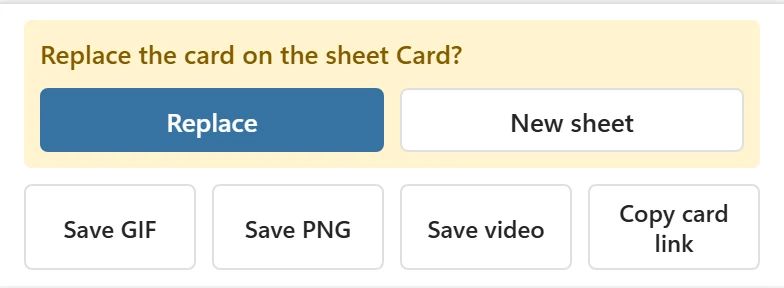
- Replace draws the card from the pane over the card on that sheet.
- New sheet leaves that sheet as it is and puts the card on a new sheet.
To change the card that is on that sheet instead, click Edit this card first.
A protected sheet or workbook #
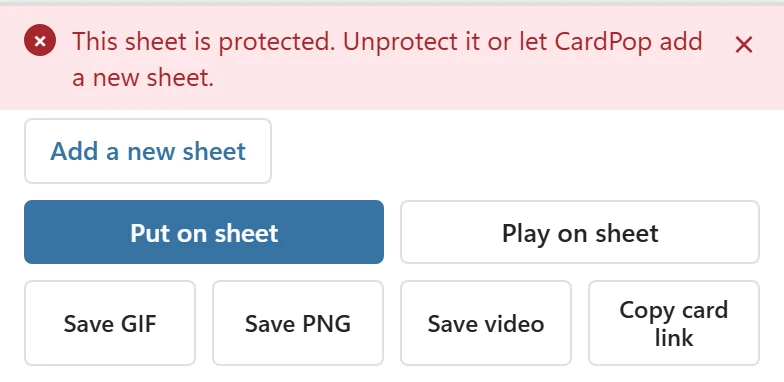
If the card sheet is protected and does not allow formatting cells, columns and rows, CardPop cannot colour its cells and says This sheet is protected. Unprotect it or let CardPop add a new sheet. Click Add a new sheet under the message to put the card on a new sheet, or unprotect the sheet (Review > Unprotect Sheet) and click Put on sheet again.
- If the structure of the whole workbook is protected, no sheet can be added: This workbook’s structure is protected, so CardPop cannot add a sheet. Unprotect the workbook (Review > Protect Workbook), then try again.
- If the workbook is open read-only: This workbook is read-only. Save a copy or ask for edit access, then try again.
- If you are still typing in a cell: Excel is editing a cell. Press Enter or Esc, then click again.
Sending or printing the workbook #
The card is part of the workbook like any other cell formatting. Save the workbook and send it; the recipient does not need CardPop to see the card. To print it, print the card sheet: it comes out on one page. To send only the card, save it as a PNG, GIF or video or share a card link.