
CardPop shows its messages in the bar at the bottom of the pane, above the buttons. Each one says what happened and what to do. Find the message you see below. Messages about words that do not fit or are hard to see are explained in Choose words, colours, icons, effects and shapes.
Reload add-in #
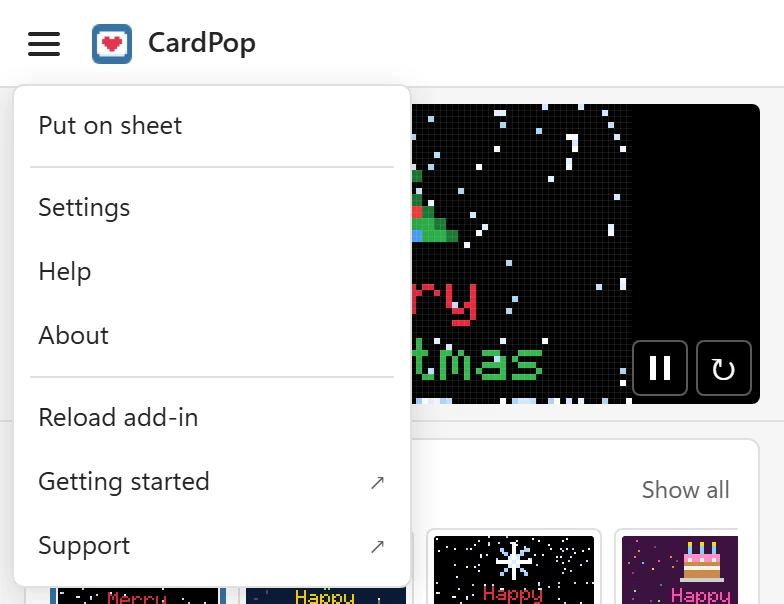
Many messages suggest Reload add-in. It is in the menu, the three lines at the top left of the pane. It reloads the pane without closing Excel; the card you were working on comes back.
Excel is not connected or not responding #
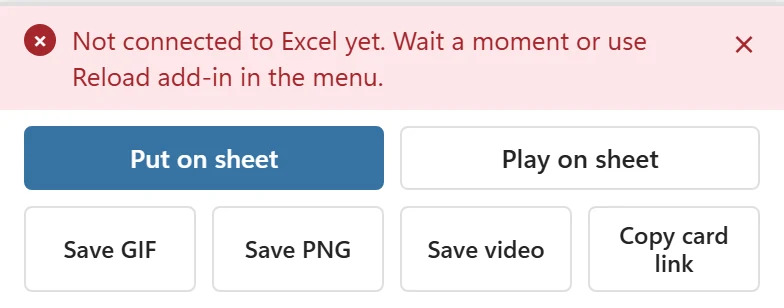
- Not connected to Excel yet. Wait a moment or use Reload add-in in the menu. The pane shows the card at once, but Excel had not finished connecting to it when you clicked. Wait a few seconds and click again. If the message stays, use Reload add-in.
- Excel is not responding. Check your internet connection, then use Reload add-in in the menu (top left). Excel did not answer in time. This happens most often in Excel on the web with a slow or interrupted connection.
- Microsoft’s Office script could not be loaded, so the add-in cannot talk to Excel. Check your internet connection, then use Reload add-in in the menu (top left). The pane could not load the Office library from Microsoft, usually because the connection dropped or a firewall blocks it.
- The add-in could not load its code. Close and reopen the pane. If it persists, your Excel version may be unsupported. CardPop needs Microsoft 365 or Excel 2021 and later on Windows or Mac, or Excel on the web.
- Something went wrong. Use Reload add-in in the menu (top left). An unexpected error. Reload the pane; if it happens again, copy the diagnostic info and contact support.
- Could not put the card on the sheet. Excel could not finish that step. Try again, or use Reload add-in in the menu. Excel refused a step without saying why. Try again; if it repeats, reload the add-in.
- Excel is editing a cell. Press Enter or Esc, then click again. A cell is still in edit mode, so Excel accepts no changes from add-ins. Finish or cancel the typing, then click the button again.
The card does not play #
- Select a card sheet first, or click Put on sheet. Play card on the Home tab was clicked while the selected sheet holds no CardPop card. Select the card sheet, or put the card on a sheet first.
- Nothing is playing. Stop card was clicked while no card was playing.
- This sheet is protected, so the card cannot play here. Unprotect it, then try again. The Play cell or Play card could not change the cells of a protected sheet.
- Could not play the card. followed by the reason. Excel refused to start the animation; the rest of the message says what to do.
- Clicking the ▶ Play cell does nothing: the cell only works where CardPop is installed and has loaded. Open the CardPop pane once, then click another cell and click the Play cell again.
The sheet or workbook cannot be changed #
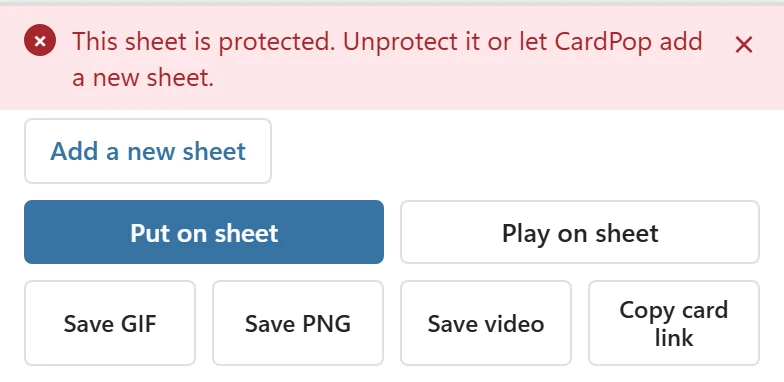
- This sheet is protected. Unprotect it or let CardPop add a new sheet. Click Add a new sheet under the message to put the card on a new sheet, or unprotect the sheet (Review > Unprotect Sheet) and try again. The same applies to Play on sheet. A protected sheet that allows formatting cells, columns and rows works without unprotecting.
- This workbook’s structure is protected, so CardPop cannot add a sheet. Unprotect the workbook (Review > Protect Workbook), then try again. With a protected workbook structure no sheet can be added, so CardPop cannot make a card sheet.
- This workbook is read-only. Save a copy or ask for edit access, then try again. The workbook is open read-only, for example a file shared with view access. Save your own copy, or ask the owner for edit access.
- The card sheet was deleted, so Play stopped. The sheet the card was playing on was deleted. Click Put on sheet to draw the card again.
Links and pop-ups in Excel on the web #
- Your browser blocked the new tab. Allow pop-ups for Excel and click again. A link or button in the pane, such as Contact support, Getting started or Open in browser, could not open a new tab because the browser blocked it. Allow pop-ups for the Excel site in your browser’s address bar, then click the link again.
- Copying did not work here. Select the link below and copy it. The pane could not write to the clipboard. Select the link in the box that appears in place of the save buttons and copy it by hand, or click Open in browser next to it.
- Excel did not open your browser. Copy the link and paste it into your browser. Open in browser could not open a browser from Excel. Copy the link from the box and paste it into your browser.
Saving a file #
- This version of Excel cannot make videos here. Use Copy card link and save the video from your browser. The pane cannot make an MP4 or a WebM video in this version of Excel or this browser. Click Copy card link, open the link in a current version of Chrome, Edge, Firefox or Safari and click Save as video there. A GIF works everywhere.
- This browser made a WebM video, which plays in browsers. For WhatsApp or iPhone, save a GIF. Not an error: the video was saved, but as WebM, which some apps and phones do not play.
- This browser cannot make videos. Save a GIF instead, or open this page in another browser. Shown on the card page, where Save as video is then greyed out. Open the same link in another browser, or save a GIF.
- Excel did not open your browser. Use Copy card link, then open the link in your browser to save the file. In Excel for Windows and Mac, files are saved from your browser. If Excel does not open it, copy the card link, paste it into your browser and save the file there.
- Not connected to Excel yet. Wait a moment and click again, or use Copy card link. The pane did not know yet whether it runs in Excel on the web or on the desktop. Wait a few seconds and click again.
- Making the GIF took too long. Try again, or use Copy card link. Making the file stopped moving forward, so CardPop gave up. Try again, or save the file from the card page in your browser.
- CardPop could not make the GIF. Try again, or use Copy card link and save it from your browser. Making the file failed. Try again, or save it from the card page in your browser.
- If nothing happens, open this page in your browser (for example Chrome or Safari) and try again. Added on the card page after every save, and when saving or sharing fails. It matters mostly inside the small browser of a chat app, which can block downloads.
More in Save as PNG, GIF or video.
The card link shows Card not available #

- This card link is incomplete. Ask the sender to copy it again, or click Save again in Excel. The link was cut short or changed on the way, often by an app that shortened or wrapped a long link. The sender should click Copy card link again and paste the whole link. If you opened the page from a save button in Excel, click that button again.
- This card was made with a newer CardPop. Reload this page to see it. The browser still has an older copy of the page. Reload it.
- This card needs JavaScript. Turn it on in your browser, then open the link again. The page draws the card with JavaScript, which is turned off in this browser.
Still stuck? #
Open the menu, choose About, click Copy diagnostic info and send it to support. See Support.