
How to Clean Up and Validate Addresses in Excel (Google Maps)
To clean up and validate addresses in Excel, check every row against a map service instead of fixing them by hand. The Address Formatter add-in sends each address to Google Maps and writes back a clean, standardized address, split into its parts, with a status and a match precision that shows which rows to trust. TRIM and PROPER only fix spacing and capitals.
Table of contents
Cleaning, validating and standardizing
Cleaning means fixing how an address is written: typos, capitals, missing commas, missing ZIP codes and states. Validating means checking that the address points to a real place and how exact that match is. Standardizing means writing every address the same way, so they can be sorted, split and mailed.
Address lists get messy because people type them. A CRM export collects years of hand-typed entries: all lowercase, street names misspelled, a landmark instead of an address, a ZIP code without a city, or GPS coordinates from a field app. Each problem is small. Together they break mail merges, route plans and any report grouped by city or state.
What formulas can fix
Formulas fix only the surface. They can remove extra spaces, fix capitals and replace common abbreviations. They cannot tell that “Lincon Ave” should be “Lincoln Ave”, fill in a missing ZIP code, or turn “Space Needle, Seattle” into a street address. That needs a lookup against map data.
| Formula | What it does | Watch out |
|---|---|---|
=TRIM(A2) |
Removes leading, trailing and double spaces | Safe for every list |
=PROPER(TRIM(A2)) |
Capitalizes each word | Turns “NY” into “Ny” and “SW1A” into “Sw1A” |
=SUBSTITUTE(A2, " st ", " St ") |
Replaces one abbreviation | One rule per formula, and “st” also means Saint |
=TRIM(SUBSTITUTE(A2, CHAR(160), " ")) |
Removes non-breaking spaces from web copies | Invisible until TRIM fails without it |
These are worth a pass before anything else, especially TRIM. For splitting an address that already looks clean, my post on how to separate addresses in Excel covers Text to Columns and TEXTSPLIT.
Clean up a list with the add-in
Open the Address Formatter add-in, click a cell in the address column, preview one address if you want to see the result first, then click Format addresses. Each row gets a status, the full standardized address and every part in its own column, plus the coordinates and the match precision.
My example is a wholesale customer list exported from a CRM. Some addresses are lowercase with no ZIP code, one street name has a typo, some are landmarks such as the Space Needle and Union Station, one is only a ZIP code, two are GPS coordinates, and a few customers are in Canada, Germany and the UK.
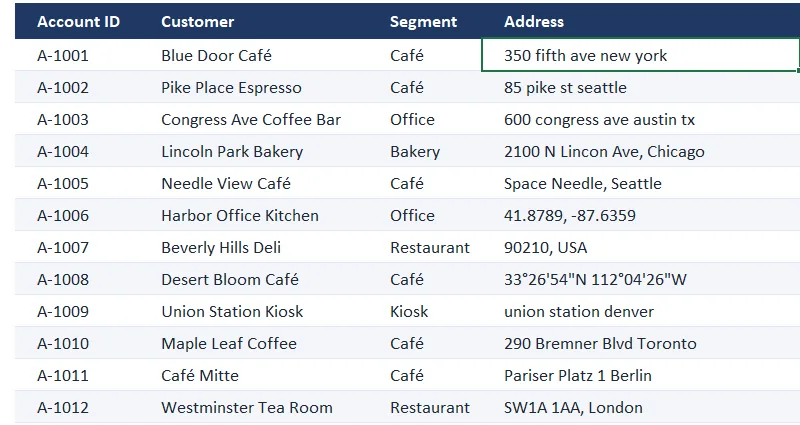
-
Click anywhere inside the list. The add-in detects the table and ticks the column with the addresses.
-
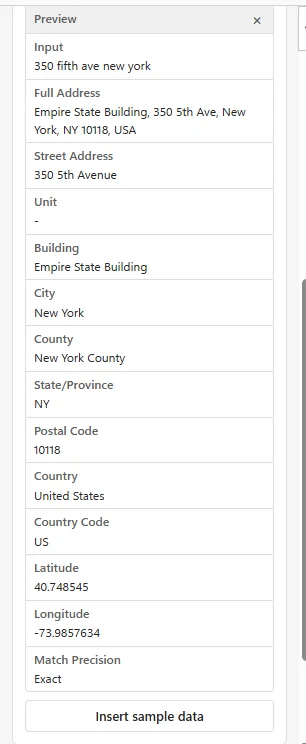
Preview first address. This sends one request and shows every field in the pane, without writing to the sheet. A quick way to check the settings before a big run.
-
Pick the output columns. In the settings, tick the fields you need. For a full clean-up I take all of them: full address, street, unit, building, city, county, state, postal code, country, country code, coordinates and match precision.
-
Click Format addresses. After a few seconds the results appear right next to the list.
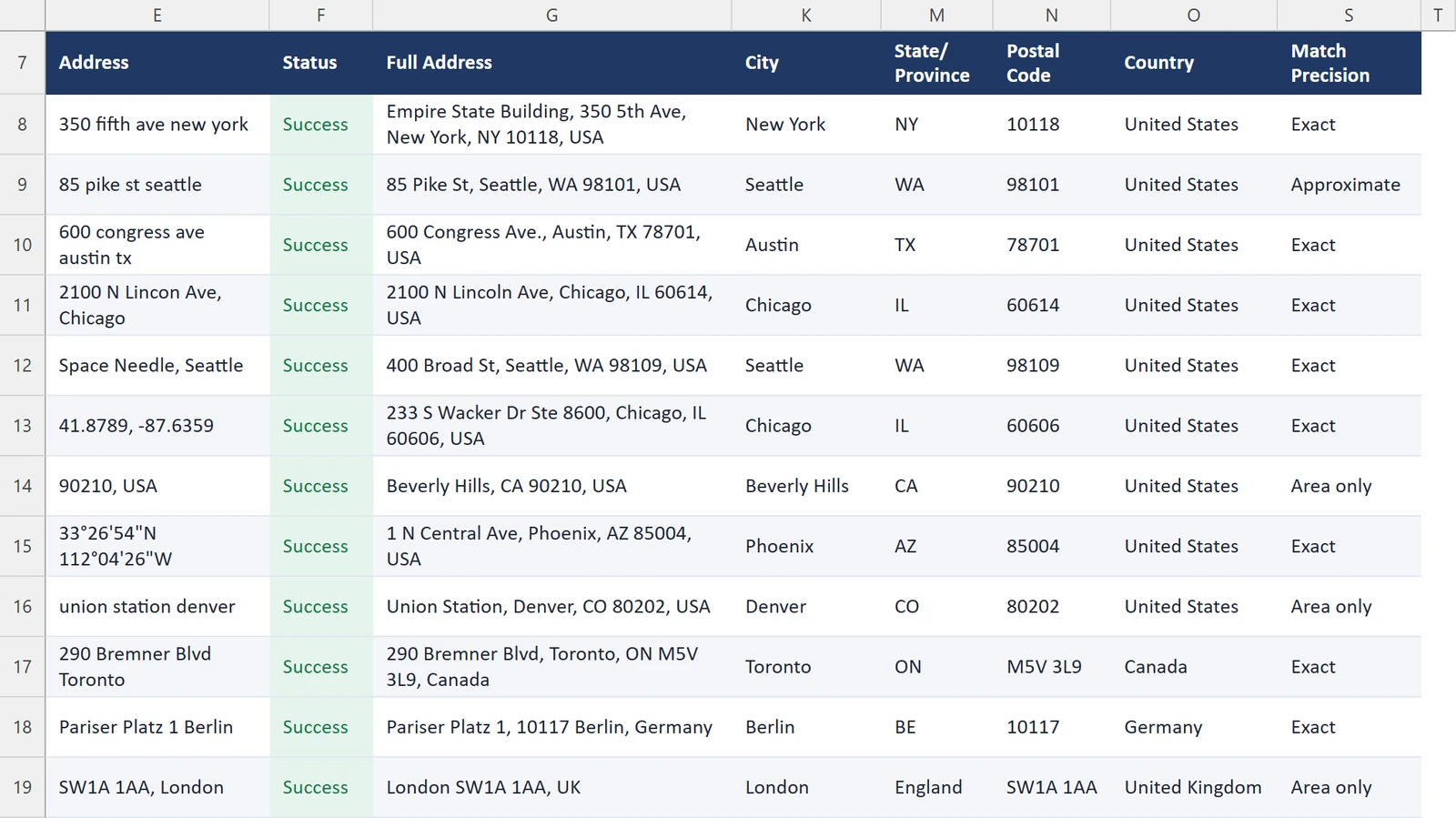
Your original column stays as it was, and so does everything else in the workbook. Keep it, so you can always see what the customer typed. In the example, the summary cards at the top show 12 formatted rows across four countries the moment the run is done.
The clean list is ready for the next job: plan deliveries with a multi-stop route planner in Excel, measure distances, or add coordinates for a map.
What the clean-up fixes
Typos in street and city names, missing ZIP codes and states, inconsistent capitals and abbreviations, landmarks and place names, and coordinates instead of addresses. Every result is written the way Google Maps writes the address, so the whole list follows one format.
| As typed | Full address after the clean-up |
|---|---|
| 350 fifth ave new york | Empire State Building, 350 5th Ave, New York, NY 10118, USA |
| 2100 N Lincon Ave, Chicago | 2100 N Lincoln Ave, Chicago, IL 60614, USA |
| Space Needle, Seattle | 400 Broad St, Seattle, WA 98109, USA |
| union station denver | Union Station, Denver, CO 80202, USA |
| 33°26’54″N 112°04’26″W | 1 N Central Ave, Phoenix, AZ 85004, USA |
| 290 Bremner Blvd Toronto | 290 Bremner Blvd, Toronto, ON M5V 3L9, Canada |
| Pariser Platz 1 Berlin | Pariser Platz 1, 10117 Berlin, Germany |
Turning coordinates into addresses is called reverse geocoding, and it happens in the same run. My post on converting latitude and longitude to addresses in Excel covers it in detail.
Spot the rows to check
Look at two columns. Status says whether Google found the address at all. Match Precision says how exact the match is, from Exact for a building down to Area only for a ZIP code or region. Sort or filter by Match Precision, and you only review the rows that need a person.
| Match precision | Meaning | What to do |
|---|---|---|
| Exact | Google found the building | Trust it |
| Estimated | The right street | Usually fine, check house numbers that matter |
| Approximate | The right area or place | Check if you ship to it |
| Area only | Only a ZIP code or region | Ask the customer for the full address |
A formula keeps the count visible, for example =COUNTIF(P:P, "Area only") when column P holds the match precision. In the example, “90210, USA” is the row that only reaches the ZIP code area.
Check one address with a formula
The Address Formatter adds GEO formulas to Excel. =GEO.FULL returns the clean full address of a cell, and =GEO.FIELD returns any single part, such as the city, the ZIP code, the country or the coordinates. That suits a check sheet for new accounts.
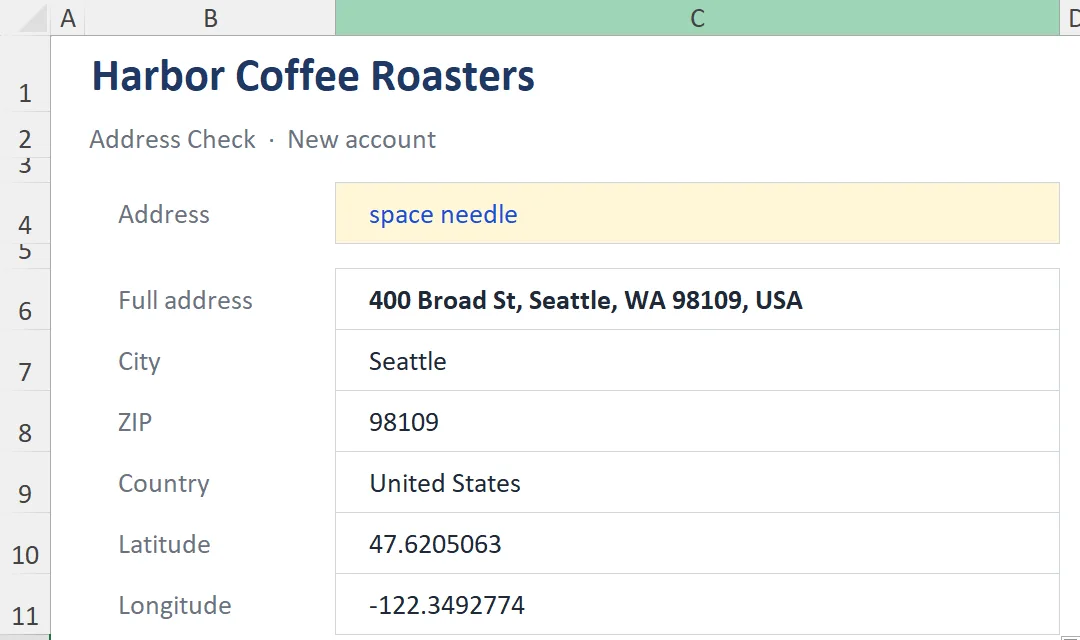
The full address in C6:
=GEO.FULL(C4)The part named in column B, filled down from C7:
=GEO.FIELD($C$4, B7)When the labels in column B match the field names, one GEO.FIELD formula filled down returns the city, the ZIP code, the country and the coordinates. Results are cached, so recalculating the workbook does not ask Google again. Pair it with a form and new addresses are checked as they are entered, see my post on data entry forms for Excel without coding.
Addresses outside the US
The add-in works anywhere Google Maps has coverage, and countries can be mixed in one column. Each address is written in its own country’s format, with the state or province and the postal code in the matching columns. The example list has the US, Canada, Germany and the UK together.
- Result language. English, German, Spanish, French, Italian, Portuguese or Dutch.
- Country filter. For a list in one country, type its code, such as us or de. A bare postal code then lands in the right country.
- County. Outside the US the County column holds the district or province where Google has one.
Limits
It confirms that Google can place the address and how exactly. It does not confirm that mail is deliverable, that an apartment number exists or who lives there. For postal delivery checks, such as CASS-certified verification in the US, you need a postal verification service.
- Typos that make another real address. “100 Main St” typed as “1000 Main St” can be a real place, so nothing flags it.
- Unit numbers. Tick Unit to get suites and apartments in their own column, but whether that unit exists is not checked.
- Every row fails. The Google key needs active billing and the Geocoding API and Maps JavaScript API. The Google Maps API troubleshooting guide checks each cause.
- Ambiguous place names. “Union Station” exists in many cities. Add the city or set the country filter.
FAQ
Is there a free way to clean a few addresses?
Yes. The free address formatter on my site cleans up to 25 addresses per run, three runs a day, with no sign-up, and downloads the result as a CSV.
What does the add-in need?
Excel from Microsoft 365 or Office 2021 and later, on Windows, Mac or Excel on the web, a license (a one-time purchase, no subscription) and your own Google Maps API key. Creating the key is free, Google asks for a payment method, and the product page lists 10,000 free lookups a month. It takes up to 25,000 rows in one run, looks up a repeated address once, and can skip rows that already have results.
Does the add-in send my customer list anywhere else?
No. The addresses go from Excel straight to Google with your own key. Only the license check reaches my server, never addresses or results.
Clean and standardize a whole address list with Google Maps: typos fixed, missing ZIP codes filled in, every part in its own column, and a match precision for every row. Excel on Windows, Mac and the web.