
Convert Addresses to Latitude and Longitude in Excel (Bulk)
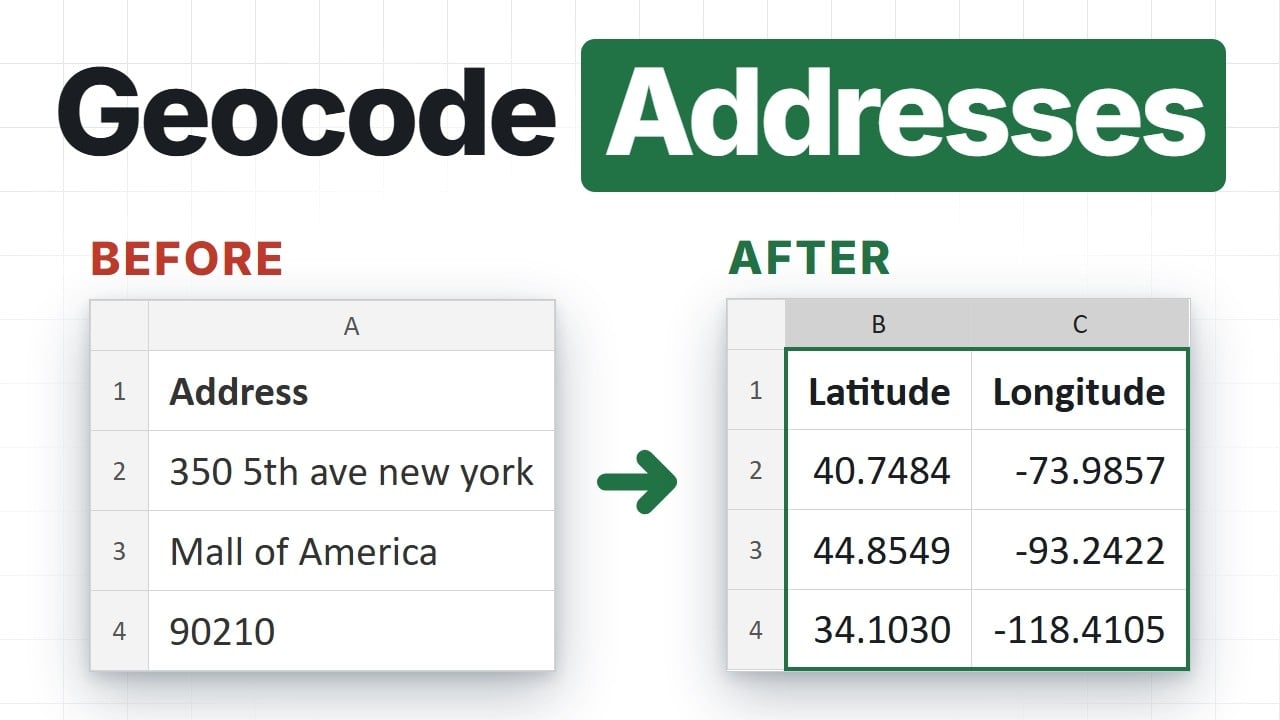
Excel cannot turn a street address into latitude and longitude on its own. For a short list, paste the addresses into a free address to coordinates converter and copy the results back. For a whole column, the Address Formatter add-in looks every address up on Google Maps and writes the latitude, the longitude and a match precision next to each row, with one click.
Table of contents
What geocoding means
Converting an address to latitude and longitude is called geocoding: a mapping service finds the address and returns its position as two numbers. Latitude is the position north or south of the equator, longitude east or west of Greenwich. The reverse, turning coordinates into an address, is reverse geocoding.
Coordinates are what maps, distance formulas and GIS tools understand. An address such as “835 N Michigan Ave, Chicago, IL 60611” becomes 41.898072, -87.622803. With those two numbers you can drop a pin, measure a distance or find the nearest store. Going the other way is covered in my post on converting latitude and longitude to addresses in Excel.
What Excel can do on its own
Excel cannot geocode street addresses. Its Geography data type in Microsoft 365 returns latitude and longitude for countries, states and cities, but not for a house number on a street. For real addresses you need a geocoding service, through a web tool or an add-in.
| Option | Street addresses | How many | Notes |
|---|---|---|---|
| Geography data type (Microsoft 365) | No, places only | Any | City or country centers |
| Google Maps by hand | Yes | One at a time | Right-click a place to copy its coordinates |
| Free address to coordinates converter | Yes | 20 lines per list | US via the Census Bureau with no daily limit, other countries three lists a day |
| Address Formatter add-in | Yes, worldwide | Up to 25,000 rows per run | Works on your own sheet, plus the GEO formulas |
The free address to coordinates converter on my site is the quickest way for a short list: paste the addresses one per line, click Get coordinates, and copy the results straight into Excel or download a CSV.
Geocode a list with the add-in
Open the Address Formatter add-in, click any cell inside your list, tick the coordinates in the settings and click Format addresses. After a few seconds every row has a status, the full address, the latitude and the longitude, written in new columns next to your data.
My example is a dealer list. Most rows are full addresses, some have no ZIP code or state, two are a shopping center and a landmark, one is only a ZIP code and one is already GPS coordinates.
-
Click anywhere inside the list. The add-in detects the table and ticks the column that holds the addresses. If the address is split over street, city and ZIP columns, tick all of them and they are joined into one address per row.
-
Choose the output columns. In the settings, tick Full address, Coordinates and Match precision. You can add street, city, state, ZIP code and county in the same run, which I show in how to separate addresses in Excel.
-
Preview one address if you like. Preview first address sends a single request and shows the result in the pane without writing anything.
-
Click Format addresses. The results appear next to your list.
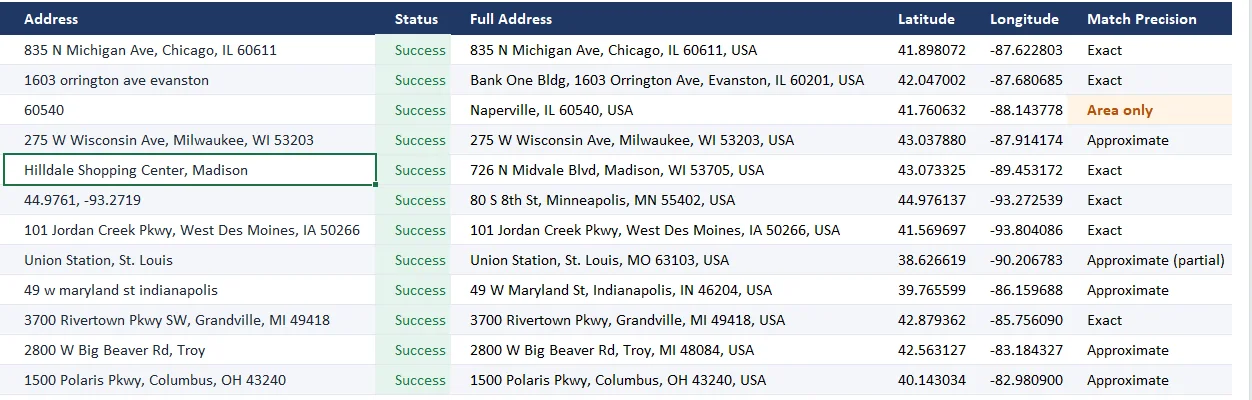
It worked for every row, even Hilldale Shopping Center and Union Station. The row that only had GPS coordinates got its street address instead, which is reverse geocoding in the same run. The add-in leaves the rest of the workbook alone, so a COUNTIF that counts “Area only” rows keeps working right away.
How exact the coordinates are
For a full street address the pin is usually the building or within a few houses. A ZIP code, a city or a landmark on its own gives the center of that area. The Match Precision column tells you which case each row is, so you only check the rows that need it.
| Match precision | What it means | Use the pin for |
|---|---|---|
| Exact | Google found the building | Anything, including delivery and routing |
| Estimated | The right street | Maps and distances |
| Approximate | The right area or place | Rough maps and regional analysis |
| Area only | Only a ZIP code or region was found | Not for a precise pin, ask for the full address |
Six decimal places, as in the screenshot, are about 0.1 meter, far finer than any geocoder’s real accuracy. Four decimals are about 11 meters, enough for most maps.
Latitude and longitude formulas
With the Address Formatter installed, =GEO.LAT(A2) returns the latitude of the address in A2 and =GEO.LNG(A2) the longitude. =GEO.FULL returns the full address, also from coordinates, and =GEO.FIELD returns any single part, such as the city or the ZIP code.
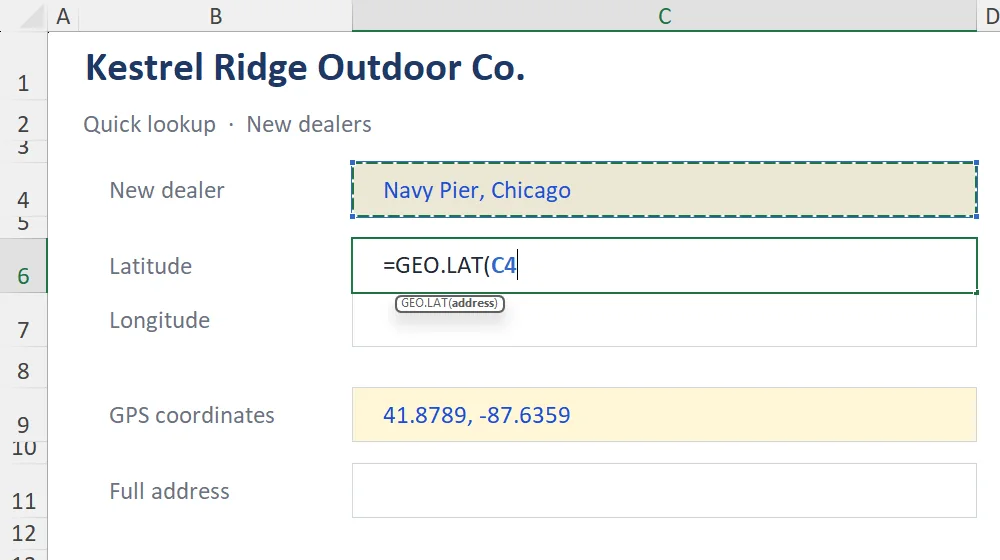
On the lookup sheet above, the address is in C4 and a coordinate pair in C9. Latitude, longitude, full address and city:
=GEO.LAT(C4)
=GEO.LNG(C4)
=GEO.FULL(C9)
=GEO.FIELD(C4, "city")
Results are cached on your computer, so recalculating the workbook does not send the same address to Google again. The formulas suit a form or a quick lookup. For long lists, Format addresses is faster. If you like formulas that fetch live data, my post on custom Excel formulas that update automatically shows the idea behind them.
Decimal degrees and DMS
Decimal degrees and DMS are two ways to write the same position. Decimal degrees use one number per axis, such as 41.8789, with a minus sign for south and west. Degrees, minutes, seconds split each degree into 60 minutes and each minute into 60 seconds, such as 41°52’44″N, with a compass letter.
Excel formulas, maps and the add-ins all work with decimal degrees. GPS devices and older documents often use DMS, or degrees and decimal minutes such as 41°52.734’N. Both the Address Formatter and the Distance Calculator read all three formats as input. To convert in Excel yourself, with degrees, minutes and seconds in B2, C2 and D2:
=B2 + C2/60 + D2/3600For a south latitude or a west longitude, make the result negative:
=-(B2 + C2/60 + D2/3600)And to show a decimal latitude in A2 as DMS text:
=INT(ABS(A2)) & "°" & INT(MOD(ABS(A2),1)*60) & "'" & TEXT(MOD(ABS(A2)*3600,60),"0.0") & """" & IF(A2<0,"S","N")Use E and W instead of N and S for a longitude. For a one-off conversion, the converter below is quicker.
Coordinate converter
Paste a coordinate pair in any common format and get it as decimal degrees, as degrees, minutes, seconds and as degrees and decimal minutes. The Excel line copies the two numbers with a tab between them, so they land in two cells when you paste.
Coordinate converter: decimal degrees, DMS and DDM
The same point near Willis Tower in Chicago, written three ways:
| Format | Example |
|---|---|
| Decimal degrees | 41.878900, -87.635900 |
| Degrees, minutes, seconds | 41°52’44.0″N 87°38’09.2″W |
| Degrees, decimal minutes | 41°52.734’N 87°38.154’W |
What to do with the coordinates
With coordinates you can put the locations on a map, measure distances, find the nearest store or depot, or load them into a GIS tool. Most map and analysis tools read a latitude and a longitude column directly, so the geocoded list is ready to use.
- Map in Excel. My PinPop add-in puts a list on a live Google map in the sheet and reads the Latitude and Longitude columns as they are.
- Straight-line distance. The haversine formula in my guide to calculating driving distance in Excel works on two coordinate pairs. For road distances, use the Distance Calculator.
- Nearest location. A distance matrix finds the closest branch for every customer, see distances between multiple locations in Excel.
- County. Tick County in the same run, or use the free county lookup for up to 50 US addresses.
Troubleshooting
A wrong pin usually means the input was ambiguous: a name that exists in several places, a street without a city, or a bare ZIP code that also exists in another country. Add the missing city, state or country, or set the country filter, and run the row again.
- Pin in the wrong country. Set the country filter in the settings, for example us. A five-digit ZIP code also exists in other countries.
- Area only. The input had no street. The pin is the center of the area.
- Latitude and longitude swapped on a map. Maps expect latitude first. A US longitude is negative and around -70 to -125, a US latitude positive and around 25 to 49.
- Numbers show with a comma as the decimal sign. That is your Windows regional setting, not an error.
- Every row fails. The Google key needs active billing and the Geocoding API and Maps JavaScript API enabled. The Google Maps API troubleshooting guide walks through it.
FAQ
What does the Address Formatter need?
Excel from Microsoft 365 or Office 2021 and later, on Windows, Mac or Excel on the web, a license (a one-time purchase, no subscription) and your own Google Maps API key. Creating the key is free, Google asks for a payment method, and the product page lists 10,000 free lookups a month. Your addresses go from Excel straight to Google, not through my server.
Can I geocode addresses outside the US?
Yes. It works anywhere Google Maps has coverage, and you can mix countries in one list. Results can come back in English, German, Spanish, French, Italian, Portuguese or Dutch.
Can Google Sheets do this?
Not without an Apps Script and your own key. The free converter on my site works in any browser, and the add-in is for Excel.
Add latitude, longitude and a match precision to every address in a column, from Google Maps, plus the GEO.LAT and GEO.LNG formulas. Works the other way round too. Excel on Windows, Mac and the web.