
How to Add a Date Picker in Excel (Windows, Mac and Web)
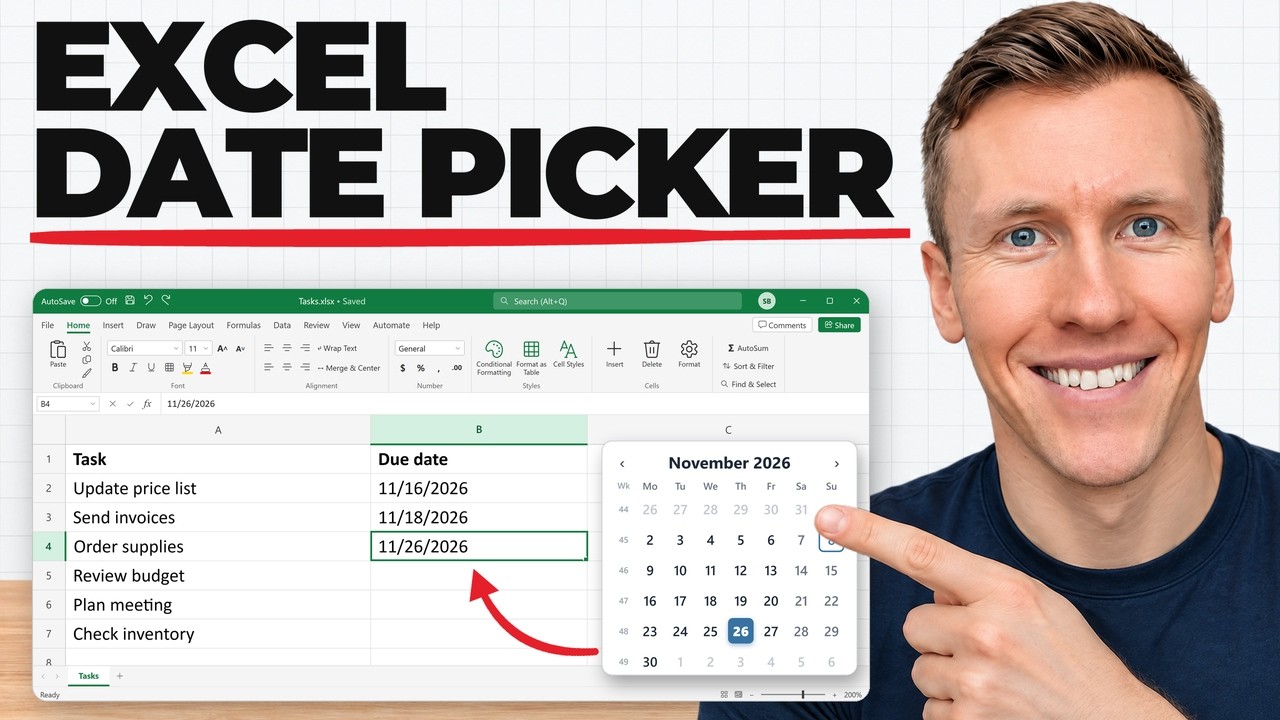
Excel on the web has a basic date picker: double-click a date cell and a small calendar opens. Excel for Windows and Mac have none built in. Natively you can restrict a column to real dates with Data Validation, press Ctrl+; for today, or offer a drop-down of upcoming dates. For a clickable calendar on every platform, use a date picker add-in.
Table of contents
What Excel has built in
Only Excel on the web has a built-in date picker. There, double-clicking a cell that already holds a date opens a small calendar. Excel for Windows and Excel for Mac have no built-in date picker, so you either type dates, use the workarounds below, or install an add-in.
That gap is why so many old tutorials send you to the Developer tab and an ActiveX control, or to a VBA UserForm with a calendar on it. Both come with real problems, which I cover below. Here is what each option gives you:
| Option | Works in | Calendar to click |
|---|---|---|
| Data Validation (date rule) | Windows, Mac, web | No, it checks typed dates |
| Drop-down list of dates | Windows, Mac, web | No, a list of upcoming days |
| Ctrl+; for today | Windows, Mac (Control+;), web | No, today only |
| Built-in web date picker | Excel on the web only | Yes, on cells that hold a date |
| ActiveX Date and Time Picker | 32-bit Excel for Windows, if installed | Yes |
| VBA UserForm calendar | Windows with macros on, partly Mac | Yes |
| Office add-in (DatePop) | Windows, Mac, web | Yes, in a side pane |
Before you add a picker, it helps to stop wrong dates at the door. The next three sections need nothing but Excel, and they work in any version from the last decade.
Dates in Excel without typos: practice workbook
A task list whose Due date column only accepts real dates, a Start date drop-down with the next 30 workdays, and a sheet that finds and fixes dates stored as text.
Accept only real dates
Select the cells, go to Data > Data Validation, set Allow to Date and choose a range, such as between 1/1/2026 and 12/31/2028. Excel then rejects anything that is not a real date in that range, including typos like 31/31/2026, and shows your own error message.
-
Select the date column. Include empty rows below your data, so new entries get the same rule.
-
Open Data Validation. On the Data tab, click Data Validation. On the Settings tab, set Allow to Date.
-
Set the range. Choose “between” and enter a start and an end date. Formulas work too:
=TODAY()as the start date only allows today or later. -
Add a hint. On the Input Message tab, write something like “Type a date, or press Ctrl+; for today”. It appears when someone selects the cell.
-
Write the error message. On the Error Alert tab, keep the Stop style and explain the rule in plain words. Click OK.
Data Validation is not a picker. People still type, but they can no longer save “next Tuesday” or 13/27/2026 into your tracker. It also only checks new entries: values pasted over the cells can slip past it, and old entries are not checked until you use Data > Data Validation > Circle Invalid Data.
A drop-down list of dates
Put the dates you want to offer in a helper column, for example the next 30 workdays with =WORKDAY(TODAY(),1), =WORKDAY(TODAY(),2) and so on. Then use Data Validation with Allow set to List and point it at that column. The cell gets a drop-down arrow with the dates.
The helper list recalculates every day, so the drop-down always starts at the next workday. WORKDAY skips Saturdays and Sundays, and it can skip holidays too if you give it a list of them as a third argument. The Tasks sheet in the practice workbook has this drop-down in its Start date column.
It is the closest plain Excel gets to a picker, with two limits. A list is not a calendar, so 30 entries is about as far as it stays usable. And a date picked today is a fixed value: it does not move when the list moves on tomorrow, which is what you want for due dates.
Keyboard shortcuts for dates
Press Ctrl+; (semicolon) to type today’s date into a cell, and Ctrl+Shift+; for the current time. On a Mac, Control+; inserts the date and Command+; the time. Both insert fixed values. Use =TODAY() or =NOW() when the cell should update every day.
| What you want | Windows | Mac |
|---|---|---|
| Today’s date, fixed | Ctrl+; | Control+; |
| Current time, fixed | Ctrl+Shift+; | Command+; |
| Date and time in one cell | Ctrl+; then Space then Ctrl+Shift+; | Control+; then Space then Command+; |
| Today, updating | =TODAY() |
|
| Fill a series of dates | Type the first date, drag the fill handle, then pick Fill Weekdays or Fill Months from the Auto Fill Options button | |
For dates further away, type them in a format Excel always understands. The ISO form 2027-01-27 is read the same way on every system, while 3/4/27 means March 4 in the US and April 3 in most of Europe.
The old ActiveX Date and Time Picker
The Microsoft Date and Time Picker Control is an old ActiveX control that only works in 32-bit Excel for Windows, and only when the control is installed and registered on that computer. It does not exist in 64-bit Excel, on a Mac or in Excel on the web, so a workbook built on it breaks for most people you share it with.
Old tutorials show it under Developer > Insert > More Controls. On a current 64-bit Office the entry is simply missing from that list, which is what most people find when they follow those steps today. On a 32-bit setup where it still works, a colleague on another machine opens the file and sees an empty box or an error.
The other classic route is a VBA UserForm with a calendar you build or download. It works on Windows, but the file has to be saved as .xlsm, everyone has to enable macros, and Excel on the web and on phones do not run VBA at all. If the workbook goes to customers or colleagues, that is a lot of friction for one date.
A date picker for Windows, Mac and the web
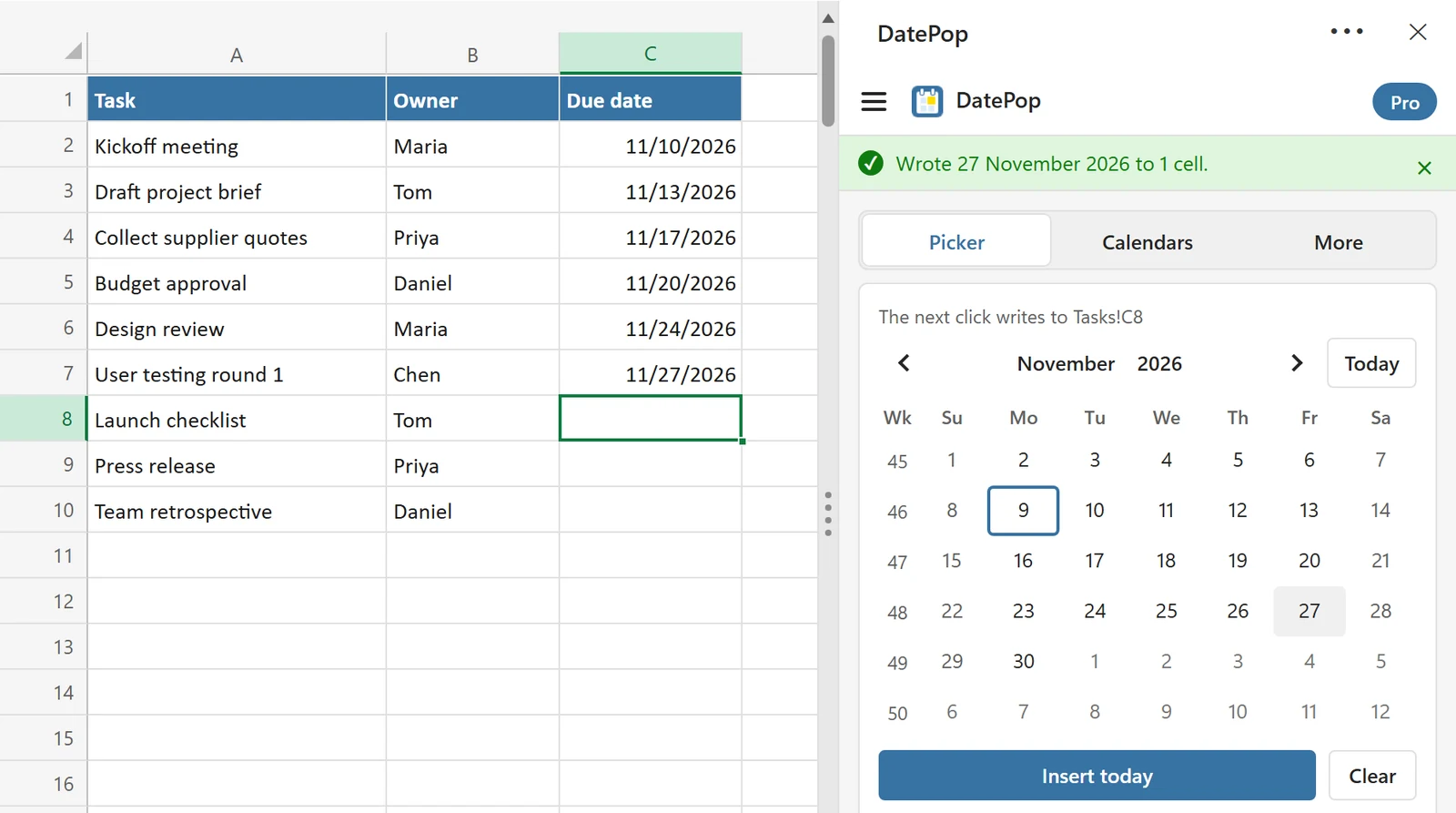
Install an Office add-in that shows a calendar in a side pane. I built one called DatePop. You click a cell, then a date, and the cell gets a real Excel date. The selection moves down, so you fill a column with one click per date. The picker is free and works the same on Windows, Mac and the web.
Here I am filling the due dates of a task list. Each click on a day writes that date into the cell named above the calendar, and the selection moves to the next row. The Wk column shows week numbers.
-
Install it. In Excel, go to Home > Add-ins > More Add-ins, search for DatePop and click Add. Some Excel versions use Insert > Get Add-ins instead. No account is needed for the free version.
-
Open the pane. On the Home tab, click Date picker. The pane opens next to your sheet and stays open.
-
Click a cell, then a date. The line above the calendar says where the next click writes. If the cell already holds a date, the calendar jumps to it.
-
Fill many cells at once. Select several cells and click one date to give them all the same date. Insert today, Clear and Undo last date sit under the calendar.
Every date DatePop writes is a real Excel date, a serial number with a date format, so sorting, filters, formulas and PivotTables work. A cell that already has a date format keeps it. Click the month name or the year to jump far ahead, and tick Date and time to write a time as well. Under Settings you choose ISO or US week numbers, the first day of the week, and whether the selection moves down, right or not at all after each pick.
One honest limit: the calendar does not pop up inside the cell. Excel does not let an add-in place a pop-up at a cell, so DatePop lives in a pane beside the sheet and follows your selection. DatePop runs in Excel for Microsoft 365, Excel 2021 and Excel 2024 on Windows, in Excel for Mac and in Excel on the web. If you are on a Mac, my post on installing an Excel add-in on a Mac walks through the store dialog. The picking guide in the docs lists every keyboard shortcut in the pane.
The same pane also builds printable calendars. A month or a whole year at a glance is part of the free version, and I show the full year with holidays in my guide to making a 2027 calendar in Excel.
Workday series and date rules
Natively, you fill workdays by dragging the fill handle and picking Fill Weekdays, and you lock a column to a date range with Data Validation. DatePop Pro adds two faster tools for this: a date series that skips weekends and public holidays, and date fields with rules that grey out days in the picker.
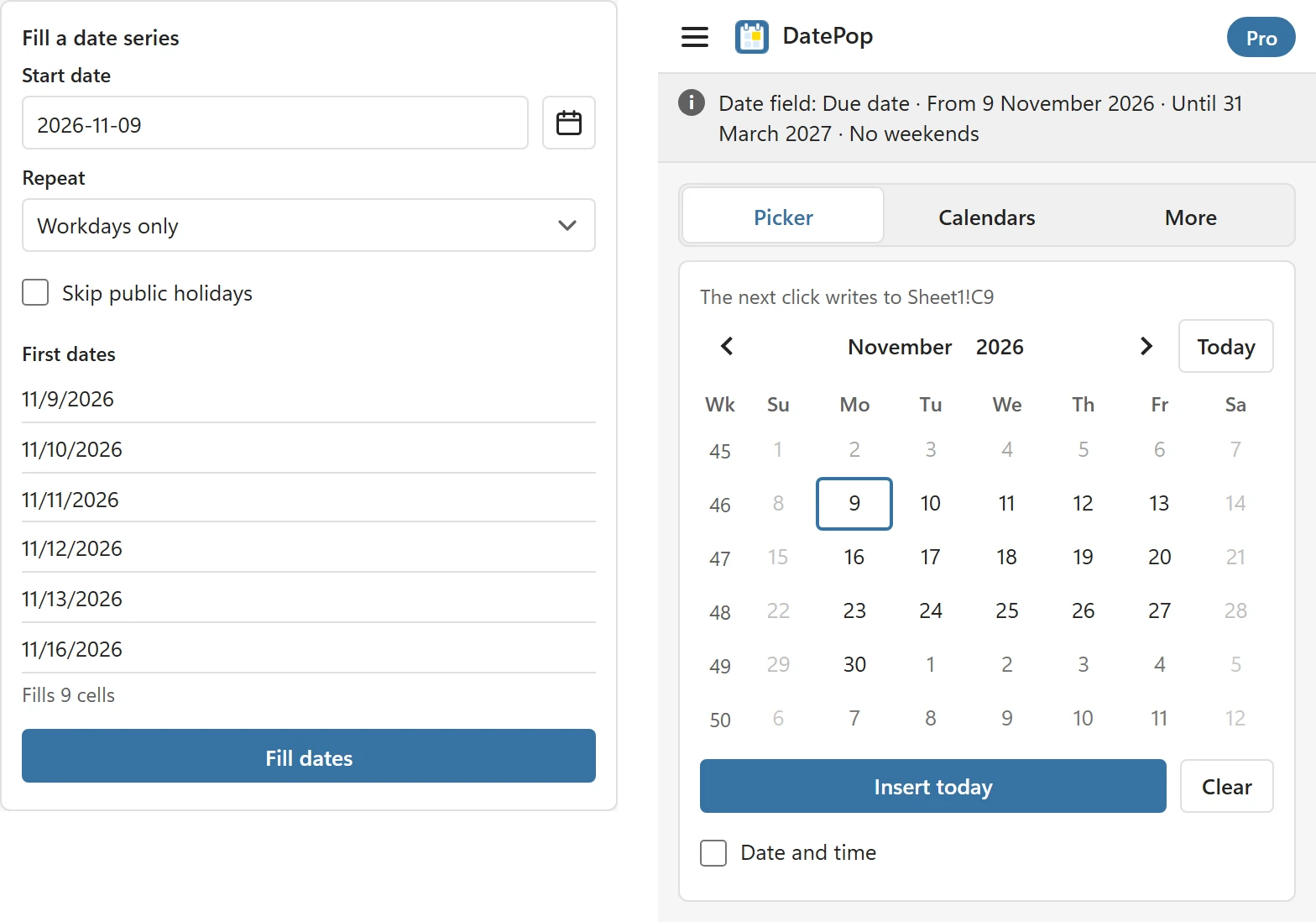
- Fill a date series: select the cells, pick a start date and a rule such as Workdays only, every Monday or the second Tuesday, optionally tick Skip public holidays, and click Fill dates. The pane previews the first dates before you fill.
- Public holidays: pick a country under Settings and the holidays are marked in the calendar. The data covers 207 countries and territories, with regions such as US states.
- Date fields: give a column an earliest and a latest date, and optionally no weekends or no public holidays. Days outside the rule are greyed out in the picker, and Excel rejects typed dates outside the range. Colleagues on the free version can pick into the field and the rules still apply to them.
Pro is a one-time license. Every Pro feature is visible in the free pane with a Pro badge, so you can see what it does before deciding. If your tracker also needs status ticks next to those dates, my post on inserting check marks in Excel covers the ways that keep your numbers intact. For a full project timeline from the same dates, see how to make a Gantt chart in Excel.
Troubleshooting dates
A date that shows as a number like 46413 is a real date without a date format: pick Short Date in the number format list on the Home tab. A date that sits on the left edge of the cell and will not sort is text. Convert it with DATEVALUE or Data > Text to Columns.
- A number such as 46413. Excel stores dates as days since January 1, 1900. The value is right, only the format is missing. Home > Number Format > Short Date fixes it.
- The cell shows ####. The column is too narrow for the date. Double-click the right edge of the column header.
- The date is text. Typical after pasting from a website or another program. Test it with
=ISNUMBER(A2): a real date returns TRUE.=DATEVALUE(A2)converts text in your system’s date order, and ISO dates like 2027-01-27 convert everywhere. For a whole column, select it and use Data > Text to Columns, click Next twice, choose Date with the right order and click Finish. - Day and month are swapped. The text was written in another country’s order. Text to Columns with the matching order (MDY or DMY) reads it correctly.
- Dates are four years off after copying. One workbook uses the 1904 date system, an old Mac setting under File > Options > Advanced. Use the same system in both files.
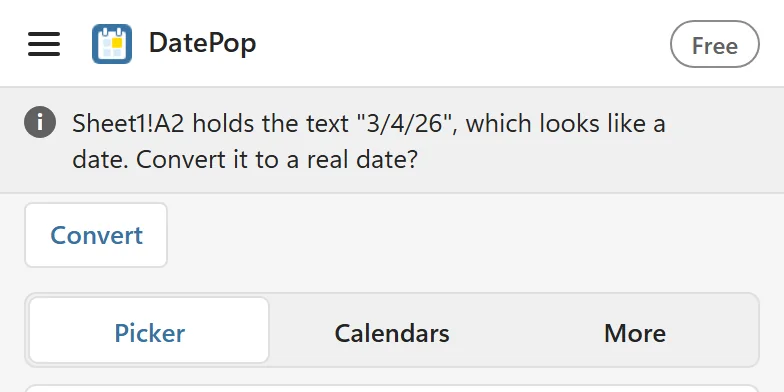
When you select a single cell that holds a text date, DatePop offers to convert it. It reads the text in your regional date order, so check dates like 3/4/26 after converting.
The Text dates sheet in the practice workbook has five ways a date arrives as text, with the test and the fix next to each. If you collect dates through a form instead of typing them into the sheet, my free data entry form template is another way to keep entries clean.
A date picker for Excel on Windows, Mac and the web. Click a cell, click a date, and get a real Excel date. The picker and the month and year calendars are free.