
Merge Multiple PDF Files by Name Using Python
To merge PDF files by name with Python, take a key from each file name (here the first three characters), group the files by that key, and append each group to one output PDF with the pypdf library. The merged file is named after the longest file name in its group. The full, tested script is below.
Update (November 2026): the video uses PyPDF2’s PdfFileMerger, which PyPDF2 3.0 removed, so the script below uses its successor pypdf and its PdfWriter.
The task
Merging PDF files by name means combining every file that shares a prefix into one PDF. All files that start with “902” become one document, named after the longest file name in the group, and the same happens for every other prefix in the folder.
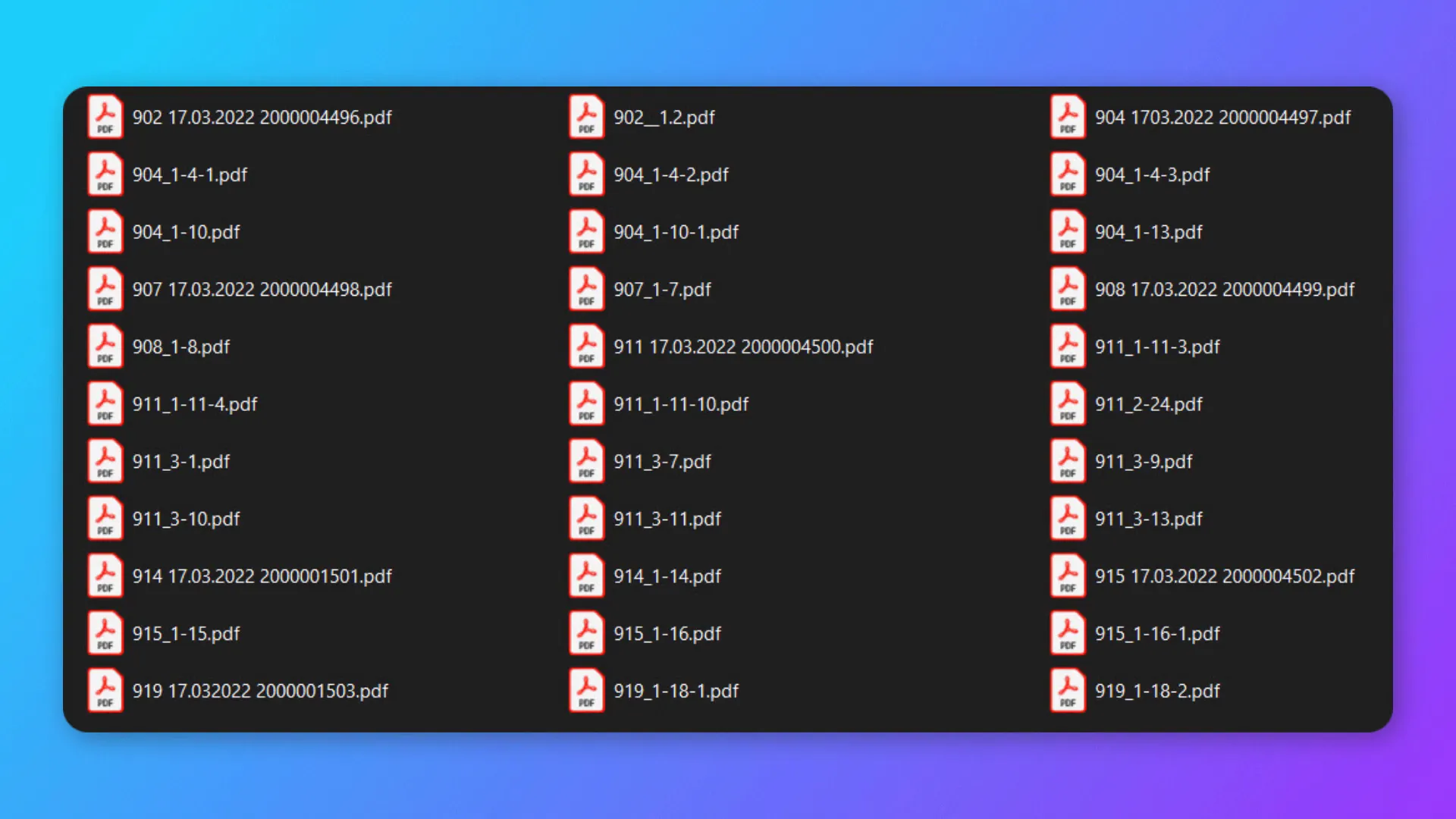
This came from a subscriber with a daily task. His folder held a base document per case, such as 902 17.03.2022 2000004496.pdf, plus attachments that start with the same number, such as 902__1.2.pdf. Every morning he merged them by hand. The rule that makes it automatable: all files of one case start with the same three characters, and the base document is the only one with a long name.
The script
The script uses pathlib to list the PDF files and pypdf to merge them. Install pypdf first:
pip install pypdfPut the script next to a folder called pdf_files and run it. The merged files land in a new OUTPUT folder:
from pathlib import Path
from pypdf import PdfWriter  # pip install pypdf

# Input folder with the PDF files and the output folder for the merged files
pdf_dir = Path(__file__).parent / "pdf_files"
output_dir = Path(__file__).parent / "OUTPUT"
output_dir.mkdir(parents=True, exist_ok=True)

# Sorted, so the long base file comes first in each group
pdf_files = sorted(pdf_dir.glob("*.pdf"))

# The first 3 characters of each file name are the 'key', e.g. '902'
keys = sorted({file.name[:3] for file in pdf_files})

# The base file has the long name, e.g. '902 17.03.2022 2000004496.pdf'
BASE_FILE_NAME_LENGTH = 20

for key in keys:
    writer = PdfWriter()
    output_name = f"combined_{key}.pdf"  # fallback if a group has no base file
    for file in pdf_files:
        if file.name.startswith(key):
            writer.append(file)
            if len(file.name) >= BASE_FILE_NAME_LENGTH:
                output_name = file.name
    with open(output_dir / output_name, "wb") as f:
        writer.write(f)
    writer.close()
    print(f"{key}: saved {output_name}")
How it works:
- The key.
file.name[:3]takes the first three characters of each name. Putting them in a set removes duplicates, so you get one key per case. - The order.
sorted()on the file list puts the base document first in each group, because a space sorts before an underscore. Without sorting, the page order depends on how Windows lists the folder. - The name. The base document is the only file with 20 or more characters, so the script uses its name for the merged file. If a group has no base file, it falls back to
combined_902.pdf. - The merge.
PdfWriter.append()adds all pages of a file, andwrite()saves the result into the OUTPUT folder.
Open a few merged files afterwards and check that each one only contains the PDFs that share its prefix.
Adapt it to your file names
Change how the key is built. If your case numbers have a different length, change the 3 in file.name[:3]. If the key sits before a separator, use file.name.split("_")[0] instead, so INV-1043_scan.pdf and INV-1043_receipt.pdf share the key INV-1043.
Change BASE_FILE_NAME_LENGTH or drop the length check if your files have no long base name, and every group is saved as combined_KEY.pdf. To control the page order more precisely, sort the list with a key function, for example by a number at the end of the name.
Two things to watch: a file that is password protected stops the script, and a key that is too short merges cases that only share their first characters. Check one group by hand before you trust the whole folder. If you want to merge everything in a folder from an Excel button instead, see how to merge multiple PDF files in Excel using Python. If you are new to file paths in Python, my pathlib quickstart explains Path and glob.