
How to Build a Streamlit Multipage App
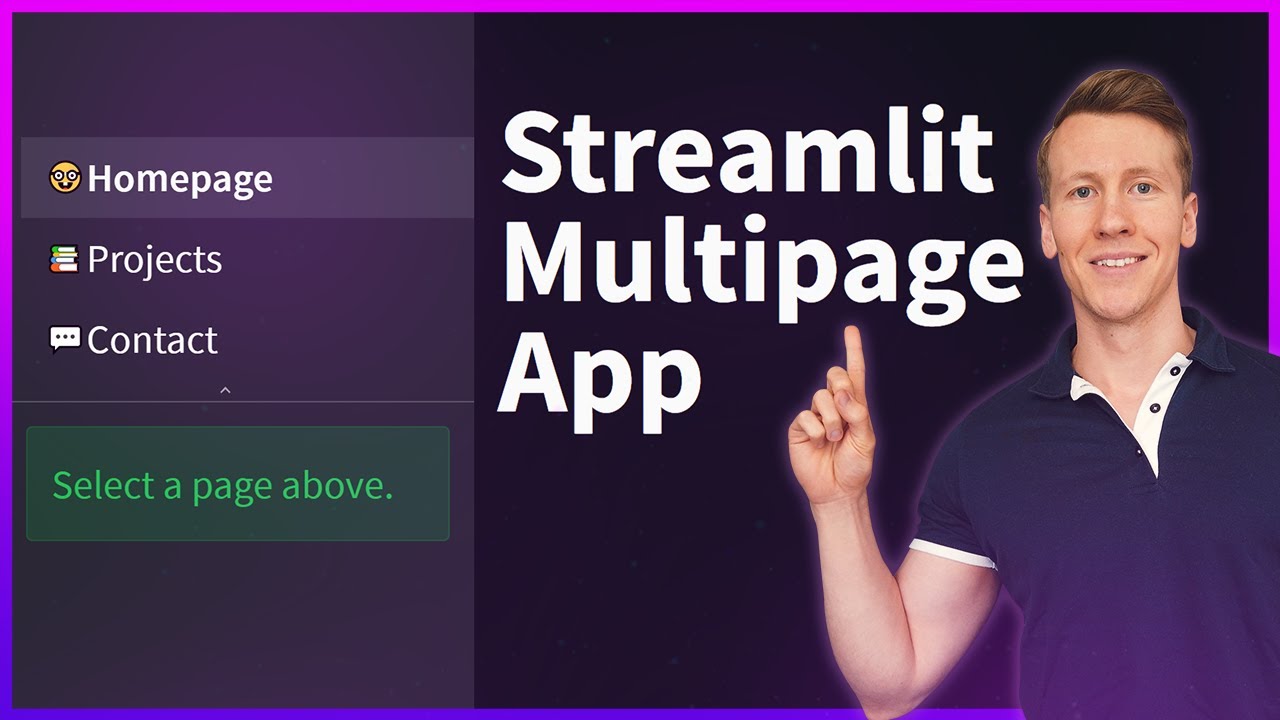
Streamlit has two ways to build a multipage app. The quick one is a pages folder next to your main script: every file in it becomes a sidebar page. The flexible one is st.navigation with st.Page, which adds sections, icons and a top menu. Session state carries values between pages in both.
Table of contents
The main script
Every Streamlit multipage app starts with one main script. It is the file you pass to streamlit run, and it becomes the first page in the sidebar. Install or upgrade Streamlit first:
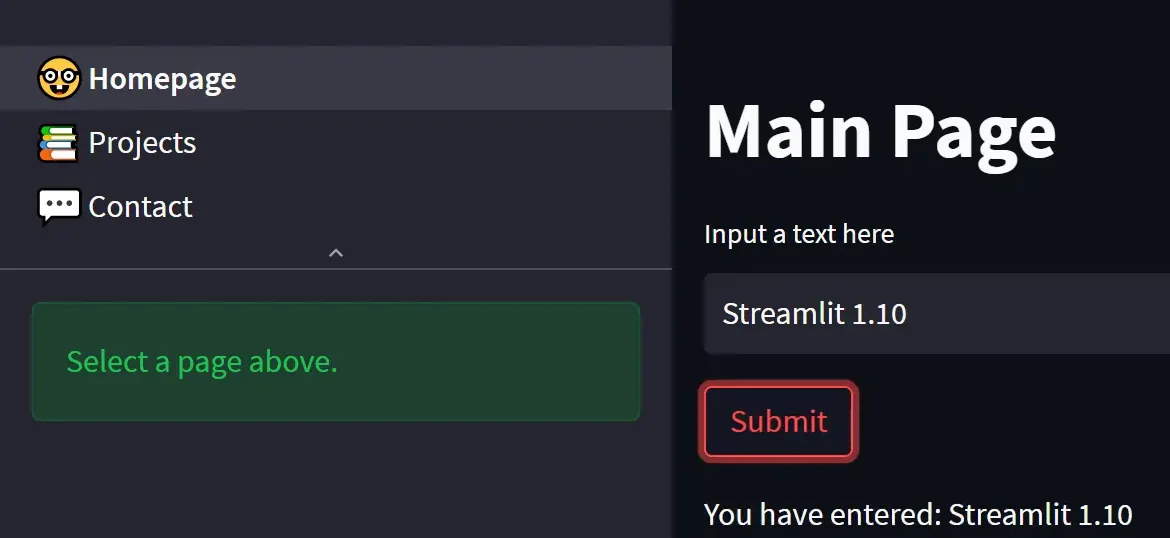
pip install streamlit --upgradeThen create the main script. In my example repository its name is Homepage.py with a number and an emoji in front; the section on page order explains both. It sets the page title and icon, shows a title and puts a hint in the sidebar:
import streamlit as st

st.set_page_config(
    page_title="Multipage App",
    page_icon="👋",
)

st.title("Main Page")
st.sidebar.success("Select a page above.")
Start the app from the folder that holds the script:
streamlit run 1_🤓_Homepage.pyAdd pages with a pages folder
Create a folder named pages next to the main script. Every Python file you save in it shows up as a new page in the sidebar, with no extra code. Streamlit has supported this since version 1.10.
A file named Projects.py inside pages only needs a title to start with:
import streamlit as st
st.title("Projects")
The layout of the example project:
1_🤓_Homepage.py
pages/
    2_📚_Projects.py
    3_💬_Contact.py
requirements.txt
The st.set_page_config call in the main script applies to that page only. Give each page its own call if it needs its own browser tab title or icon.
Page order and icons
Streamlit sorts pages alphabetically unless the file name starts with a number. Files with a number prefix come first, sorted by that number, and the prefix is not shown in the sidebar label.
Rename Projects.py to 2_Projects.py and Contact.py to 3_Contact.py, and the sidebar shows Projects before Contact. An emoji between the number and the name becomes the page icon:
1_🤓_Homepage.py
2_📚_Projects.py
3_💬_Contact.py
Files without a number prefix are listed after the numbered ones. Rerun the app after renaming files to see the new order and icons.
Share data between pages
All pages of one app share st.session_state for the current browser session. A value stored on one page can be read on every other page until the user reloads the browser tab.
On the main page, store the text input in session state when the user clicks Submit. Passing the stored value as the default keeps the text in the box when the user comes back to the page:
if "my_input" not in st.session_state:
    st.session_state["my_input"] = ""

my_input = st.text_input("Input a text here", st.session_state["my_input"])
submit = st.button("Submit")
if submit:
    st.session_state["my_input"] = my_input
    st.write("You have entered: ", my_input)
The Projects page reads the same key:
import streamlit as st


st.title("Projects")

st.write("You have entered", st.session_state["my_input"])
Projects
You have entered HelloIf someone opens the Projects page first, through a bookmark or its direct URL, the key does not exist yet and the page stops with an error. st.session_state.get("my_input", "") returns an empty string instead.
Define pages with st.navigation
Newer Streamlit versions let you define the pages in code instead of the folder. You create one st.Page per page, pass them to st.navigation, and call run(). This gives you section headings in the menu, Material icons, a free choice of file names and elements that appear on every page.
I built a portfolio app this way in a second video: an About Me page with a contact form, a sales dashboard and a chatbot. The pages live in a views folder, and streamlit_app.py wires them together:
import streamlit as st


# --- PAGE SETUP ---
about_page = st.Page(
    "views/about_me.py",
    title="About Me",
    icon=":material/account_circle:",
    default=True,
)
project_1_page = st.Page(
    "views/sales_dashboard.py",
    title="Sales Dashboard",
    icon=":material/bar_chart:",
)
project_2_page = st.Page(
    "views/chatbot.py",
    title="Chat Bot",
    icon=":material/smart_toy:",
)


# --- NAVIGATION SETUP [WITHOUT SECTIONS] ---
# pg = st.navigation(pages=[about_page, project_1_page, project_2_page])

# --- NAVIGATION SETUP [WITH SECTIONS]---
pg = st.navigation(
    {
        "Info": [about_page],
        "Projects": [project_1_page, project_2_page],
    }
)


# --- SHARED ON ALL PAGES ---
st.logo("assets/codingisfun_logo.png")
st.sidebar.markdown("Made with ❤️ by [Sven](https://youtube.com/@codingisfun)")


# --- RUN NAVIGATION ---
pg.run()
A few details worth knowing:
default=Truemarks the page that opens first.- The dictionary keys (“Info”, “Projects”) become section headings in the menu. Pass a plain list instead if you do not want sections.
- Everything after
st.navigationand beforepg.run(), such as the logo and the sidebar line, shows on every page. st.navigation(..., position="top")puts the menu in a bar across the top instead of the sidebar. My app keeps the sidebar.
As soon as the app runs st.navigation, Streamlit ignores the pages folder, so pick one approach per app. The chatbot page uses the chat elements from my Streamlit chat tutorial.
A contact form in a dialog
A decorated function opens as a modal window when you call it. The About Me page uses this for a Contact Me button that opens a form on top of the page.
The form lives in forms/contact.py. It checks the fields and posts them as JSON to a webhook URL, which a no-code tool can turn into an email or a row in a sheet:
import re

import streamlit as st
import requests  # pip install requests


WEBHOOK_URL = st.secrets["WEBHOOK_URL"]


def is_valid_email(email):
    # Basic regex pattern for email validation
    email_pattern = r"^[a-zA-Z0-9_.+-]+@[a-zA-Z0-9-]+\.[a-zA-Z0-9-.]+$"
    return re.match(email_pattern, email) is not None


def contact_form():
    with st.form("contact_form"):
        name = st.text_input("First Name")
        email = st.text_input("Email Address")
        message = st.text_area("Your Message")
        submit_button = st.form_submit_button("Submit")

    if submit_button:
        if not WEBHOOK_URL:
            st.error("Email service is not set up. Please try again later.", icon="📧")
            st.stop()

        if not name:
            st.error("Please provide your name.", icon="🧑")
            st.stop()

        if not email:
            st.error("Please provide your email address.", icon="📨")
            st.stop()

        if not is_valid_email(email):
            st.error("Please provide a valid email address.", icon="📧")
            st.stop()

        if not message:
            st.error("Please provide a message.", icon="💬")
            st.stop()

        # Prepare the data payload and send it to the specified webhook URL
        data = {"email": email, "name": name, "message": message}
        response = requests.post(WEBHOOK_URL, json=data)

        if response.status_code == 200:
            st.success("Your message has been sent successfully! 🎉", icon="🚀")
        else:
            st.error("There was an error sending your message.", icon="😨")
The About Me page wraps the form in a dialog and opens it from a button:
import streamlit as st

from forms.contact import contact_form


@st.dialog("Contact Me")
def show_contact_form():
    contact_form()


if st.button("✉️ Contact Me"):
    show_contact_form()
The repository still uses @st.experimental_dialog, the name from the video. Streamlit has since renamed it to @st.dialog, and current versions (1.50 when I checked) no longer have the old name, so the repository code stops with an AttributeError until you change that line. Connecting the webhook to Zapier, Make or Pabbly Connect is covered in my webhook guide.
Deploy the app
Streamlit Community Cloud runs an app straight from a GitHub repository. Both kinds of multipage app deploy the same way: push the code, point Community Cloud at the main script and add your secrets.
-
List the packages. Add a
requirements.txtwith everything the app imports. The portfolio app needsstreamlit,pandasfor the dashboard andrequestsfor the form. -
Keep secrets out of the code. Locally, put the webhook URL in
.streamlit/secrets.tomlasWEBHOOK_URL = "https://..."and add that file to.gitignore. -
Push to GitHub. Create a repository and push the project.
-
Create the app. Sign in to Streamlit Community Cloud, choose the repository and branch, and enter the main file:
streamlit_app.pyfor the st.navigation app, the homepage file for the pages folder app. -
Add the secrets. Paste the contents of your
secrets.tomlinto the app’s Secrets setting. Without it,st.secrets["WEBHOOK_URL"]fails as soon as the About Me page loads. -
Test every page. Open each page from the menu and send one test message through the contact form.
If you would rather host somewhere else, deploying to Render works for both kinds of app.
Limits
The pages folder is quick but fixed: one flat list in the sidebar, labels taken from file names, and no nested pages. st.navigation lifts most of that with sections, custom titles and a top menu, but it still has one level of sections.
For a horizontal menu with its own styling, the community package streamlit-option-menu is an alternative; I show it in adding a navigation menu to Streamlit. Session state lives in the browser session, so it is lost when the user reloads the tab. Anything that must survive a reload belongs in a file or a database.