
Convert Multiple TXT or CSV Files Into Excel Using Python

Hundreds of tab-separated TXT files, two per student (English and Math), become one finished Excel workbook per student. The script groups the files by student ID, reads each one with pandas, writes the results into a prepared Excel template with xlwings, and saves the workbook as the student ID followed by _Results.
The task
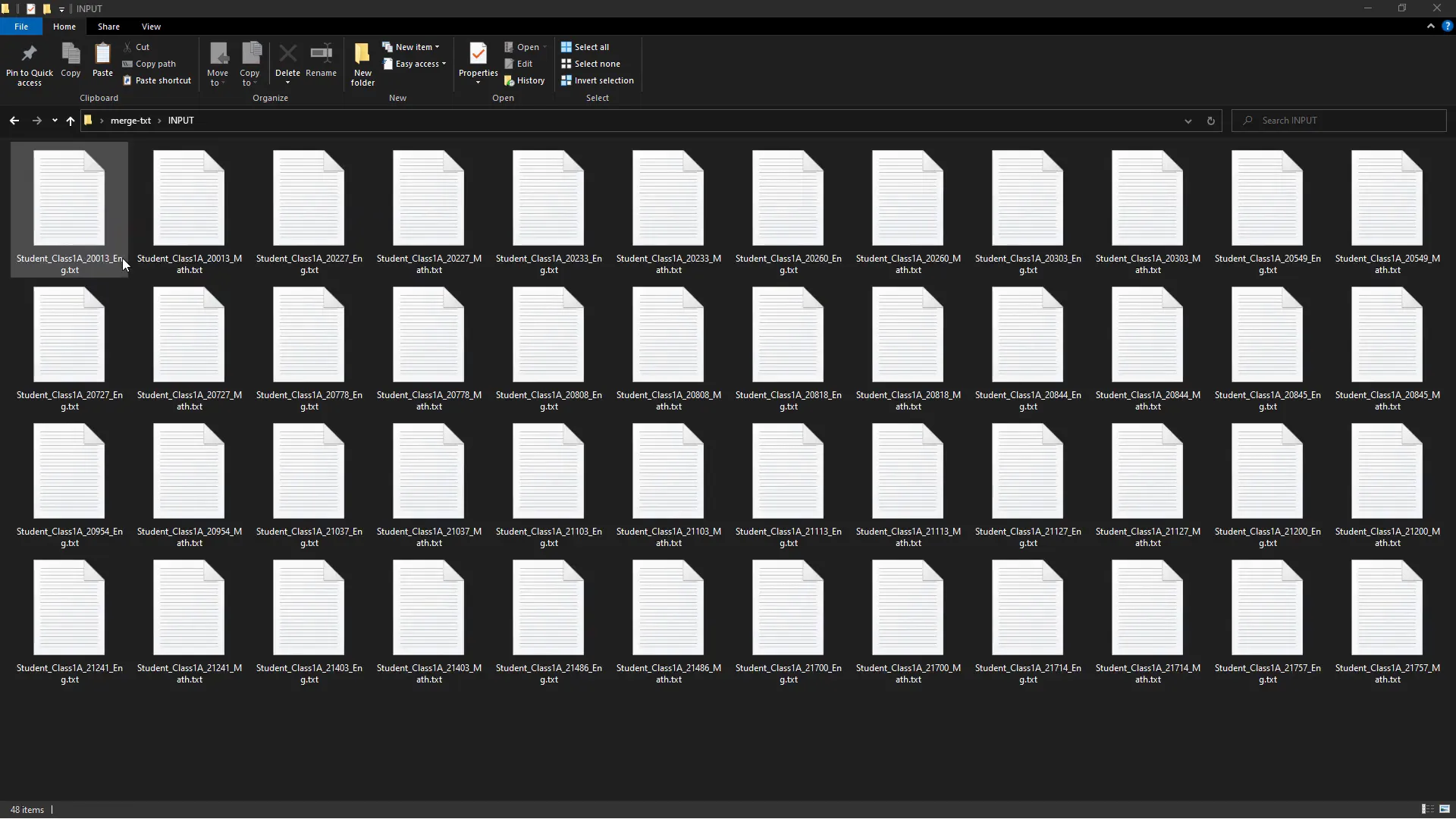
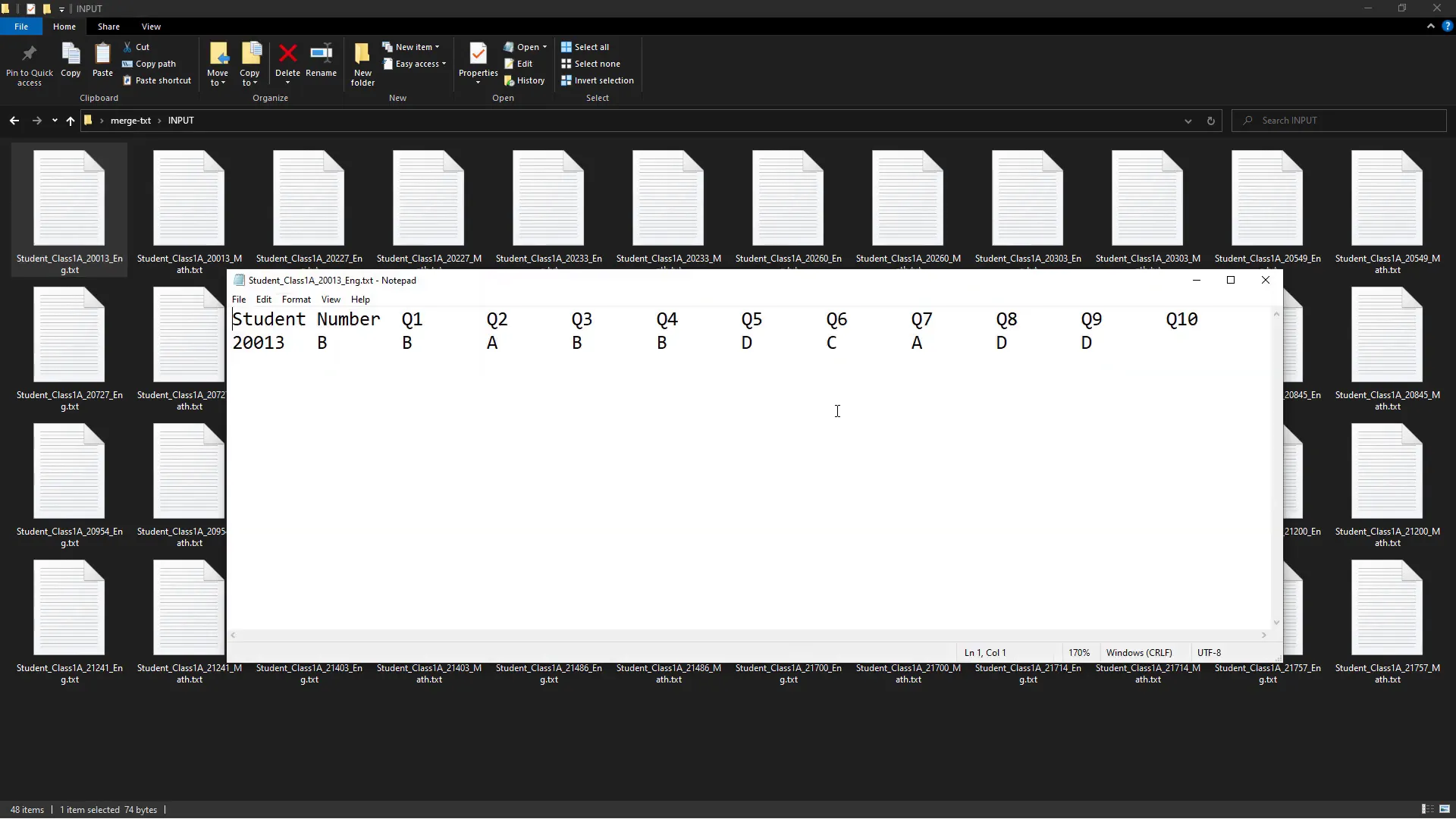
The input folder holds one text file per student and subject. Each file contains the student ID and the answers to the test questions, separated by tabs. Every student has two files, one ending in _Eng and one in _Math, and both should end up in the same workbook.
Install and set up
The script needs pandas to read the text files and xlwings to fill the Excel template. xlwings drives a real Excel installation, so this runs on Windows or Mac with Excel installed.
pip install pandas xlwingsThe first block imports the libraries and defines the paths: the folder of the script, the INPUT folder with the text files and an OUTPUT folder, which mkdir creates if it is missing. My pathlib quickstart covers these path methods.
from pathlib import Path

import pandas as pd
import xlwings as xw

# Path settings
current_dir = Path(__file__).parent if "__file__" in locals() else Path.cwd()
input_dir = current_dir / "INPUT"
output_dir = current_dir / "OUTPUT"
output_dir.mkdir(exist_ok=True, parents=True)
Group the files by student
Each file name starts with the class and student ID, for example Student_Class1A_23224_Eng.txt. The first three parts of the name form a key that both files of a student share, and a set keeps each key once.
files = list(input_dir.rglob("*.txt"))
excel_template = current_dir / "Test_template.xlsm"

# The key of Student_Class1A_23224_Eng.txt is Student_Class1A_23224
keys = set("_".join(file.stem.split("_")[:3]) for file in files)
Write one workbook per student
The script opens a hidden Excel instance and, for each key, a fresh copy of the template. It reads the student’s two files with pd.read_csv(file, sep="\t"), writes the English results to cell A8 of the Test_Eng sheet and the Math results to A8 of Test_Math, and saves the workbook as the key followed by _Results.xlsm.
# Open the Excel instance in the background
with xw.App(visible=False) as app:
    # For each key open the Excel template file
    for key in keys:
        wb = app.books.open(excel_template)
        # Iterate over the txt-files in the input dir
        # If the file name matches with the key, insert the content in the Excel template
        for file in files:
            if file.stem.startswith(key):
                if file.stem.endswith("_Eng"):
                    df_eng = pd.read_csv(file, sep="\t")
                    wb.sheets("Test_Eng").range("A8").options(index=False).value = df_eng
                if file.stem.endswith("_Math"):
                    df_math = pd.read_csv(file, sep="\t")
                    wb.sheets("Test_Math").range("A8").options(index=False).value = df_math
        wb.save(output_dir / f"{key}_Results.xlsm")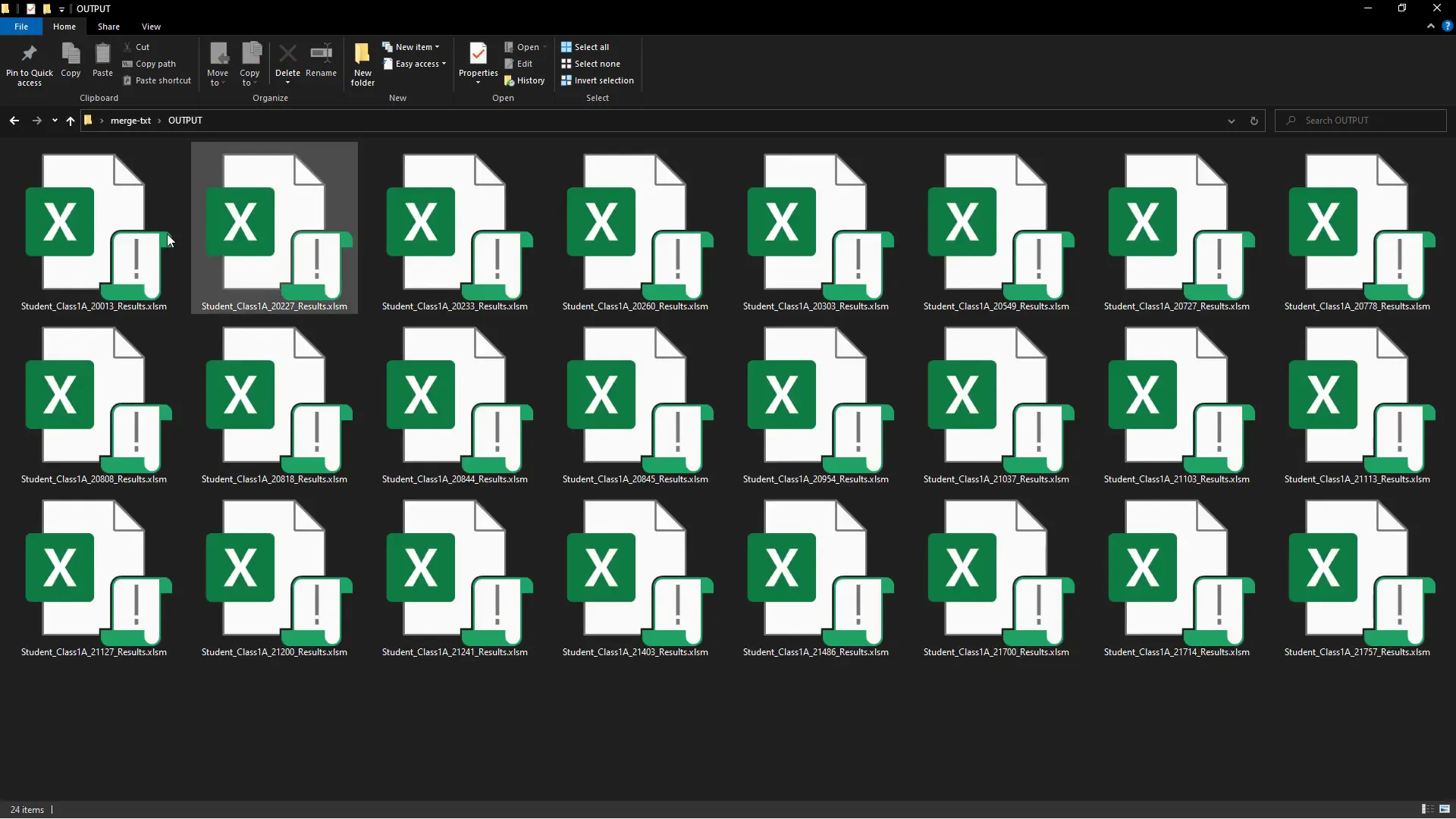
Limits and variations
The script expects the naming pattern above. A file whose name does not end in _Eng or _Math is skipped, and a student with only one of the two files gets a workbook with one sheet left empty.
- Many students: every workbook stays open in the hidden Excel instance until the script ends. For a few hundred students, adding
wb.close()afterwb.save(...)keeps Excel’s memory use down. - Comma-separated files: change
sep="\t"tosep=",", or drop it, since a comma is the default. - One table instead of one workbook per file:
pd.read_csvin a loop pluspd.concatis enough, the same pattern I use to loop through folders and merge every file. - The files are already Excel workbooks: see how to combine all Excel files in a folder into one workbook.