
Build and Share Streamlit Apps Without Installing Python (PyCafe)
PyCafe runs Streamlit apps entirely in the browser, so you can build and share one on a locked-down work machine with no Python installed. Projects and finished apps each get their own link, and both embed into WordPress or Notion.
The editor
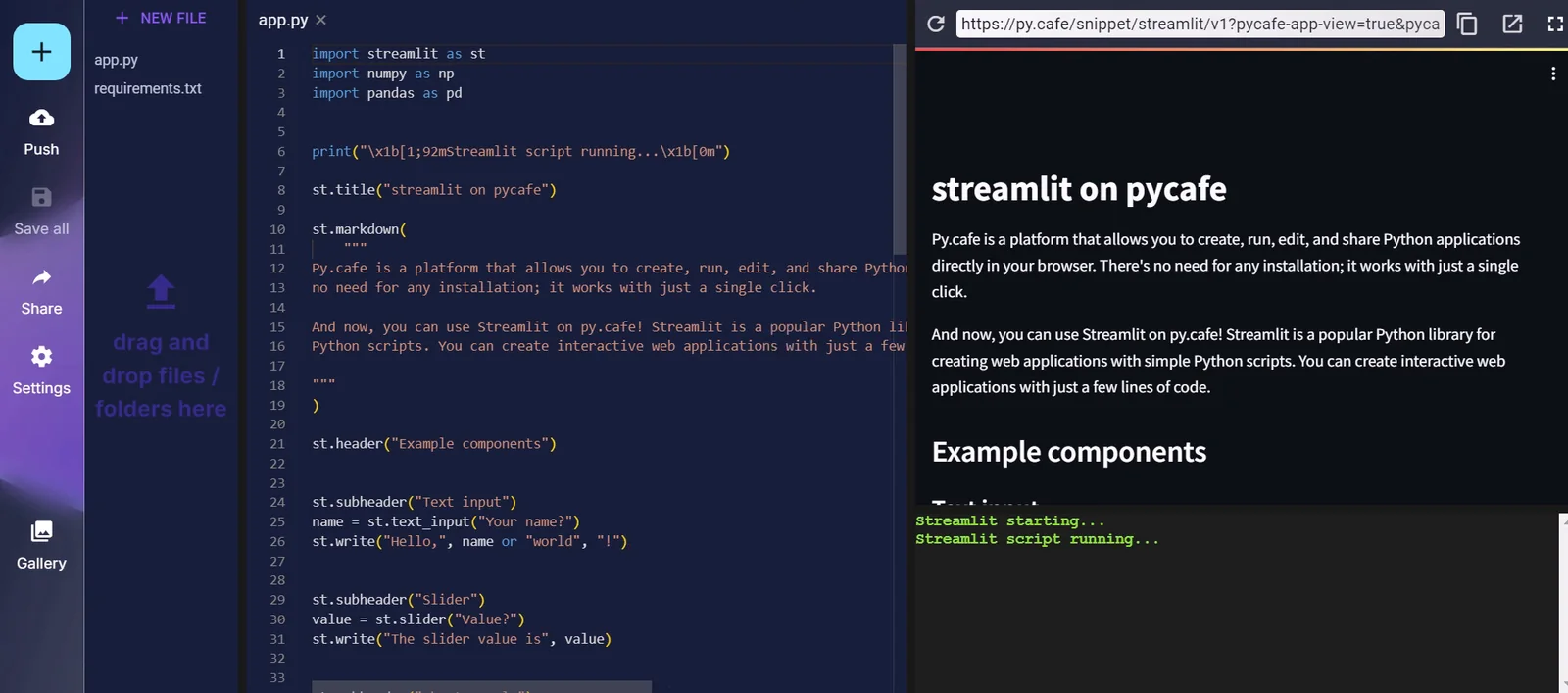
PyCafe is a browser editor for Streamlit, Dash and other Python apps. After you sign up for a free account and create a Streamlit project, the screen has three parts: the file list on the left, the code editor in the middle and the running app on the right.
The app runs with WebAssembly (Pyodide) in your browser, not on a server. Save the code and the preview on the right shows the change. Because every visitor runs the app in their own browser, there is no server to set up and nothing to scale when more people use it.
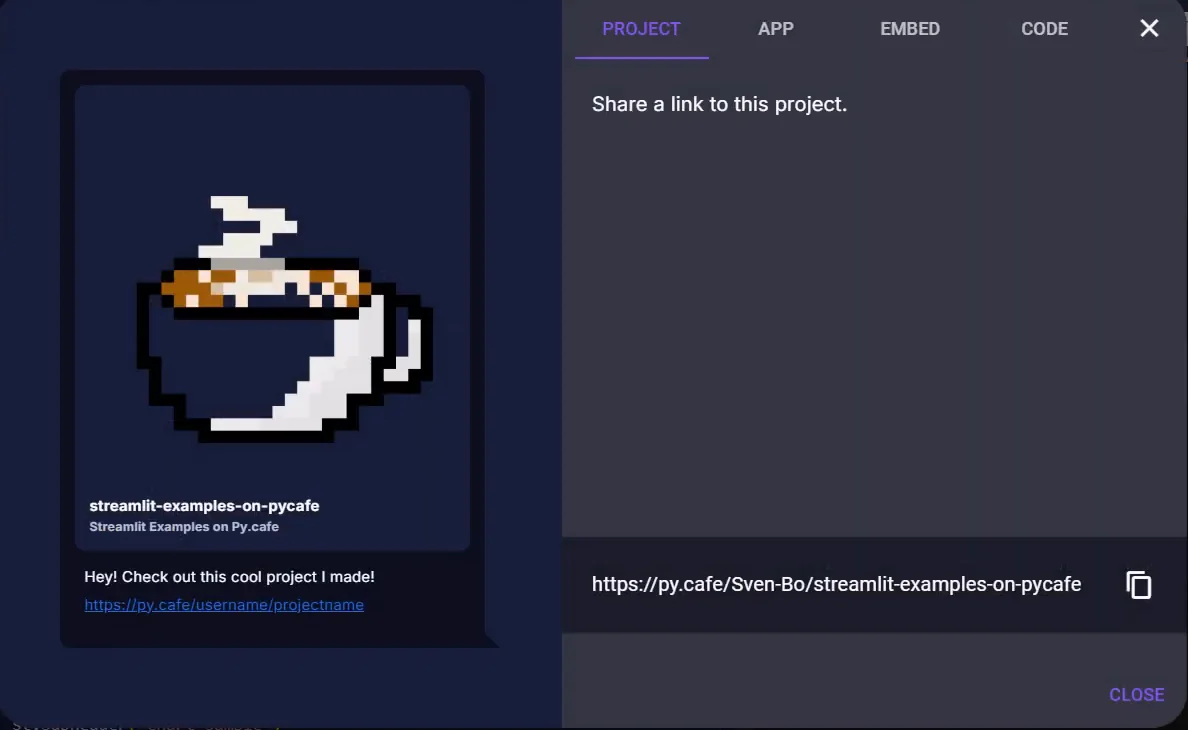
Share the project or the app
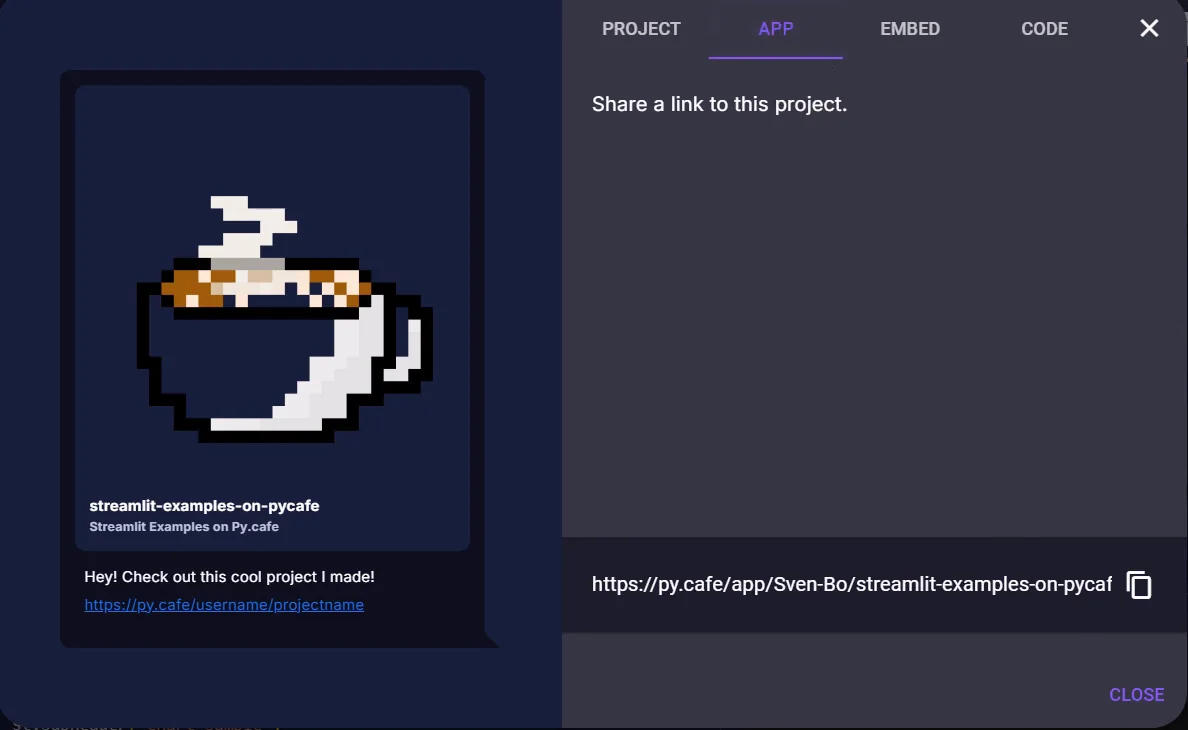
The share dialog has two links. The project link opens the editor with your code, and the app link opens only the running app. Pick the project link for people who should see the code, and the app link for people who should just use the tool.
Someone who opens the project link sees the same editor as you and can change the code, but their changes are not saved to your project. To keep them, they have to save the project under their own account.
The app link contains /app/ in the URL. It opens the running app with a small PyCafe banner at the top, from which visitors can still open the editor.
Embed the app
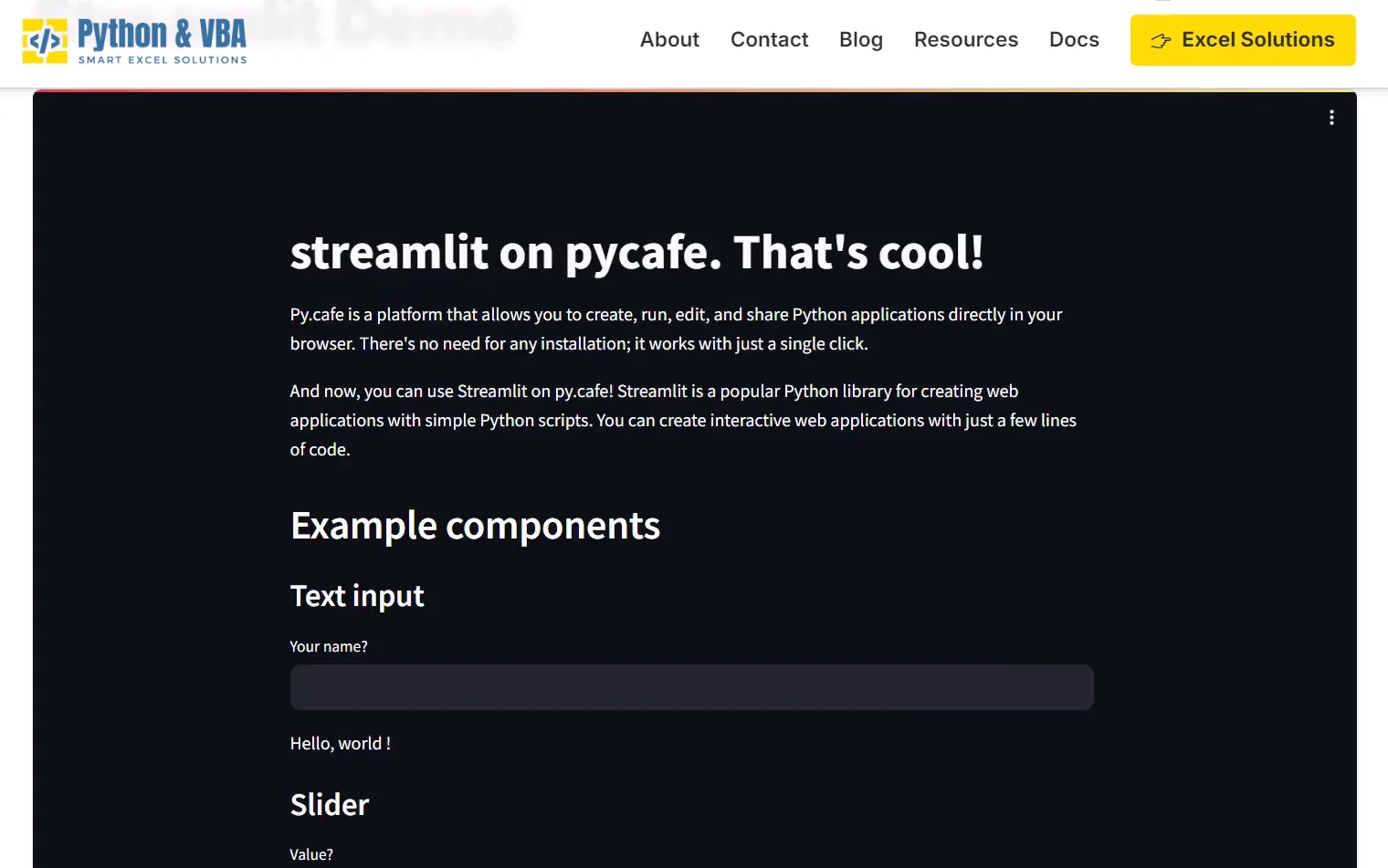
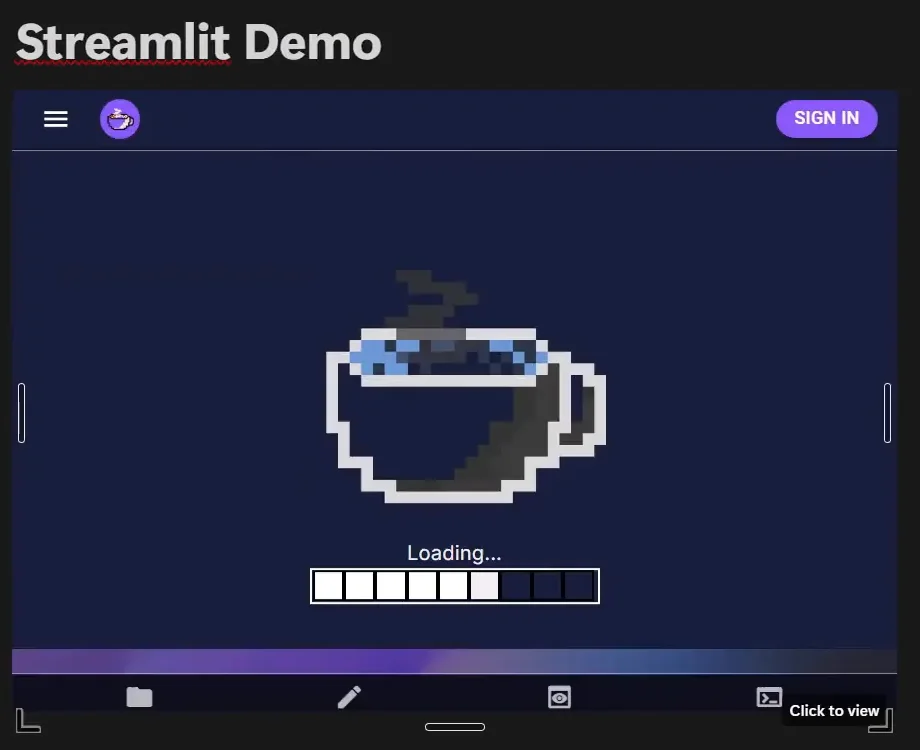
A PyCafe app can live inside another page. On a website you paste an iframe with the app link into an HTML block; in Notion you paste the app link into an embed block. The app stays fully interactive in both.
WordPress
Add a Custom HTML block, paste an iframe whose src is the app link, and set the height so the app fits without an inner scroll bar.
Notion
Type /embed, paste the app link and resize the block. No iframe code is needed.
Apps on Streamlit Community Cloud
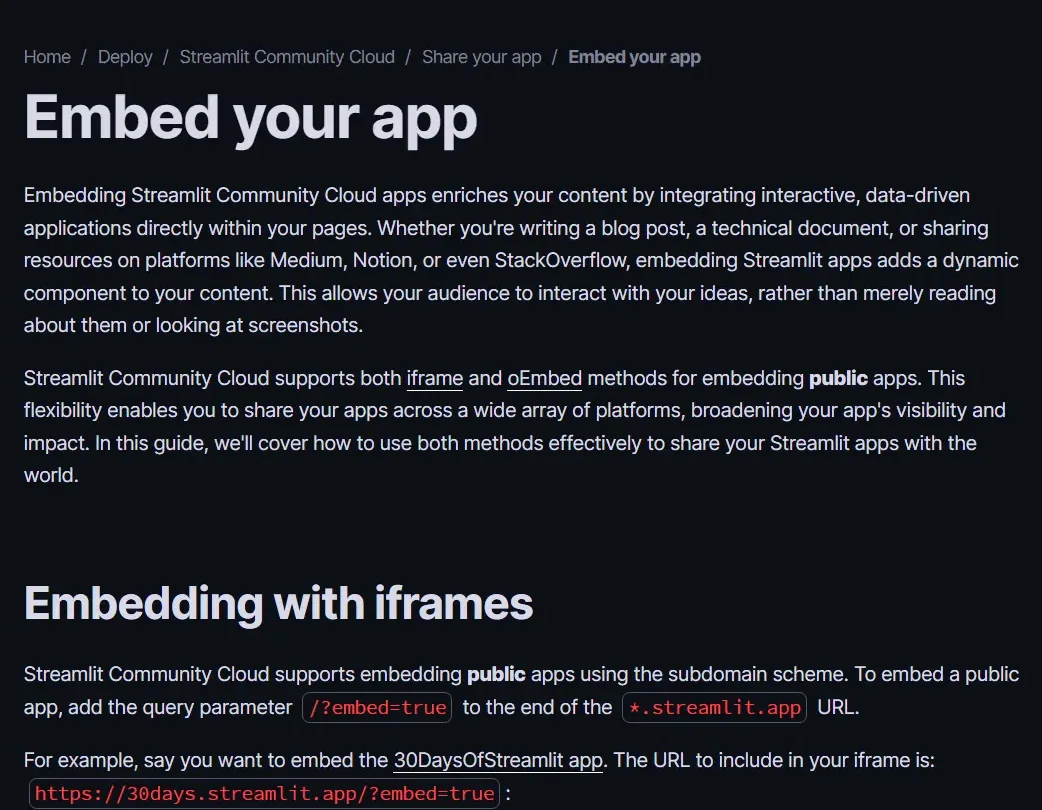
Embedding is not limited to PyCafe. An app deployed to Streamlit Community Cloud can be embedded the same way, with an iframe or through oEmbed, as the Streamlit documentation describes.
Limits
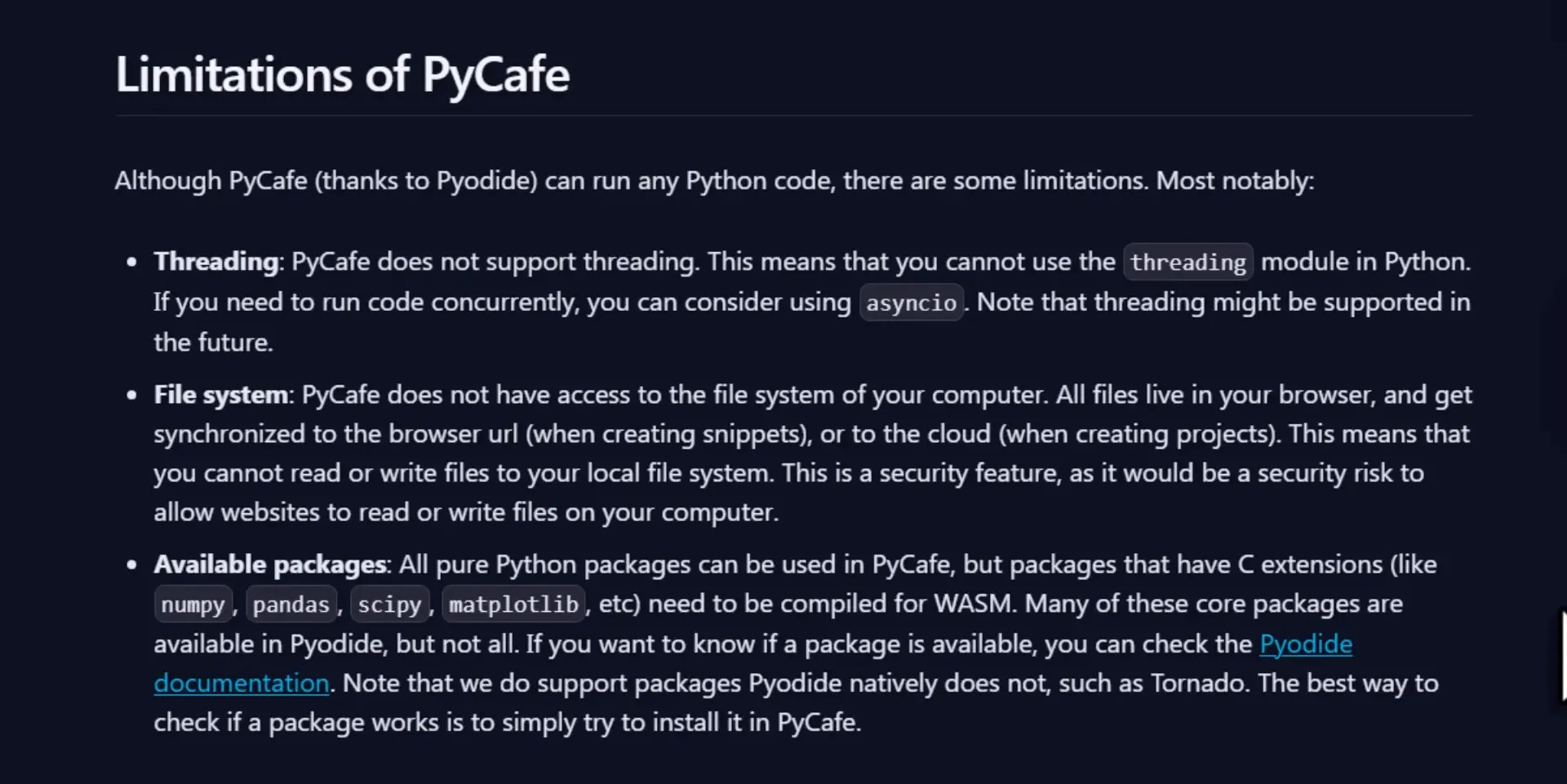
Running in the browser comes with limits. PyCafe apps cannot use threading, cannot read files on the visitor’s computer, and can only use packages that work in Pyodide. Most popular data packages do, but check before you plan an app around a less common one.
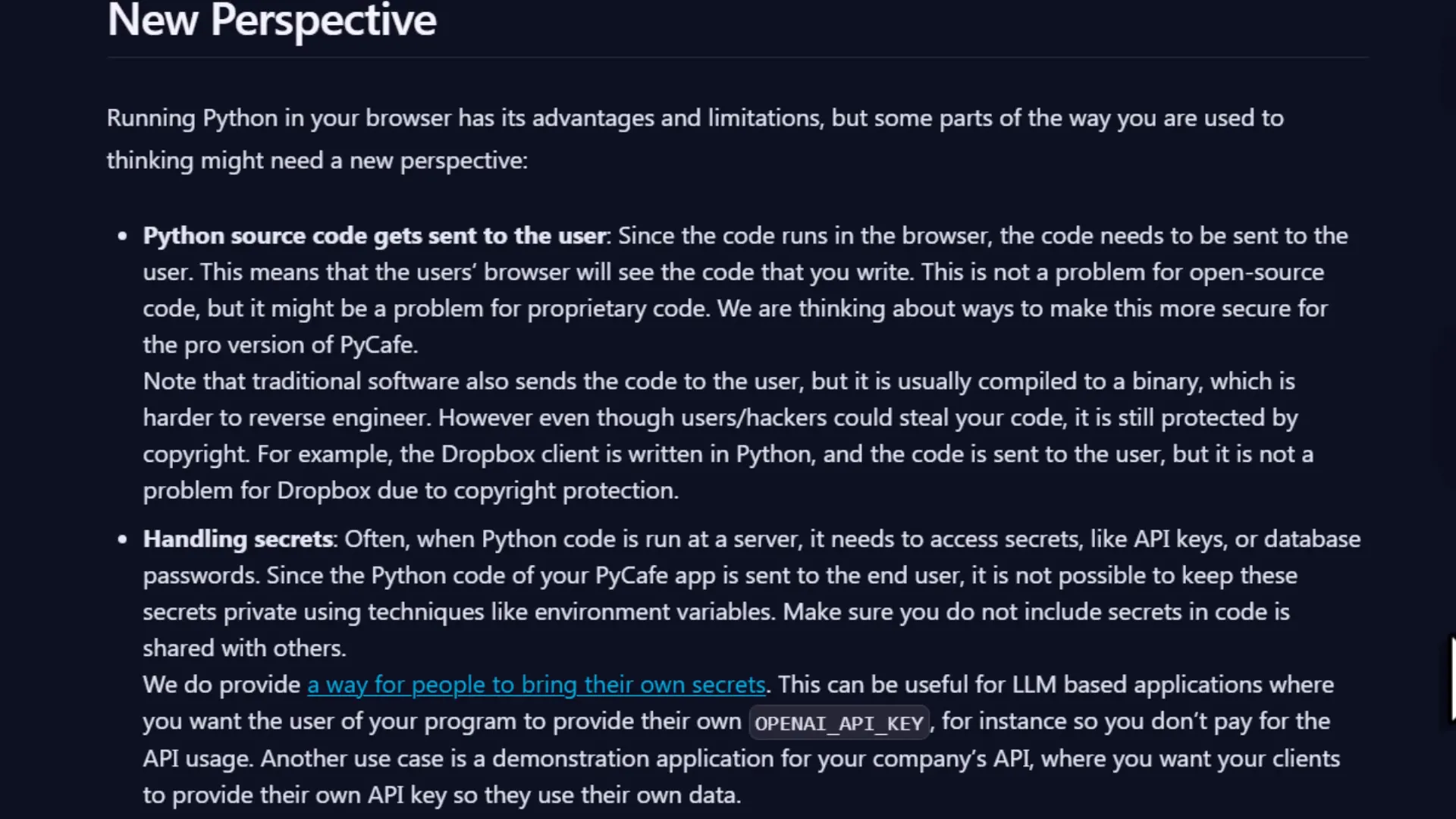
The source code is sent to every visitor’s browser, so anyone can read it. That is fine for a demo or a teaching app, and a reason to keep anything secret out of the code.
API keys and passwords
Never put an API key or a database password into a PyCafe app, because every visitor receives the code. For a service like OpenAI, let each user paste their own key into an input field. For data, use a database such as Supabase and give the public key read-only access.
Free and paid plans
The free plan covers unlimited public projects, app links and embeds, with file hosting up to 10 MB. Private projects are planned for a Pro plan, which the pricing page still lists as coming soon (checked November 2026). An Enterprise plan runs PyCafe on your own infrastructure.

When the app needs its own server, for example to keep secrets or run on a schedule, look at hosting the app on Render or running Python scripts online instead.