
Skip to content

Categorize Excel rows by meaning, not just keywords.

Select your rows and your own category list, like your chart of accounts. The AI gives every row one of your categories, or Other when none fits, never a made‑up one.

No signup, no card. Excel on Windows, Mac and the web.

Reviewed by Microsoft Listed on Microsoft Marketplace
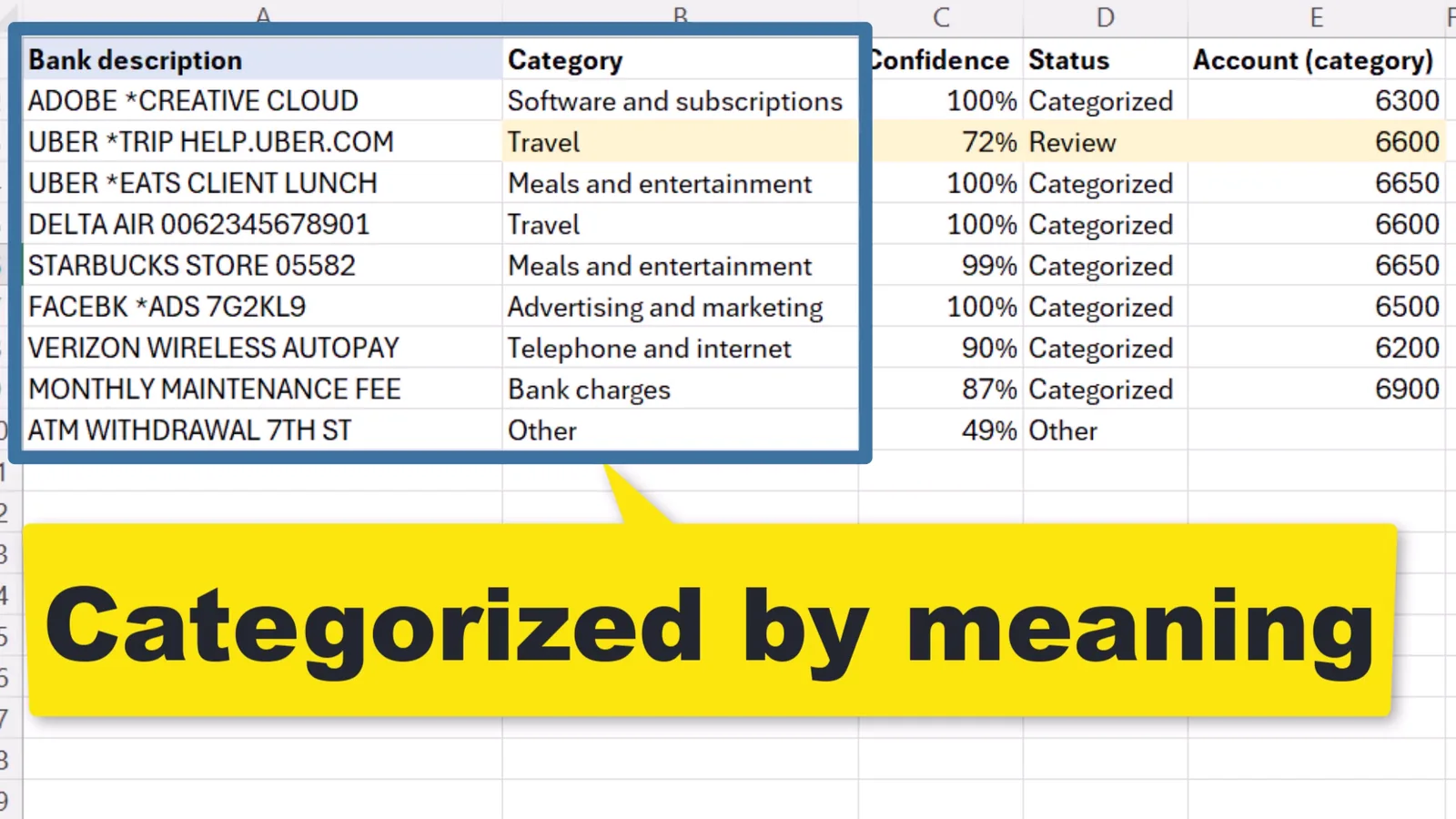
Your bank lines, categorized by your accounts

Nine card payments from a bank export, a chart of ten accounts and one question: which P&L account should each line be booked to? The AI reads each description and picks the account, or Other when none fits.
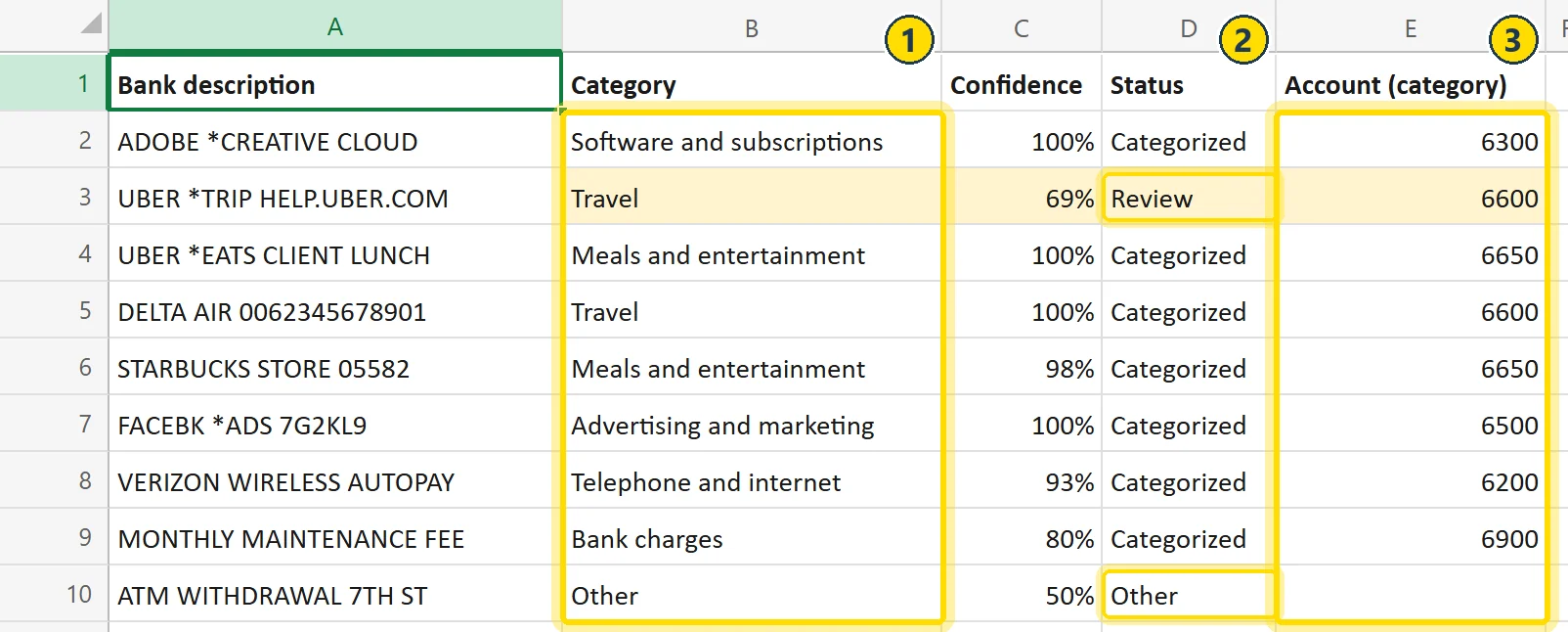
Nine bank lines in Excel with the results AI Categorizer wrote next to them. Column B, Category, marked 1: Software and subscriptions for ADOBE *CREATIVE CLOUD, Travel for UBER *TRIP, Meals and entertainment for UBER *EATS CLIENT LUNCH, Travel for DELTA AIR, Meals and entertainment for STARBUCKS, Advertising and marketing for FACEBK *ADS, Telephone and internet for VERIZON WIRELESS, Bank charges for the monthly maintenance fee, and Other for the ATM withdrawal. Column D, Status, marked 2: Categorized, Review on UBER *TRIP at 69%, and Other on the ATM withdrawal. Column E, marked 3: the account number from the chart, such as 6300 and 6650.
  1. Only your accountsEvery line gets one of your ten accounts or Other. The Uber Eats lunch is Meals, the Uber trip is Travel, and the cash withdrawal is no P&L expense, so it is Other.
  2. Review where it is unsureRows below 80% confidence are marked Review, and a row with no fitting account is marked Other, so you know which two lines to check.
  3. Account number copiedAny column of your list comes back next to each row, here the account number.

Only the descriptions and your category names are sent. Amounts, dates and the account numbers stay in your workbook.

How to use it

Another example: customer comments sorted into your own topics. Select the rows, select the categories, check the cost, run.

Select the rows to sort

Select your rows, here A1:B9, and click Use selection as rows. The pane names the range it picked up. Leave only the text column ticked, here the comment.
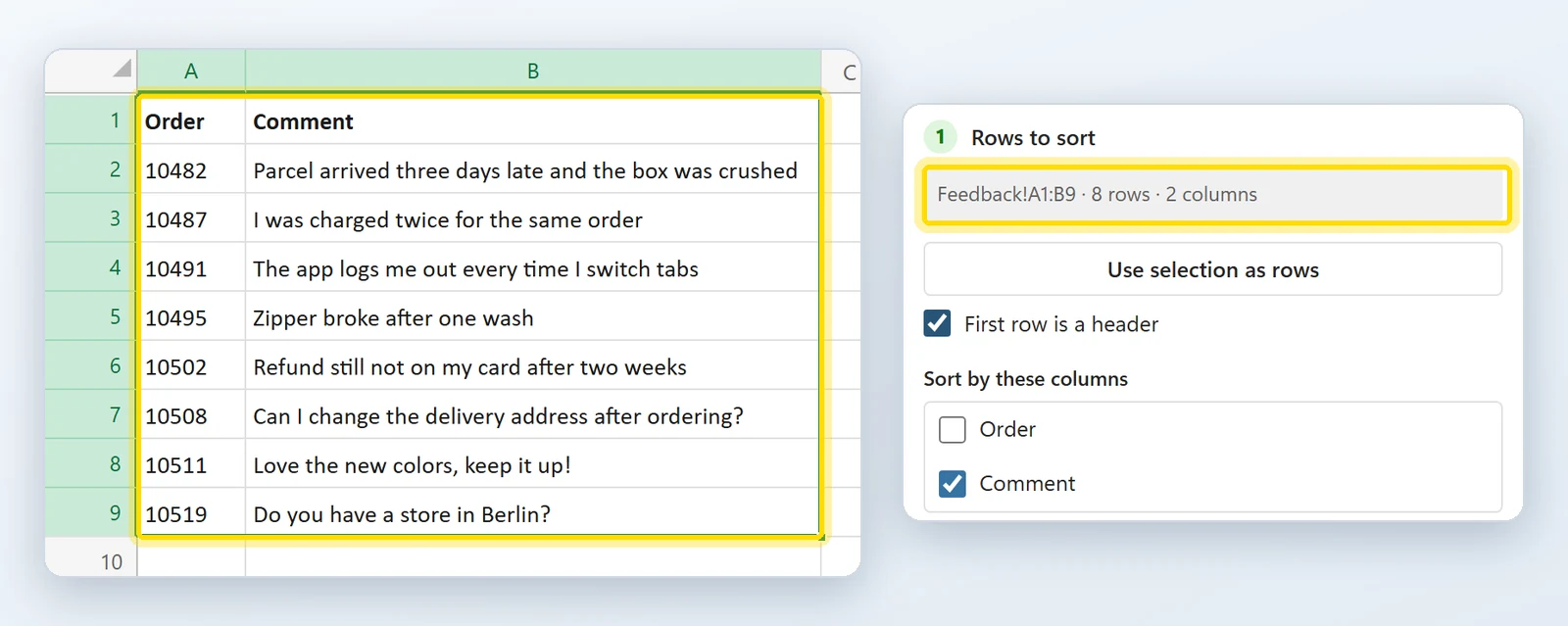
Eight customer comments with their order numbers selected as A1:B9, ringed, next to the Rows to sort card in the pane, which reads Feedback!A1:B9, 8 rows, 2 columns, also ringed. Under Sort by these columns only Comment is ticked.

Select your categories

Select your category list, H1:I6, and click Use selection as categories. A short description next to each name helps where two are close. You can also type the categories in the pane.
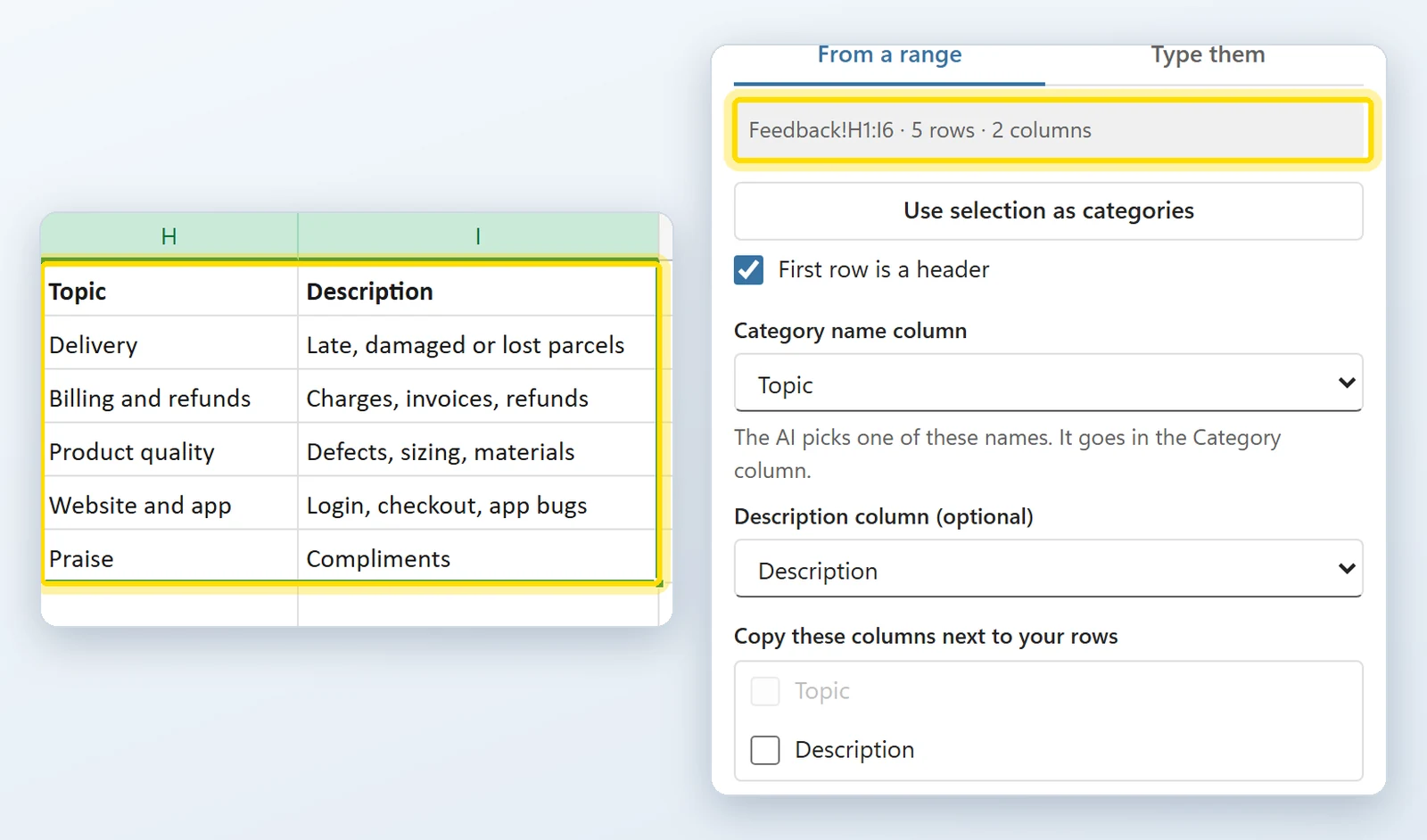
Five topics with descriptions selected as H1:I6, ringed: Delivery, Billing and refunds, Product quality, Website and app, and Praise. Next to it the Categories card reads Feedback!H1:I6, 5 rows, 2 columns, ringed, with Topic as the category name column and Description as the description column.

Check the cost, then run

Click Check credits and run: the pane shows how many credits the run uses, and nothing is sent until you confirm. The results land in new columns next to your rows. The question about a store in Berlin fits no topic, so it gets Other.
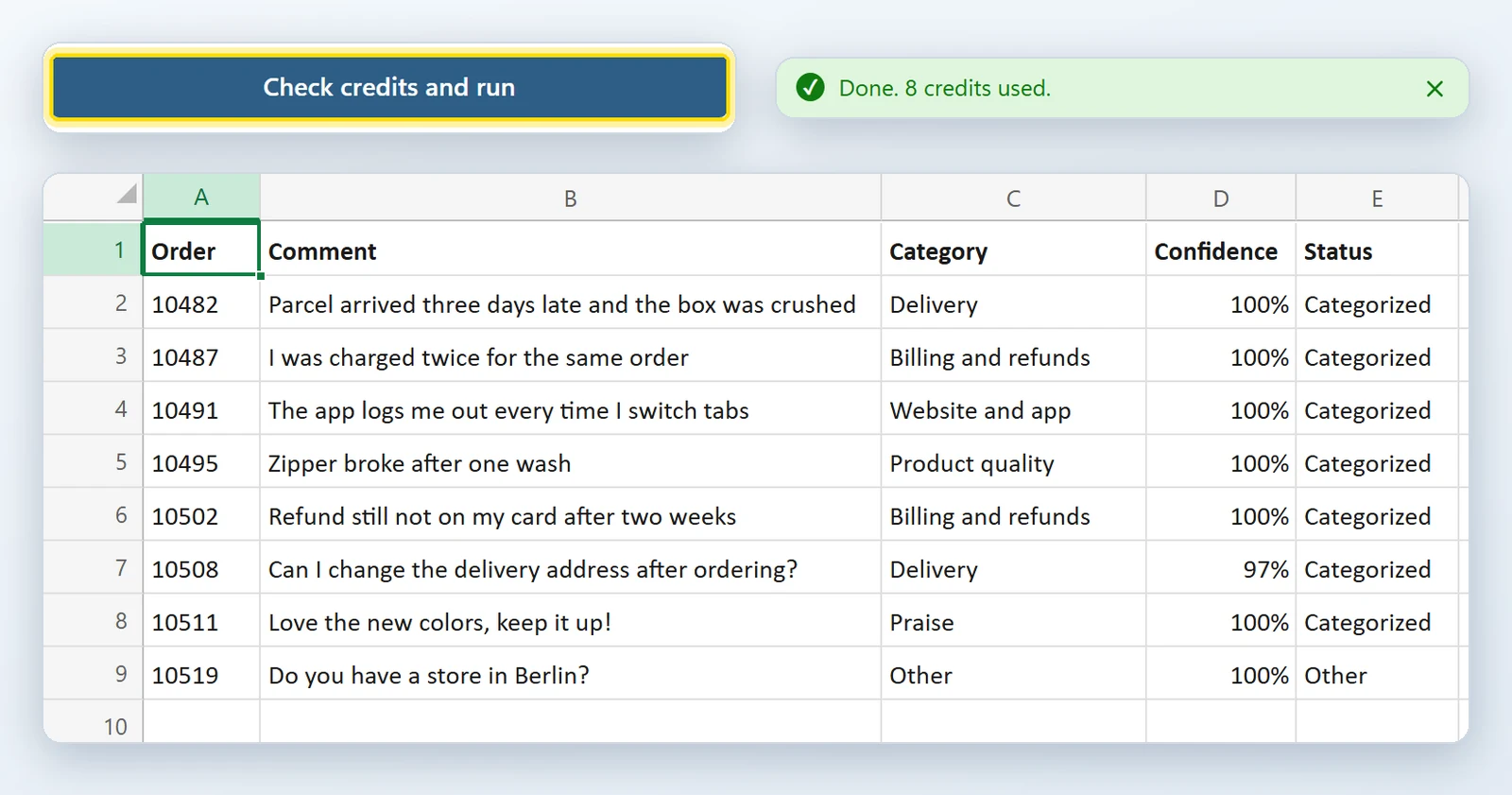
The Check credits and run button, ringed, and the message Done. 8 credits used. Below, the comments with new Category, Confidence and Status columns: Delivery, Billing and refunds, Website and app, Product quality, Billing and refunds, Delivery and Praise, all Categorized at 97 to 100%, and Other for Do you have a store in Berlin?

Installed in about a minute

Straight from Microsoft's add-in store, inside Excel. No installer file, no macros to enable, and 100 free credits waiting when you open it.

  1. 1In Excel, go to Home → Add-ins → More Add-ins.
  2. 2On the Store tab, search for AI Categorizer by Bosau Digital.
  3. 3Click Add, open it from the Home tab, and click Insert sample or select your first rows.
Try it free with 100 credits No signup, no card.
Reviewed by Microsoft AI Categorizer passed Microsoft's review before it went on Microsoft Marketplace: Microsoft's own validation team tested it in Excel on Windows, Mac and the web.

Depending on your Excel version, look under Insert → Get Add-ins instead.

  • Windows, Mac and the web
  • No macro warnings
  • Repeated rows are free
  • Only new result columns are written

Pay per row. Credits never expire.

One credit is one row the AI answers. Repeats, filled rows and blank rows are free, and the estimate shows the credits before every run. No subscription.

Try it free with 100 credits on every install, no signup

Credit pack
Starter
$9
One-time payment · credits never expire
  • 10,000 credits
  • Every feature included
  • Repeated rows never use credits
  • Adds to the credits you already have
  • Excel on Windows, Mac and the web
  • Email support, usually within 24 hours
Buy the Starter pack
Credit pack
Standard
$29
One-time payment · credits never expire
  • 50,000 credits
  • Every feature included
  • Repeated rows never use credits
  • Adds to the credits you already have
  • Excel on Windows, Mac and the web
  • Email support, usually within 24 hours
Buy the Standard pack
Credit pack
Pro
$79
One-time payment · credits never expire
  • 250,000 credits
  • Every feature included
  • Repeated rows never use credits
  • Adds to the credits you already have
  • Excel on Windows, Mac and the web
  • Email support, usually within 24 hours
Buy the Pro pack
  • Excel on Windows
  • Excel on Mac
  • Excel on the web

Frequently asked questions

Each row is sent with only the columns you ticked, together with your category names, their descriptions and your optional question. A model from TypeSafe AI picks one of your categories, or Other when nothing fits, and gives a confidence. It can only choose from your list, so it cannot invent a category. Repeated rows are answered once and cost nothing. Answers below your threshold (80% unless you change it) are marked Review, and the results go into new columns next to your rows: Category, Confidence, Status and any columns you chose to copy, such as the account number.
Often, yes. It is free and exact for the words you list. It stops at every new wording, and the table needs upkeep. AI Categorizer reads the whole line and only answers with your categories or Other. Many people keep their table for the clear cases and send the rest.
No. It does not use ChatGPT or any chatbot, and your rows are not sent to OpenAI. The model chooses one of your categories or Other and gives a confidence; it does not write text.
It cannot write text. For each row it picks one of your categories or Other, nothing else. It can pick the wrong one of yours, so every answer has a confidence, anything below your threshold is marked Review, and it only writes to new columns.
None of your categories fits. It is an answer, not an error, and it uses its credit like any other answer. Many Other rows usually mean a category is missing from your list.
No tool is right on every list, which is why each row has a confidence and a Review status. Judge it on the bank lines above, where the rows it is unsure about are marked Review, or on your own rows with the free credits. I do not publish an accuracy score I graded myself. The sample file and its answer key are in the documentation.
One credit is one AI answer for one row. Repeated rows, rows that already have a result and blank rows cost nothing and are never sent. Before every run the add-in shows how many credits it will use, and nothing is sent until you confirm.
No. Credits from a pack never expire, and there is no subscription. If you buy another pack, the add-in keeps both keys and uses up the older pack first.
Credit packs are non-refundable once they are delivered. That is why every install comes with 100 free credits: they are the trial, so you can see the results on your own data before you buy. This does not affect your statutory rights as a consumer. The details are in the terms.
Only the columns you tick (usually just the description), your category names, their descriptions and your question are sent, to Cloudflare and TypeSafe AI only. Your cell data is not stored, and it is not used to train AI models. If your policy allows no outside service, keep using formulas. The privacy policy has the details.
Excel on Windows, Excel on Mac and Excel on the web. You install it once from Microsoft's add-in store inside Excel.
Up to 50,000 rows per run. For a longer list, run it in parts: rows that already have a result are skipped unless you choose Redo all rows, and repeated rows are sent only once. A big list takes a while, so the add-in shows its progress and the time left, and if you cancel, everything finished so far stays in the sheet.
No. Install the add-in and your 100 free credits are there, with no signup and no card. When you buy a pack, the license key arrives by email; paste it into the add-in and its credits are added to what you have.
Sven Bosau

Still have a question?

I’m Sven, the developer, and I usually reply within a day.

Please enter your first name.

Please enter a valid email address.

Please write a little more (at least 10 characters).

Your email is only used to reply. No newsletter.

Need to match two lists instead, such as bank payees to your vendor list? That is AI Fuzzy Match.

Try it on this month's export

Select the rows and your categories, check the estimate, and see which rows it sorts, which it flags and which fit none of your categories. The first 100 credits are free, no signup.

Try it free with 100 credits

Desktop apps, Excel add-ins, and free tools for everyday work.

Stay Updated

Get new tool updates and exclusive deals.