
Create Custom Excel Formulas Using Python
Introduction to Creating Custom Excel Formuals
Imagine you are staring at a mess of raw sales data and you wish Excel could do something it simply does not offer out of the box. You could wrestle with nested LAMBDA functions or rewrite everything in VBA, or you could create custom Excel formulas using Python and make your spreadsheet feel like a tiny data lab. In this post I will show you practical examples, installation steps, and tips to get started quickly.
Why use Custom Excel Formulas Using Python?
At the core, this approach brings Python directly into Excel so you can write functions that are simpler to maintain and more powerful than equivalent LAMBDA or VBA solutions. You can use familiar data tools like pandas for grouping and aggregation, regular expressions for text extraction, or even call OpenAI for AI-powered summaries. Best of all, you do not need Python installed locally because the add-in runs Python in your browser via Pyodide. That means your data stays on your machine while you get full Python capabilities (neat, right?).
Examples that make the point
1. Sales by region
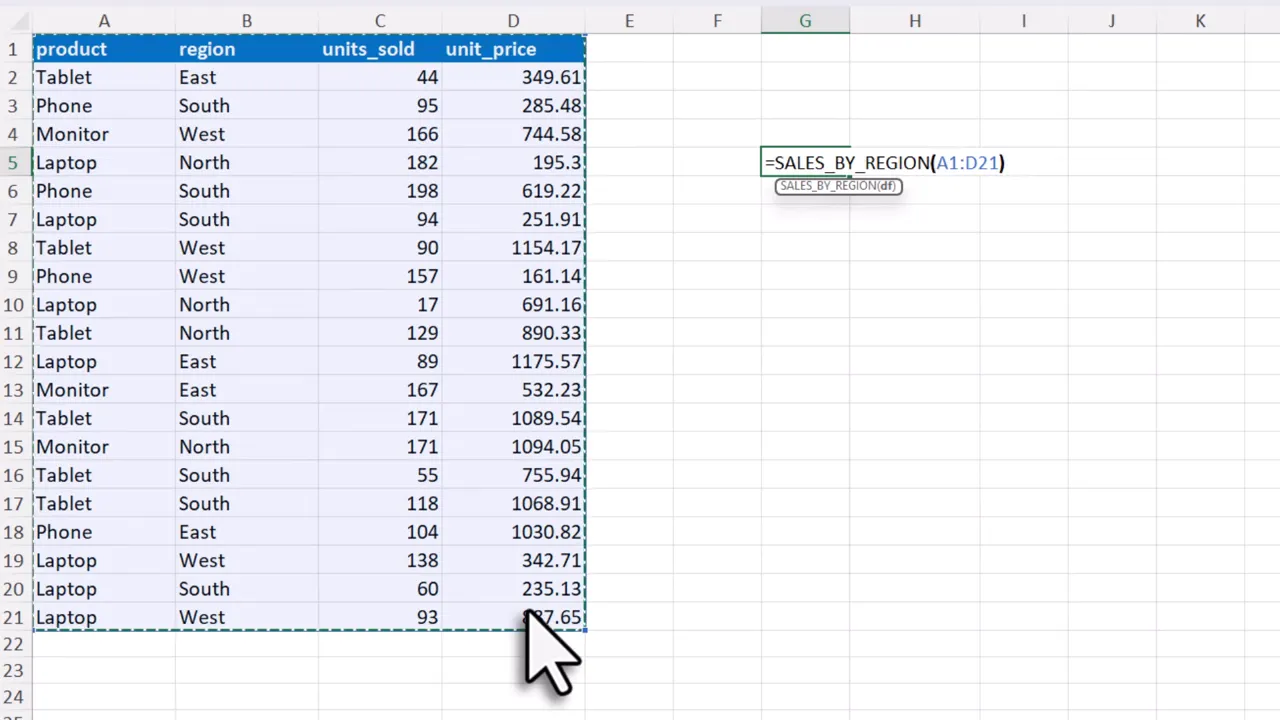
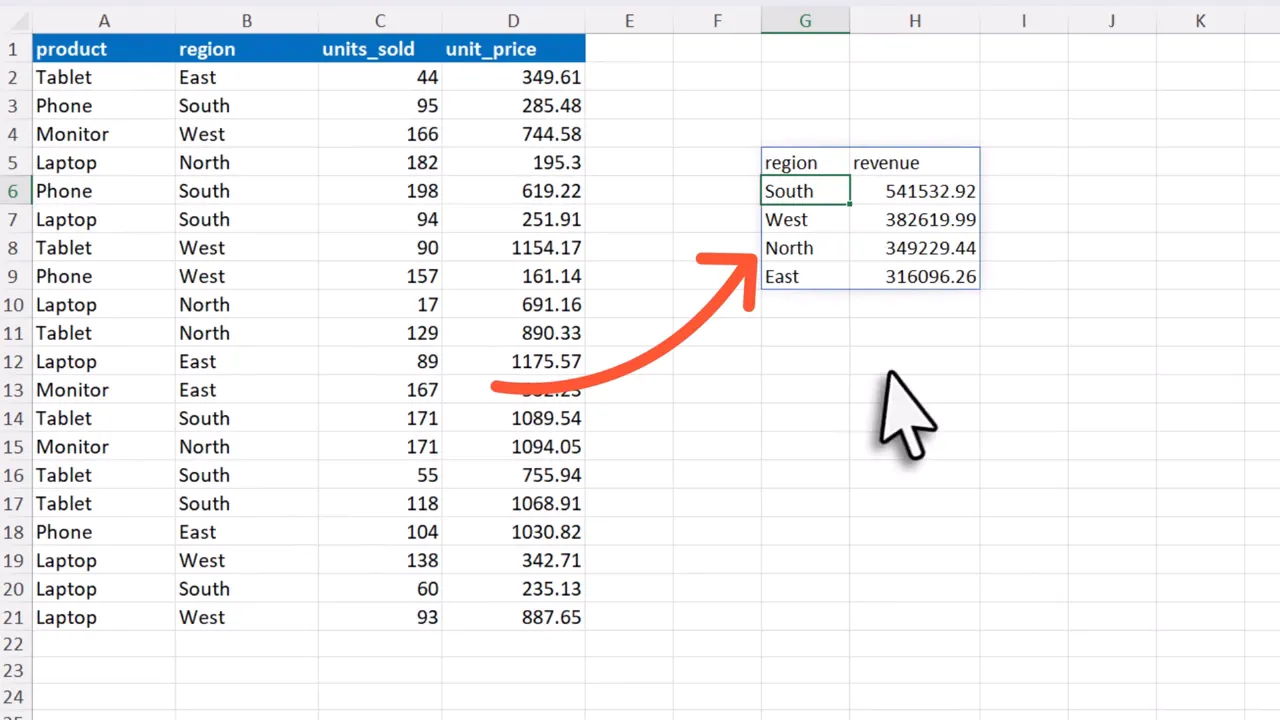
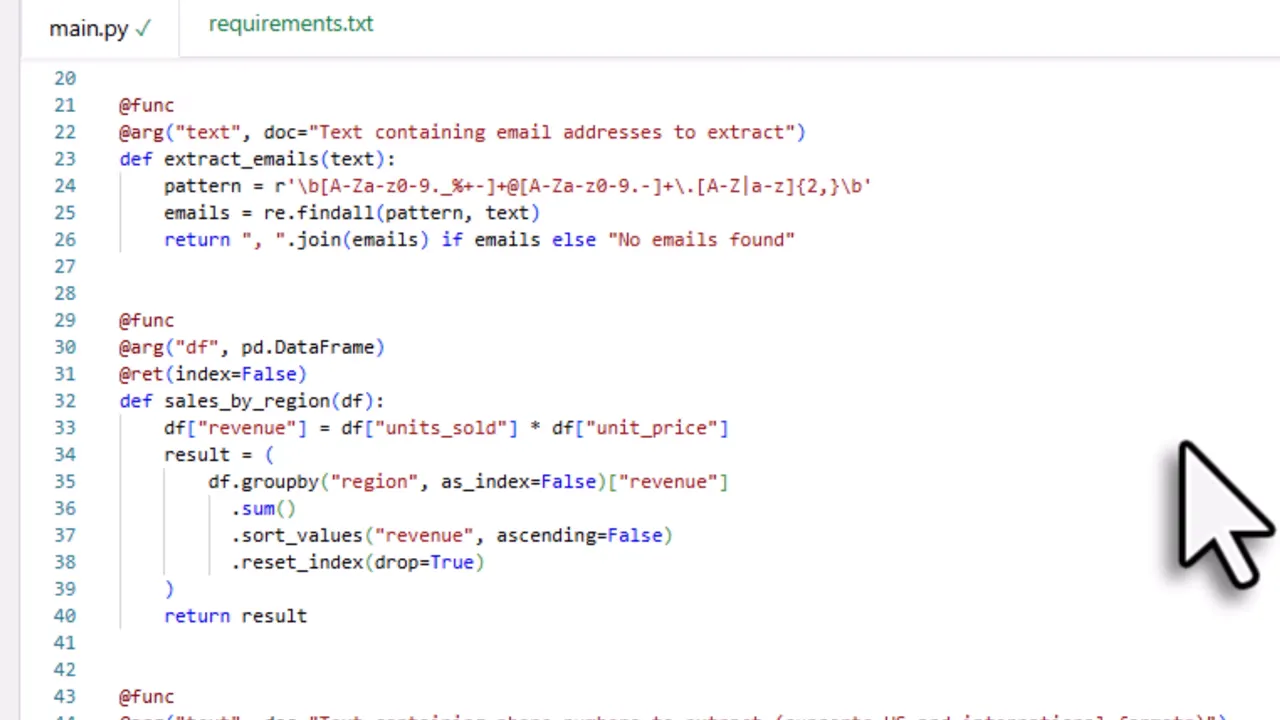
Use a formula called SalesByRegion that accepts a range as input. Behind the scenes it multiplies units by unit price to compute revenue and then groups totals by region. Instead of manual pivoting, one formula returns the summarized result.
2. Extract emails from messy text
Create a function called ExtractEmails that accepts a text cell and returns all matched email addresses joined by a comma. This uses Python’s built in regular expression module so you do not need any extra packages. Because it behaves like any Excel formula, you can drag it down to apply it to other rows.

3. Extract phone numbers
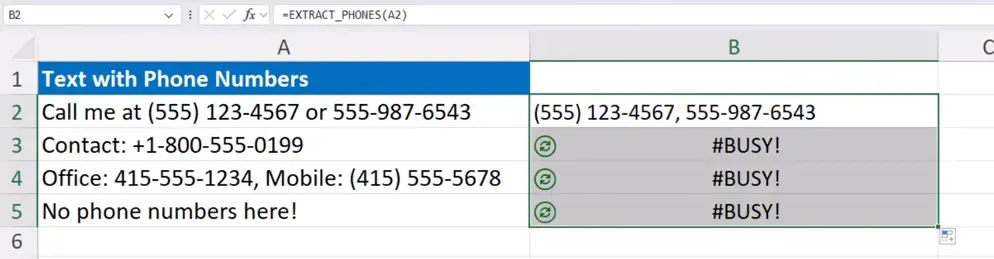
Same approach as emails. Define a phone number pattern, search the text, and return either the matches or a custom message if none are found. Simple, fast, and robust compared to long nested Excel formulas.
4. Add AI with an Ask Prompt formula
Want a one sentence explanation of Python? Use an AIAskPrompt formula to pass text to OpenAI and return a short answer directly into a cell. This is basic but useful for quick clarifications or generating insights without leaving Excel.
<img style="object-fit: cover;" src="https://pythonandvba.com/images/blog/create-custom-excel-formulas-using-python_extra.webp” alt="xlwings Lite editor inside Excel with a sample Python function adding hello to a name” width=”100%” />
5. Analyze an entire range with AI
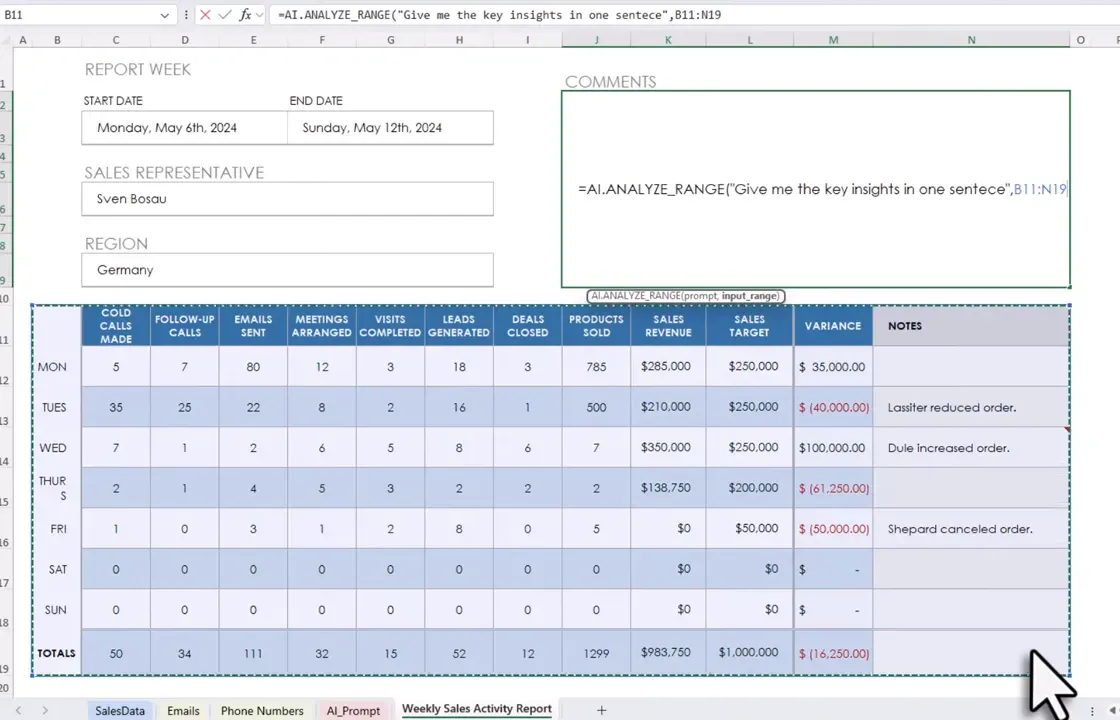
AIAnalyzeRange takes two inputs: a prompt like Give me the key insights in one sentence and the actual range to analyze. The function sends the data to the model and returns a concise summary. This turns a weekly sales sheet into an instant executive summary (handy when you are short on coffee and time).
How it works technically
The free add-in I use is xlwings Lite. It embeds Pyodide, which runs Python in WebAssembly inside the add-in. Everything executes locally, so no data leaves your machine. If you prefer pandas, you can accept inputs as DataFrame objects inside your function and use familiar groupby and aggregation operations.
Using third party packages and API keys
- To use packages like pandas, polars or openai, list them in the Requirements tab of the add-in. Not every package is supported by Pyodide, so check the supported dependencies.
- For AI formulas you need an OpenAI API key. You can hard code it in the editor or better, add it as an environment variable in the add-in settings for safer reuse.
Install xlwings Lite
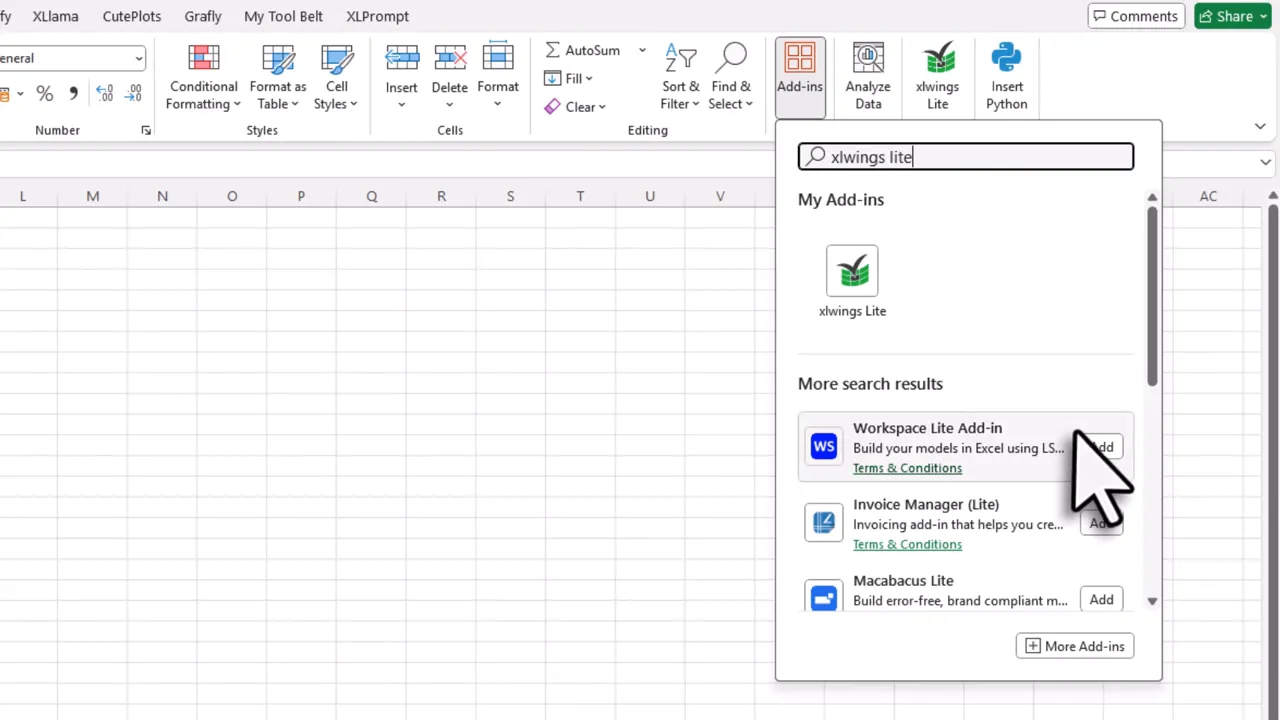
Install the add-in from Excel itself: open a workbook, go to Home then Add-ins, search for xlwings Lite and click Add. Once installed, open the task pane and you can start writing Python functions right inside Excel. Sample code is loaded by default so you can explore and modify examples immediately.
Tips, limitations and next steps
- Requirements: you need at least Excel 2021 for custom functions in this style.
- Not all Python packages are available under Pyodide.
- Shareable workbooks: colleagues can use your custom formulas if they also install the add-in. Your functions travel with the workbook but the add-in must be present to run them.
- Use AI to help write functions: paste example code into your favorite large language model and ask it to adapt the functions for your needs (yes, I use that trick too).
Wrap up
Custom Excel formulas using Python let you turn messy workflows into maintainable functions with real Python power. Whether you are summarizing sales by region, extracting emails, or asking an AI for insights, this approach is fast to adopt and surprisingly flexible. Give it a try and see how a little Python can make Excel feel like a mini data science environment.
