
How to Fuzzy Match in Excel (Fuzzy Lookup, Power Query and AI)
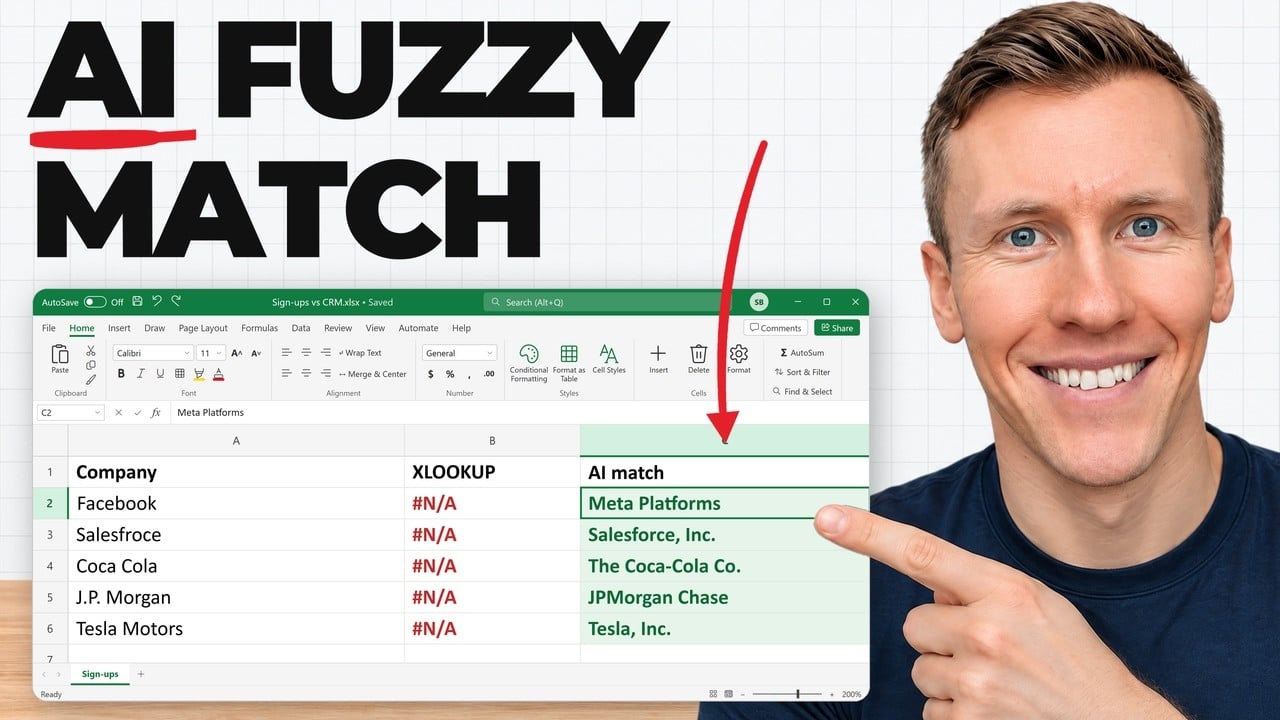
To fuzzy match in Excel, first clean both lists so formatting differences disappear, then match what is left by similarity. Power Query’s fuzzy merge and Microsoft’s Fuzzy Lookup add-in score how alike two names look, which catches typos. They miss renames and abbreviations like Facebook and Meta Platforms, and they can pair look-alikes like Spotify and Shopify. Matching by meaning with AI handles those.
Table of contents
Why XLOOKUP returns #N/A
XLOOKUP, VLOOKUP and MATCH only find a name that is spelled exactly the same, apart from upper and lower case. One extra space, a missing “Inc.”, a typo or an abbreviation is enough for #N/A, even when any person can see it is the same company.
My example: a list of 23 company names from a sign-up form, to be matched against my CRM accounts to bring over the account ID. People typed the names in all kinds of ways: “ibm”, “Salesfroce”, “Coca Cola”, “Facebook”, “BofA”. The CRM holds the official names, such as International Business Machines Corporation and Meta Platforms, Inc.
=XLOOKUP(A2, 'CRM Accounts'!$B$2:$B$40, 'CRM Accounts'!$B$2:$B$40)Out of 23 names, this plain XLOOKUP finds one: Johnson & Johnson, the only name typed exactly like the CRM. The other 22 rows are #N/A. Those differences come in four kinds, and each method below handles a different set of them:
- Formatting: Coca Cola and The Coca-Cola Company, walmart and Walmart Inc.
- Typos: Salesfroce, Mircosoft, Nvidea.
- Abbreviations and short names: ibm, BofA, P&G.
- Renames: Facebook is now Meta Platforms, Square is now Block.
Letter similarity and its blind spot
No similarity score is safe for every list. Fuzzy tools compare letters and give a similarity score, so a typo scores high and a rename scores low. The catch is that two different companies with similar letters also score high. Try a few pairs below and watch the score.
Why XLOOKUP fails: test two names
Six name pairs, checked three ways: an exact XLOOKUP, an exact match after cleanup (lower case, no punctuation, no Inc., Corp. or The), and a letter similarity score (Jaro-Winkler, a common string-similarity measure).
| Your list | Reference list | Exact | After cleanup | Letter similarity | The truth |
|---|---|---|---|---|---|
| Microsfot | Microsoft Corporation | #N/A | #N/A | 98% | Same company, typo |
| Coca Cola | The Coca-Cola Company | #N/A | Found | 100% | Same company |
| IBM | International Business Machines Corporation | #N/A | #N/A | 62% | Same company, abbreviated |
| Meta Platforms, Inc. | #N/A | #N/A | 42% | Same company, renamed | |
| Spotify | Shopify Inc. | #N/A | #N/A | 86% | Different companies |
| Delta Dental | Delta Air Lines, Inc. | #N/A | #N/A | 86% | Different companies |
Spotify and Shopify score higher than IBM and its own full name. That is the blind spot of every letter-based method, including Power Query and the Fuzzy Lookup add-in. They compute their scores in their own way, so the numbers differ, but none of them knows what the names mean. Lower the threshold to catch IBM and you also merge Spotify with Shopify.
Wildcard XLOOKUP
With match mode 2, XLOOKUP accepts wildcards, so you can look for the first few letters anywhere in the reference names. It finds more rows than an exact lookup, but it returns the first name that contains those letters, right or wrong, and nothing warns you.
=XLOOKUP("*"&LEFT(A2,5)&"*", 'CRM Accounts'!$B$2:$B$40, 'CRM Accounts'!$B$2:$B$40, , 2)On the sign-up list this finds 11 of the 23 names, including Tesla Motors and even the typo Salesfroce, because “Sales” is spelled right. But Delta Dental comes back as Delta Air Lines, and American Airlines comes back as American Express. Those are different companies, and they look exactly like the correct rows. I would rather get #N/A than a wrong account ID nobody notices.
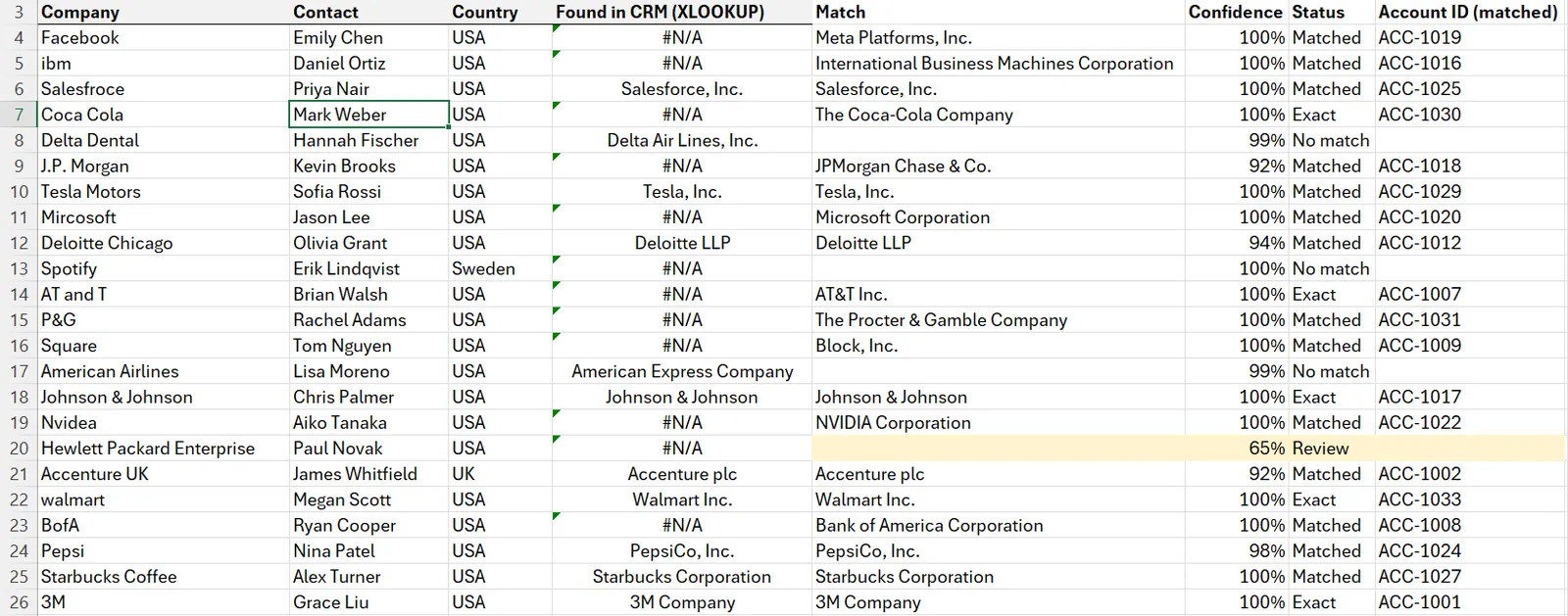
The Found in CRM column in this screenshot is the wildcard formula. The columns from Match to Account ID are the AI result I show further down. Compare row 8 and row 17.
A clean key for formatting differences
Build a clean key on both lists: lower case, punctuation replaced by spaces, & written as “and”, and legal forms like Inc., Corp., Company and plc removed. Then do an exact XLOOKUP on the clean keys. It is safe, because it never guesses, and it costs nothing.
The formula is a chain of SUBSTITUTE calls. Shortened, it looks like this:
=TRIM(SUBSTITUTE(SUBSTITUTE(SUBSTITUTE(SUBSTITUTE(
  " "&LOWER(A2)&" ", ","," "), "."," "), " inc "," "), " corporation "," "))
The practice file has the full version with fifteen replacements. Put the same formula next to the CRM names, then look up one clean key in the other. On the sign-up list this finds 5 names: Coca Cola, AT and T, Johnson & Johnson, walmart and 3M. That is fewer than the wildcard, but every one of them is right.
A clean key is worth doing first with any method below, because every row it matches is one less row for a fuzzy tool to get wrong. Its limit is that it only fixes formatting. Typos, abbreviations and renames stay #N/A.
The Fuzzy Lookup add-in
Microsoft’s Fuzzy Lookup add-in is a free download for Excel on Windows. You turn both lists into Excel tables, pick the column to match in each, set a similarity threshold, and it writes the closest match with a similarity score next to each row.
-
Make both lists tables. Click inside each list and press Ctrl+T.
-
Open the add-in. After installing it, open the Fuzzy Lookup tab and click Fuzzy Lookup. A pane opens.
-
Choose the tables and columns. Pick your list as the left table and the reference list as the right table, select the name column in each, and join them.
-
Set the threshold and run. Select an empty cell for the output, set the similarity threshold, and click Go. The result lists the best match and a similarity value per row.
It handles typos well and it runs offline. It does not run on a Mac or in Excel on the web, and it scores letters like the demo above, so renames and abbreviations score low and look-alike names can score high. Check every row below a high similarity by hand.
Power Query fuzzy merge
Load both lists into Power Query, merge them on the name column, and tick Use fuzzy matching to perform the merge. Power Query compares the names by their letters and keeps pairs above a similarity threshold, 0.80 by default. It is built into Excel, free, and good at typos. Start with the default and check the rows just above and below it: a lower threshold finds more typos and more wrong pairs at the same time.
-
Load both lists. Click inside each list and choose Data, From Table/Range. In the Power Query editor, use Close & Load To and Only Create Connection.
-
Merge them. Go to Data, Get Data, Combine Queries, Merge. Pick the sign-ups and the CRM query and click the name column in each.
-
Turn on fuzzy matching. Tick Use fuzzy matching to perform the merge. Under the fuzzy matching options you can set the similarity threshold, ignore case, limit the number of matches per row, and add a transformation table of known pairs.
-
Expand the result. Click OK, expand the merged column to bring over the account name and ID, and load the result to a sheet.
On the sign-up list, Power Query catches the typos Salesfroce and Mircosoft. It never matches Facebook to Meta, and when I lower the threshold to find more, Spotify is matched to Shopify. A transformation table fixes known pairs, but only the ones you type in yourself. If you work in Python as well, my post on replacing VLOOKUP with a pandas merge shows the exact-match version of this join in code.
Match by meaning with AI
An AI model can tell that IBM is International Business Machines, that Facebook is now Meta Platforms, and that Spotify is not Shopify. The safe way to use it is to let it pick only from your reference list and answer No match when nothing fits, so it cannot invent a name.
That is how my AI Fuzzy Match add-in works. It runs in Excel on Windows, Mac and the web. Here are the steps.
-
Pick List A. Click inside the list you want to match and click Use selection as List A. The add-in picks up the whole list. Tick the column to compare, usually just the name.
-
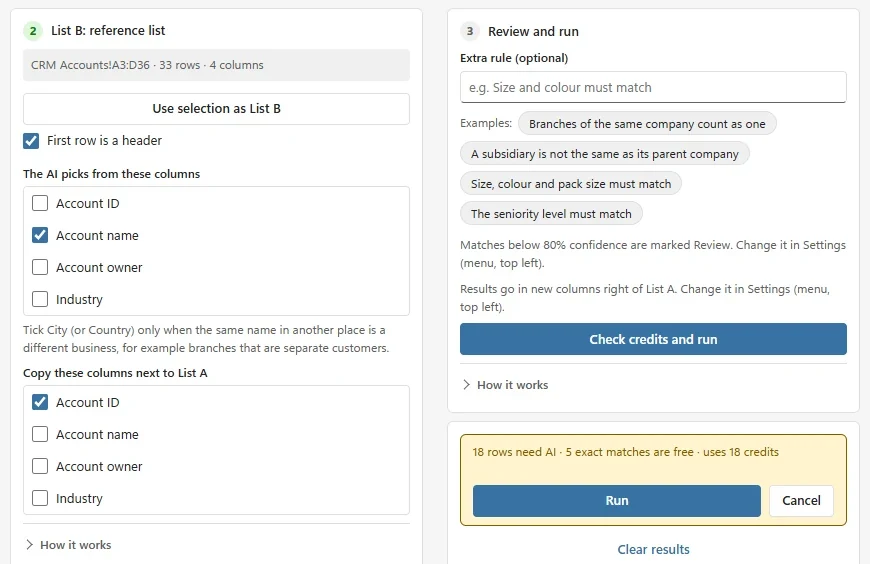
Pick List B. Click inside the reference list, here the CRM accounts, and click Use selection as List B. Choose the column the AI picks from, and tick any column you want copied next to List A, like the account ID. That part works like XLOOKUP.
-
Check the cost and run. The extra rule is optional, for cases like “a subsidiary is not the same as its parent company”. Click Check credits and run. The add-in shows how many rows need AI before anything is sent, and nothing happens until you click Run.
-
Read the results. New columns appear next to your list: the match, a confidence, a status and the columns you brought over.
On the 23 sign-ups, the results look like this:
| Status | Rows | Examples |
|---|---|---|
| Exact | 5 | Coca Cola, AT and T, walmart. Matched inside Excel for free, no AI needed. |
| Matched | 14 | Facebook to Meta Platforms, Square to Block, ibm to International Business Machines, the typos Salesfroce, Mircosoft and Nvidea, BofA and P&G. |
| No match | 3 | Delta Dental, Spotify and American Airlines. None of them is in the CRM. |
| Review | 1 | Hewlett Packard Enterprise. The CRM only has HP Inc., a different company, so the AI is unsure. |
The run used 18 credits: one per row the AI looked at, with the 5 exact rows free. Every install comes with 100 free credits, so you can try it on your own lists. When new rows arrive, select the list again and run it: rows that already have a result are skipped. The results only go into empty columns, and only the columns you tick are sent to the matching service.
It is not right on every list. Two weak spots are documented: on reference lists of more than 200 names, a rename that shares no letters can come back No match, and a parent company and its subsidiary with near-identical names can be matched as one. Rows below the confidence threshold are marked Review, so check those first, and spot-check Matched rows when your list holds several companies of one group. More in how accurate AI Fuzzy Match is.
Which method to use
Pick by the kind of difference in your names. Formatting differences: a clean key. Typos on a list that must stay offline: Power Query or Fuzzy Lookup. Abbreviations, renames and look-alikes where a wrong match costs money: matching by meaning.
| Method | Formatting | Typos | Abbreviations and renames | Look-alikes kept apart | Platforms |
|---|---|---|---|---|---|
| Exact XLOOKUP | No | No | No | Yes | All |
| Wildcard XLOOKUP | Partly | Partly | No | No | All |
| Clean key + XLOOKUP | Yes | No | No | Yes | All |
| Fuzzy Lookup add-in | Yes | Yes | Rarely | Not at a low threshold | Windows |
| Power Query fuzzy merge | Yes | Yes | Only with a transformation table | Not at a low threshold | Windows, limited on Mac |
| AI Fuzzy Match | Yes | Yes | Yes | Yes, or No match | Windows, Mac, web |
If both lists share a real key, like a customer number or a SKU, skip fuzzy matching and use that key. And if you need to compare two versions of the same table rather than match two different lists, that is a different job, covered in my guide to comparing two Excel files.
Practice file
The workbook has the sign-up list and the CRM accounts from the video, with the exact, wildcard and clean-key formulas already in place.
Fuzzy match in Excel: practice workbook
23 messy company names and 33 CRM accounts, with an exact XLOOKUP, a wildcard XLOOKUP and a clean-key match side by side, so you can see what each one finds and gets wrong.
FAQ
Is there a fuzzy match function in Excel?
No. Excel has no built-in FUZZYMATCH function. XLOOKUP and MATCH support wildcards, and Power Query has a fuzzy merge, but a similarity score per cell needs the Fuzzy Lookup add-in, a custom function or VBA.
Can ChatGPT or Copilot match my lists?
For a one-off list of a hundred rows, pasting both lists into a chatbot can work. Check every row, because a chatbot can invent a name that is not on your list, and it does not write the result next to your data. For lists you match every month, a tool that only picks from your list is safer.
Does fuzzy matching work for products and addresses, too?
The methods are the same. Products often need an extra rule, such as “size and pack size must match”. Addresses work better when you split them into street, city and ZIP first, as shown in my guide to separating addresses in Excel.
Match two lists by meaning, not just spelling. It only picks from your reference list, says No match instead of guessing, and brings over the columns you need. Every install comes with 100 free credits.