
How to Add a Login Form to a Streamlit App

Streamlit has no username-and-password login of its own, but the streamlit-authenticator package adds one: users and bcrypt-hashed passwords in a config file, a ready-made login form, a logout button, and a cookie so users stay signed in after a refresh. Render your app only when st.session_state["authentication_status"] is True.
Table of contents
Install the packages
Two packages: Streamlit and the authenticator. PyYAML reads the config file and comes with the authenticator, but listing it does no harm:
pip install streamlit streamlit-authenticator pyyamlThe finished app has three files: config.yaml with the users, a small helper script that hashes the passwords once, and app.py. The code on this page runs with streamlit-authenticator 0.4.2 and Streamlit 1.67.
Define the users
The users go into config.yaml, together with the cookie settings. My example has two users, Peter Parker and Rebecca Miller:
credentials:
  usernames:
    pparker:
      email: peter@example.com
      first_name: Peter
      last_name: Parker
      password: demo123
    rmiller:
      email: rebecca@example.com
      first_name: Rebecca
      last_name: Miller
      password: demo456
cookie:
  expiry_days: 30
  key: replace_with_a_long_random_string
  name: sales_dashboard_auth
The cookie lets a user refresh the page without logging in again. name is the cookie’s name in the browser, key signs it and must be a long random string that you keep private, and expiry_days sets how long a login lasts. Set it to 0 if users should log in on every visit.
Hash the passwords
Plain-text passwords should never stay in a file. The authenticator uses bcrypt, and one call replaces every password in the config with its hash. Run this helper script once:
import yaml
import streamlit_authenticator as stauth

with open("config.yaml") as file:
    config = yaml.safe_load(file)

stauth.Hasher.hash_passwords(config["credentials"])

with open("config.yaml", "w") as file:
    yaml.dump(config, file, default_flow_style=False)
Afterwards the password lines read like $2b$12$.... This replaces the pickle file that older versions used: same idea, a helper that hashes once so the app never sees the plain passwords, but the hashes now sit next to the user data instead of in a separate file. The authenticator would also hash plain passwords for you at startup, because auto_hash is on by default, but then the plain text stays in your config, so I hash up front.
Add the login form
Load the config, create the authenticator, and call login(). Everything that only signed-in users may see goes into the branch where the status is True:
import streamlit as st
import streamlit_authenticator as stauth
import yaml

st.set_page_config(page_title="Sales Dashboard", page_icon=":bar_chart:")

with open("config.yaml") as file:
    config = yaml.safe_load(file)

authenticator = stauth.Authenticate(
    config["credentials"],
    config["cookie"]["name"],
    config["cookie"]["key"],
    config["cookie"]["expiry_days"],
)

try:
    authenticator.login()
except Exception as e:
    st.error(e)

if st.session_state.get("authentication_status"):
    authenticator.logout(location="sidebar")
    st.sidebar.title(f"Welcome {st.session_state['name']}")
    st.title("Sales Dashboard")
    st.write("Only signed-in users see this part of the app.")
elif st.session_state.get("authentication_status") is False:
    st.error("Username/password is incorrect")
else:
    st.warning("Please enter your username and password")
Run it with streamlit run app.py. Until someone logs in, the app shows the form and a yellow hint:
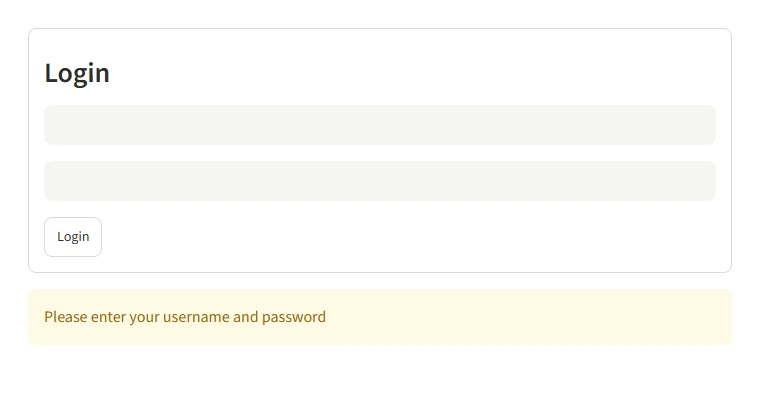
The three states map to the three branches. True means the login worked. False means the username or password is wrong. None means nobody has tried yet. Put everything the signed-in user should see one level indented under the True branch.
In my example the login protects a sales dashboard built in turning an Excel sheet into a Streamlit dashboard. The same check works in front of any page, for example a data entry form that writes to Google Sheets, where a login keeps strangers from adding rows.
Logout button and greeting
The logout() call in the code above draws the button, here in the sidebar. The user’s display name is in st.session_state["name"], built from first and last name in the config, so a greeting is one line:

A wrong password shows the red error, the right one opens the dashboard, and Logout returns to the form. Because of the cookie, a page refresh keeps you signed in until expiry_days runs out.
Changes since the video
| Step | In the video (older versions) | Current version (0.4) |
|---|---|---|
| Users | Separate lists of names, usernames and passwords | One credentials dictionary, usually from config.yaml |
| Hashing | Hasher(passwords).generate(), saved to a pickle file |
Hasher.hash_passwords(credentials), saved back to the YAML |
| Login form | name, status, username = authenticator.login("Login", "main") |
authenticator.login(), results in st.session_state |
| Logout | authenticator.logout("Logout", "sidebar") |
authenticator.logout(location="sidebar") |
If you copy the old code into a current install, the first error you see is usually a TypeError from Authenticate() or a failed unpacking of login(), which now returns nothing. Both mean the same thing: switch to the code on this page.
Store users in a database
The authenticator does not care where the credentials dictionary comes from. My original version read it from Deta Base, which has shut down. Any database works; here is the same idea with SQLite, which ships with Python:
import sqlite3
import streamlit_authenticator as stauth

DB_FILE = "users.db"


def init_db():
    with sqlite3.connect(DB_FILE) as con:
        con.execute(
            "CREATE TABLE IF NOT EXISTS users ("
            "username TEXT PRIMARY KEY, first_name TEXT, last_name TEXT,"
            "email TEXT, password TEXT)"
        )


def add_user(username, first_name, last_name, email, password):
    hashed = stauth.Hasher.hash(password)
    with sqlite3.connect(DB_FILE) as con:
        con.execute(
            "INSERT OR REPLACE INTO users VALUES (?, ?, ?, ?, ?)",
            (username, first_name, last_name, email, hashed),
        )


def load_credentials():
    with sqlite3.connect(DB_FILE) as con:
        rows = con.execute(
            "SELECT username, first_name, last_name, email, password FROM users"
        ).fetchall()
    return {
        "usernames": {
            u: {"first_name": f, "last_name": l, "email": e, "password": p}
            for u, f, l, e, p in rows
        }
    }
Save it as users_db.py, add your users once with add_user(), and in app.py pass users_db.load_credentials() instead of config["credentials"]; the login form works the same way. On a host that wipes its disk on restart, such as Streamlit Community Cloud or a free Render service, point the same three functions at a hosted database instead, for example Postgres; the SQL barely changes. Google Sheets also works for small user lists, as in connecting Streamlit to Google Sheets.
Keep secrets out of GitHub
Add config.yaml to .gitignore. On Streamlit Community Cloud, paste the same structure into the app’s Secrets settings and read it with st.secrets instead of opening the YAML file. Remember that st.secrets is read-only, so anything that writes users back, such as a registration form, needs a database.
Streamlit’s built-in st.login
Streamlit now ships st.login(), st.logout() and st.user. They sign users in through an OpenID Connect provider such as Google or Microsoft, so you never store a password yourself. That is the better choice when your users already have such an account. streamlit-authenticator remains the simpler path when you want your own short list of usernames and passwords, which is what this tutorial covers.
If you want paying users on top of a login, see turning a Streamlit app into a SaaS.