
Mileage Log Template for Excel That Calculates the Miles for You
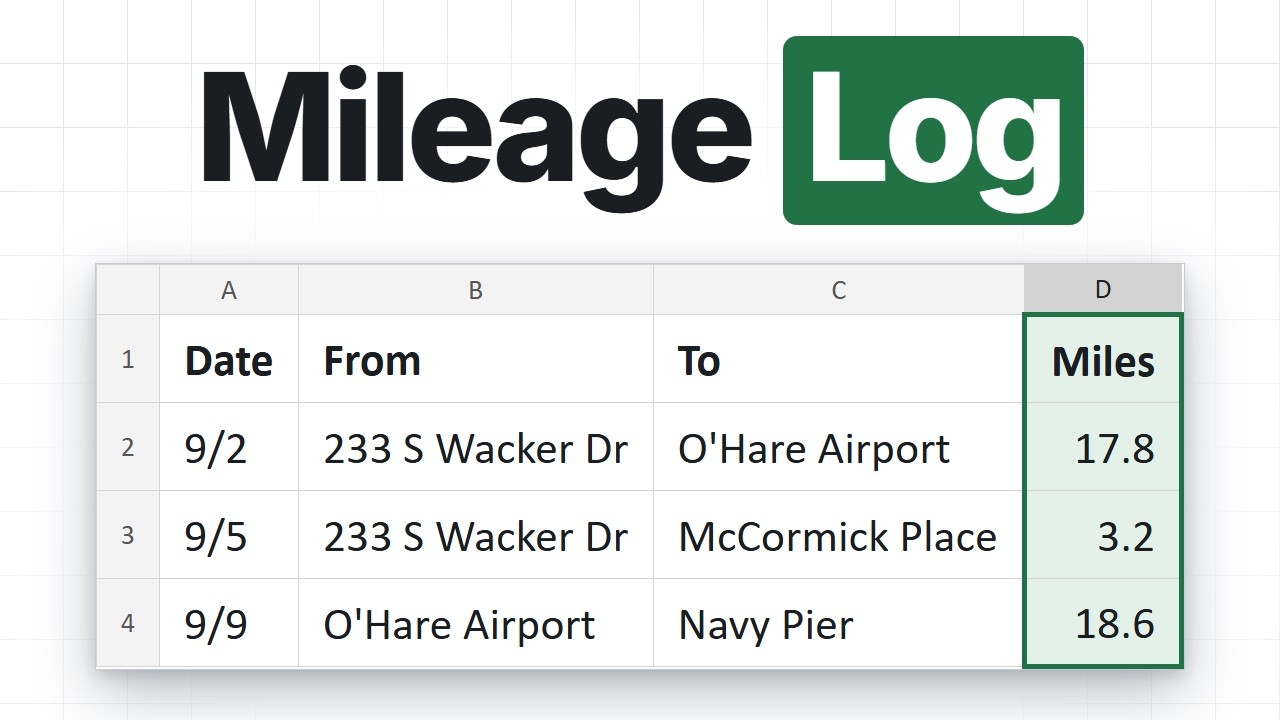
A mileage log template is a sheet with one row per business trip: the date, where you drove from and to, the business purpose and the miles. Download the free Excel template below, type your trips, and it works out business miles and the mileage amount with the 2026 IRS rates. The Distance Calculator add-in can fill in the miles from Google Maps.
Table of contents
What a mileage log includes
A mileage log needs the date of each trip, where it started and ended, the business purpose and the miles driven. For a tax return you also need the total miles for the year, which most people take from odometer readings on January 1 and December 31.
The IRS calls this an adequate record. IRS Publication 463 asks for the amount (the miles), the time (the date), the place (the destination) and the business purpose of each trip, written down at or near the time of the trip. A note in a calendar months later is much weaker than a log you keep as you go.
These are the columns the template uses, in the order you type them:
| Column | What you type | Example |
|---|---|---|
| Date | The day of the trip | Sep 9, 2026 |
| From | Where you started | 222 Merchandise Mart Plaza, Chicago |
| To | Where you drove to | 400 S Eagle St, Naperville |
| Purpose | Why you drove there | Quarterly IT review |
| Round Trip | Yes if you drove back the same way | Yes |
| Distance | One-way miles, typed or filled in by the add-in | 32.6 mi |
| Business Miles | Calculated: doubled for a round trip | 65.2 mi |
| Rate | Calculated: the rate in effect on that date | $0.760 |
| Amount | Calculated: Business Miles x Rate | $49.55 |
Download the template
My mileage log template is a free, normal Excel workbook with no macros, a trip table, a year summary by month, the 2026 IRS rates and a short how-to sheet. It opens in Excel on Windows and Mac and in Excel on the web.
Mileage log template for Excel (2026)
A trip table that works out business miles and the mileage amount with the 2026 IRS rates, plus a year summary with odometer readings and the business-use share.
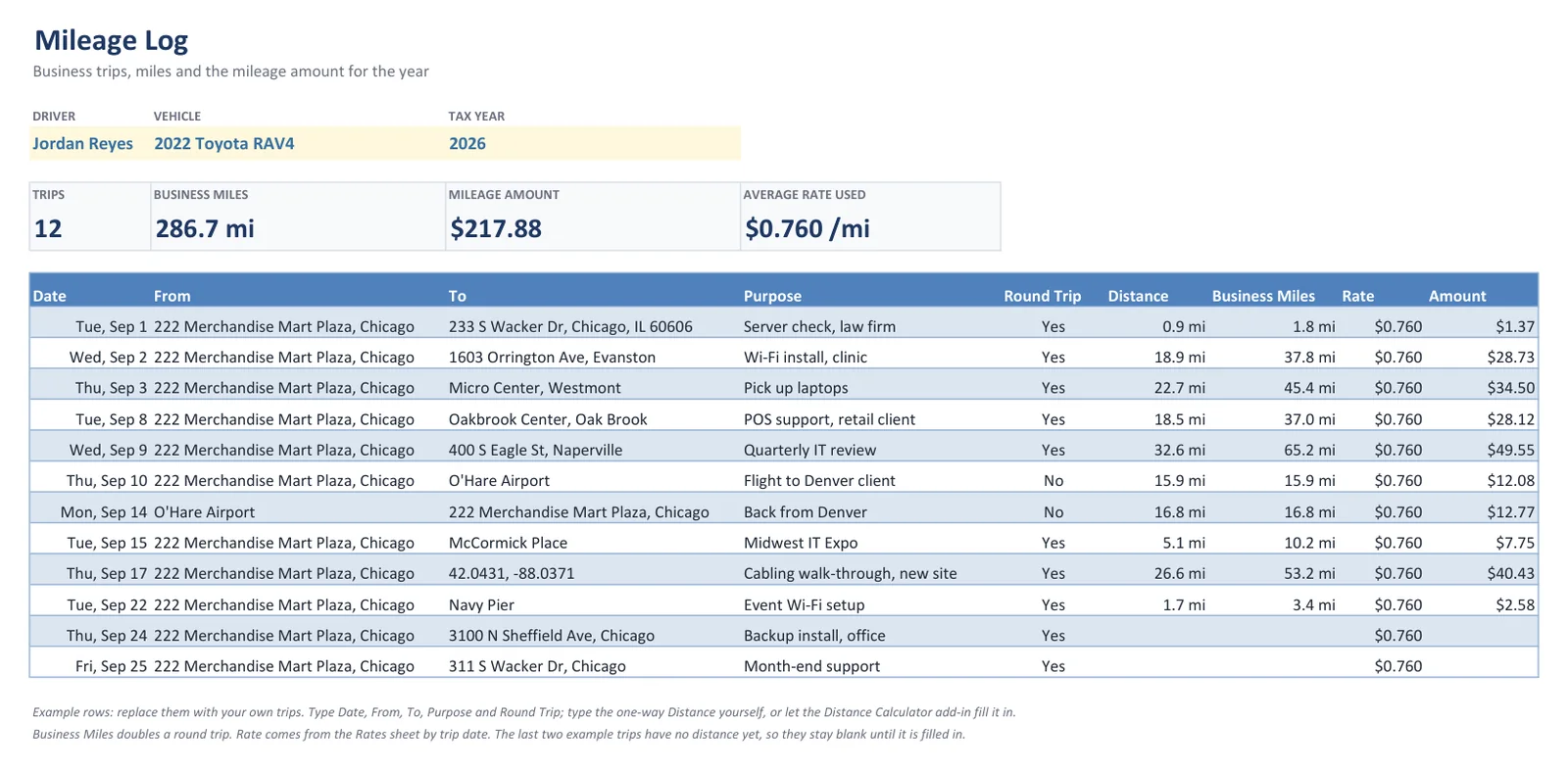
Here is what is inside:
- Mileage Log. The trip table with the columns above. It is an Excel table, so a new row picks up the formulas by itself.
- Year Summary. Trips, business miles and the amount for each month, plus your odometer readings and the business-use percentage.
- Rates. The rate per mile with the date it starts. Each trip uses the rate in effect on its date, so the July 1 rate change is handled for you.
- How to use. The steps on this page in short form.
Delete the example trips, type your name, vehicle and tax year in the yellow cells, and start logging. If you prefer a form over typing into a table, my post on a free Excel data entry form shows a form that writes rows into a table like this one.
Fill in the miles automatically
Install the Distance Calculator add-in, click inside the trip table, check that the start column is From and the end column is To, and click Calculate distances. The add-in asks Google Maps for the driving distance of every trip and writes it into the Distance column.
This is the part that takes the longest by hand. Looking up 40 trips in Google Maps and typing the numbers back is an evening every month. The video above shows the same steps on a similar log.
-
Install the add-in. In Excel, go to Home, Add-ins, More Add-ins, search for Distance Calculator and click Add. You need a license key and your own Google Maps API key, which you enter once on the Keys tab.
-
Click any cell inside the trip table. The add-in detects the table and picks the start and end columns. In the template that is From and To. If it picks something else, change Start column and End column in the pane.
-
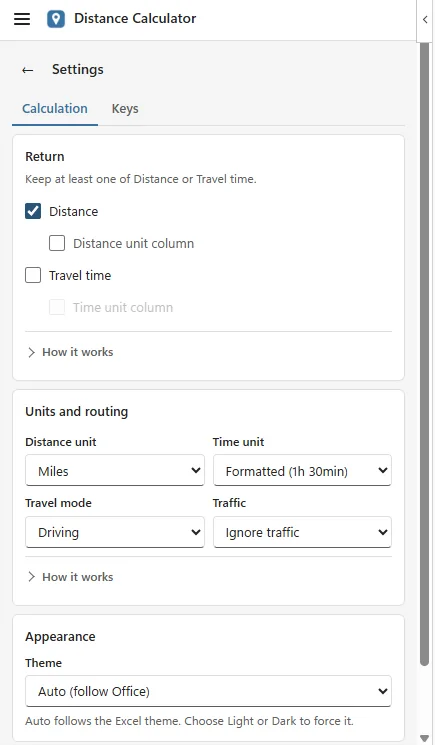
Return only the distance, in miles. Open Settings. Under Return, keep Distance and untick Travel time. Under Units and routing, set Distance unit to Miles and Travel mode to Driving.
-
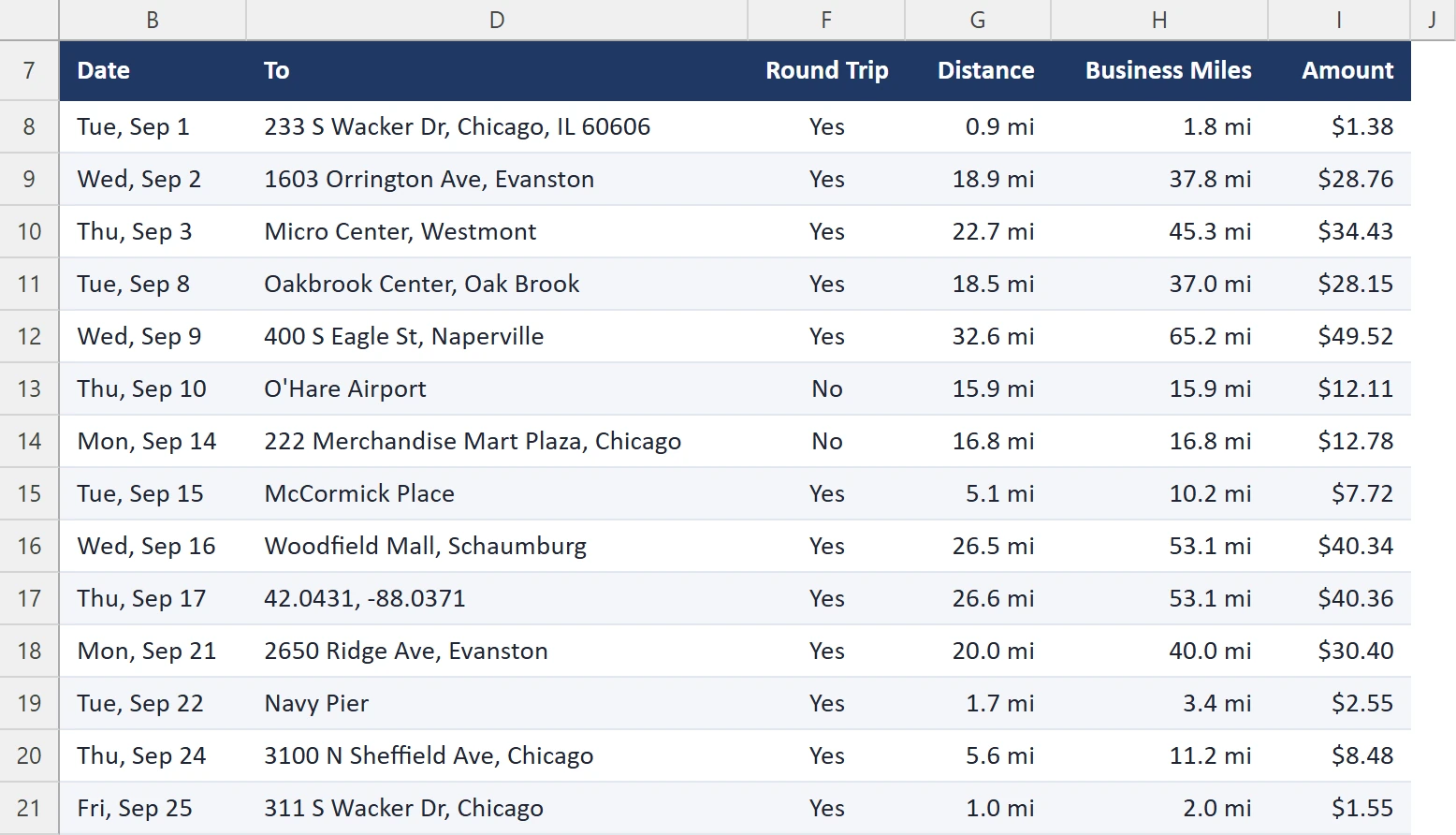
Click Calculate distances. After a few seconds every trip has its distance. These are road distances from Google Maps, not straight lines. Place names such as O’Hare Airport and GPS coordinates work too.
-
Next month, only calculate the new rows. Under Advanced in the settings, turn on the option to skip rows that already have results. New trips get looked up, old ones are left alone, and you do not pay Google twice for the same trip.
The add-in writes plain values and does not touch anything else in your workbook. That is why the Business Miles, Rate and Amount formulas keep working right after the run. For more on the add-in itself, including travel time and traffic, see my guide to calculating driving distance between addresses in Excel.
IRS mileage rates for 2026
The IRS business standard mileage rate for 2026 is 72.5 cents per mile from January 1 to June 30 and 76 cents per mile from July 1 to December 31. The IRS raised it in the middle of the year, so trips in the second half use the higher rate.
| Use | Jan 1 to Jun 30, 2026 | Jul 1 to Dec 31, 2026 |
|---|---|---|
| Business | 72.5 cents per mile | 76 cents per mile |
| Medical, or moving for active-duty military | 20.5 cents per mile | 23.5 cents per mile |
| Charitable | 14 cents per mile | 14 cents per mile |
Source: the IRS standard mileage rates page, news releases IR-2025-128 and IR-2026-29. Rates change, so check that page before you file. The template’s Rates sheet has both 2026 business rates already, and you can add a row when a new rate starts.
An employer that reimburses mileage can use its own rate. In that case, replace the rows on the Rates sheet with your company’s rate.
Mileage deduction calculator
Your mileage amount is your business miles times the rate per mile. In 2026 that means two parts: miles driven up to June 30 times 72.5 cents, and miles from July 1 times 76 cents. Business parking fees and tolls can be added on top of the standard mileage rate.
Mileage deduction calculator (2026 IRS rates)
Business miles times the 2026 IRS business rate:
| Business miles | Jan 1 to Jun 30 (72.5 cents) | Jul 1 to Dec 31 (76 cents) |
|---|---|---|
| 1,000 | $725.00 | $760.00 |
| 5,000 | $3,625.00 | $3,800.00 |
| 10,000 | $7,250.00 | $7,600.00 |
The calculator gives the standard mileage amount only. Whether you can deduct it, and how, depends on your situation: self-employed people usually report it on Schedule C, and employees are usually reimbursed by their employer instead. A tax professional can confirm which applies to you.
Mileage formulas in Excel
Multiply the business miles by the rate per mile. If a trip is a round trip, double the one-way distance first. In an Excel table, two short formulas do it, and a lookup picks the right rate for each trip date when the rate changes during the year.
Business Miles doubles the distance when Round Trip says Yes, and stays empty while there is no distance yet:
=IF(ISNUMBER([@Distance]), [@Distance] * IF([@[Round Trip]]="Yes", 2, 1), "")Rate looks up the last rate on the Rates sheet that starts on or before the trip date. This works in every Excel version, with no array entry:
=IFERROR(LOOKUP(2, 1/((Rates!$B$6:$B$40<>"")*(Rates!$B$6:$B$40<=[@Date])), Rates!$C$6:$C$40), "")Amount multiplies the two and rounds to cents:
=IF(AND(ISNUMBER([@[Business Miles]]), ISNUMBER([@Rate])), ROUND([@[Business Miles]] * [@Rate], 2), "")The template already has these formulas. The month totals on Year Summary use SUMIFS on the Date column, so a trip on September 30 never lands in October. To log kilometers, set the add-in’s distance unit to kilometers, put your rate per kilometer on the Rates sheet and change the column labels; the formulas do not care about the unit.
Check a single trip with a formula
The Distance Calculator add-in adds two worksheet functions to Excel: GMAPS.DISTANCE returns the driving distance between two places and GMAPS.TRAVELTIME returns the travel time. They work like any formula, so changing an address updates the result.
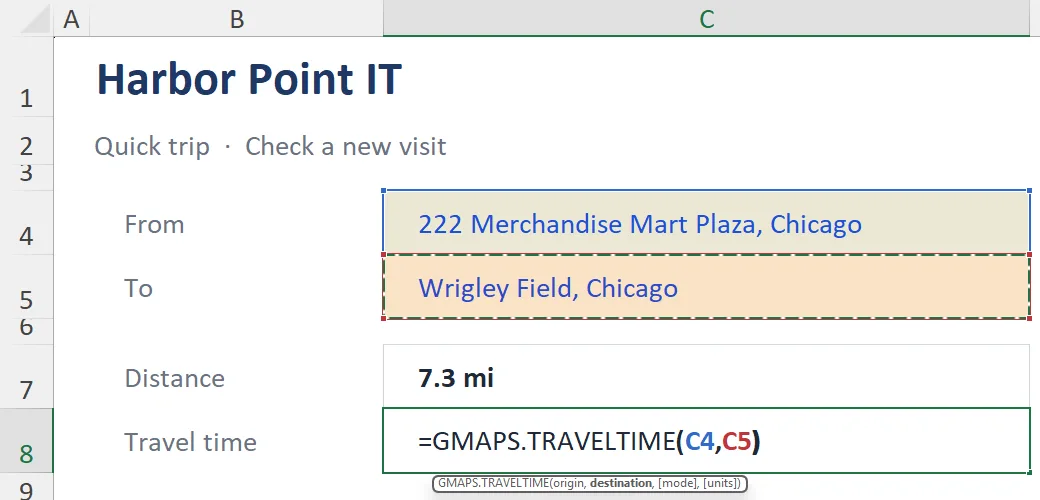
The arguments are the origin, the destination, and optionally the travel mode and the units, for example =GMAPS.DISTANCE(C4, C5). Results are cached on your computer, so recalculating the workbook does not send the same request to Google again. I use a small Quick Trip sheet like this to check a new client’s distance before I quote a visit.
Business trips and commuting
Business mileage is driving for your work: from your office to a client, a supplier, a job site, the bank or a conference. Driving between your home and your regular workplace is commuting, which the IRS generally does not treat as business mileage, even if you take work calls on the way.
There are exceptions, for example for a home office that is your main place of business or for temporary work locations. Those rules are in IRS Publication 463. If a trip is a gray area, write a clear purpose in the log and ask a tax professional. A log with specific purposes such as “POS support, retail client” holds up far better than “client visit” repeated 50 times.
Without the add-in
The template works on its own: type the one-way miles yourself and every formula still runs. The add-in only saves you the lookups. For a handful of trips, the free bulk distance calculator on my site also works without installing anything.
- By hand. Type the miles from your odometer or from Google Maps. Fine for a few trips a month.
- Free web tool. The free distance calculator takes up to 25 address pairs per run, three runs a day, with no sign-up and no Google key. Paste the results back into the Distance column. My post on the bulk distance calculator walks through it.
- Distance Calculator add-in. Works inside the template, takes up to 25,000 rows in one run and adds the GMAPS formulas. It needs Microsoft 365 or Office 2021 and later (Windows, Mac or Excel on the web), a license, and your own Google Maps API key. Creating the key is free, Google asks for a payment method, and the add-in’s product page lists 10,000 free Google lookups a month, far more than a monthly log uses.
If you plan a day with several stops, my guide to planning a route with multiple stops in Excel puts the stops in the best order first, and the log then records the trips you actually drove.
Troubleshooting
Most surprises come from an ambiguous place name, a route choice or a round trip counted twice. Google returns the route it would navigate, which is usually the fastest one and not always the shortest, so it can differ a little from your odometer.
- A place name resolves to the wrong city. Add the city or the state: “Navy Pier, Chicago” instead of “Navy Pier”. A bare ZIP code needs its country, such as “60606, USA”.
- Your odometer shows more miles. Detours, parking garages and a different route all add up. If you drove a different route for a business reason, type your real miles over the result.
- A round trip is counted four times. Distance must be the one-way distance. The template doubles it when Round Trip says Yes, so do not also add the return trip as its own row.
- Coordinates are not found. Write them as latitude, then longitude, for example 42.0431, -88.0371. My latitude and longitude guide has a converter for other formats.
- Every row fails. That is almost always the Google key: billing not active, or the Routes API not enabled. The Google Maps API troubleshooting guide checks each cause in order.
FAQ
Does the mileage log template work on a Mac and in Excel on the web?
Yes. The workbook has no macros, so it opens in Excel for Windows, Excel for Mac and Excel on the web. The Distance Calculator add-in runs in all three as well. If you have not installed an Office add-in on a Mac before, see how to install an Excel add-in on a Mac.
Can I use the log for more than one vehicle?
Keep one workbook per vehicle. The year summary and the business-use percentage depend on that vehicle’s odometer, so mixing two cars in one table makes those numbers meaningless.
Is a spreadsheet mileage log accepted by the IRS?
A written or electronic log is fine as long as it holds the required details and you keep it up to date during the year. The template records every element Publication 463 lists. Keep it with your other tax records.
Fill in the miles of every trip in your mileage log from Google Maps with one click, and check new trips with the GMAPS.DISTANCE formula. Excel on Windows, Mac and the web.