
If the Distance Matrix Calculator Excel workbook shows an API error or stops working after a break, follow these checks in order. This guide is for errors such as Access denied, REQUEST_DENIED or API key is not valid.
This version needs Routes API.
1. Project and key · 2. Billing · 3. Enabled APIs · 4. Restrictions, if needed
1. Check the project and API key #
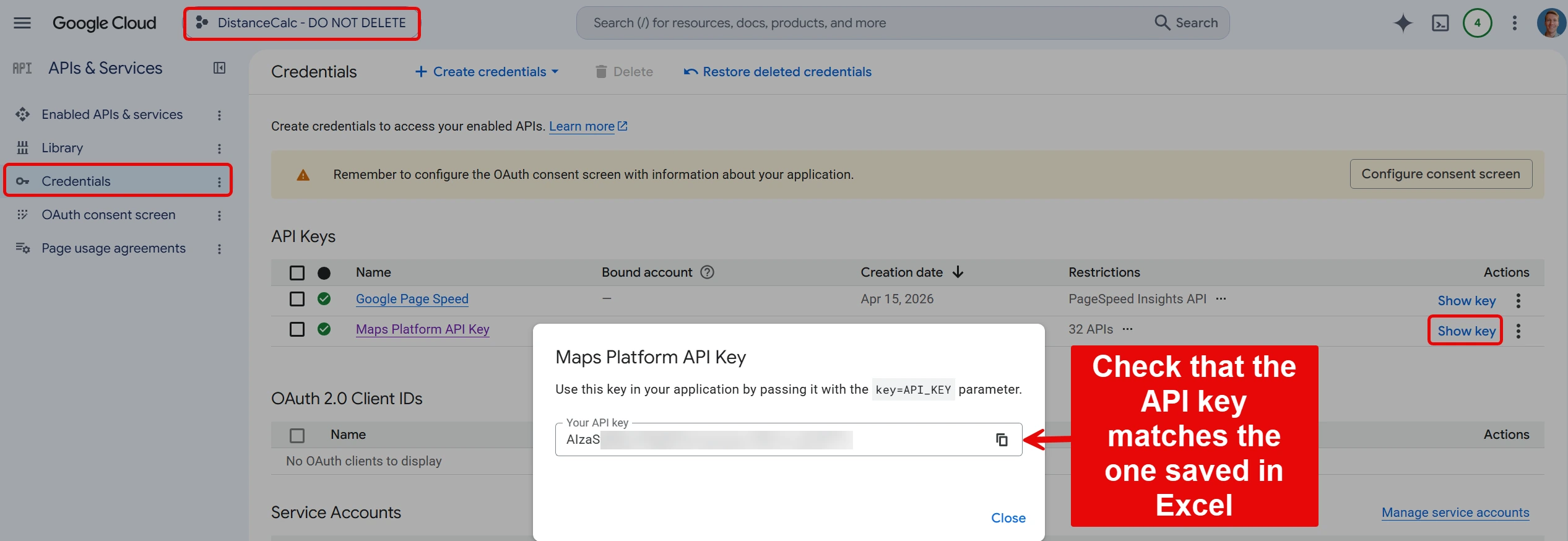
- Open Google Cloud Credentials and sign in.
- Select your project using the project name at the top.
- Under API Keys, click Show key. Compare it with the Google Maps API key saved in your Excel workbook. This is separate from your Python & VBA license key.
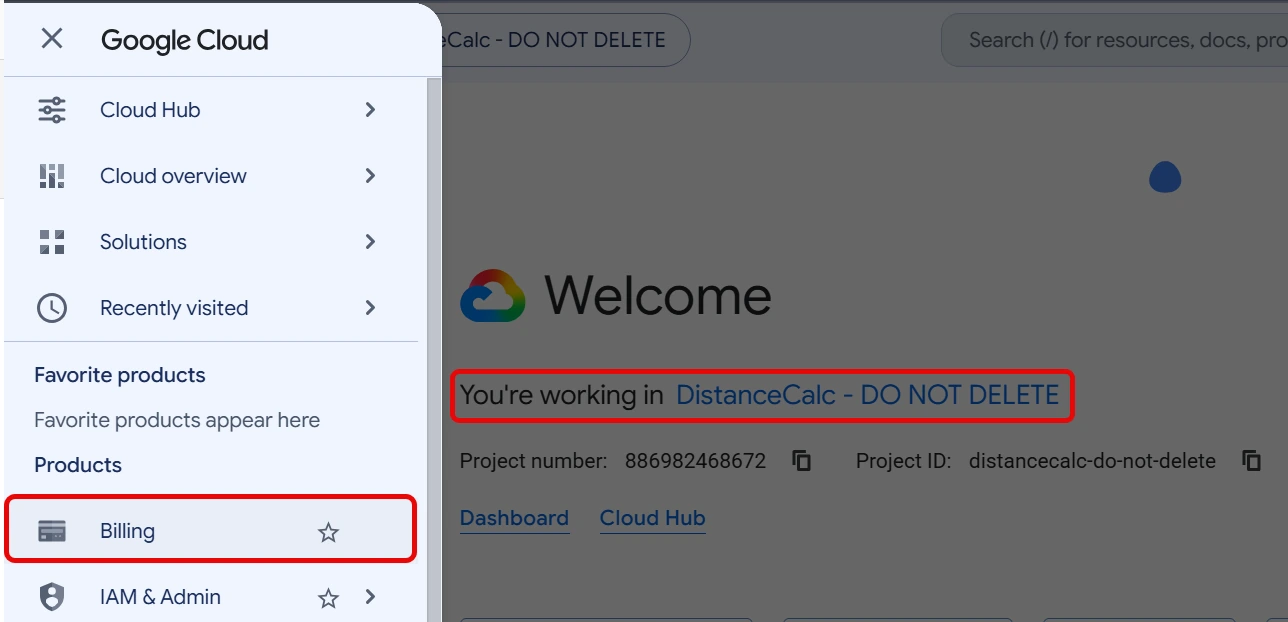
If the key is not listed, select another project until you find it. Keep that project selected for the checks below. Your project name will differ from the example.
2. Check that billing is still active #
- With the same project selected, open the menu at the top left > Billing.
- If Google says the project has no billing account, click Link a billing account and choose an active account.
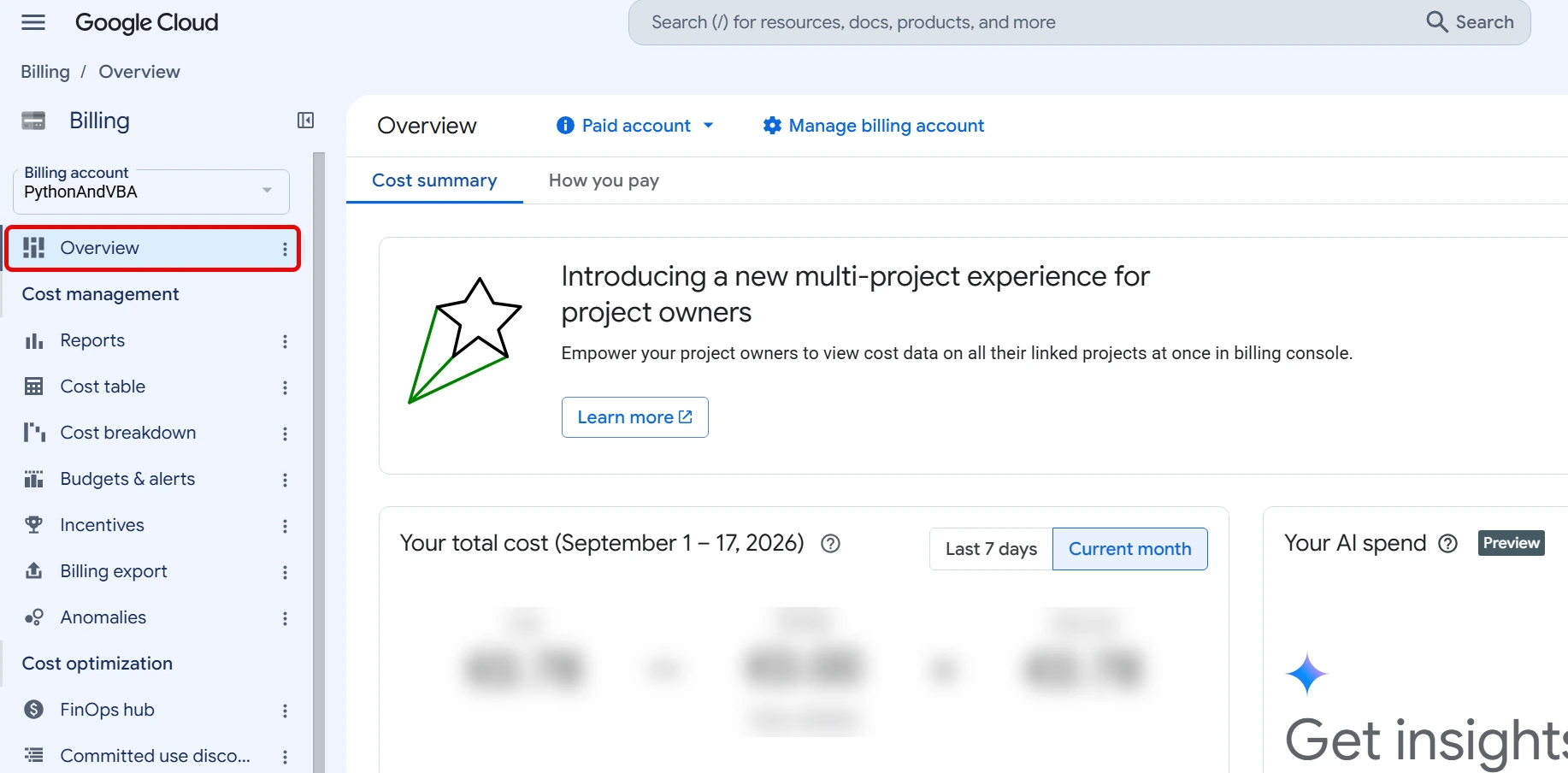
- If prompted, click Go to linked billing account. On Overview, look for an expired trial, closed or suspended account, or payment warning. Follow Google’s prompt to resolve it.
Worked before, then stopped? A free trial may have ended. An API key can still exist while billing is inactive. Billing must be active even when your usage fits within Google’s free allowance.
3. Enable the required API #
Keep the project from step 1 selected, then open this page:
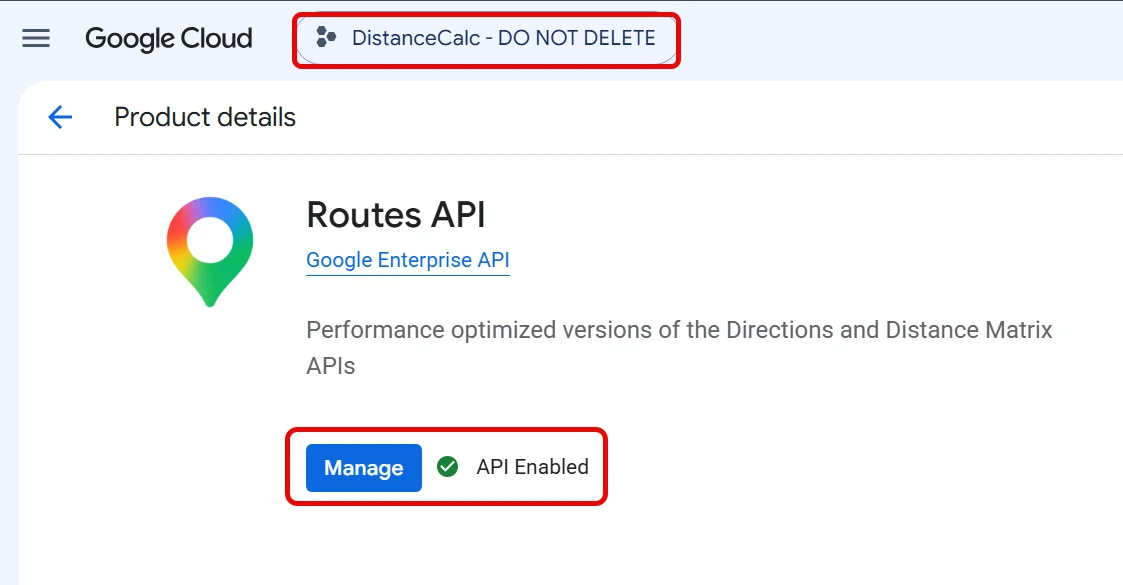
- Open Routes API.
If you see Enable, click it. If you see Manage or API Enabled, it is already enabled.
Wait a few minutes after a change. Return to Excel and try the calculation again. If you changed the API key, make sure the workbook contains the new key. If it works, you can stop here.
4. Still failing? Check key restrictions #
Do this last, especially if the tool worked before and you have not changed any key settings.
- Return to Credentials and click the name of your API key.
- Under API restrictions, if Restrict key is selected, make sure Routes API is allowed. Add any missing API and click Save. If Don’t restrict key is selected, this setting is not blocking the request.
- Under Application restrictions, website, Android and iOS restrictions do not work with this workbook. If one is selected, ask your IT team for a separate key that allows this workbook’s requests.
- If IP addresses is selected, ask your IT team to check that your current public IP address is allowed. A different network or VPN can change it. If None is selected, this setting is not blocking the workbook.
After saving changes, wait a few minutes and retry.