
By default the Route Planner add-in writes its results into new columns next to your stops. If your sheet already has columns for the distance and the drive time, for example columns that a total on another sheet adds up, the add-in can write straight into them. This works from version 1.0.2.
1. Choose your columns #
- Click a cell inside your stops, so the add-in sees the columns of your data.
- Open the menu (top left) and go to Settings > Route.
- Under Return, pick your columns in Write distance to and Write time to. The lists show the headers of your data, except the Stops column. If your data has no other column yet, add one with a header next to your stops.
- Untick Visit order if you do not need it. With Keep my order it only counts 1, 2, 3 down your rows.
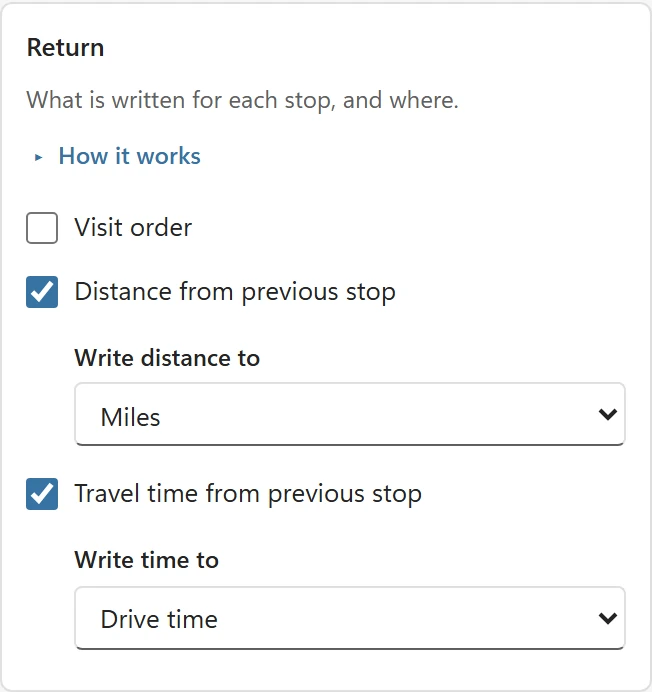
The add-in remembers your choice by the column header. If every day has its own sheet with the same headers, the same choice works on all of them. The line under Your stops in the task pane shows where the results go, for example results go in Miles (C), Drive time (D).
What gets written #
- Only the rows that hold a stop are filled. Your header, empty rows, and everything else in the column stay as they are.
- The first stop is the start, so its row gets 0 distance and 0 time.
- Plain values in those cells are overwritten without a question, so you can calculate the route again as often as you like. If a cell holds a formula, the add-in asks first, because the formula is replaced by a value.
- Clear results clears only the add-in’s own new columns. Values in your own columns are never cleared.
2. Add the times up #
Text such as 1h 30min cannot be added up with a formula. To total the drive time, set Settings > Route > Time format to Excel time (h:mm). The add-in then writes real Excel times in the format [h]:mm, so a formula such as =SUM(D2:D20) shows the total drive time, also past 24 hours. Minutes and Hours are plain numbers and add up too.
3. Sort your rows into the optimized order #
After Optimize route, the task pane shows Sort rows into this order. It moves your rows into the visit order, so the sheet reads like the route.
- Each row moves as a whole, with all its columns, formulas, and formatting. Rows without a stop move to the end.
- It asks first, because changes made by an add-in cannot be undone with Ctrl+Z.
- Afterwards, Keep my order gives the same route. Move a single stop by hand and click Calculate route to see the new totals.
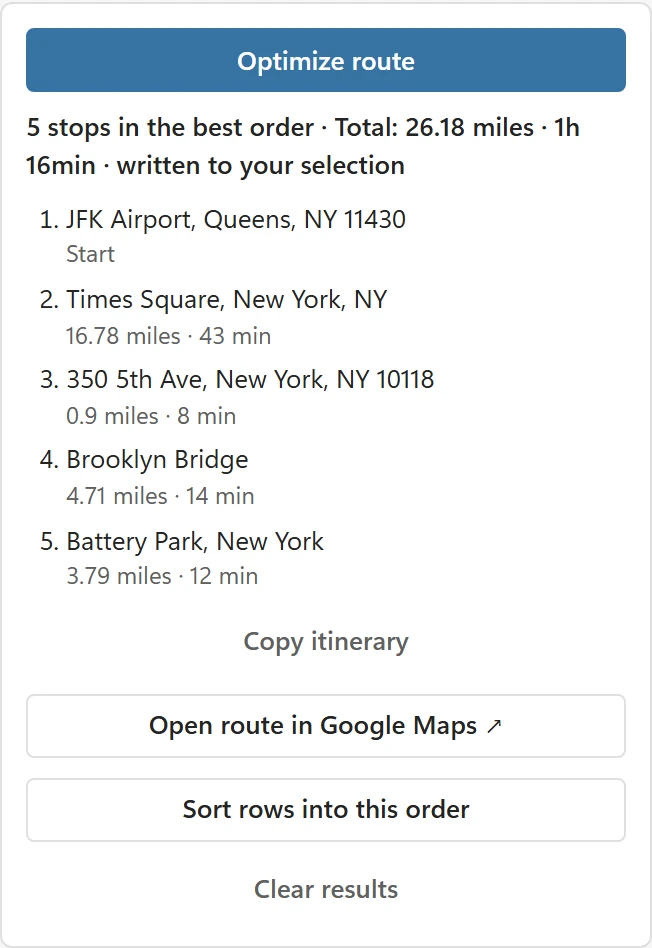
The add-in does not sort when your stops changed after the route was calculated (click Optimize route again first), or when your data continues in the column right next to the rows, on either side (sort them with Data > Sort in Excel instead). In an Excel table, turn on Visit order to sort.
Having trouble? #
If a message names a column that is not in your data, click a cell inside the data that has that header, or pick another column under Write distance to or Write time to. Still stuck? Contact support.